

Sort user groups into categories
A category is what decides whether a group is ever visible to people in the Offision app — a group with no category is admin-only. Covers creating one, the Visible to user switch, and moving groups between categories.
A category looks like a folder for user groups, and filing is the smaller half of what it does. The larger half is that a category is the only thing that can make a group visible to ordinary people. A group filed nowhere is admin-only, whatever it is called and whoever is in it.
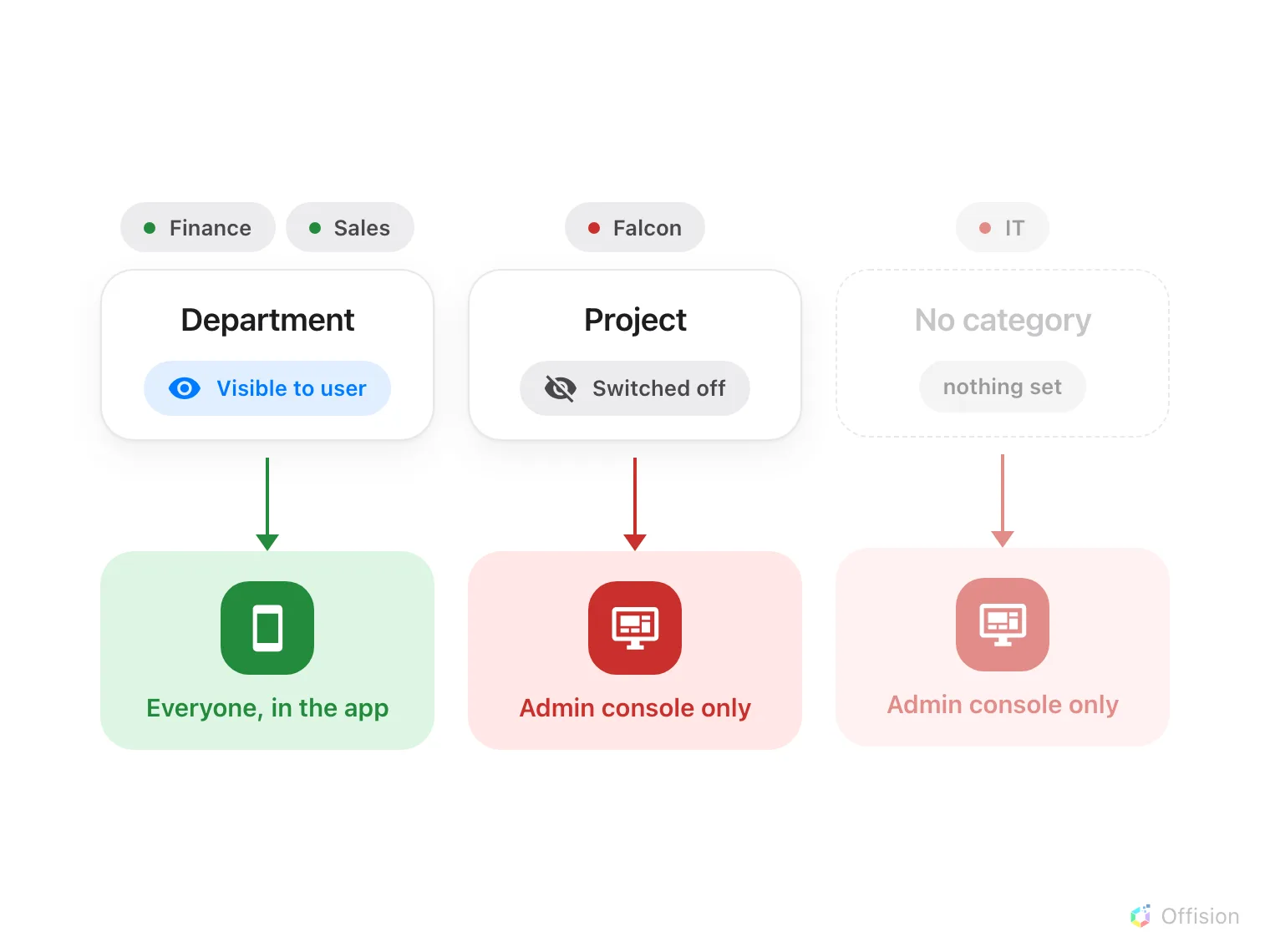
A group reaches the app only through a category that is switched on — no category is the same answer as a category switched off.
1. Open the category list
It is not one of the pinned Directory pages. Open Directory, choose Show all, then Classification › User group category.
Open User group categoryOne category is already there. Offision seeds Department, enabled and visible, and marks it as the default — which is why most estates never need a second one. Check it before adding.
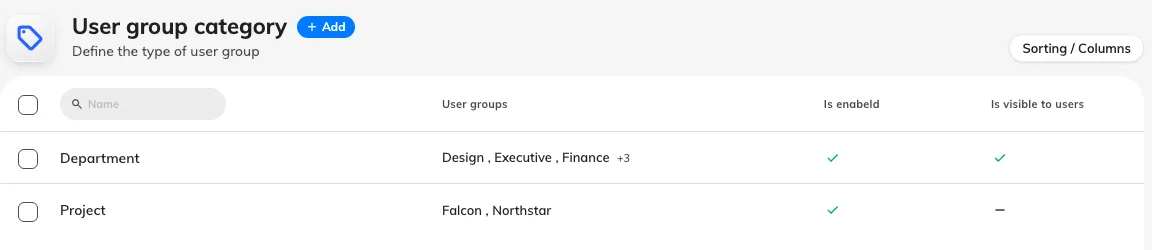
Each category with its colour, how many groups it holds, and whether people can see them.
2. Create or edit a category
Add, or select a category and Edit. The dialog has Settings and a User groups page.
On Settings:
- Name is multilingual, and unlike most names in the console this one is read by ordinary staff. Fill in every language your estate has switched on — an unfilled language falls back to English, in the middle of an otherwise translated screen.
- Visible to user is the switch this whole article is about. Off, the category organises the admin console and nothing else.
- Colour appears only once Visible to user is on, because it exists purely for the app: it is the dot beside each group on a colleague’s profile card.
- Enabled off retires a category without deleting it. The groups stay where they are.
- Branch management appears only where branches are enabled.
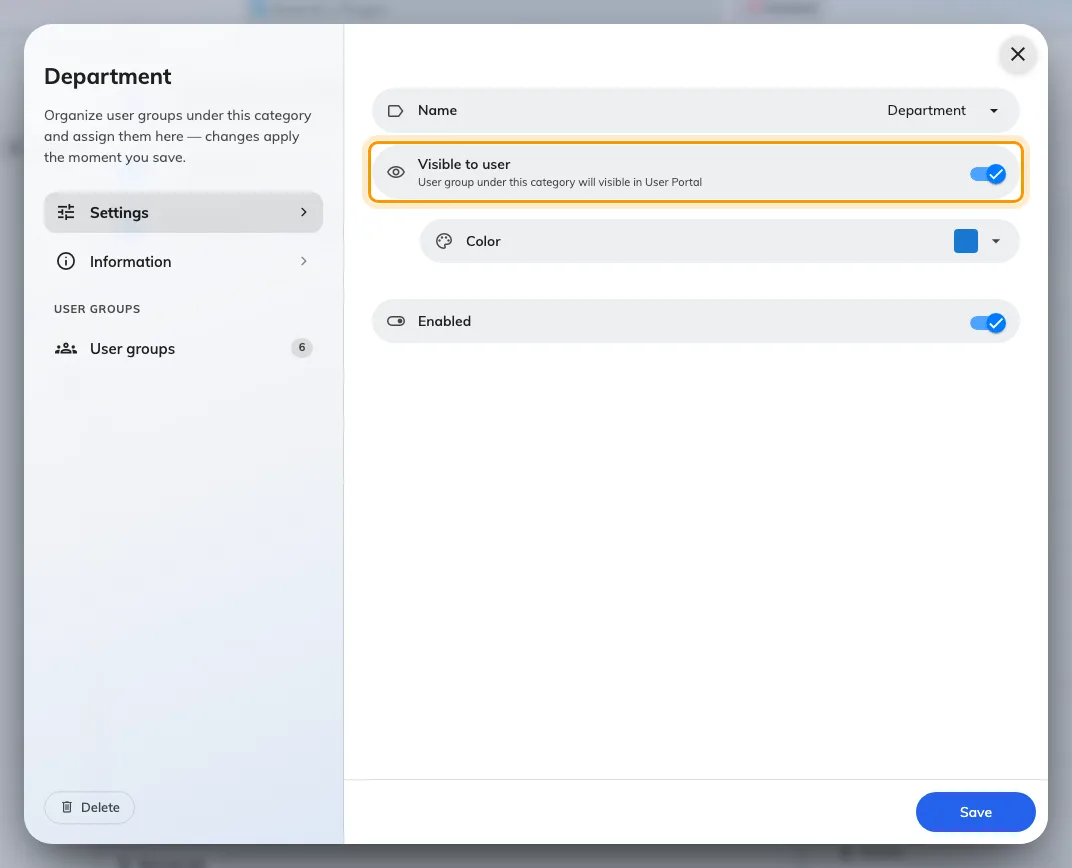
Visible to user, and the colour field that only exists to serve it.
3. Put groups into it
The User groups page lists every group and you tick the ones that belong.
A group can only be in one category. Ticking it here silently takes it out of wherever it was — there is no warning, because there is nothing lost. The practical consequence is that categories have to be cuts of the same estate, not overlapping labels: Department and Region cannot both claim Finance.
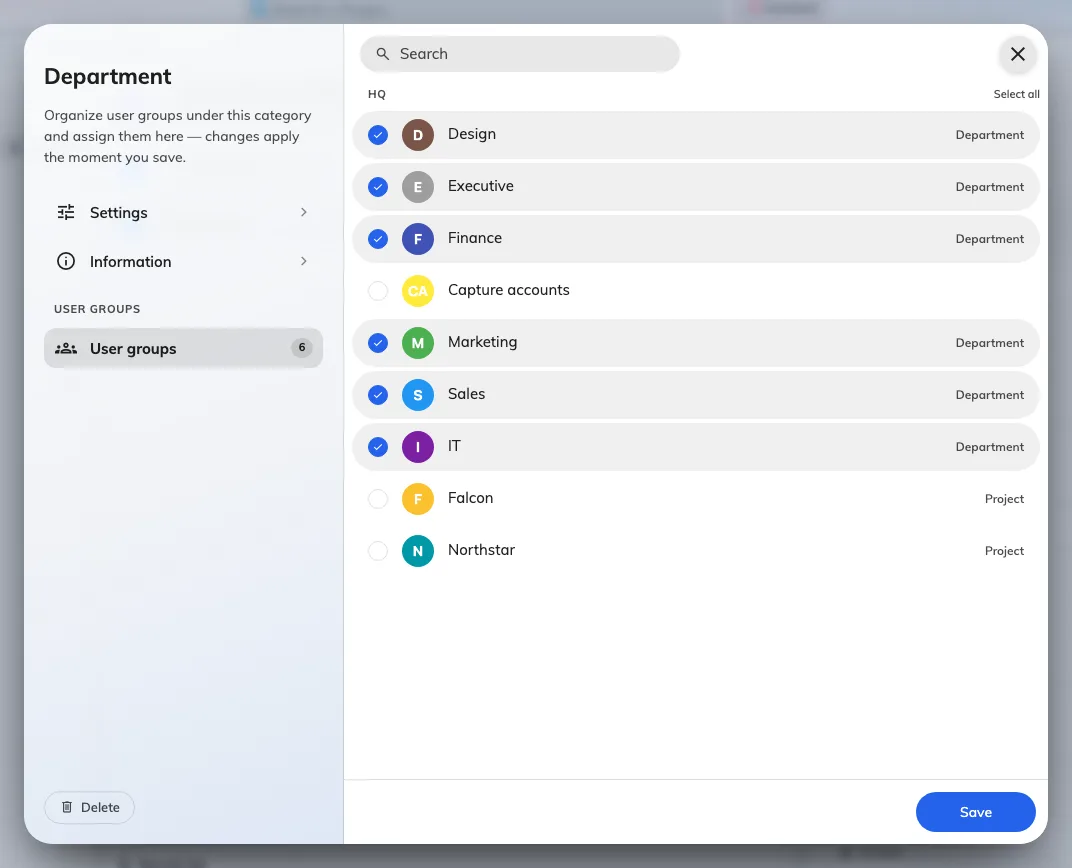
Ticking a group here removes it from any category it was in before.
You can also set it from the other end — Category on the group’s own Basic page does the same thing for one group.
4. See what people get
Switching a category on changes two things in the Offision app, both for everybody, not just the group’s members.
Finding people on the floor plan. The search button on the floor plan opens a grid of tiles, and every visible category gets one. Open a tile and the groups inside it become filters, so “show me where Sales is sitting today” is two taps.
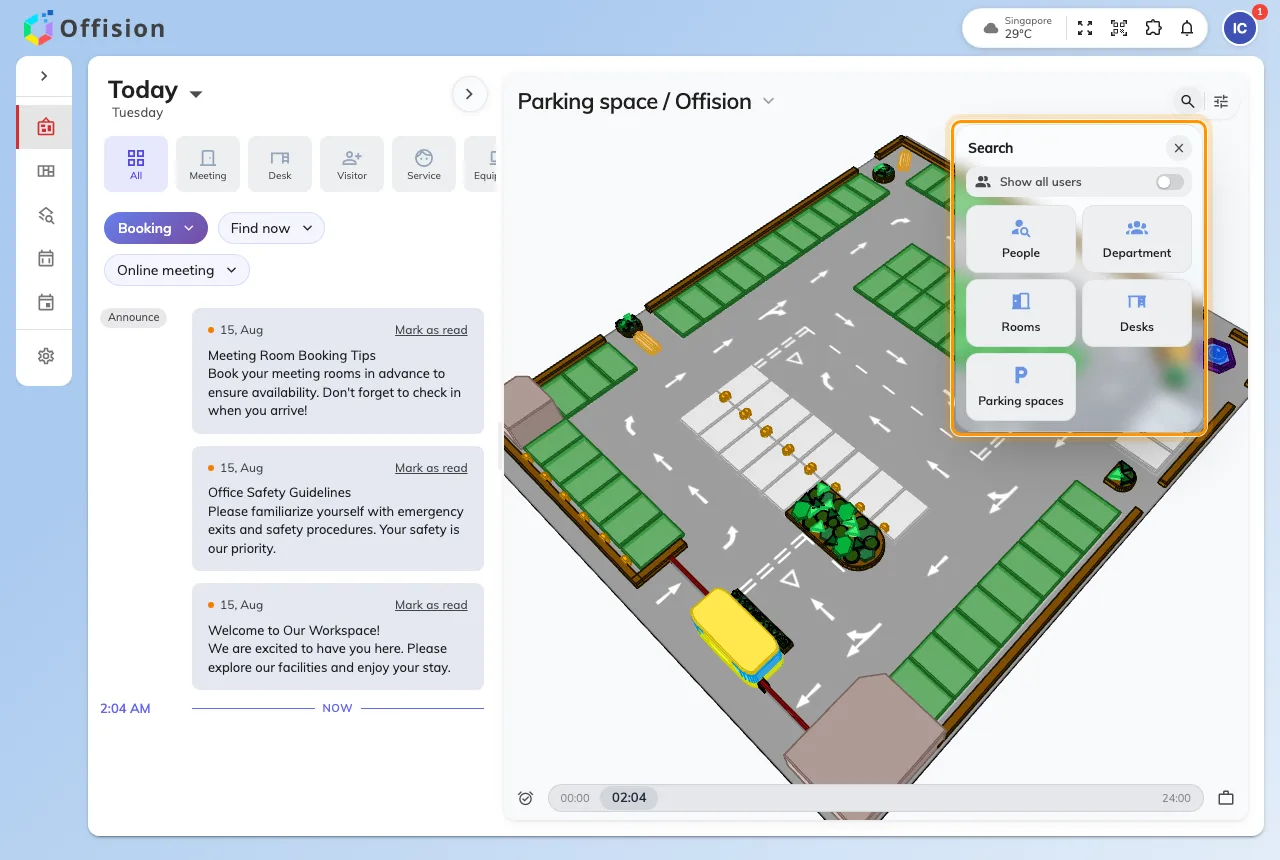
One tile per visible category, beside People and the resource types.
Reading a colleague’s card. Tapping someone shows their groups as pills, each with its category’s colour as a leading dot and the category name as the tooltip — which is what the colour was for.
5. Worked examples
Department, visible. The seeded one. Groups named for teams — Finance, Sales, Design. People use it to find colleagues; you use it for team spaces and quotas. This is the case that justifies filling in every language.
Project, not visible. Short-lived groups that exist to drive a booking policy or a door group. Leaving the category switched off keeps a churn of project names out of everyone’s search tiles while the groups still work exactly as well.
Nothing, for the plumbing. Groups such as an integration’s default landing group are better left with no category at all — same effect as a hidden category, one less thing to maintain.
6. Check it worked
Sign in to the app as someone who is not in any of the groups and open the floor-plan search. A visible category is a tile there; a hidden one is not. If a tile you expected is missing, the usual cause is that the category is switched on but has no groups in it yet.