

Sign out a lost or stolen device
Cut off a phone or laptop that is no longer in safe hands, check who has been signing in to the account, and deal with access that survives. The whole admin-side job in one place.
1. Sign out one person’s devices
Open the person from Directory › Users, choose Edit, and go to Login devices down the side of their record. The entry carries a count, so you can see how many sign-ins they have before you open it.
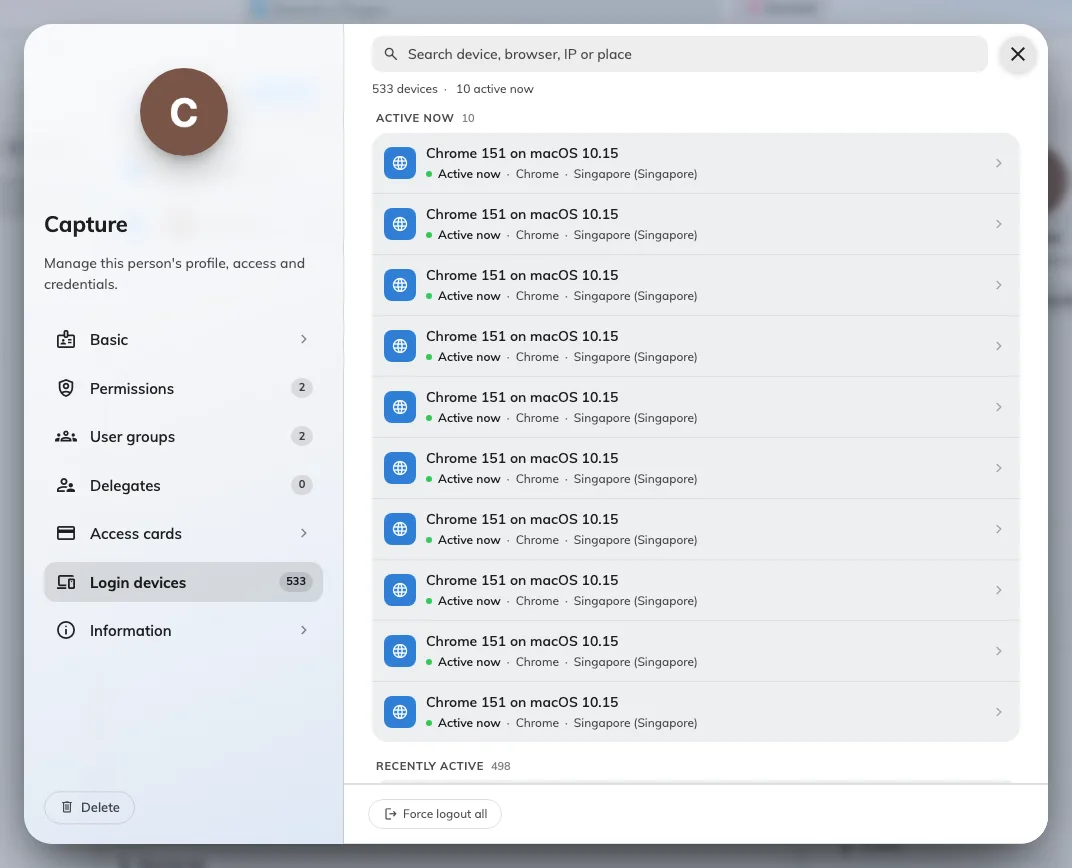
One person's devices, opened from their record. Force logout all sits at the foot.
Devices are grouped by how recently they were used, so Active now at the top is where a session in progress will be. Select the device, check it is the one you mean, then use Force logout at the foot of the panel.
Force logout all at the foot of the list ends every device they have — the right choice for a leaver or a compromised account, and you do not have to identify the lost one.
2. Or work from the whole-tenant list
User devices lists every device signed in across everyone. It lives under Directory, but it is not one of the pages pinned by default — open Show all in the Directory menu to reach it.
Open User devicesSearch matches the device, the person, an IP address or a place, and the type filter narrows to one kind of device. Selecting a row opens its detail beside the table, with Force logout on it.
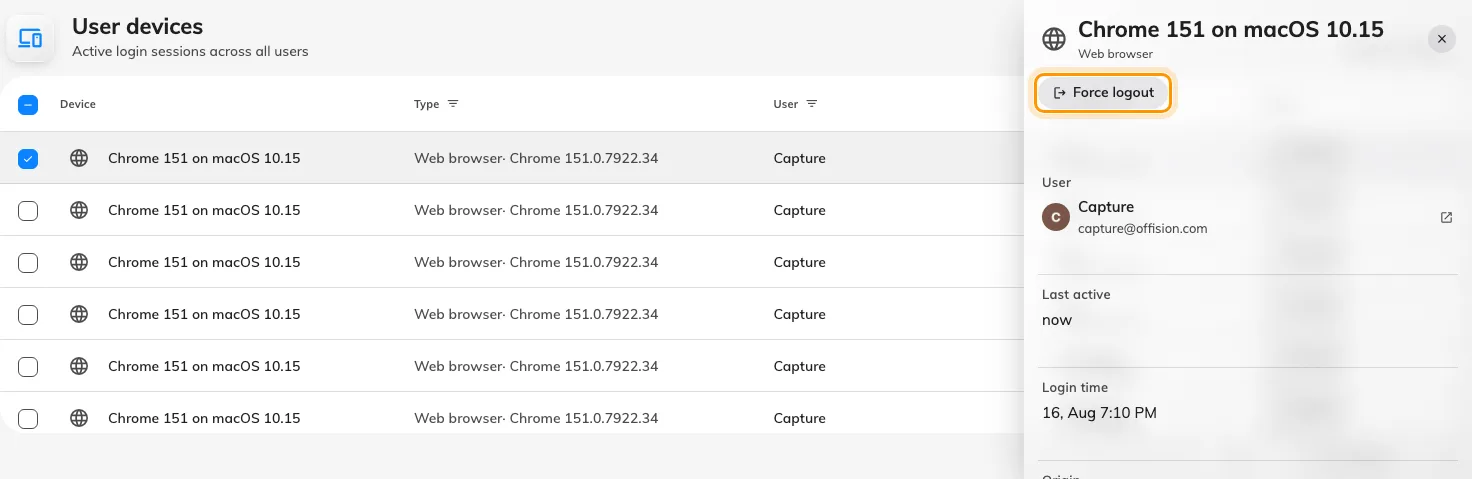
Selecting a device opens its detail, with Force logout.
For more than one, tick the rows down the left. A toolbar appears above the table with Force logout acting on the whole selection.
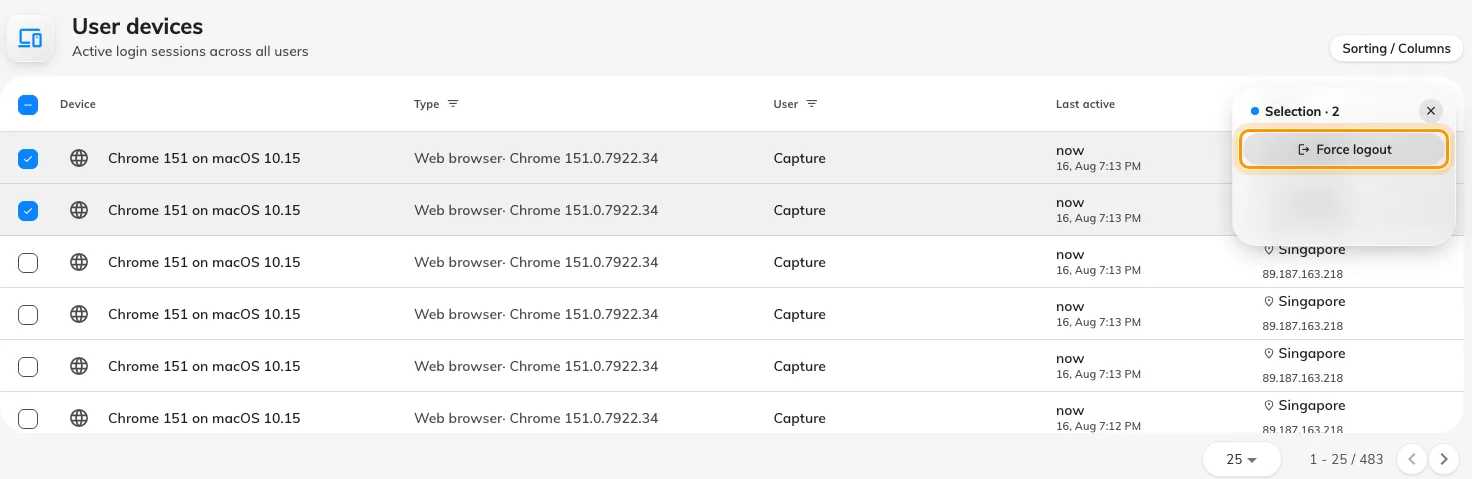
Tick several rows and the toolbar acts on all of them at once.
Offision asks you to confirm — “Are you sure you want to force logout this device?” — and the rows disappear once it is done.
3. Check who has been signing in
The device lists show only what is signed in now. For the history — including failed attempts — go to System config › Audit trails. It is part of the audit trail feature and needs an account that can manage settings; The audit trail covers the whole page, including how to export it.
Open Audit trailsEverything anyone has done lands there, so the job is narrowing it down. Both filters live in the table header: User on the column heading, and Action as the chip above the details column. The action list is long — use the search inside the picker.
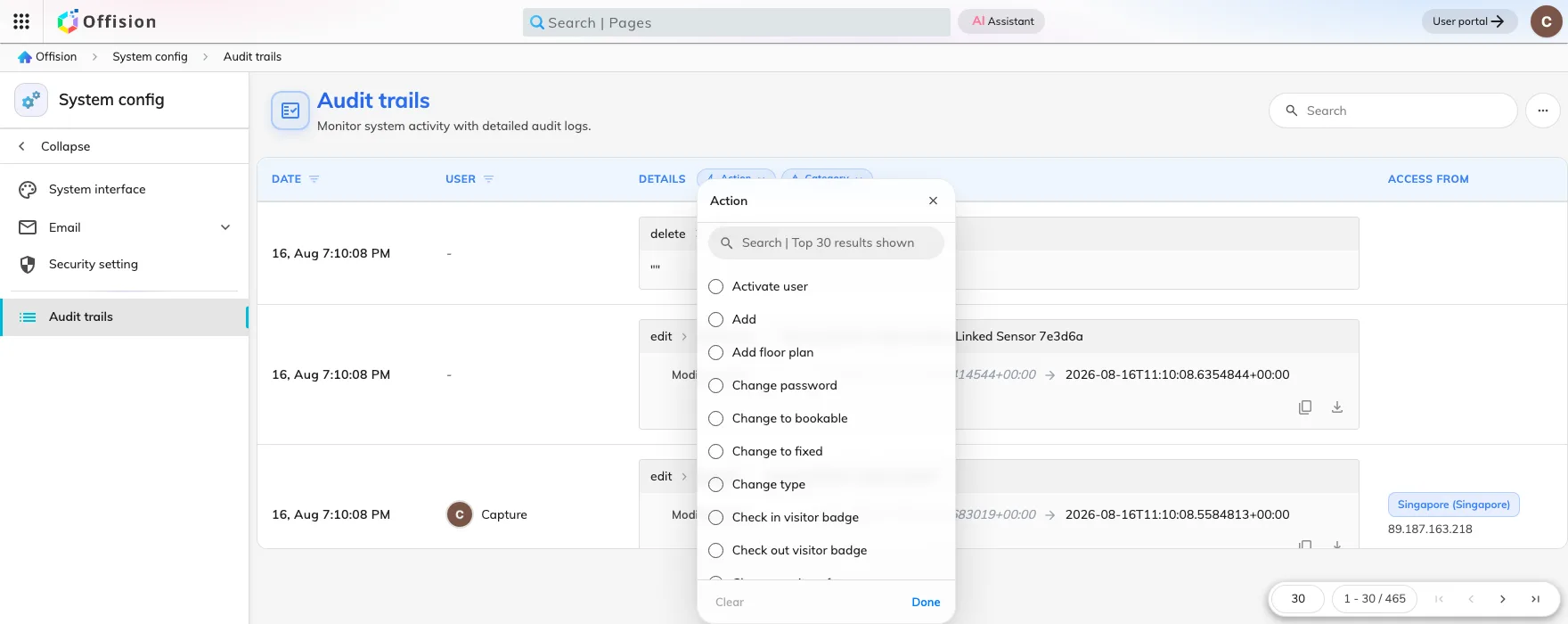
The Action filter, above the details column. Tick the sign-in actions to reduce the trail to them.
The ones worth ticking are Login, Login failed, Logout, Logout all, Force logout session, Two-factor verification succeeded and failed, Change password, Reset user password and Open management console. Each row carries the IP address it came from and the place that address resolves to.
Read the addresses as a pattern, not as facts — see How login devices work for why a location is only approximate. The shapes worth knowing:
- A run of “Login failed” then “Login” — someone was guessing and eventually did not have to. Treat the account as compromised.
- “Login failed” repeating and never succeeding — usually a forgotten password, or a phone still trying an old one.
- “Two-factor verification failed” after a successful password — someone has the password but not the phone. The password still needs changing.
4. If the person has also left
Signing out a device ends that sign-in. It does not stop the person signing in again, because their account still works.
So for someone leaving, do both, in this order:
- Deactivate the account — see Remove someone who has left.
- Force logout all their devices.
That order matters. Deactivating first closes the door; forcing logout afterwards clears anyone already inside. Do it the other way round and they can sign straight back in during the gap.
5. If they still seem to have access
Four causes, in the order they actually occur:
- They signed in again. A new device row has appeared since you acted. Force logout ends a session; it does not disable the account. Deactivate first.
- Deactivating never signed anything out. Deactivating, deleting or resetting the password leaves live sessions running for up to thirty days. Force logout all is the only thing that ends them.
- A screen that was already open. It still shows what it had loaded, but cannot fetch anything new. Ask them to refresh before you investigate — most reports end here.
- A large deployment catching up. Up to about five minutes for the news to reach every server. Wait, then test again.