

How login devices work
Every sign-in leaves a device behind that stays valid for thirty days. Signing one out is the only thing that ends it — not deactivating, not a new password.
Every time someone signs in, Offision records the device they signed in from and keeps that record valid for thirty days. One row in a device list is one of those sign-ins.
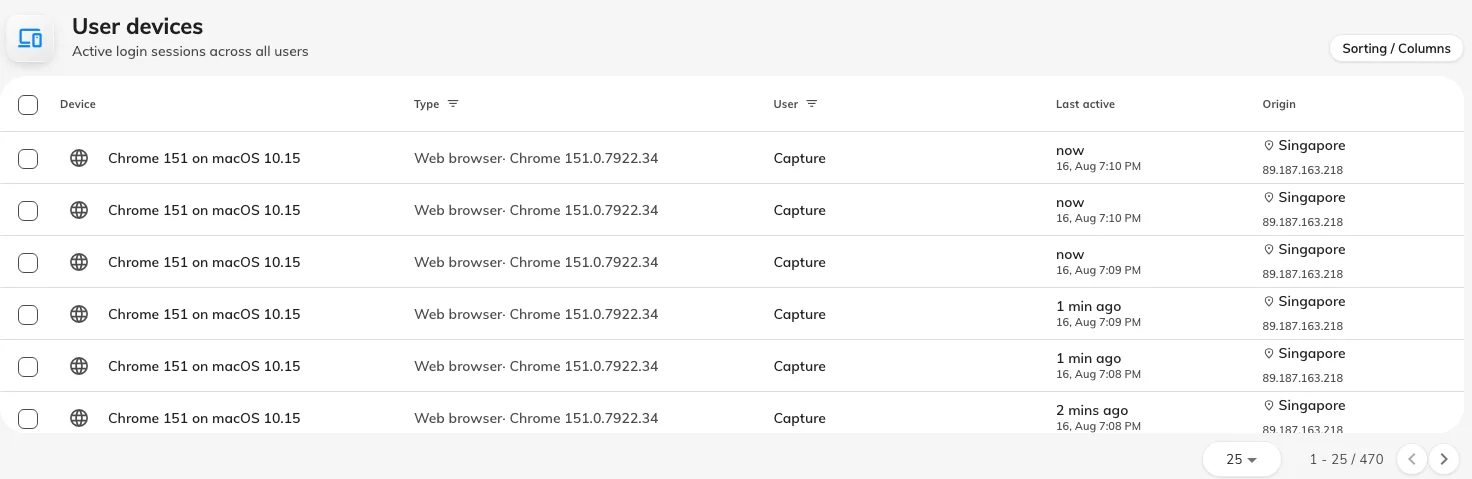
Every device currently signed in, across everyone in the tenant.
The same records show up in three places, all reading the same list: a person sees their own under Manage devices in the user app, an administrator sees one person’s on the Login devices page of their record, and the whole tenant’s on User devices.
The part that surprises people
Removing someone does not sign their devices out. Deactivating an account, deleting it, resetting the password, changing the password — none of them touch a device that is already signed in. Those actions all govern the next sign-in. A laptop that was signed in yesterday keeps working, for up to thirty days.
The only thing that ends a device is signing it out, called Force logout on the admin side. So “they’ve left, I deactivated them” is not finished work: cut the devices too.
The reverse surprise is milder. Signing a device out does not lock the account — the person can sign straight back in and appear as a new row. Signing out is for a device you have lost control of, not for a person you want gone. For that, deactivate first, then sign the devices out.
Thirty days is the outside limit, not a promise the device will last that long. Signing out ends it early, and so does auto logout if you have turned it on in the password policy: with it set, Offision signs a person out after that many minutes without touching the keyboard or screen. It is the one control that shortens the thirty days for everybody at once, which makes it worth having on shared and public machines.
Why it works that way
A sign-in has to survive the network. If Offision checked with the server on every tap, a phone in a lift would sign you out; if it never checked, revoking access would do nothing. What it does instead is give the device a pass that it carries, and mark that pass revoked when you sign the device out.
Which is why the cut lands on the device’s next request rather than the instant you click. In practice that is immediate — anything you do in Offision is a request. On a large deployment running several servers, the news can take up to about five minutes to reach every one of them.
There is no eviction notice. A screen already open keeps showing whatever it had already loaded, because nothing tells it otherwise. It cannot fetch anything new, and it clears the moment the person touches it.
What a device record tells you
Open any device and you get the same fields, wherever you opened it from.
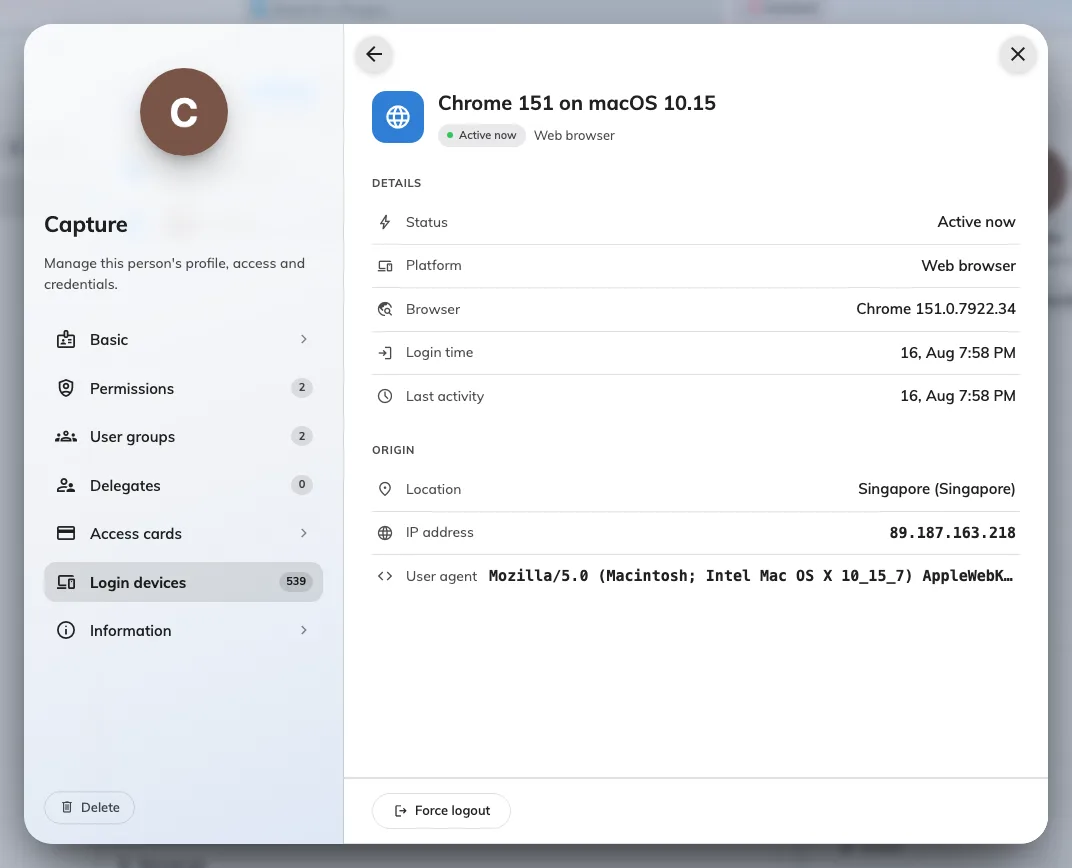
One device in full: platform, browser, sign-in time, last activity, origin.
Two of them are read more confidently than they deserve.
Origin is the network, not the person. The location is looked up from the IP address at the moment you view it, and an IP address describes where traffic left the network — not a desk. Everyone on the corporate VPN shows wherever it terminates, often head office in another country. A phone on mobile data resolves to the carrier’s regional hub, a city or two out. Read a change in the pattern, not the value: one country all year and a different one on Tuesday is the signal.
The name is whatever the device could report. The Offision apps report a real one. A web browser cannot, so the name is built from what the browser says about itself — “Chrome 131 on macOS 15”. That means two people’s laptops can produce identical names, and one person appears twice if they use two browsers. Match on Type and sign-in time instead.
What it does not control
How the person signed in. Signing in with Microsoft 365 or another company account produces a device record exactly like an Offision password does, and it is signed out the same way. Note that this ends the Offision session only; it does not sign them out of Microsoft 365, so they may be able to sign straight back in without being asked for anything.
The Type column names the way in, and these are all of them:
| Type | What produces it |
|---|---|
| Web browser | Offision opened in a browser |
| iOS App | The Offision app on iPhone or iPad |
| Android App | The Offision app on Android |
| Windows App | The Offision desktop app on Windows |
| Mac App | The Offision desktop app on macOS |
| M365 App | Offision opened inside Microsoft Teams or Outlook |
| Outlook Add-in | The former Outlook add-in — only on older sessions |
| App | A sign-in the apps could not place more precisely |