

Choose the languages your company offers
Tick the languages Offision may appear in, and put them in the right order — the first one is what everybody falls back to. About five minutes, and it reaches the console, the app, the panels and your outgoing mail at once.
1. Open System interface
Go to System config › System interface. Language is in the first section, Account settings, between the account name and the time zone.
Open System interface2. Tick the languages you want
Each row is a language written in its own words — English, 日本語, 繁體中文 — so the list reads to the people who will use it rather than to you. Tick every language your company should be able to work in.
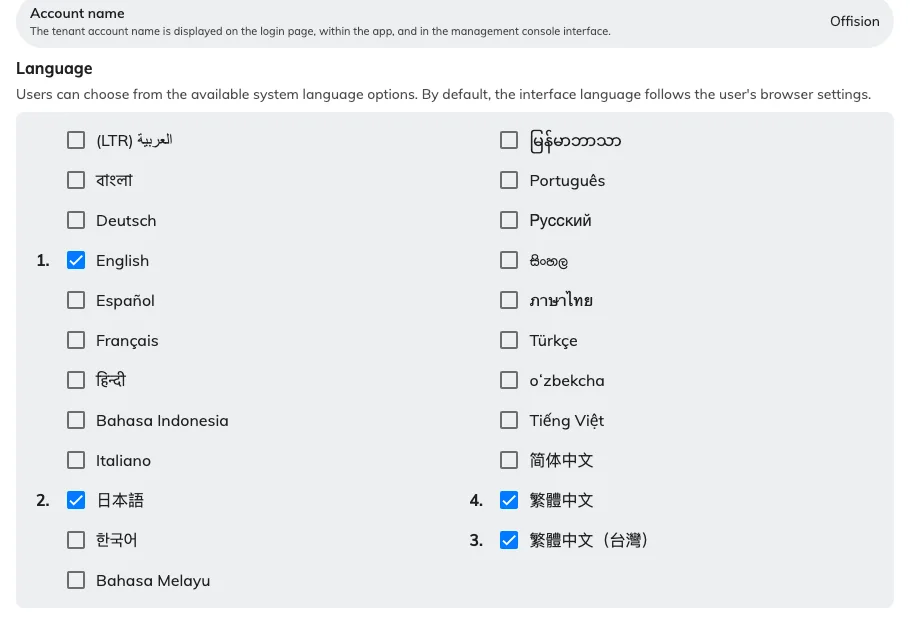
The enabled languages, numbered in the order they were ticked.
The line above the grid says who the list is for: “Users can choose from the available system language options. By default, the interface language follows the user’s browser settings.” You are not setting anybody’s language here. You are setting the menu they choose from — and the shorter that menu, the less of your own content has to be written twice.
3. Put them in the right order
A ticked language carries a number, and that number is not the grid’s order. It is the order you ticked them in. Untick everything and start again if the numbering is wrong; there is no way to drag a row.
Number 1 is the one that matters. It is what somebody lands on when their own choice is not available, what a signed-out page falls back to when the browser asks for something you do not offer, and what the first-run wizard copies into your email language. The rest of the list is only a menu.
Removing a language is the same fact seen from the other side: anyone who was using it is moved to number 1 without being told, at their next page load.
4. Save
The save bar appears at the foot of the page once you have changed something.
5. Set the language your mail goes out in
Email is a separate setting, on a separate page, and it does not follow the recipient.
Open Email setting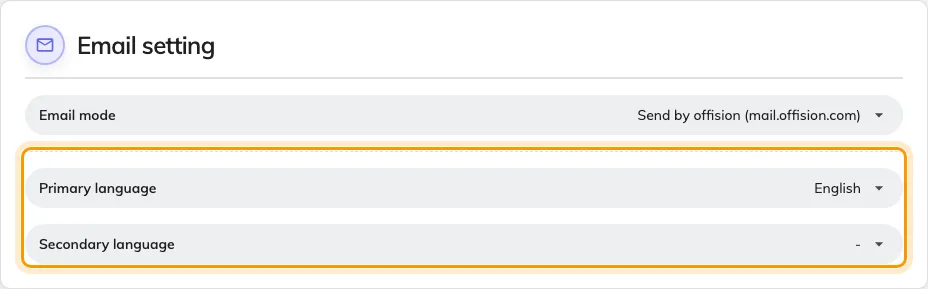
Email setting, with the two languages every message is written in.
Primary language is the language every booking confirmation, approval request and visitor invitation is written in, identically for everybody. Secondary language adds a second copy of the same message in the same email — useful for a bilingual site, and a waste of a page where everyone reads the same language.
Both offer only the languages you enabled in step 2. Somebody choosing Japanese for themselves still receives your mail in these languages; only the notifications that reach their phone follow their own.
6. Check it worked
Open the app and choose your picture at the top right. Under Preferences, the Language row should offer exactly what you ticked — as a short menu, or as inline buttons where there are three or fewer — and nothing else.
Panels and boards pick the change up within about a second; see Panels and screens update the moment something changes.
Which language a person sees
Offision asks the account first and the browser only when nobody is signed in — and either answer has to be one you enabled, or it falls to the top of your list.
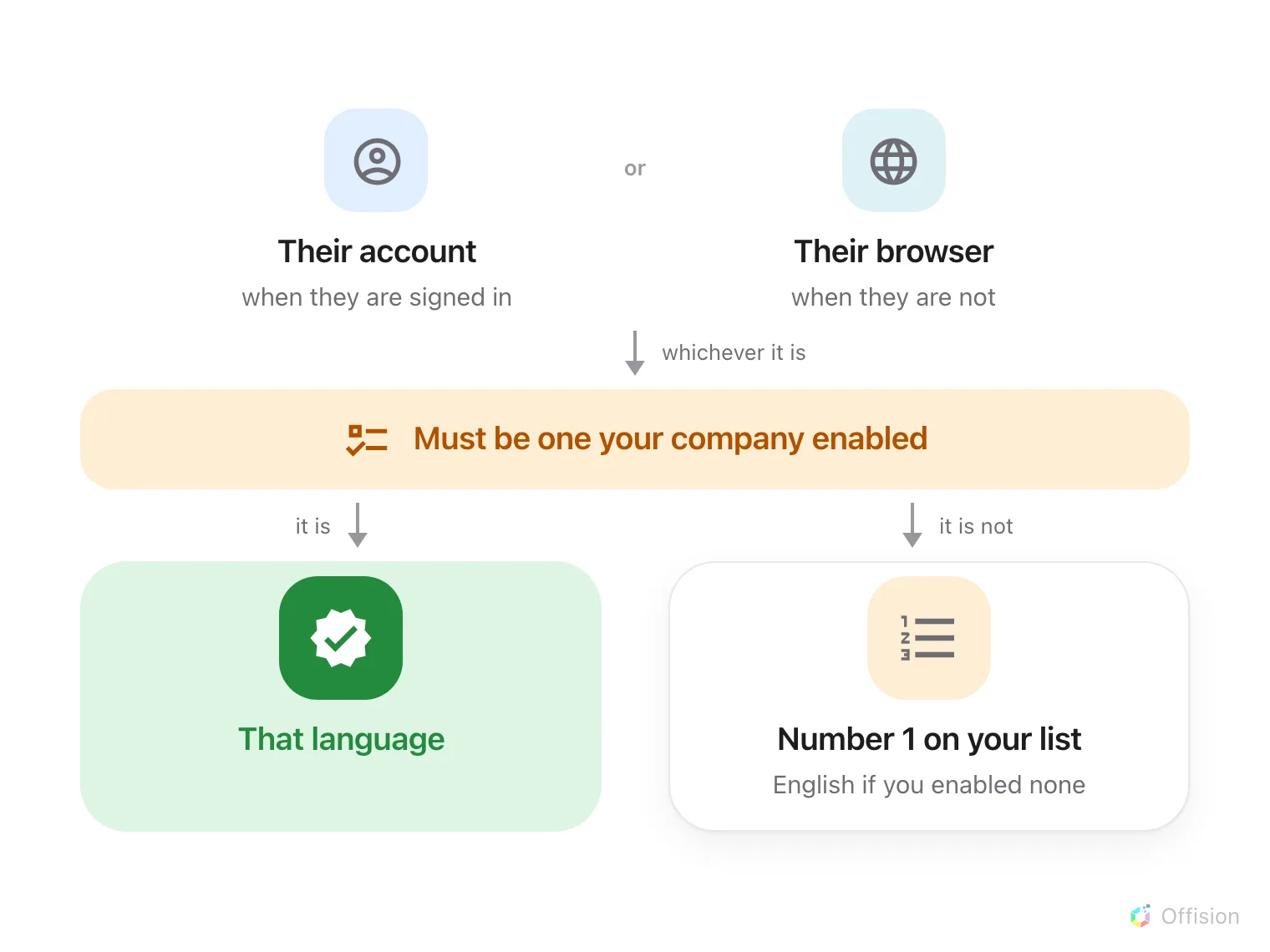
The first answer that is one of your enabled languages wins. Everything else falls to number 1.
Signed in, it is the language saved on their account. Each person picks it once, in Preferences, and it follows them — another computer, another browser, the app on their phone. It is the only display preference that does; the theme, the clock and the text size all stay in the browser they were set in, which is why those appear to reset and the language never does.
Not signed in, it is the browser’s. A sign-in page, a visitor kiosk or a public activity page reads the language the browser asks for and matches it against your list. Nothing is remembered afterwards.
Either answer that is not one you enabled falls to number 1. That is the whole of the mystery behind “I chose Japanese and the console is in English”: Japanese was turned off here after they chose it.
What this does not control
It does not translate your own words. A room, floor, building or purpose name holds one value per enabled language, and a blank one falls back to English. Turn Japanese on without filling the Japanese names in and you get an otherwise Japanese screen with English room names in it — enabling a language is a promise to write your content in it.
There is no per-person language for you to set. No user form has a language field; each person chooses their own, on their preferences panel. Where somebody is stuck in the wrong language, they change it, not you.
A panel or a board can be narrowed further. A panel configuration has Specify display languages and a board has Display languages of its own, both chosen out of the list you set here — a lobby screen for visitors often carries fewer languages than the console. A room panel also remembers the language chosen on the device, which is why one panel can sit in a different language from every other.
Date order and the first day of the week do not move. Choosing Japanese translates the names of the months and days; it does not rearrange them, and the week still starts on Sunday.