

Search pages, bookings, visitors, and users from the admin header
Jump directly to admin console pages, bookings, visitor badges, visitors, users, help guidelines, or Ask AI from the desktop header search bar.
On a desktop browser, the search bar at the top of the admin console lets you open pages, look up bookings, visitor badges, visitors, and users, read help guidelines, or ask the AI assistant without navigating through the sidebar first.
1. Open the header search bar
Click the search bar at the top of the admin console while the query is empty to view:
- Recent: Pages, opened help articles, and previous assistant conversations you opened recently. Click Clear beside Recent to remove your recent history.
- Favourite: Console pages you marked as favourites.
2. Find an admin console page
Start typing a page name, module name, or common task phrase (such as booking, reservation, or pending bookings) in English or your active display language:
- Up to three matching console destinations appear under Pages, showing each page’s module breadcrumb.
- Entering a module or common phrase such as
bookingranks primary screens first—Management calendar, Dashboard, and Booking Approval—ahead of secondary customization or configuration pages. - Typing a specific page name or task phrase brings that destination directly to the top.
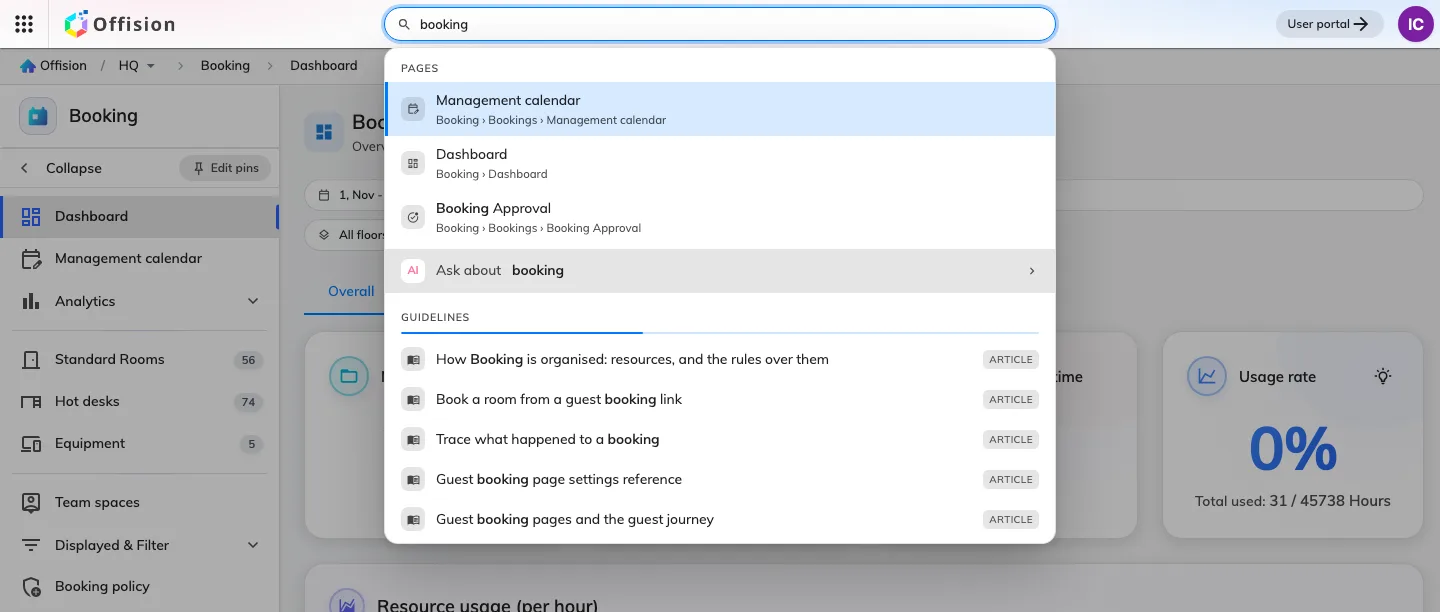
Header search ranking primary booking pages under Pages ahead of related guidelines.
3. Look up bookings, badges, visitors, and users
The same bar also searches live records when your account has permission:
- By exact reference: Enter a complete
BKbooking reference (such asBK0042orbk42) to search across all dates under Bookings, or enter an exact visitor registration number to look up scheduled and regular passes under Visitor badges. - By name, username, or email: Type at least two characters to return up to three matches per eligible group (Bookings, Visitor data, and Users). Use the period filter beside Bookings to switch between Recent, Next 30 days, and Past 30 days.
Empty Bookings, Visitor data, and Users headings stay hidden unless a group has matches or shows Retry after a temporary error. If you switch the Bookings period away from Recent and that window has no matches, the period selector stays visible so you can choose another window. For full booking search details, see Find a booking on the management calendar.
4. Open guidelines or ask AI
Below page and record results, the palette lists:
- Guidelines: Matching manual articles that open directly in the console help drawer.
- Ask about: Opens the AI assistant with your current search text when no page or record matches what you need.
5. Privacy and scope
Search results reflect only what your account can view in the currently selected organization. People, visitor, and booking records are never saved in Recent, and typing in the search bar does not send record data to the AI assistant automatically.