

See which emails were handed over
Find an email by recipient, status, time or template; read its sending outcome and recipient details, understand why content is hidden, and check retention.
Emails sent through Outlook or Google Workspace user calendars are not recorded here. For sender setup, see Send email from your own address.
1. Find the email
Go to System config › Settings › Email › Email history, below Email Template. Enter an address or part of one in Search recipient. Use Status and Email Template to narrow the results. Filters work together; clear one with its × button to broaden the list. Use More at the bottom when there are more matching records.
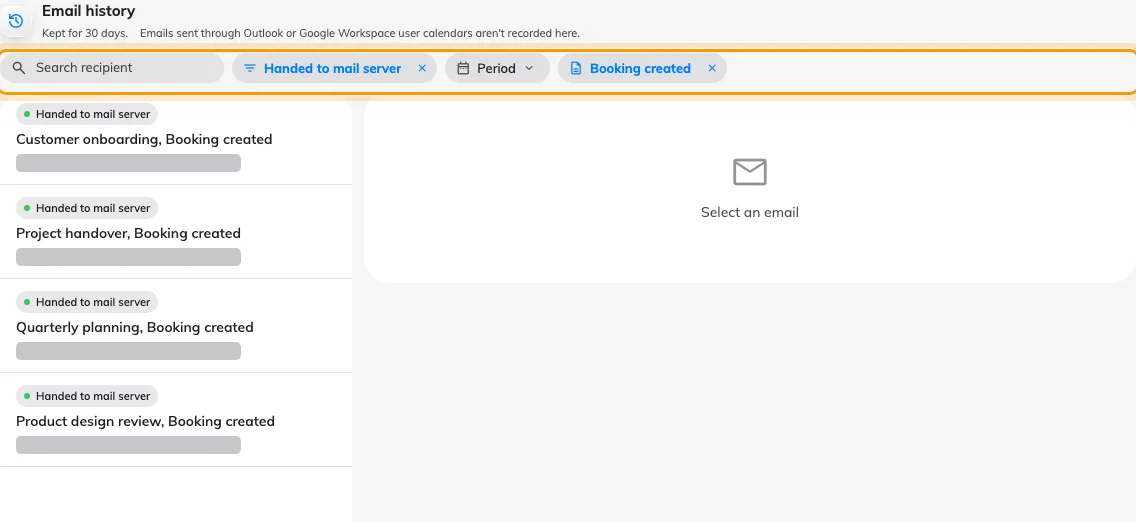
Four accepted booking notifications are shown with the Status and Email Template filters applied; recipient addresses are masked.
For a time window, open Period, select a day and set From and To, then click Apply. The window filters the time the email was recorded. Choose an end time at or after the start time.
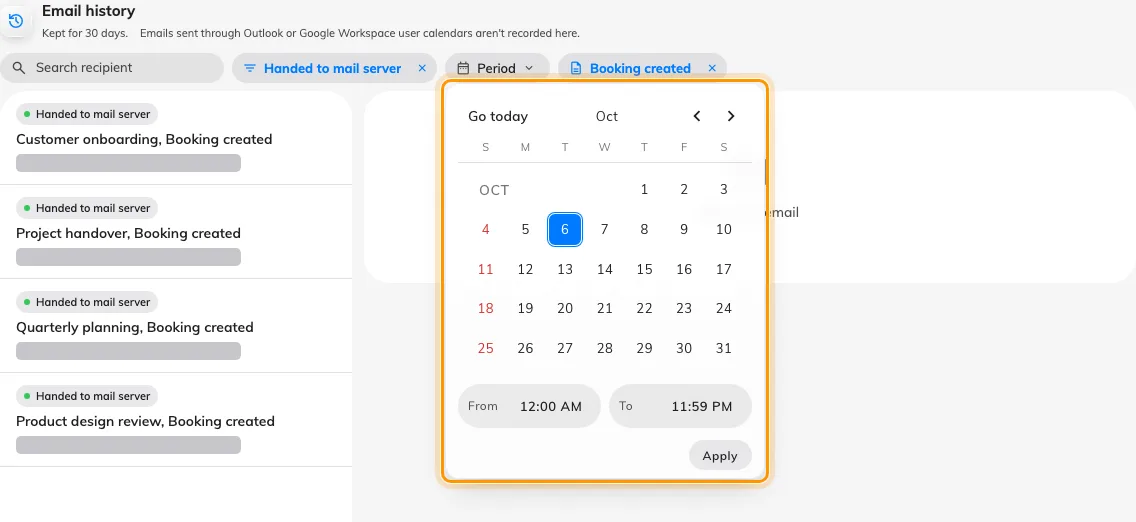
The Period menu selects one day and a From–To time window before Apply.
2. Read the sending details
Select a row. Email details shows the subject and, where present, the email template. Recipients separates To, Cc and Bcc; groups with no addresses are omitted. Under Sending record, Recorded is when Offision created the record. Handed to mail server is the handover time, or a dash when no handover was recorded.
Email content hidden applies to every record. The detail pane does not display the message body, invitation links, password-reset links or sign-in codes. To review editable template wording, use Change the wording of an Offision email.
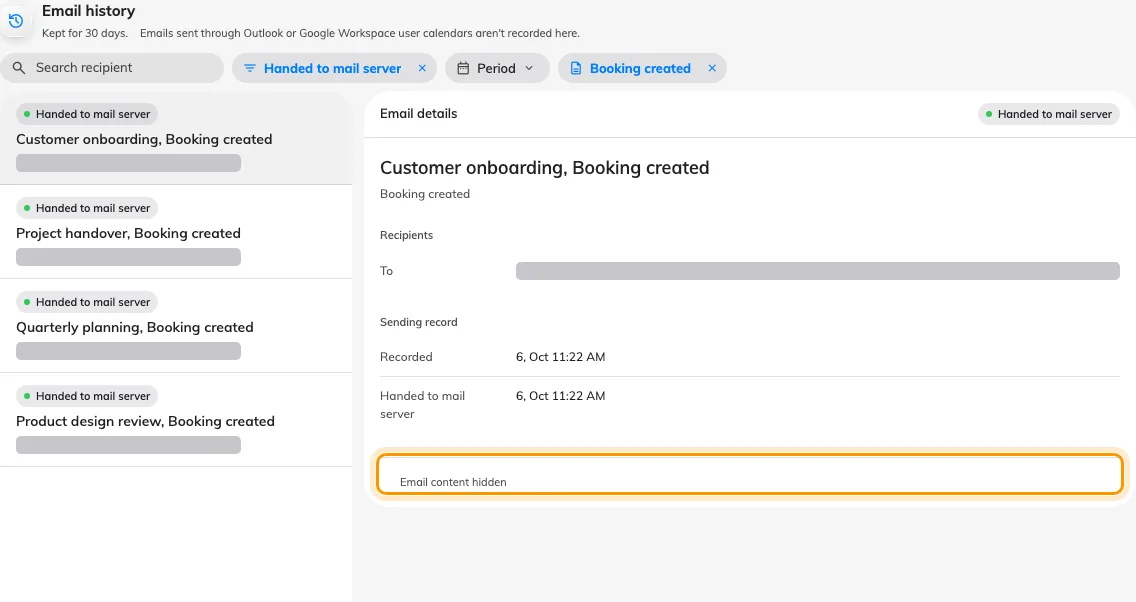
An accepted booking notification shows its template and sending times, with recipients masked and Email content hidden.
3. Check the outcome
There are three statuses:
- Handed to mail server. Success means the SMTP server or configured mail service accepted the email. It does not mean the recipient received or read it: the message may still bounce or go to spam. Check the mail service if the recipient cannot find it.
- Held by Offision. Offision stopped the email. Hold reason identifies the limit or unavailable limit check. Held emails are not queued for later delivery. Check The limits Offision applies before trying the original action again.
- Mail server refused. The server returned an error or could not be reached. Read Failure reason and check your email server settings.
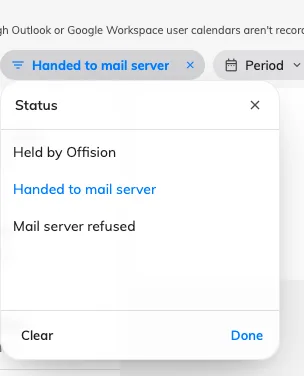
The Status filter offers Handed to mail server, Held by Offision and Mail server refused.
A refused record keeps its Recorded time, leaves Handed to mail server as a dash, and shows the server error under Failure reason. In this example, the SMTP connection was refused.
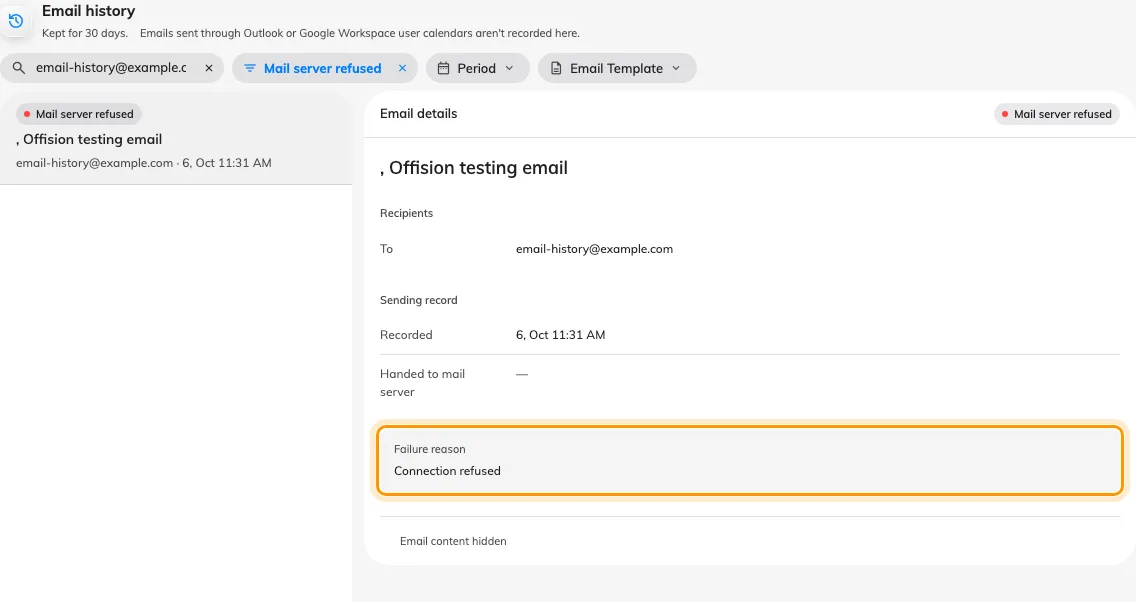
The refused test email shows Failure reason: Connection refused, with no handover time.
Confirm the recipient, subject, Recorded time and status match the email you are investigating. A handed-over record has a handover time; a held or refused record explains why it stopped. The subtitle shows the configured retention period. Older records are removed, so check email history retention if an old message is missing.