

Choose what the cancel menu offers
A booking's Cancel menu can offer two ways to give the room back without losing the meeting. Either can be withdrawn — separately for the user portal and for the console.
Cancelling a booking does not have to mean cancelling the meeting. The Cancel menu can offer two ways to hand the room back and keep everything else, and both are optional.
- Convert to online meeting — drop the room and add an online meeting.
- Cancel room booking only — keep the meeting and attendees; release the room only.
Both give the room back, which is why some organisations want neither offered: if a meeting without a room is not a meeting your teams should be having, the menu should not suggest it.
1. The user portal’s sticker
Go to UI customization › Schedule. Both switches sit under Cancel menu, with a preview of the resulting menu beside them.
Open UI customization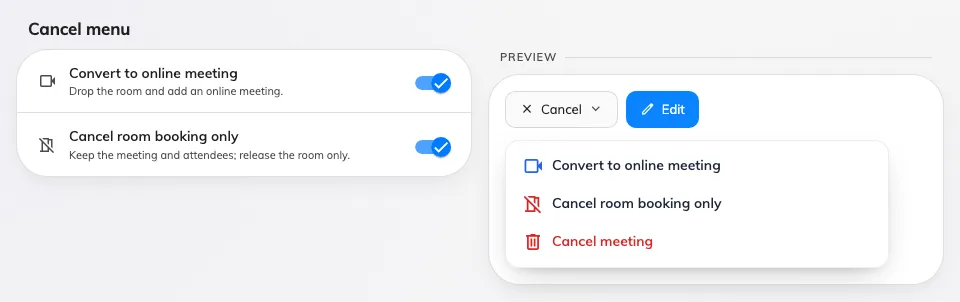
The two switches, with the menu they produce drawn beside them.
Turning a switch off removes that line from the menu. It does not change any booking that was already converted.
2. The console’s own sticker
The management calendar has the same menu with one fewer option — it has never offered Convert to online meeting — so its page carries a single row. Go to UI customization › Management calendar and scroll to Cancel menu.

The console's single row, on the management calendar page.
3. Check it worked
Open a booking with a room in the user portal and press Cancel. The menu should offer only what you left on. Then do the same on the management calendar in the console, which follows its own setting.