

Put your brand on the sign-in and home pages
Upload a light and a dark logo for the two pages everyone sees, decide whether the password form is offered at all, and choose how much of their own home screen people may rearrange.
1. The sign-in page
Go to UI customization › Login page. The settings sit on the left and a live preview on the right, so every change is visible before it is saved.
Open Login page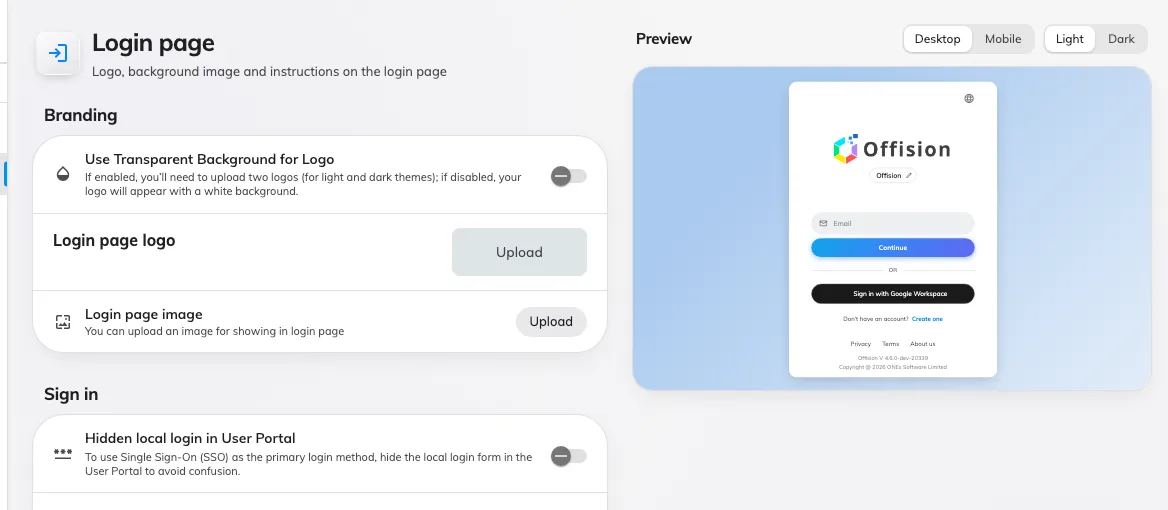
The login page settings, over their live preview.
The page is two sections over a live preview, and the preview has its own Desktop / Mobile and Light / Dark switches — so you can check both themes without changing your own.
Under Branding:
- The logo, and Use Transparent Background for Logo is the fork rather than a style choice. Off, there is one Login page logo field and it is drawn on white. On, that one field becomes two — Login page Logo (For light theme) and Login page Logo (For dark theme) — and neither gets a backing tile. A cut-out PNG on the white-background setting looks fine in light theme and disappears in dark, which is the usual way this goes wrong.
- Login page image, an upload of your own for the panel beside the sign-in card.
Under Sign in:
- Hidden local login in User Portal, which removes the email and password form. Turn this on only once single sign-on works for everybody: it is the switch that locks out the people who still have a password.
- Show instruction text in User Portal Login page, and the block of text beneath it. This is where “use your staff email, not your personal one” goes.
2. The home page
Go to UI customization › Home page. The same switch and the same fork — this is the logo people meet after signing in.
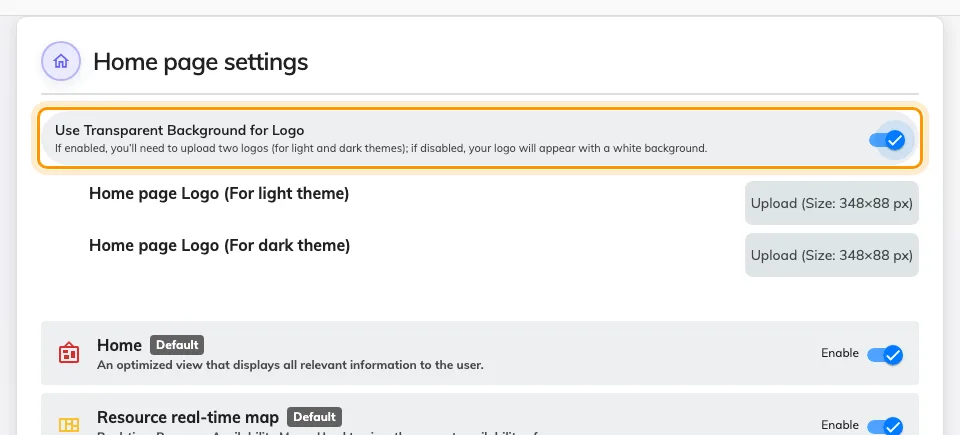
Home page settings, with the transparent switch on and its two uploads revealed.
3. Decide how much people may rearrange
The rest of the page is about their home screen rather than your logo. The list sets which cards everybody gets and in what order — each row has its own Enable switch, and the ones marked Default are what a new account starts with. The three switches below decide whether people may then diverge from it.
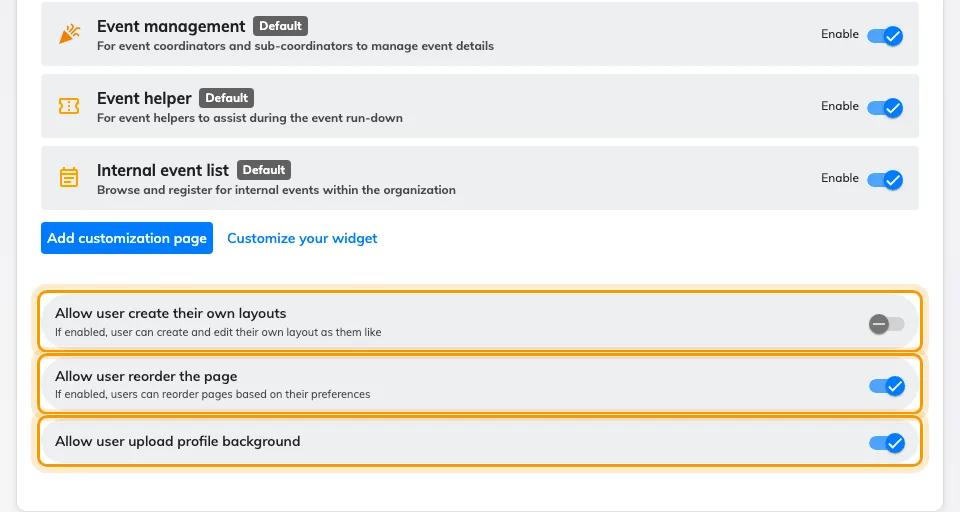
The foot of the list, with the three switches that decide who may change it.
- Allow user create their own layouts — a person may add pages of their own.
- Allow user reorder the page — a person may move the cards you set.
- Allow user upload profile background — a person may replace the backdrop.
Add customization page and Customize your widget, just above them, are how you build a page of your own to put in that list.
Turning all three off makes your order the order everybody sees, which is what a reception or shop-floor console usually wants. Turning them on makes your order a starting point.
4. Check it worked
Sign out and look at the login page, then sign back in. If you turned the transparent switch on, change your own theme between light and dark: each file should appear in its own theme. A logo that vanishes in one of them is the other upload missing, not a size problem.