

Restyle the booking calendar people see
Set how much of the day and how many resources fit on screen, choose what a booking card carries, and give a booking purpose a card of its own.
This is the grid people book from in the user portal — not the management calendar in the console, which has a page of its own.
Open Resource calendar1. Decide how much fits on screen
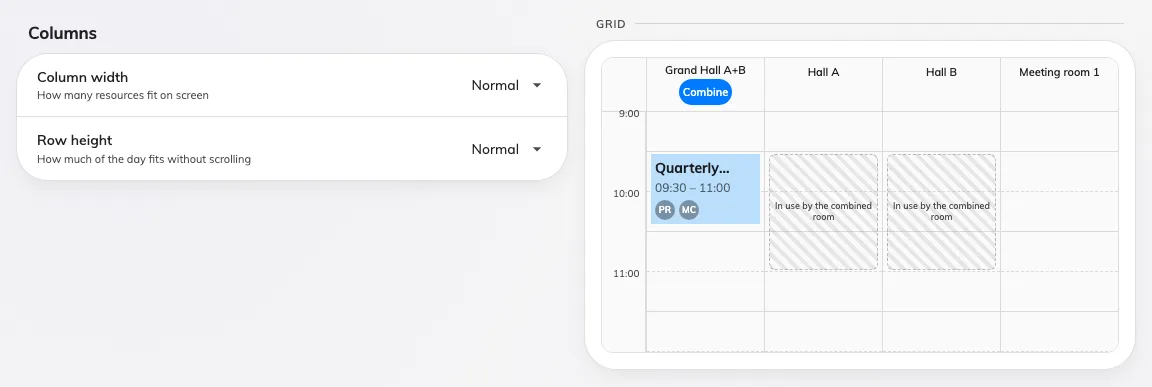
Columns, with the grid redrawn beside the two controls.
Column width is narrow, normal or wide — how many resources fit across the screen. Row height is compact, normal or tall — how much of the day fits without scrolling. The preview redraws as you choose, so the trade is visible rather than guessed at.
The two are more connected than they look: row height decides how many lines a one-hour booking has room for, which decides how many card fields are worth turning on in the next step. The Fields list says fits ~4 lines for exactly this reason.
2. Choose what a booking card carries
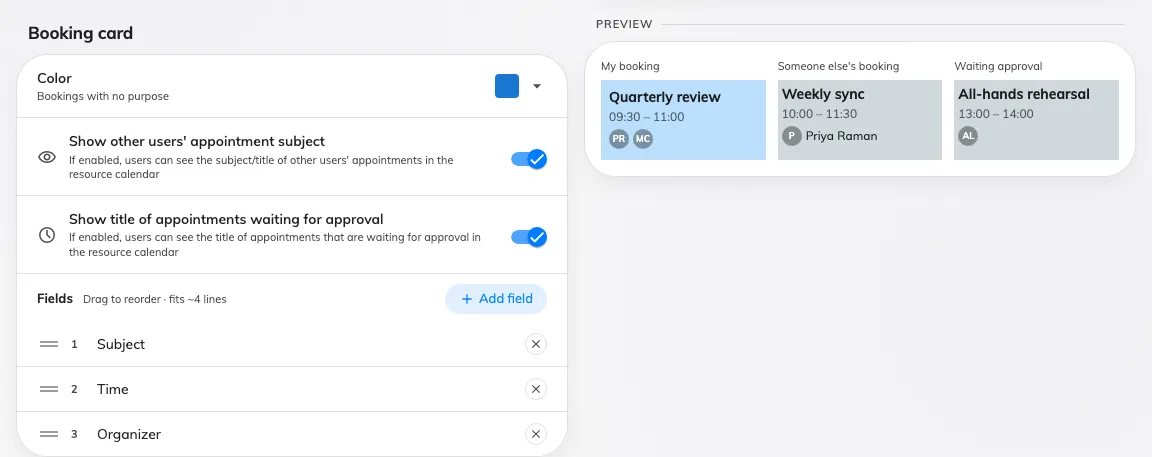
The booking card, with a sample of your own booking beside it.
- Color — the colour of a booking with no purpose. Bookings that have a purpose take their colour from the purpose.
- Show other users’ appointment subject — off, and a colleague’s booking reads as busy without saying what it is. This is the privacy switch of the screen.
- Show title of appointments waiting for approval — the same question for a booking that is not confirmed yet.
- Fields — the lines the card prints, dragged into the order you want. Add field offers what is not already on the card, grouped into Booking (subject, purpose, time, resource, status, online meeting, booking ID), People (organizer, attendees, attendee count) and your own custom fields.
A separate card lower down, Booking details, decides how much opens when somebody taps a colleague’s booking rather than what the block prints — see fit more rooms on screen.
3. Give one purpose a card of its own
Below the default card is Booking purpose card. Add creates an override for one purpose, which then carries its own colour and its own field list.
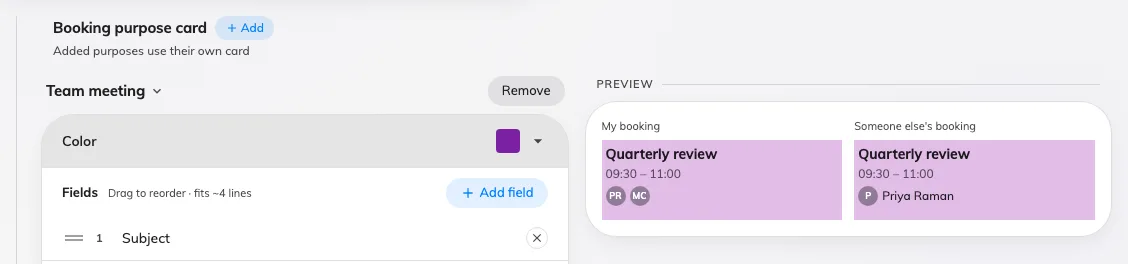
One override card. The purpose is chosen from its title row.
A purpose that swaps the booking form offers that form’s custom fields here, not the tenant-wide list — bookings of that purpose were filled in with that form, so any other field could only ever print an empty line.
Purposes with no override use the default card, so there is no need to add one per purpose. Add the ones that need to stand out.
4. Check it worked
Open the resource calendar in the user portal. A booking of the purpose you overrode should carry its own colour and fields; everything else should look as it did.