

Give your staff a manual without writing one
Hand your staff a manual in an afternoon instead of writing one. Send them the help centre's own address, ask the AI agent the questions your staff will ask and save the conversation as Word, or download any page as Word with its screenshots already in it and cut it down to your own rules. Also how to give the whole manual to an assistant you run yourself, and the one thing a downloaded document stops doing the moment you save it.
The manual you are reading is the staff manual. It already covers what a person does with Offision — book a room, check in, invite a visitor, clock in — in English, Japanese and Traditional Chinese, and it follows the product without anybody maintaining it. So the work is not writing one. It is choosing how to hand it over.
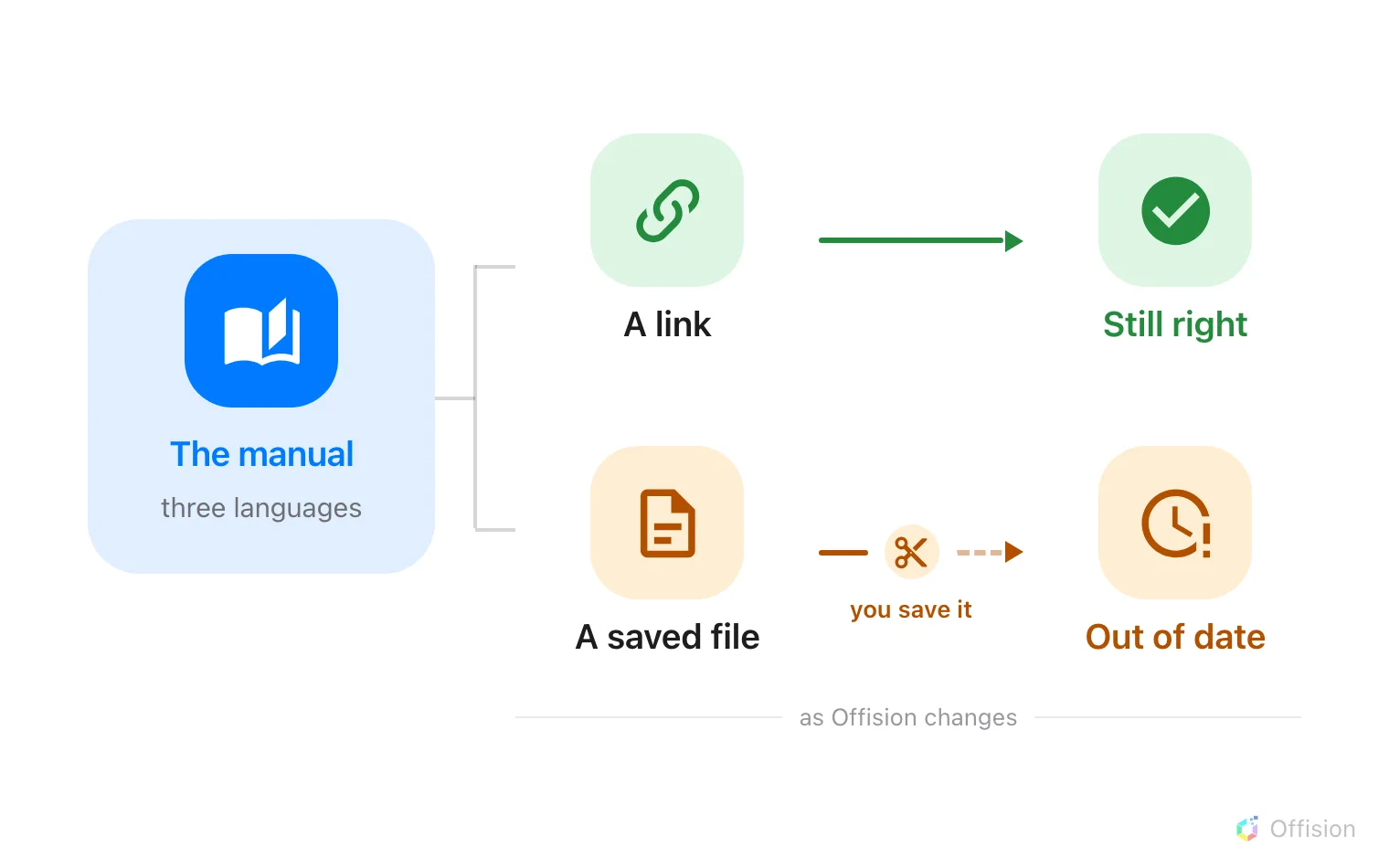
Every route starts from the same manual. A link keeps following the product; a file stops at the moment you save it.
1. Send them the address
The manual is at offision.com/help. It needs no account, works on a phone, and
is never out of date, which is the one thing a document you write cannot manage.
Send the three or four pages your staff will actually use rather than the site itself — a rollout email with four links beats a sixty-page attachment nobody opens:
One link serves everyone. The language picker in the site header keeps a reader on the page they are already reading, so somebody who wants Japanese switches once and stays there.
2. Build a manual by asking
Ask AI Agent the questions your staff are going to ask, then keep the
answers. The chat’s own Download offers PDF and Word, and the Word
file is the whole conversation, saved as Offision - Ask AI conversation.docx.
Ten questions and one download give you a manual in your own words, about the
things your own people worry about — which is as close to a manual written
around your operation as anybody can get without writing it.
The agent is on the home page. From any article, type into the search box in the header, then choose Ask about under the results — that carries your question to the home page and starts there.
Three limits worth knowing before you plan an afternoon around it: five questions per browser per day, 500 characters per question, and no account needed at any point.
3. Or take the pages as they are
Every article carries a Download pill beside its date, with two items.
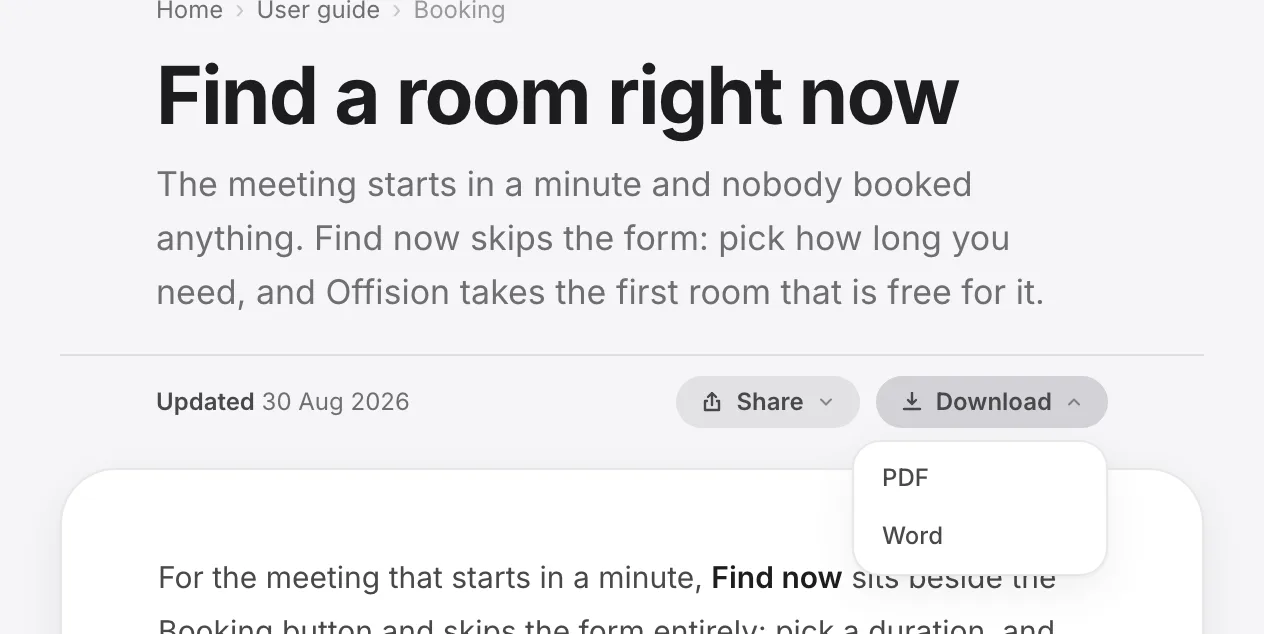
The Download pill on any article. Word is a real file; PDF goes through the browser's print dialog.
Word is a real .docx with the screenshots already embedded, so what you
open is an illustrated draft rather than a wall of text. Cut the paragraphs that
do not match your rules, add your own, and it is your manual.
PDF opens the browser’s print dialog, where you choose “Save as PDF”. Print from the same dialog and the page comes out as a document rather than a picture of a website.
Two things to expect. It is one page at a time — there is no “download this module” and no “download the manual”, so a bound handbook means downloading each page you want and joining them yourself. And a downloaded file is a snapshot: from the moment you save it, it stops following the product, which is why the link in step 1 is worth sending even to people you also hand a document.
4. Or give the whole manual to your own assistant
If your company runs its own chatbot or AI tool, it can read this manual
directly. offision.com/help/llms.txt is an index of every article, and
offision.com/help/llms-full.txt is all of them in one file. Any article is
also available as plain text by adding /ai/articles/ to its address. There is
an MCP server at offision.com/help/api/docs-ai/mcp for tools that speak it.
All of it is public and needs no key. It is English only — deliberately, so one list of links does not become three — so an assistant reading it will be answering your Japanese or Chinese staff from an English source.
Check it worked
Send one page to one person and ask them to do the thing without coming back to you. That is the only test that matters, and it finds the gap between what your staff need and what you sent faster than reading the document again does.
What this does not cover
The agent answers from this manual and nothing else. It does not know which modules you turned on, what your booking rules are, or who your approvers are, so it will describe a setting your company may not use. Anything specific to your own configuration has to come from you.
Setup work, a briefing for your staff and a manual written for you are services rather than settings — there is no page in the console that requests them. Arrange those with whoever supplies your Offision.