

Put your logo on Offision emails
Brand every notification Offision sends with your logo, a background colour and a footer. About ten minutes, and you can post yourself a test first.
1. Open Email setting
Go to System config › Settings › Email › Email setting. The branding is the second card on the page, Email style, under the server settings.
Open Email settingWhatever you set here reaches every email Offision sends — booking confirmations, visitor invitations, approval requests, the lot. There is no per-email-type variant of it.
2. Upload the logo
Choose Upload beside Email logo and pick your image. The limit is printed under the label: Must be less than 512 x 512 .png image, file size limited to 200KB.
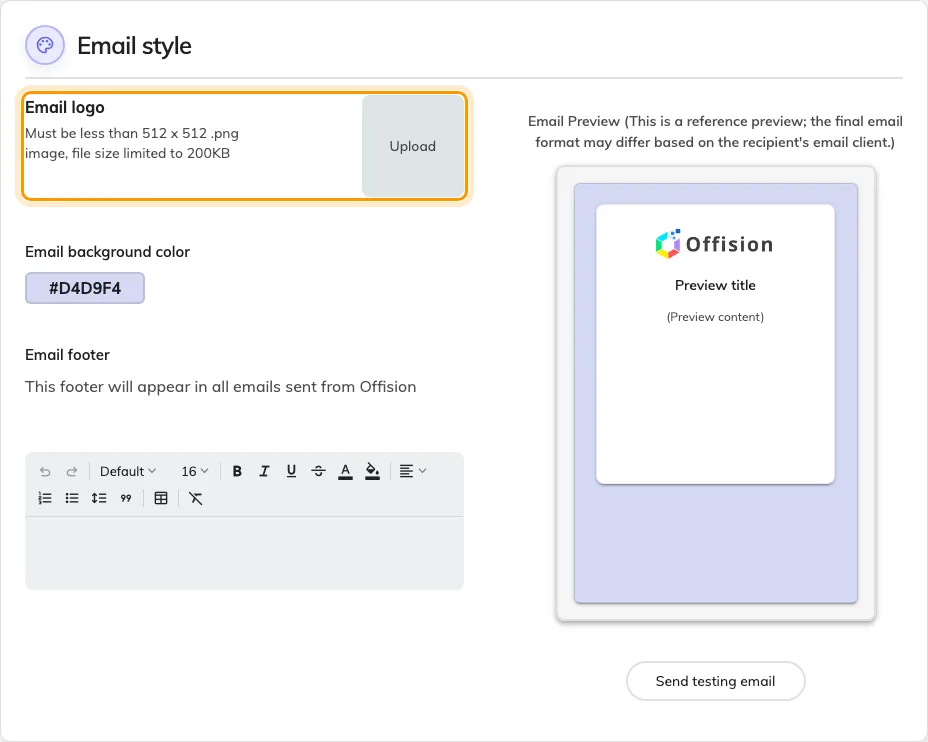
Email style, with the logo upload.
A crop window opens on a square, and unlike the room panel you can change that ratio — drag it to whatever suits your mark. It also carries Zoom in, Zoom out, Rotate left, Rotate right, Flip horizontal and Reset. Transparency survives the crop, so a logo on a transparent background sits on your chosen colour rather than on a white tile; the chequerboard behind the picture and the Transparency kept caption are how you can tell before you commit. Backing out of the window leaves whatever image you already had in place. The result is saved as a PNG at 256px, so a very fine wordmark is worth checking after upload rather than before.
This is not the same image as the one on the panels outside your rooms — that one is a wide 336×144 strip set per panel configuration, and it is covered in Show your company logo on a room panel. A logo already uploaded there does not appear here.
3. Choose the background colour
Email background color sets the band the message card sits on. Select the swatch — it shows the current value as a hex code — and a colour picker opens. Pick something with enough contrast against a white card that the mail still reads as deliberate in a dark inbox; the card itself stays light either way.
4. Write the footer
Email footer is rich text, and the note under it is exact: it appears in all emails sent from Offision. That makes it the right place for a company address, an unsubscribe pointer or a “do not reply to this message” line, and the wrong place for anything that belongs to one kind of message.
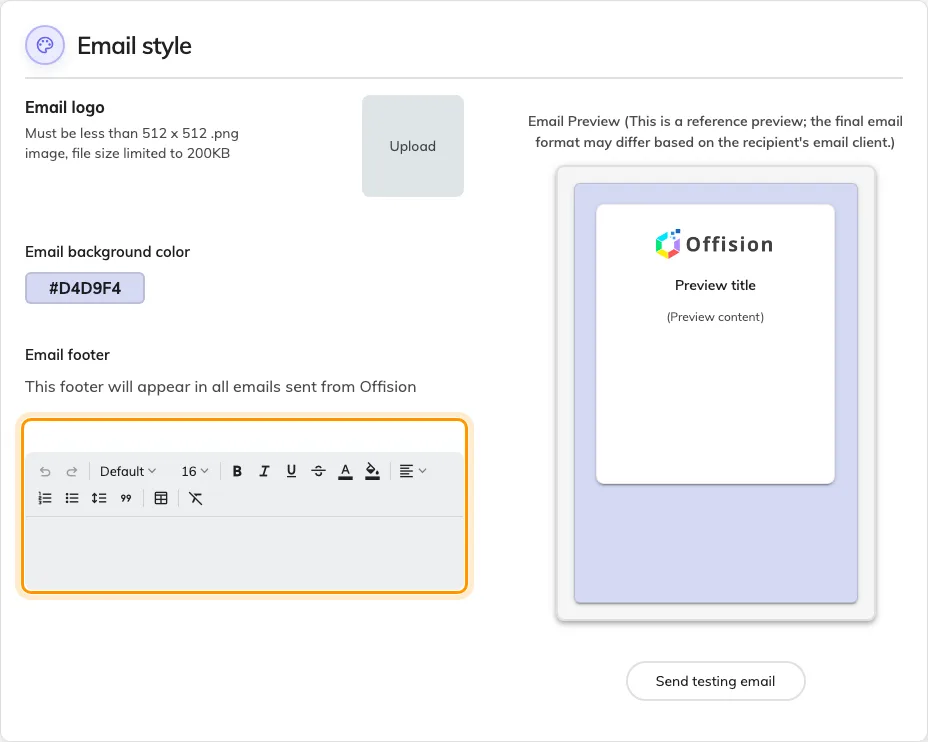
The footer, which reaches every Offision email.
Wording that belongs to one notification type — the text of a booking confirmation, say — is a different screen: Change the wording of an Offision email.
5. Check the preview, then post yourself a test
The right-hand column previews as you go, and its own caption is honest about what it is worth: the final email format may differ based on the recipient’s email client. Treat it as a check on your colour and crop, not as proof.
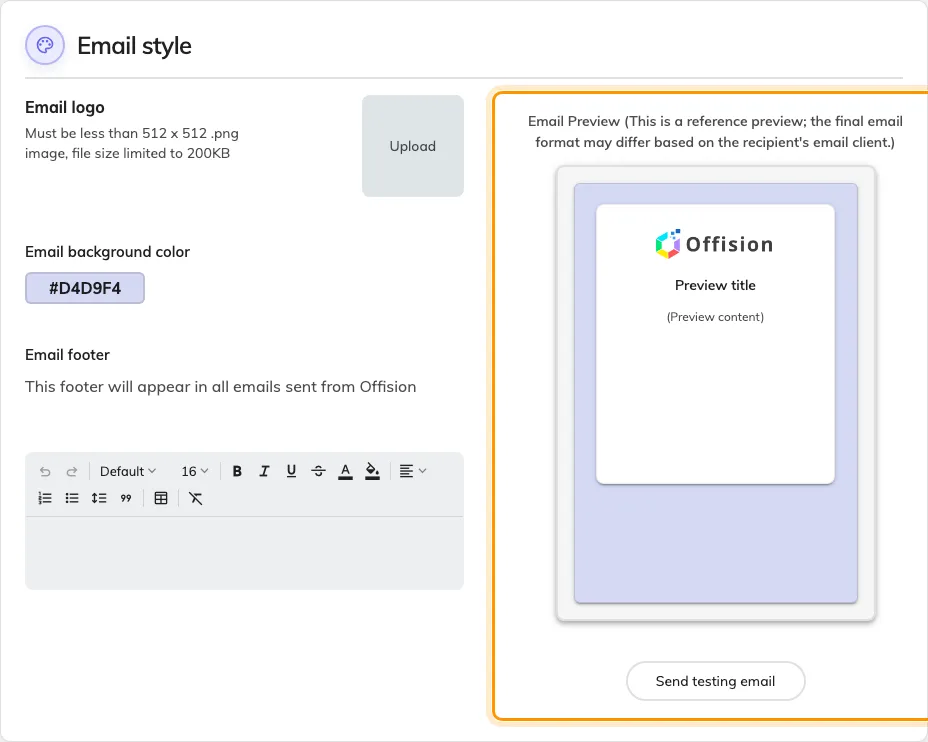
The live preview and the test button beside it.
Send testing email puts a real message in a real inbox, rendered with what is currently on screen rather than what is saved — so it is a true preview, and it works before you have saved anything.
6. Save
The save bar appears at the foot of the page once something has changed.
7. Check it worked
Trigger an ordinary notification — book a room, or invite a visitor — and open what arrives. The logo, colour and footer should all be there.
If the test looked right and the real mail does not, nothing here is at fault: the message is being sent, so the question is who sends it. That is Send email from your own address.