

Set the system time zone
Pick the zone every schedule, board and report falls back to. About two minutes, and it applies to everyone at once.
1. Open System interface
Go to System config › System interface. The time zone sits in the first section, Account settings, under the account name and languages.
Open System interface2. Choose the zone
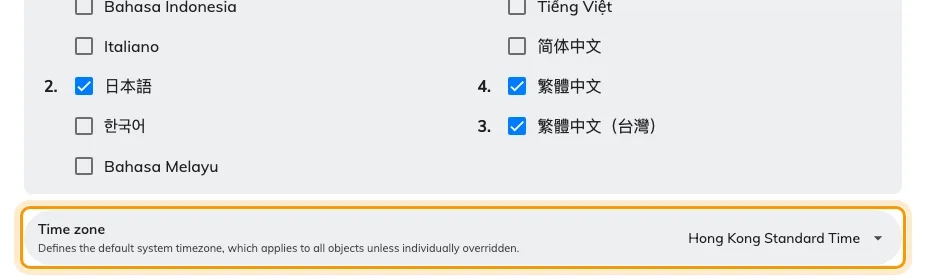
Account settings, with the system time zone.
Pick the city, not the offset. The list is organised by offset, which makes
+08:00 look like a reasonable answer — but an offset is only correct until the
next daylight saving change. A city carries its own rules, so Los Angeles moves
an hour in spring and Hong Kong does not, and neither needs your attention
again.
Where several cities share your rules, any of them is correct. Pick the one your colleagues would recognise.
3. Save
The save bar appears at the foot of the page once you have changed something.
This is the default, not a global override. Buildings and people can carry their own zone, and when they do, theirs wins — see Which time zone applies before you conclude the setting has not worked.
4. Check it worked
Open a booking and a door panel. Both should read the new local time.
Panels pick the change up within about a second; see Panels and screens update the moment something changes. If a building still shows the old time, that is expected — its zone comes from its location, not from here.