

4.6.3
Set weekday and holiday Guest Booking rates, attach room files, open fixed booking dates, and save your personal management-calendar resource order.
Set weekday and holiday rates on Guest Booking pages
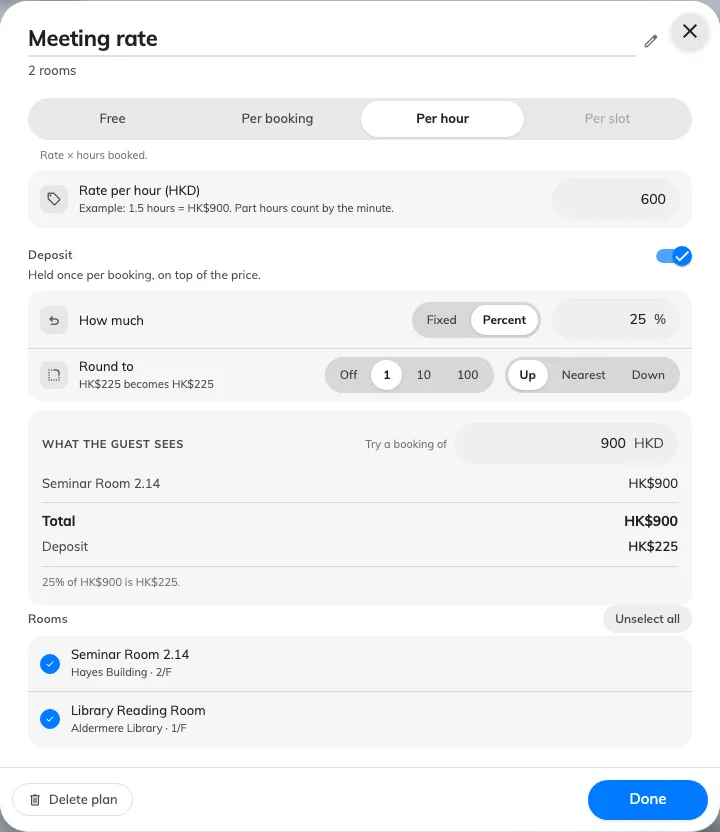
Open a room's pricing plan on a Guest Booking page and add day-rate tables for specific weekdays or holidays (holiday rates automatically override weekday rates). Preview a date or multi-day quote and save the page; existing bookings keep the price recorded when they were submitted.
Attach reference PDFs and images to each room
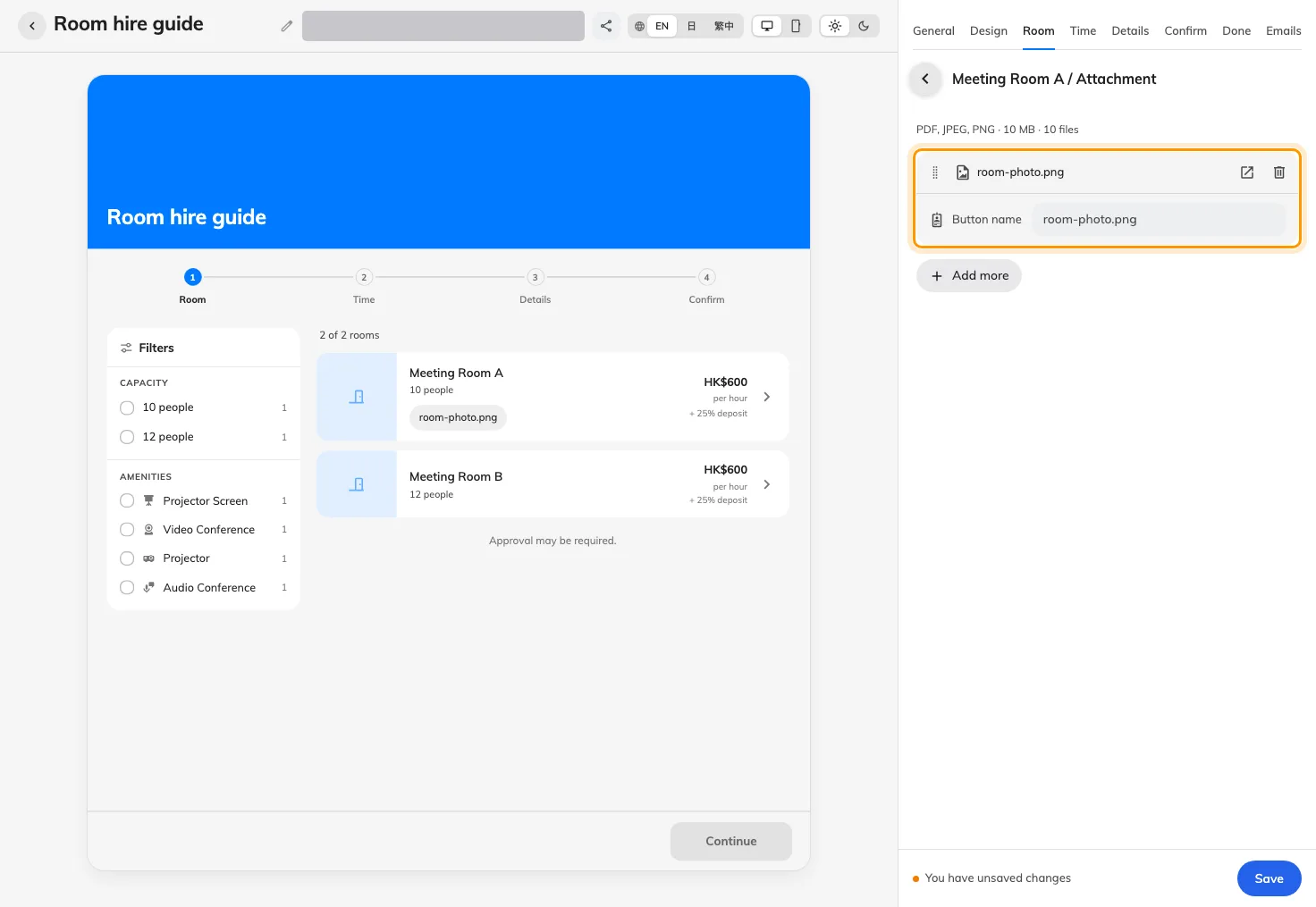
In a Guest Booking page's Room tab, upload and reorder Public booking attachments (PDFs or images) for each room and enter translated button labels. Save the page to publish those files so guests can open floor layouts or room guides without losing their current booking selections.
Open Guest Booking for a fixed date range
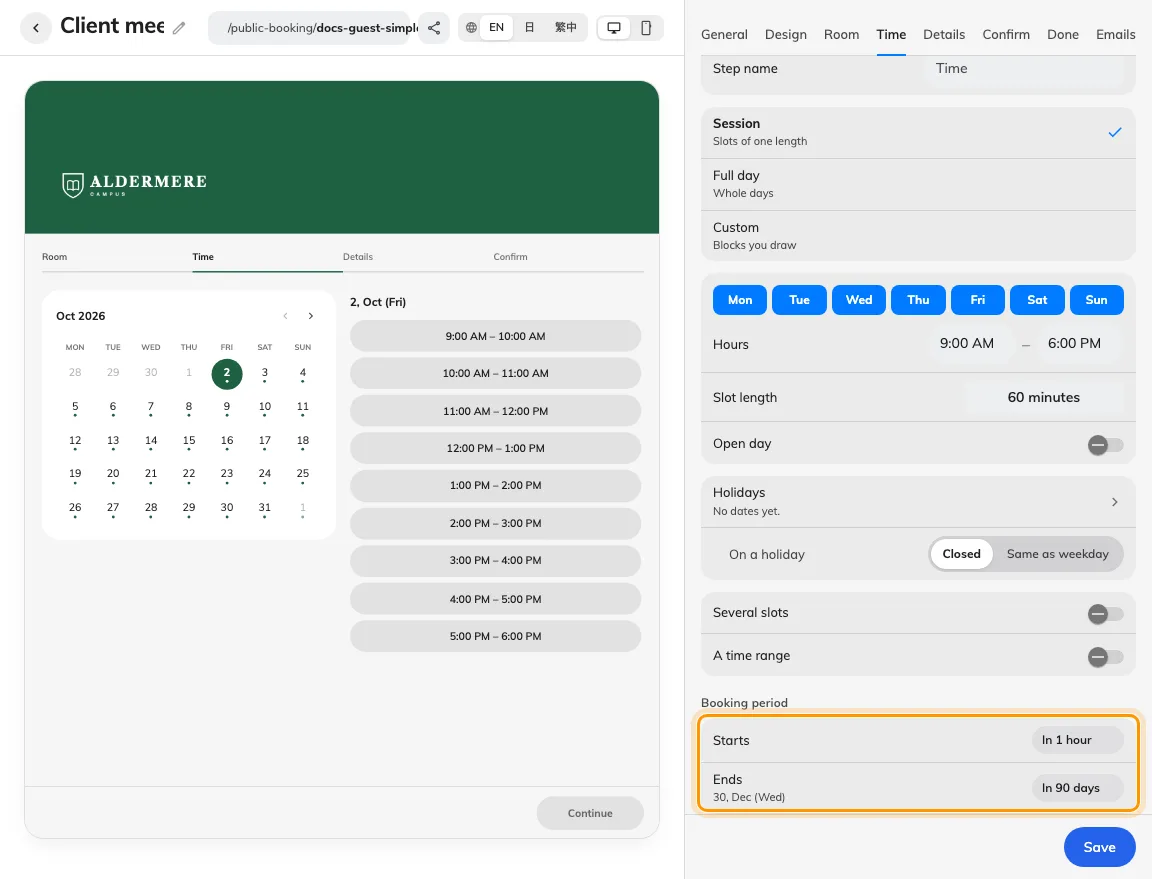
To accept bookings for a fixed event window or season instead of a rolling number of days ahead, open a Guest Booking page's Time tab and select Specified date for Starts, Ends, or both. Dates are evaluated in the room's time zone with the end date included, alongside your regular open hours and availability rules.
Choose how multi-day bookings handle weekends and holidays
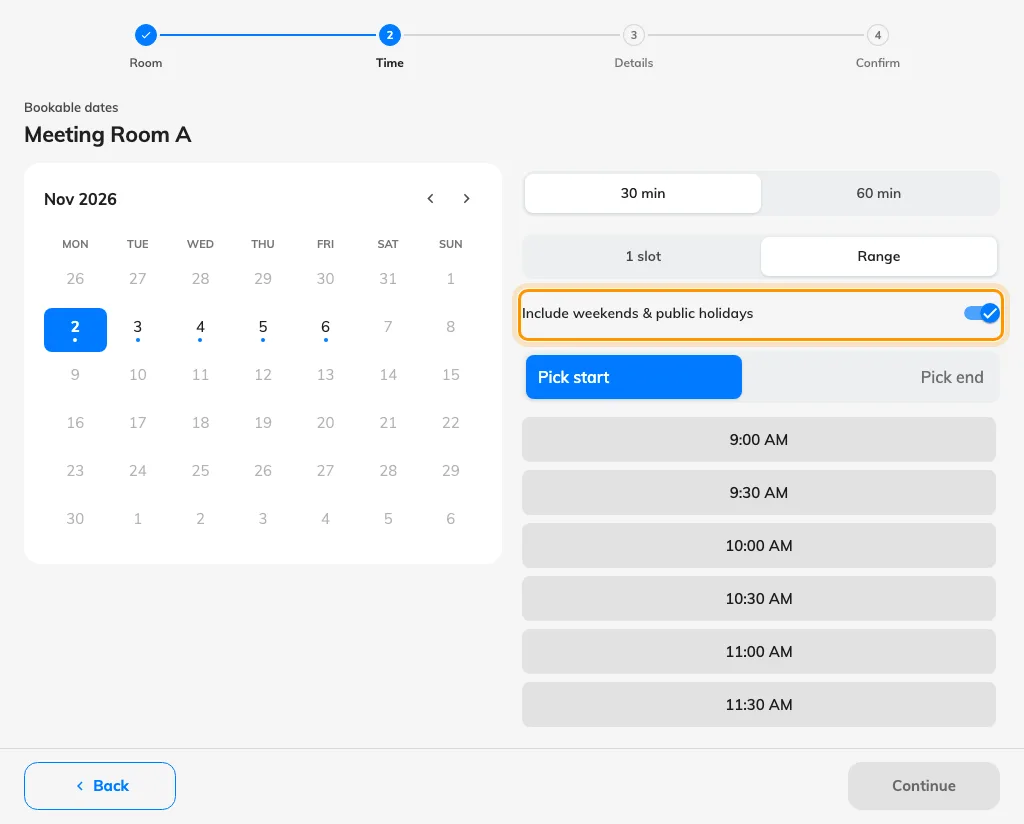
On Guest Booking pages that allow continuous multi-day ranges, set Include weekends & public holidays to Always, Never, or Let guest choose (where the guest toggle starts on). Closed weekends and page holidays can be spanned without extra daily charges while keeping the room reserved for the full continuous period.
Style the general public page directory separately
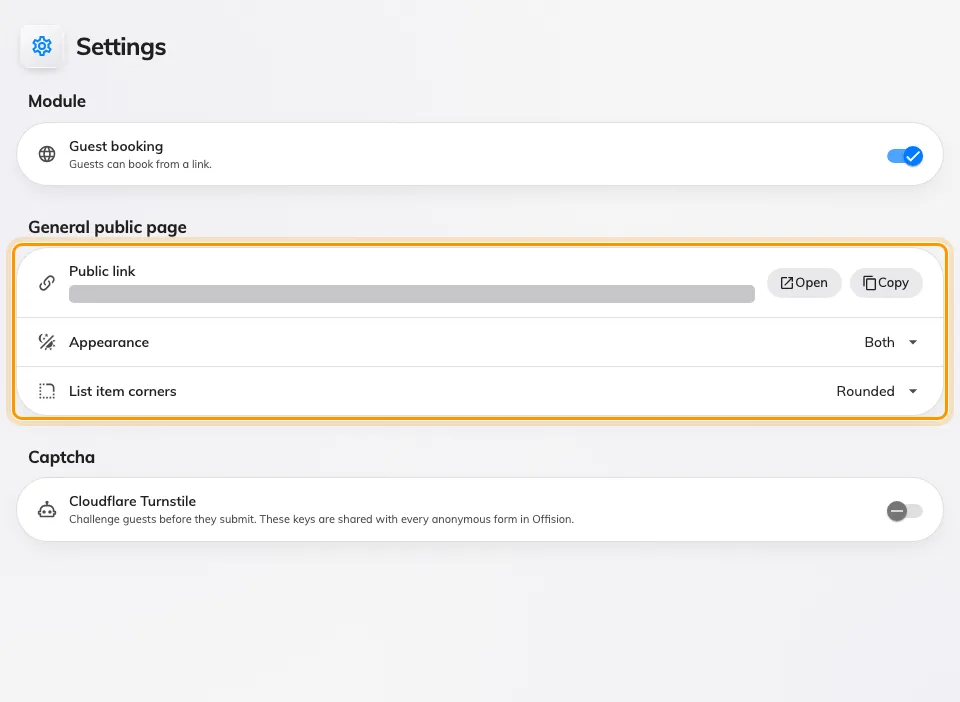
Open Guest booking › Settings and use General public page to configure Appearance and List item corners for your public page directory, then open or copy Public link to preview it. Individual Guest Booking pages keep their own branding and theme settings.
Display whole-day bookings as calendar dates without clock times
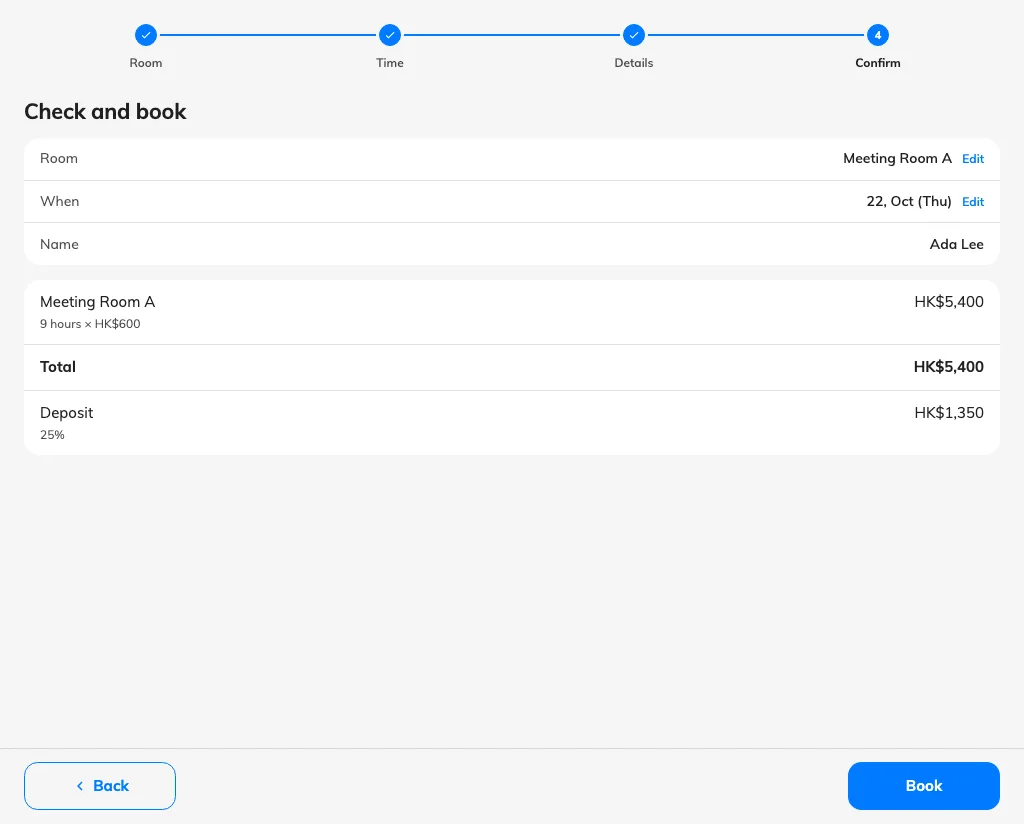
Guest Booking pages configured for whole-day selection now highlight chosen calendar dates and show date-only summaries throughout confirmation, completion, management links, and emails. Desktop views display the selected date beside the calendar, while mobile views keep the selection compact inside the calendar.
Save your personal resource order on the management calendar
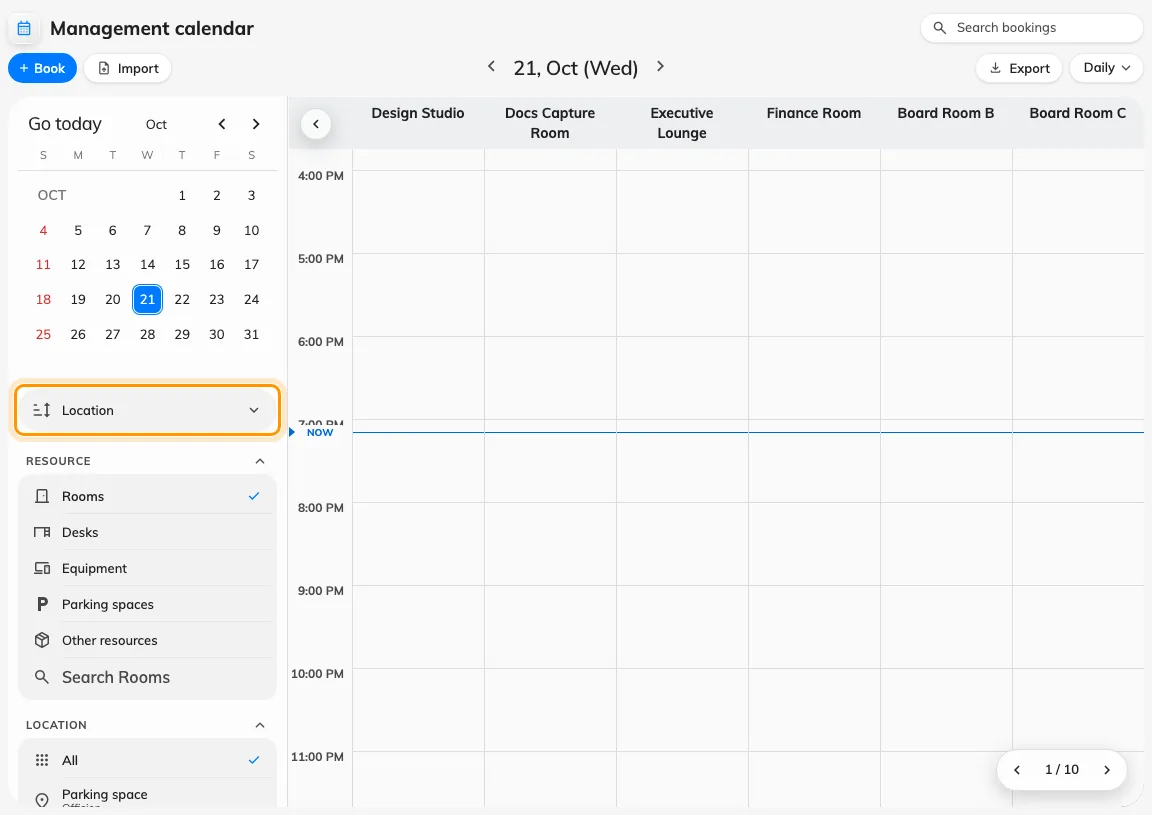
Configure the initial organization-wide order in UI customization › Management calendar, then use the sort selector above the Resource column on Booking › Management calendar to choose your preferred view. Your selection saves to your own account without changing the organization default or other administrators' calendars.
What changed
Guest booking
- Add day-specific rate tables to a Guest Booking page's pricing plan to charge separate weekday and holiday prices, with holiday rates taking precedence over weekday rates.
- Attach ordered PDF or image files with multilingual button labels to each room on a Guest Booking page; save the page to publish its room attachments.
- Set independent Specified date boundaries for Starts and Ends on a Guest Booking page's Time tab to open bookings for a fixed calendar season (including the end date).
- Across-day Guest Booking pages now replace the former skip-weekends toggle with Include weekends & public holidays (Always, Never, or Let guest choose, on by default for guests) while holding the room across the entire interval.
- Guest booking › Settings now includes General public page appearance and list-corner controls plus a Public link shortcut without altering individual booking-page themes.
- Whole-day Guest Booking pages now highlight selected dates and display date-only summaries — without clock times — across the recap, completion page, manage page, and emails.
- If a Guest Booking rate changes while a guest is filling out the form, submission pauses so the guest can review and accept the updated quotation first.
Booking
- Set the organization's default resource order in UI customization › Management calendar while saving each administrator's personal resource order on the management calendar independently.
Fixes
- Guest Booking calendars could open on an empty month even when the following month had available dates.
- Dates outside a Guest Booking page's booking period could appear selectable on the calendar.
- Named Guest Booking time blocks copied onto a closed weekend could disappear after saving.
- Combined-room names could be missing from Guest Booking notification emails.
- Guest Booking attachments stored in cloud storage could fail validation.
- Time zones in check-in and no-show reminder emails could display raw HTML tags.
- Regular visitor Apple Wallet passes could include inaccurate relevance metadata, and scheduled visitor passes could expire at a different time than the visitor badge.
- Closing a workflow node's configuration pane could discard unsaved edits in progress.
- Saving a workflow could overwrite newer draft edits or clear dependent data bindings after renaming a node.
- Room states on a 3D floor map could show outdated data after a map rebuild.