

4.6.0
Meet the new Map Editor and Guest Booking: build your workplace in 3D, then welcome guests with booking pages shaped around your rooms and services.
Meet the new Map Editor: bring your workplace into view
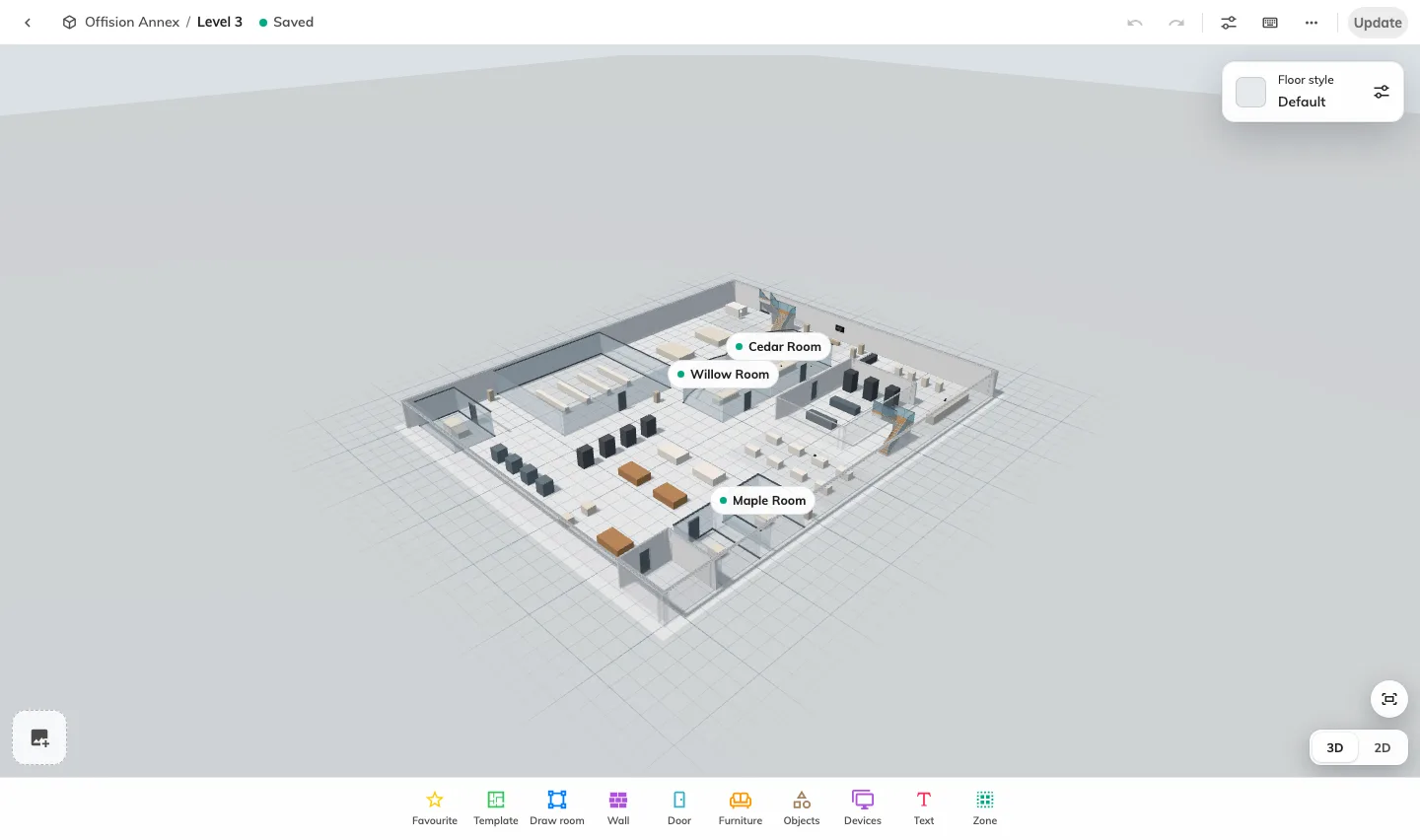
A useful floor plan helps people understand the office before they choose where to work or meet. With floor maps licensed and enabled, the new Map Editor, Map 2.0, lets you create and edit walls, doors, rooms and furniture directly in a 3D scene. You can inspect the same drawing from above, making it easier to check how a room fits into the surrounding floor and keep the map recognisable as your workplace changes.
For a new office, start with an empty scene or an industry sample and adapt its layout to your own floor. If you already have a plan image or PDF, AI drawing can provide a starting scene when your account has remaining AI-map allowance, reducing the amount of geometry you need to place by hand. Review the proposed scale, doors and room boundaries before using the result, then connect the drawing to the rooms and desks you already manage in Booking.
Existing Classic maps can also provide a starting point through From classic, while their original drawings remain stored. Open Map, choose the building and floor, and review the account’s map-view choice before switching: it affects which map family people see across the account, with Classic continuing on floors that have no Map 2.0 scene.
Build familiar rooms without placing every chair
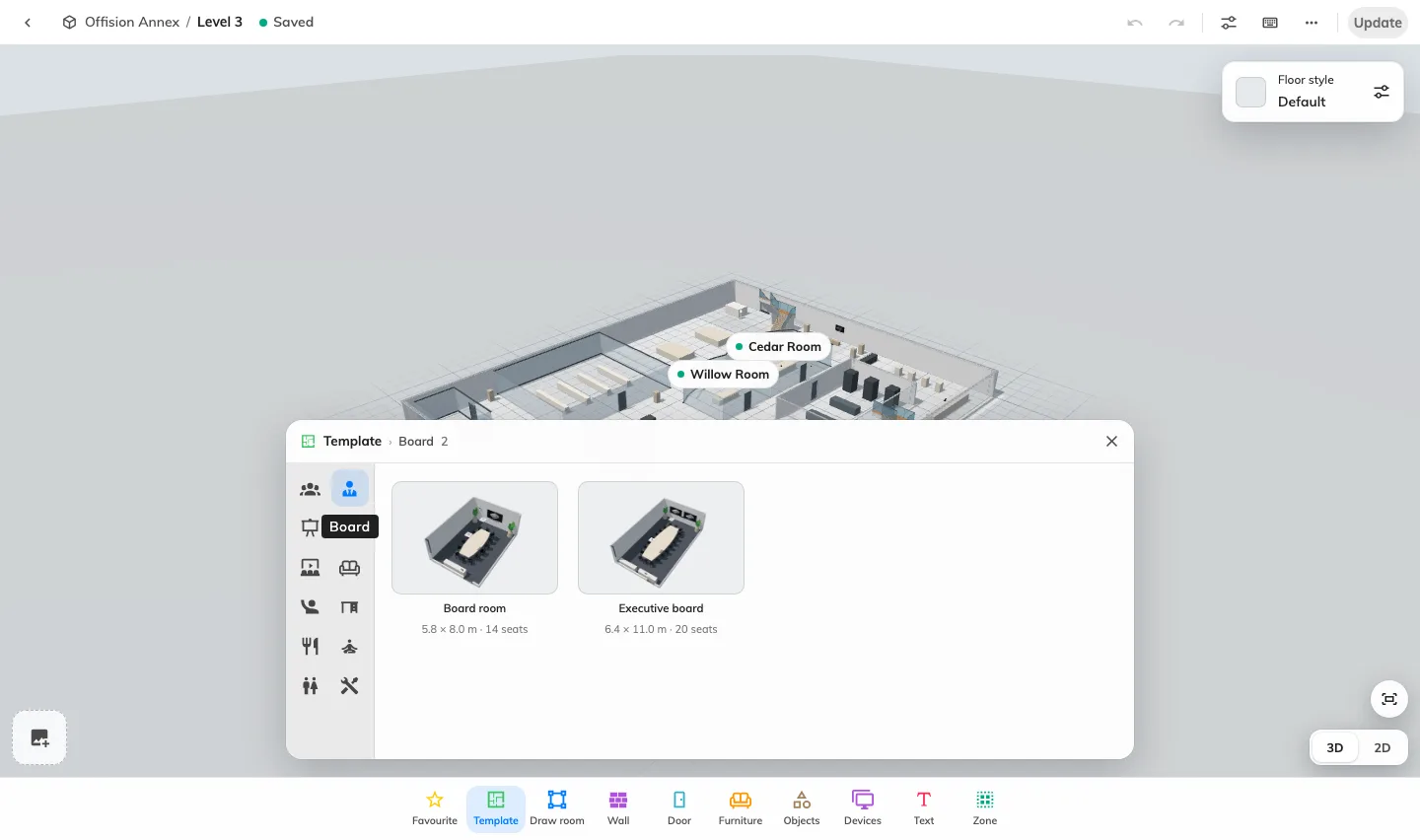
A floor plan is more useful when a meeting room looks like a meeting room and a desk area shows how people sit together. With Map 2.0 enabled, ready-made room templates give you a furnished arrangement to place and adapt. Their dimensions and seat counts help you choose an appropriate starting layout before adding it to the scene.
For example, begin a boardroom with a table-and-chair arrangement, then resize and position its objects to match the actual room. Select furniture to change its appearance or choose a compatible replacement when a team changes the space. This gives you a practical way to maintain a recognisable layout as desks move, meeting areas grow or furniture is replaced.
Open Template from the designer toolbar, check the arrangement, and adjust its objects after placement. Templates create the drawing; link the placed rooms and seats to existing booking resources through Assign so their booking identity matches what people see.
Turn a floor drawing into a map of bookable spaces
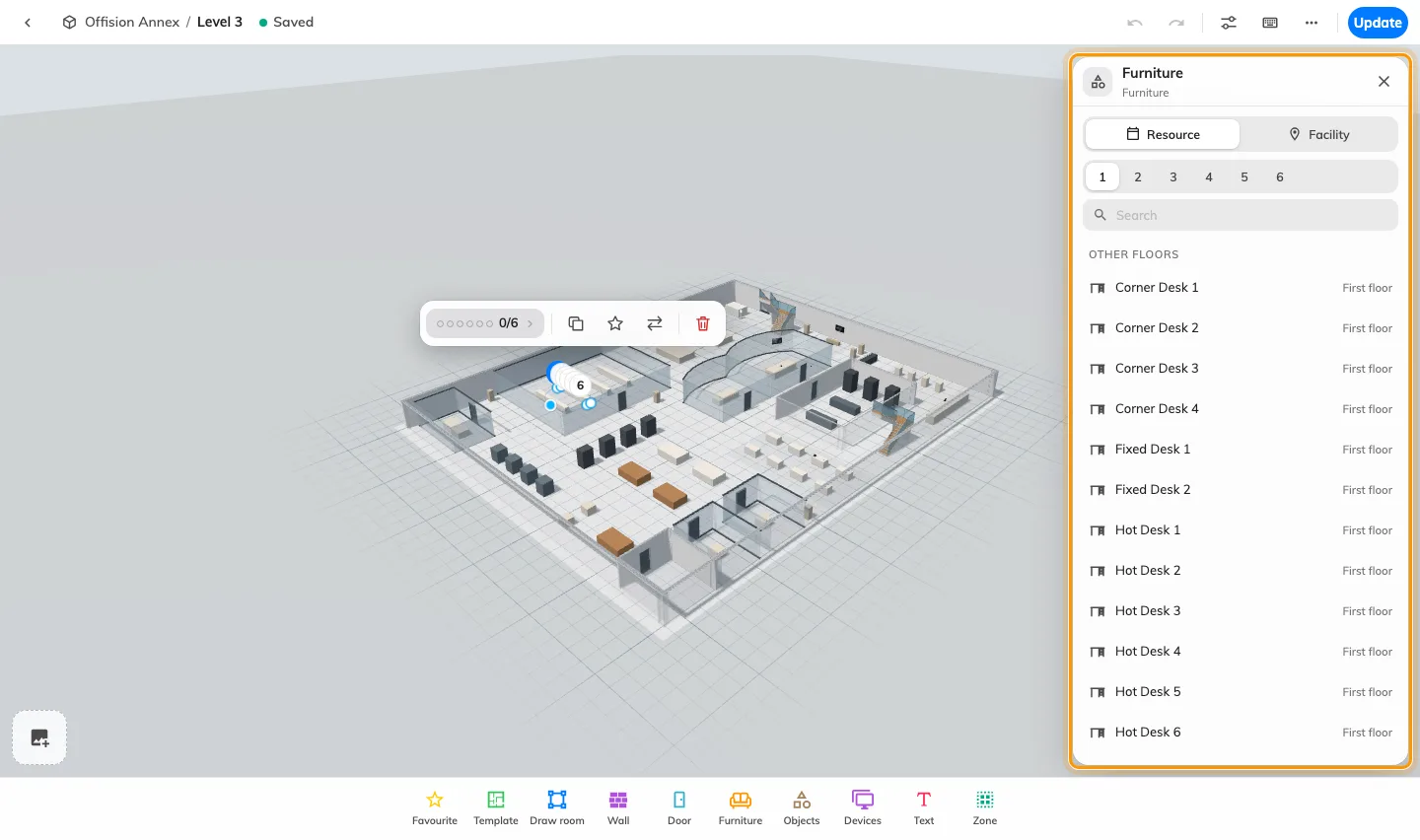
A drawing becomes useful for booking when the room or seat on the map identifies the right resource. With Map 2.0 enabled, Assign connects compatible room, desk, equipment and parking objects to the resources already managed in Booking. You can maintain the floor’s appearance while keeping each object tied to its actual booking identity.
For a shared desk with several seats, assign each seat to its own desk resource so colleagues can identify the position they are choosing. A parking grid can likewise represent multiple bays with separate parking-resource links, while its row layout, bay dimensions and markings describe the parking area. These links make a visual layout useful for finding a particular seat or bay instead of relying on a name alone.
Select the object, choose the seat or bay where applicable, and open Assign to find a compatible resource. Review This floor, Other floors and No location before choosing: a resource taken from another floor moves its location, and an existing assignment transfers to the selected object. Unassign removes the map link while keeping the booking resource.
Keep office changes under review before publication
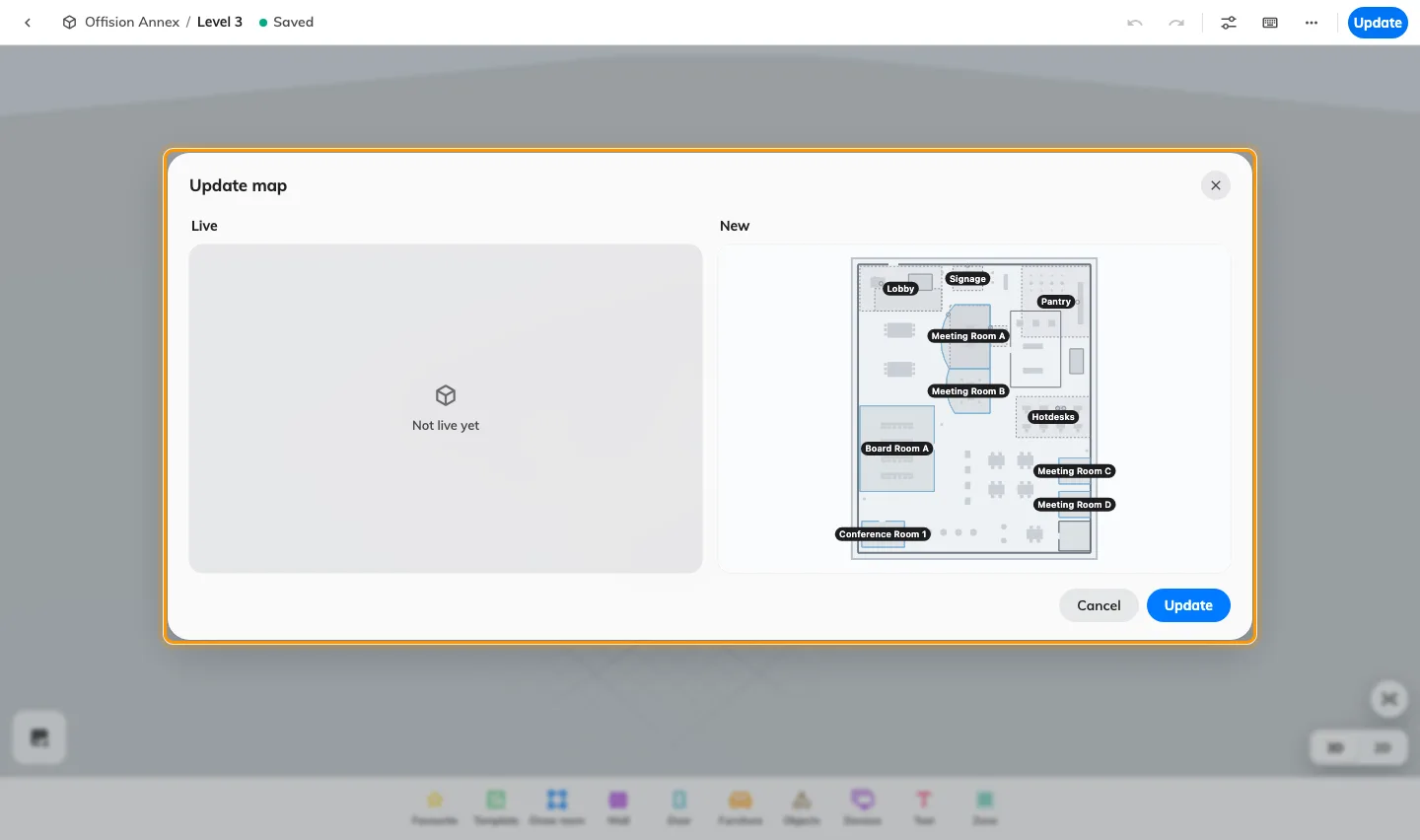
Office changes often take several edits to get right. On a published Map 2.0 floor, your work saves as a draft, while Update lets you compare the current Live map with the New drawing before publishing. This gives you a clear point to review the layout and assignments before replacing the map people already use.
When a team moves desks or changes a meeting area, adjust the objects, check their resource links and inspect doors and reachable space together. Wait for Saved, open Update and compare the two views; closing that review keeps the draft available for further work. For a first Classic conversion, people continue seeing Classic until the first update succeeds, giving you time to check the imported scene.
The original Classic drawing remains stored after conversion, and the two drawings are maintained separately. A never-published Map 2.0 floor can already show its draft when the new-map view is enabled, so check its publication state before using it for an internal review.
Make the floor recognisable and easy to read
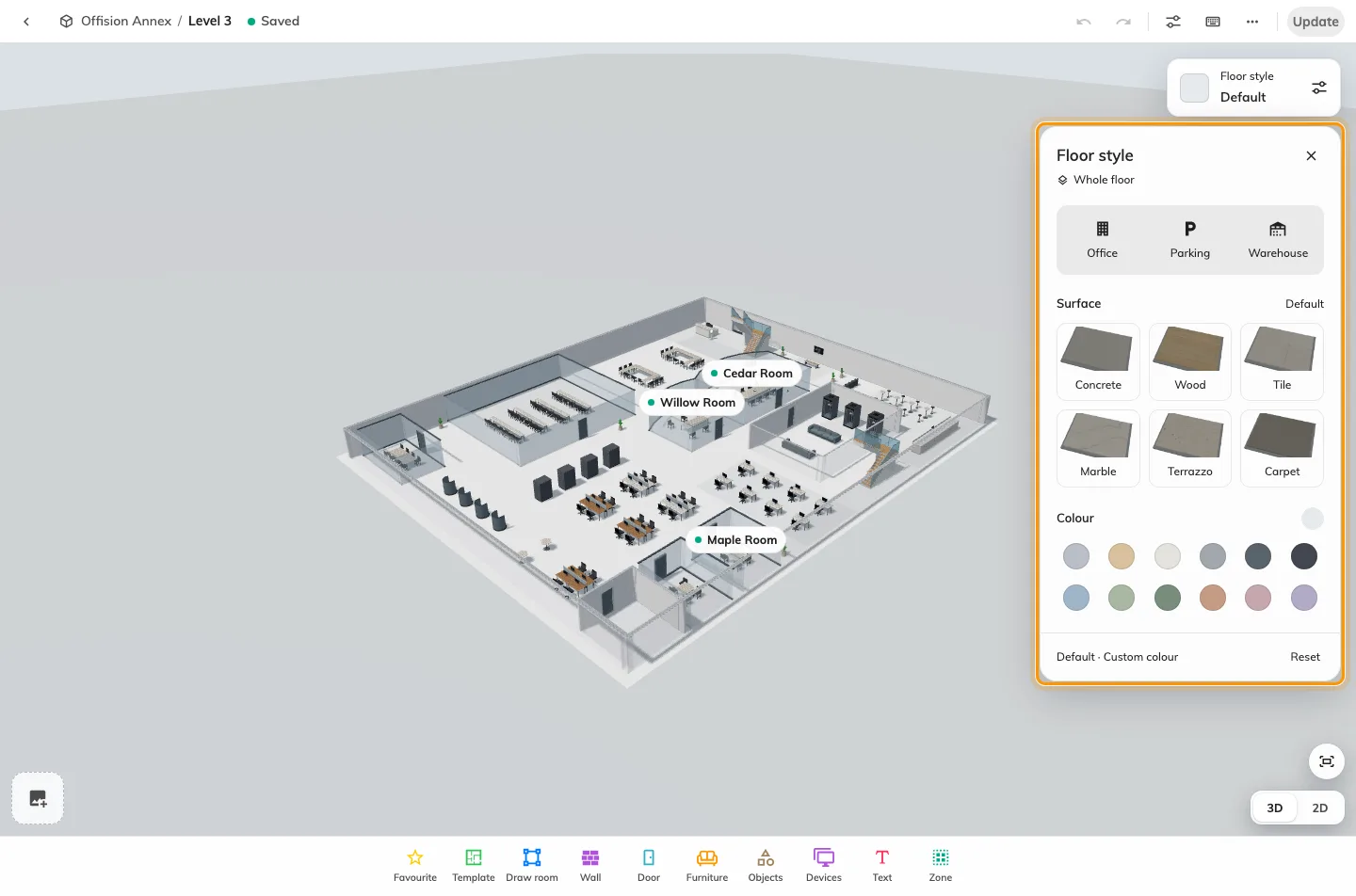
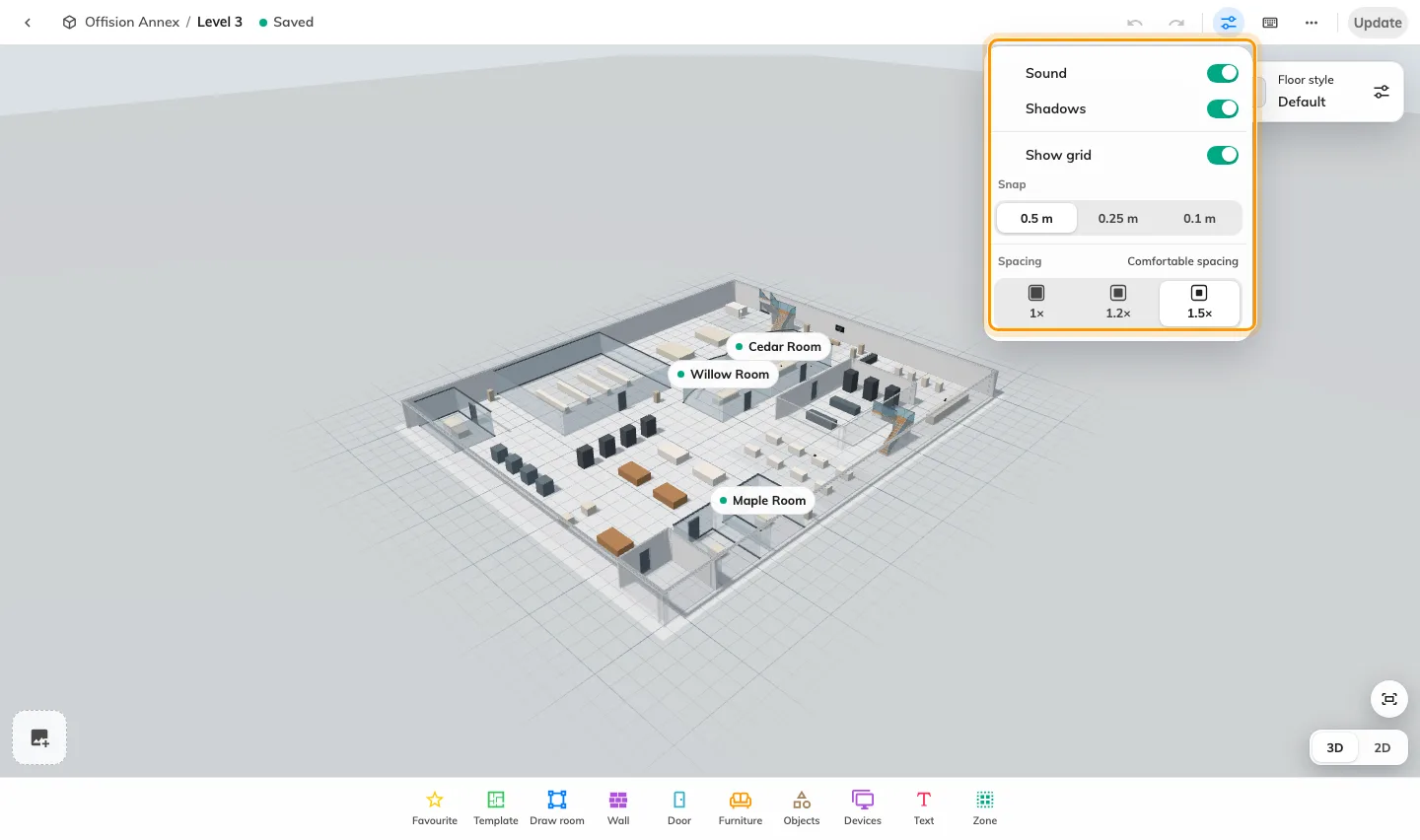
People recognise a workplace through its layout, furniture and finishes as well as its room names. With Map 2.0 enabled, floor styles, object appearance and display controls let you shape how that workplace is presented. You can inspect the scene in 3D to understand the space and use a top-down view to compare positions on the floor.
For example, give the floor a consistent overall style, adjust a meeting area’s furniture and check how room and desk labels read against the scene. Treat the map as a shared reference for finding spaces: a recognisable drawing helps colleagues relate a booking choice to the place they know. Appearance settings describe the drawing, while resource assignments identify the room or seat being booked.
Open Floor style for the whole-floor finish and colour, or Display in the designer header for presentation controls; select objects for their appearance and exact dimensions. Inspect both the whole floor and the spaces people need to identify, then review and update a published map when ready.
Keep and reuse the map work you have already done
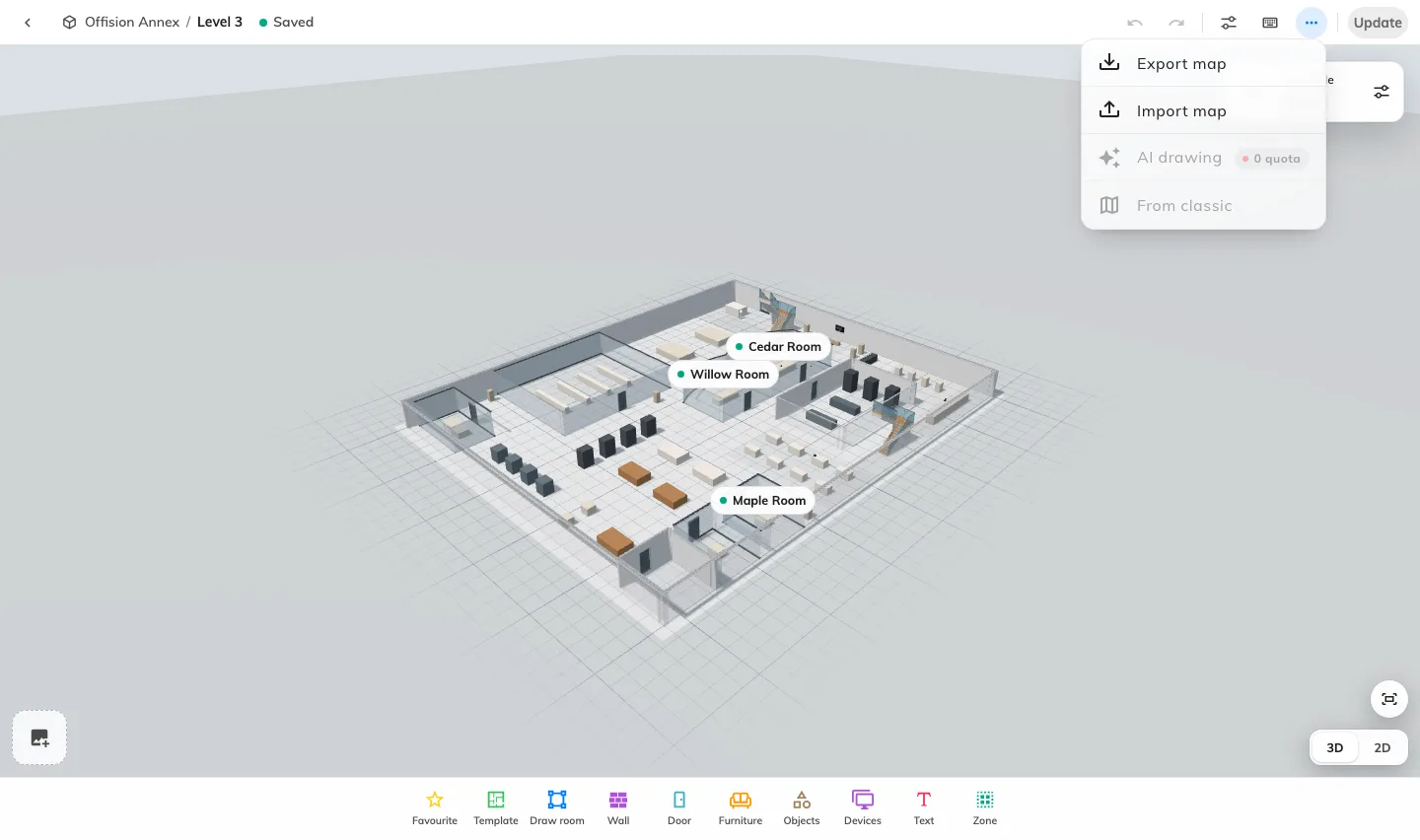
A useful layout can be the starting point for another floor, and a drawing file gives you a copy to keep before a substantial change. With Map 2.0 enabled, File exports the drawing on screen as an .ofp2 file, including its available pictures, and lets you review a map-file import before replacing the destination draft. You can reuse your drawing work while checking the destination explicitly.
For example, export a meeting-area layout you want to adapt for another office, then import the file on the intended floor and adjust its geometry. The export excludes resource assignments, so bind the destination’s rooms, desks and other resources after import; this lets the same drawing be adapted to the resources that belong to that location. Keep a separate export before replacing a draft you may need later.
Choose File › Export map to keep the current drawing, or File › Import map to inspect a file and confirm Replace. Review any warning about missing pictures, check the imported objects and assignments, then use Update when the published floor should change.
Guest Booking: open your rooms to people outside your organisation
Arranging a room for a client, a visiting team or a training group often meant exchanging messages about availability and copying the request into a calendar. With Guest Booking enabled and guest-booking licences assigned to the offered rooms, guests can choose an available room and time, provide the details you need and submit without an Offision account. Their submission creates a booking or an approval request in your booking workflow, giving staff and guests a common reference for the arrangement.
Create a page around a service you actually offer: client meetings, training rooms or bookable venue space. Choose the rooms for that audience, set opening hours and advance notice, and decide whether guests start with a room or a time. Separate pages let you present different room selections and booking experiences while staff continue managing the resulting reservations in the booking calendar.
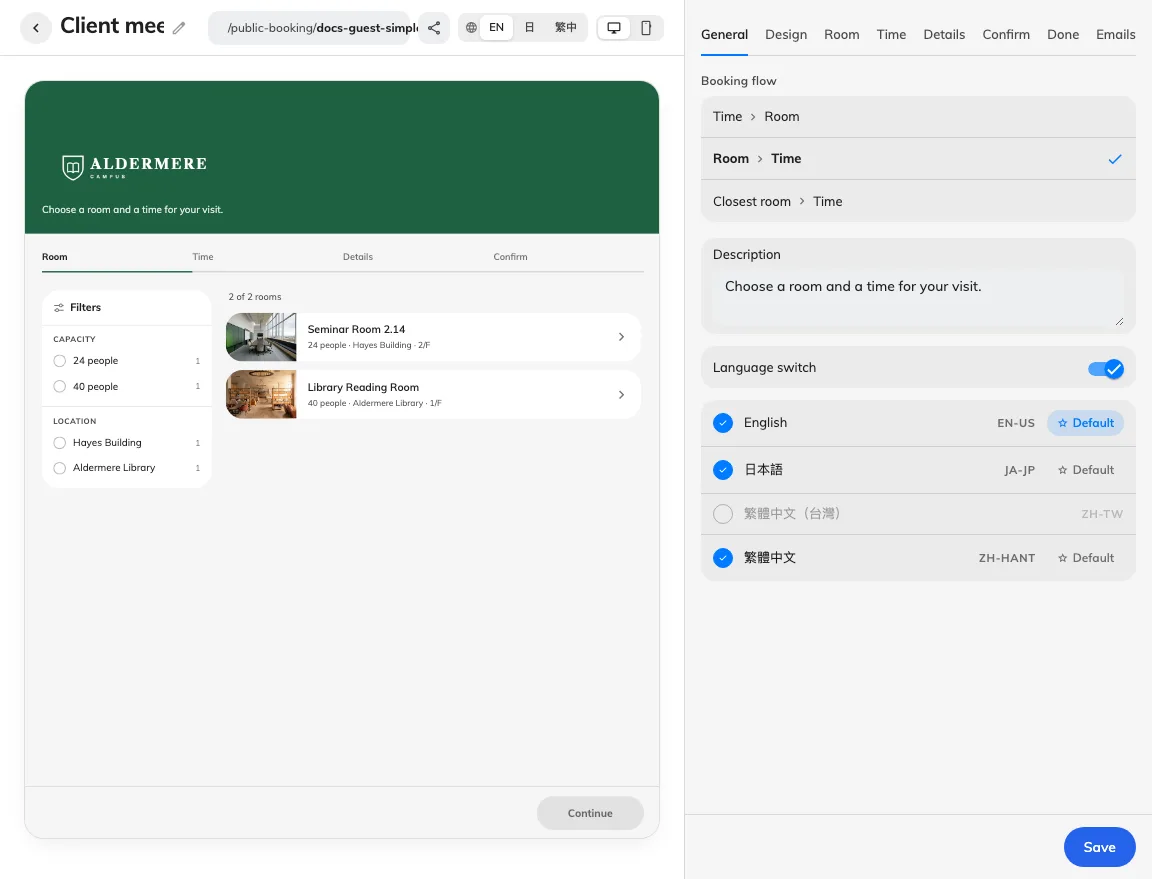
The page editor places settings beside a desktop or phone preview, so you can work through room selection, time, details, confirmation, completion and emails as one journey. Apply your logo, theme and languages, then save, publish and check the complete signed-out flow. The room’s approval policy determines whether the guest receives a confirmed reservation or a request awaiting review.
Match the booking journey to the service you offer
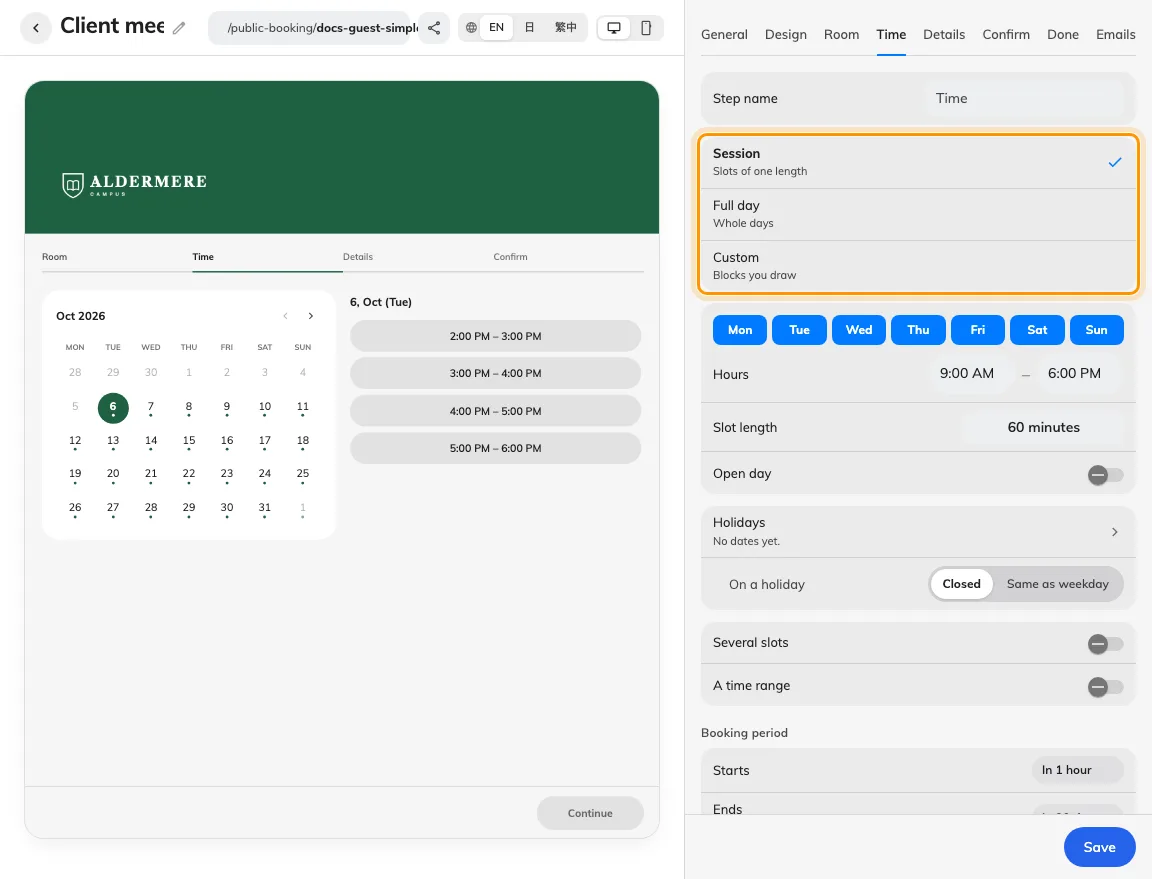
A short appointment, a half-day workshop and a whole-day venue hire should be understandable choices without asking guests to calculate their own duration. With Guest Booking enabled, each page can offer equal-length sessions, named custom blocks or whole days. You can present the units your service uses and keep the booking journey consistent with how staff prepare the space.
A client-meeting page might offer one-hour sessions, while a training page offers named morning and afternoon blocks. Turn on Several slots for separate reservations, or A time range when guests should choose a continuous period; allowing a range across closed days is a further setting. This lets you support different uses while keeping the actual start, end and price visible in the guest recap.
Set open weekdays, hours, advance notice and the booking window on Time, then configure the page’s holiday list and country-calendar sync where needed. Synced country holidays update daily while manual dates remain available for local closures; check the saved guest calendar to confirm the offered times reflect the intended schedule.
Collect useful answers without repeating the whole form
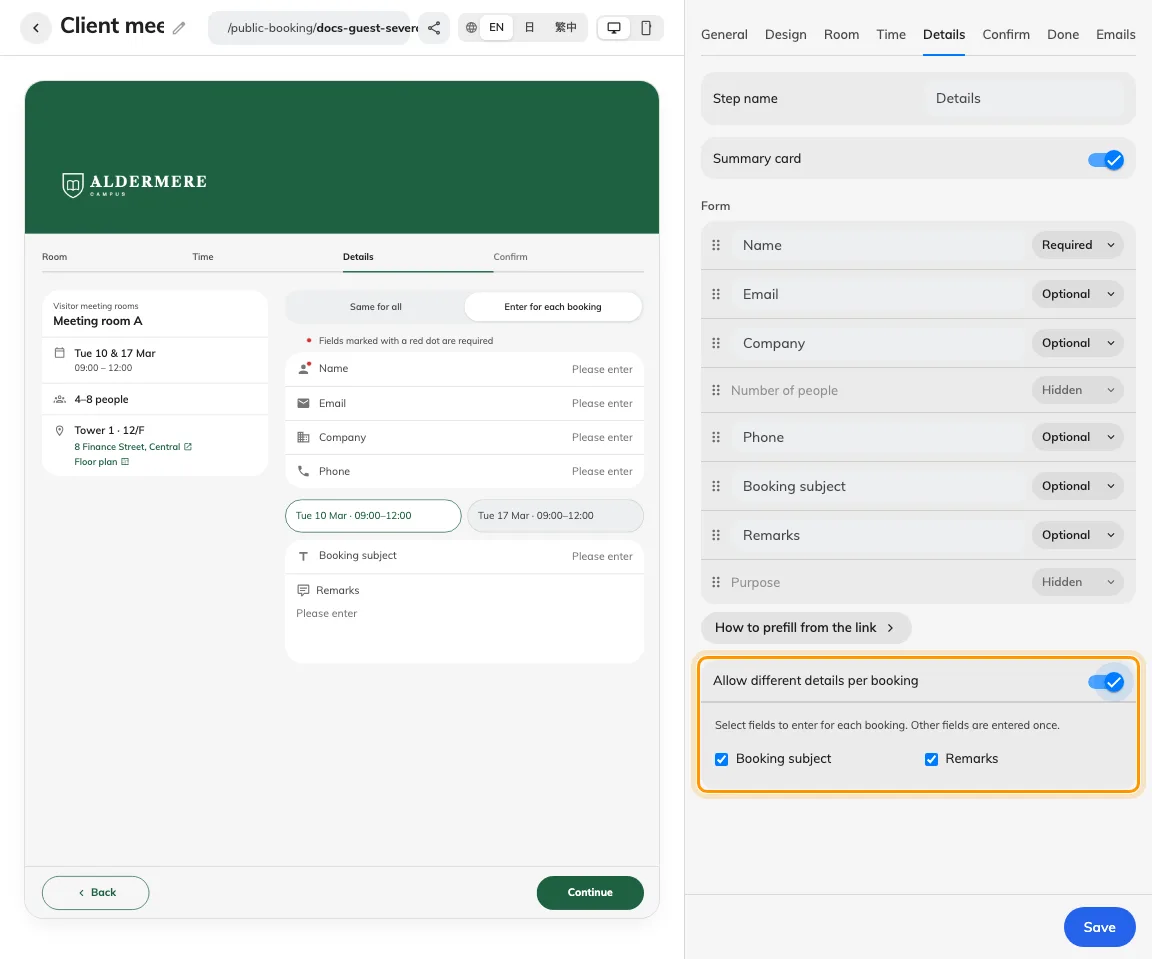
The information staff need to prepare a room is often different from the contact information they need to reach the guest. With Guest Booking enabled, Details lets you choose and order contact rows and booking-form fields, including whether an answer is hidden, optional, required or read-only where supported. You can keep the form focused on the facts that help staff arrange the visit.
For several workshop bookings, the organiser’s name and email can stay shared while each session has its own subject, attendance estimate or remarks. Enable Allow different details per booking and select the editable fields that may vary; guests choose Same for all or Enter for each booking. Staff receive the relevant answers for each reservation without asking the guest to repeat their contact details for every slot.
Name, email, phone and company remain shared, and each reservation still needs its required answers. Enable Verify email on Confirm when mailbox verification is needed, and configure module keys before using captcha. For an invited guest whose details are already known, supported prefill fields can further reduce typing.
Give guests a clear cost before they submit
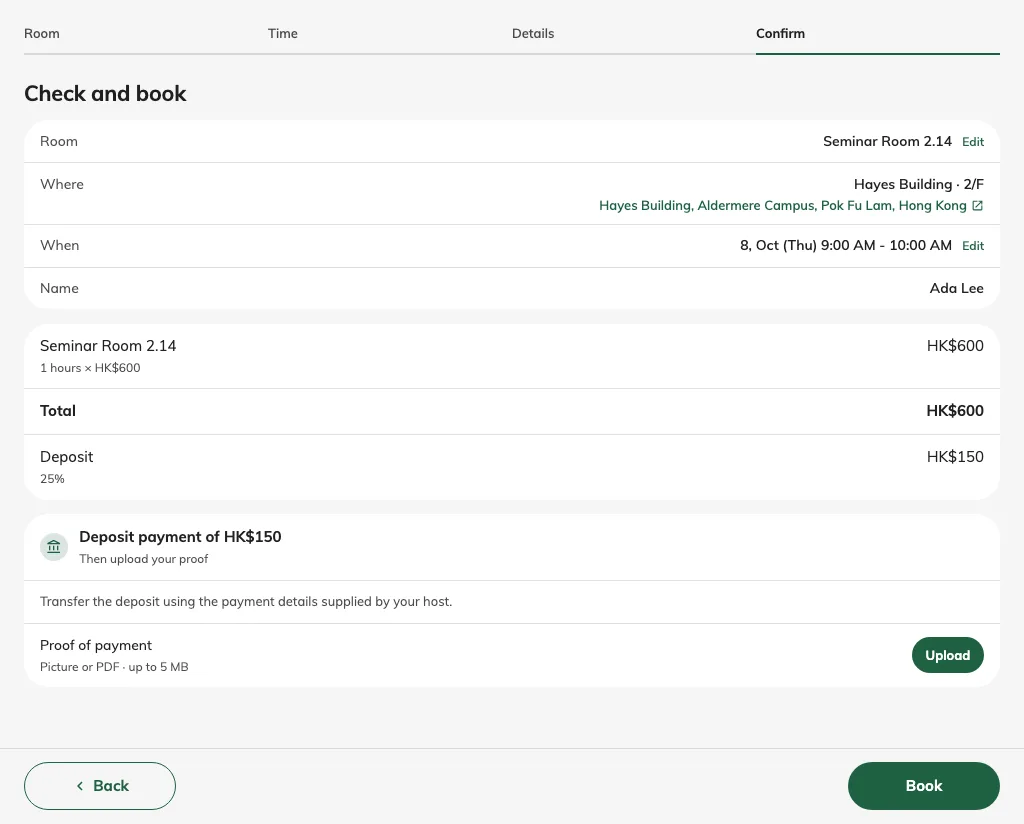
Guests deciding between rooms need to understand the cost as well as the available time. On Guest Booking pages with pricing configured, the recap shows room charges and any fixed or percentage deposit before submission. Price on request keeps an amount that needs staff confirmation visible as an unresolved price, helping the guest understand what is known before committing.
A venue can assign different pricing plans to training rooms and meeting rooms, or request a deposit for the space being reserved. Guests review the breakdown alongside their selected rooms and periods, so staff can discuss the same figures when reviewing the request. Payment instructions and proof uploads can then guide the next step when configured on Confirm.
Set the currency and pricing plans for the offered rooms, then check one booking and any multiple-booking combinations your page permits. Displaying a deposit calculates an amount; uploaded proof gives staff something to review, and staff still need to verify payment separately. Keep approval and payment wording aligned with the actual booking status.
Set expectations before the room is booked
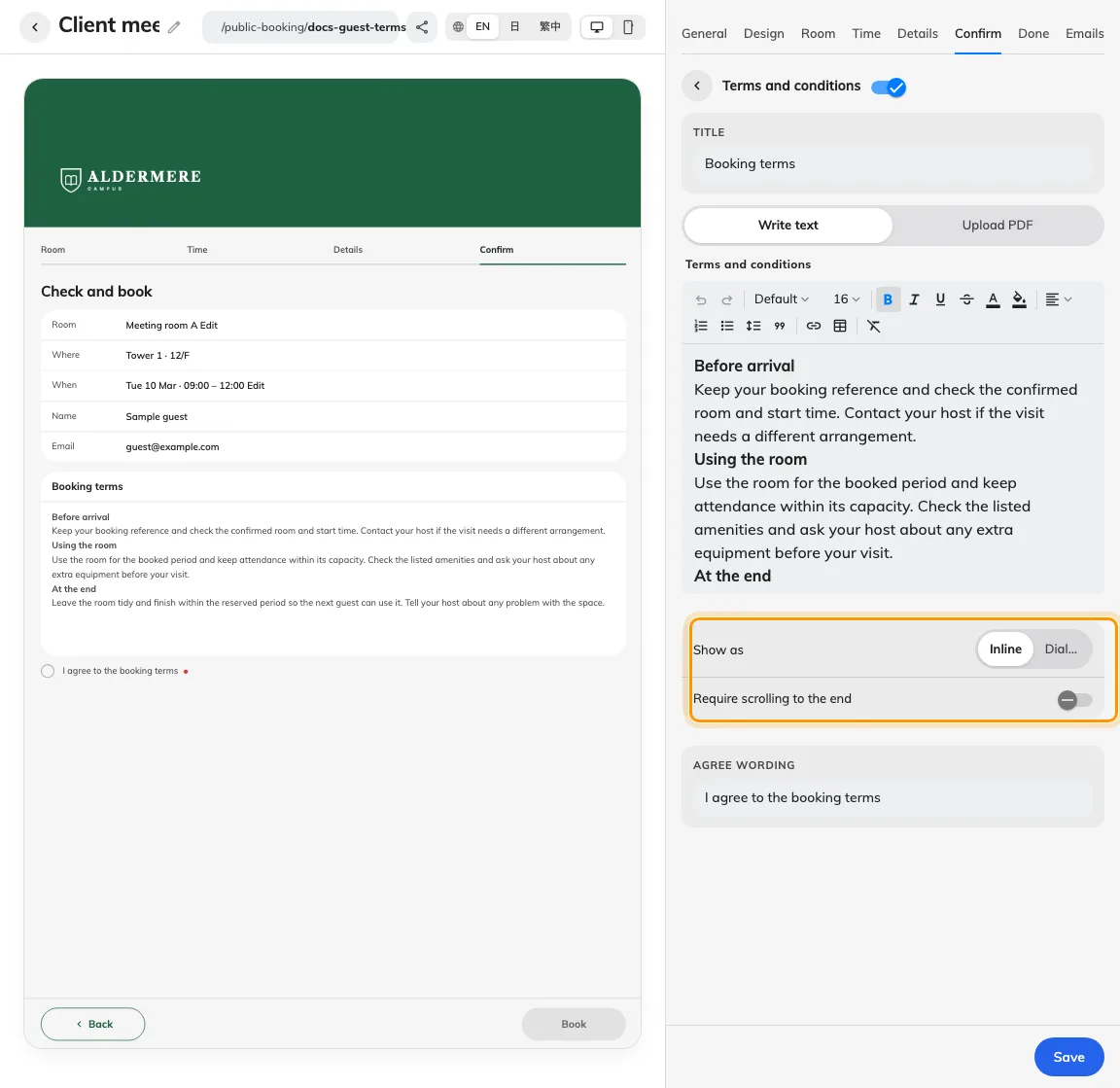
Room-use conditions are easier to act on when guests see them at the point they confirm their reservation. With Terms and conditions enabled on a Guest Booking page, you can present typed text or a PDF beside the booking recap, or let the guest open it in a dialog. Required agreement makes the conditions part of submission, helping staff and guests begin with the same expectations.
A training venue might explain arrival time, permitted equipment and the condition in which the room should be left. Keep those terms together, then use separate acknowledgements for distinct commitments such as confirming an additional document has been read. Each acknowledgement can have its own supporting content and required setting, so one tick does not have to cover every different instruction.
Open Confirm › Terms and conditions, choose the presentation and write the agreement sentence in each enabled language. Require reading to the end when appropriate, then test the published page with the required agreements left unchecked and completed. Uploaded PDFs retain their own language, so prepare the documents your audience needs.
Bring booking into your website and invitations
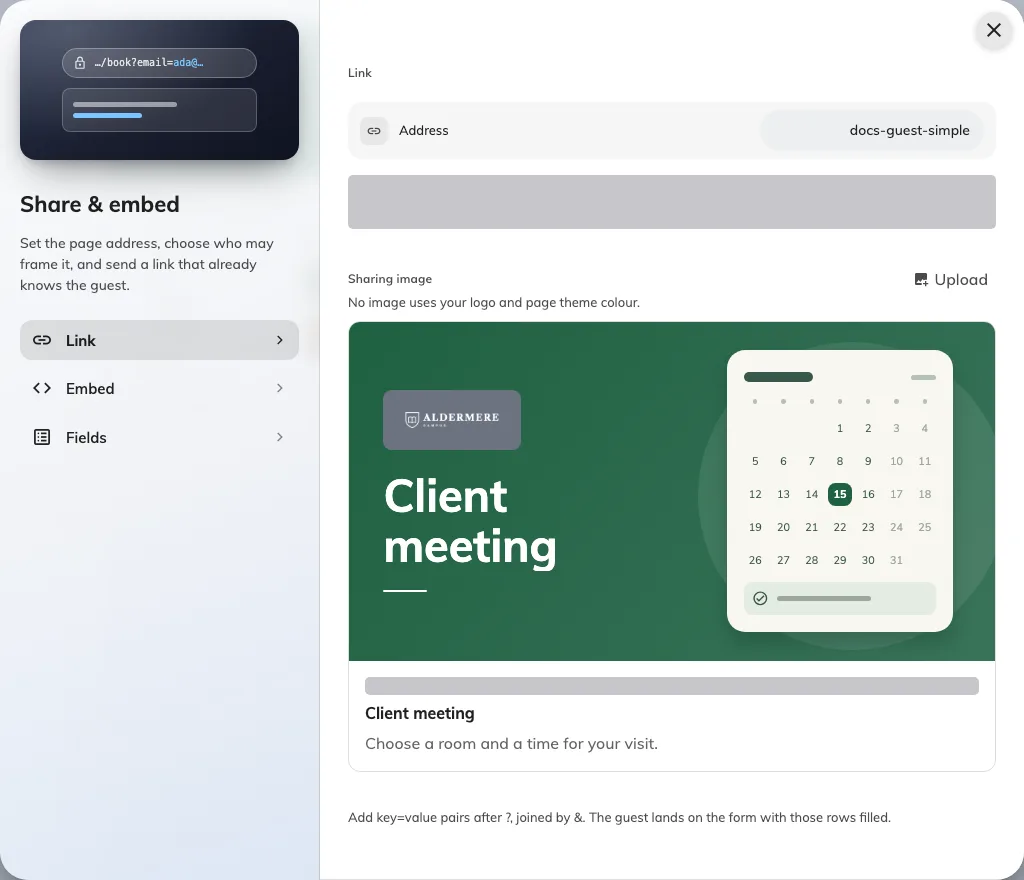
Guests should be able to recognise your organisation and reach the right service from the invitation they receive. With Guest Booking enabled, you can publish a direct page link or embed the page on a website permitted by its embedding policy. Your logo, page name, theme and enabled languages help the booking journey belong to the service you are offering.
Link a client-meeting invitation to the relevant room page, or place venue booking inside your own website so visitors can begin where they already browse your services. Supported link fields can prefill details the host already knows, with read-only fields available where configured. Upload a Sharing image for the link preview, or let Offision create branded artwork from the page’s logo, name and theme.
Use Share & embed to check the address, allowed websites and prefill keys, then save the page. Test the published link signed out and test an embed on its intended host, including on a phone; check the shared preview in the service where you send it, since that service may cache earlier artwork. The calendar in automatic sharing artwork is decorative.
Keep staff control as guests book for themselves
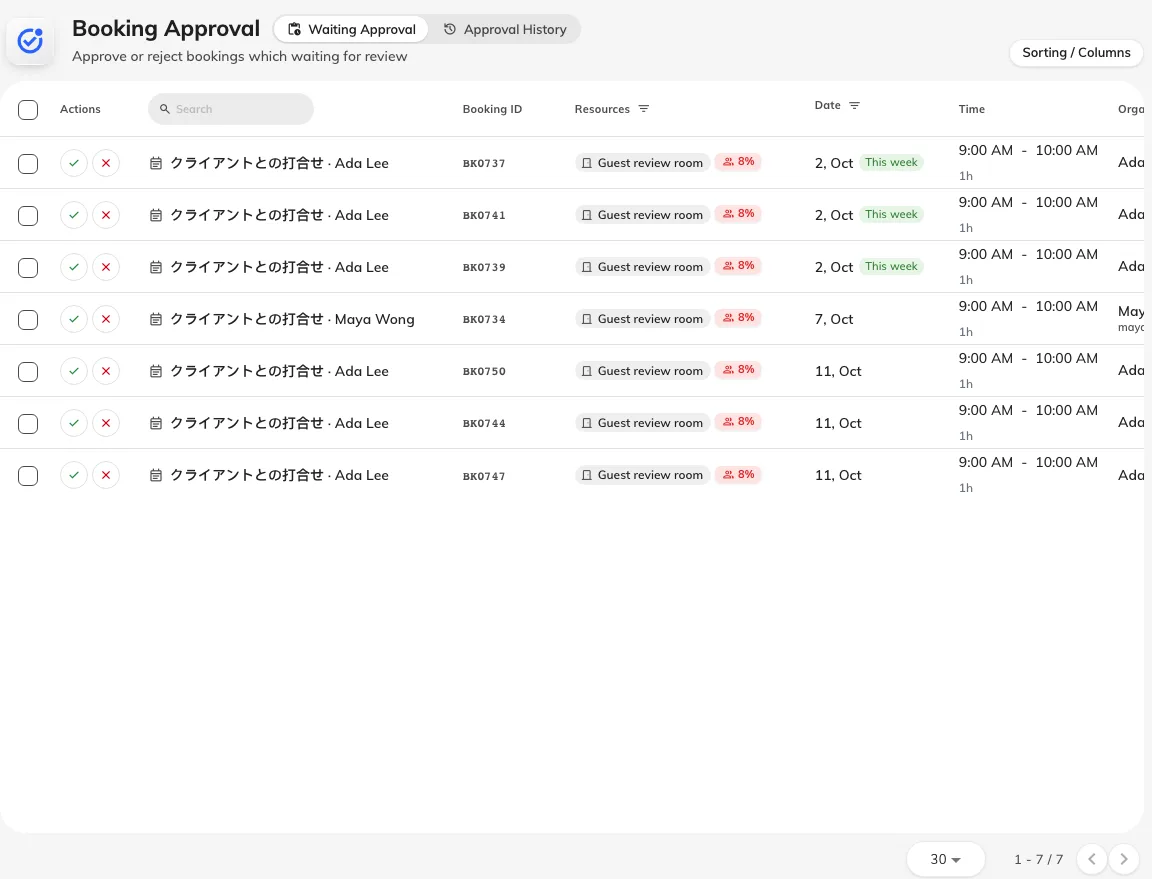
Letting guests submit their own request should still leave staff able to check the arrangements a room requires. On Guest Booking pages whose rooms require approval, submissions enter Booking approval with their requested rooms, periods and guest details. Staff can review the information and decide whether the space and arrangements suit the request before confirming it.
A venue may need to check a training group’s requirements or inspect payment proof before accepting a reservation. Ordinary review keeps the time available while staff decide; blocking review holds it, so choose the room policy according to whether you intend to reserve that capacity during review. Staff can approve or reject the request, and the guest sees the resulting status rather than having to infer it from custom thank-you wording.
Enable the appropriate result emails when you want follow-up and collect a guest email address. Where Allow manage is enabled, the private email link lets guests view their booking’s current status, with cancellation available when Allow cancel permits it; Make another booking on the completion page retains contact details for a fresh request.
Help people choose a room that fits their group
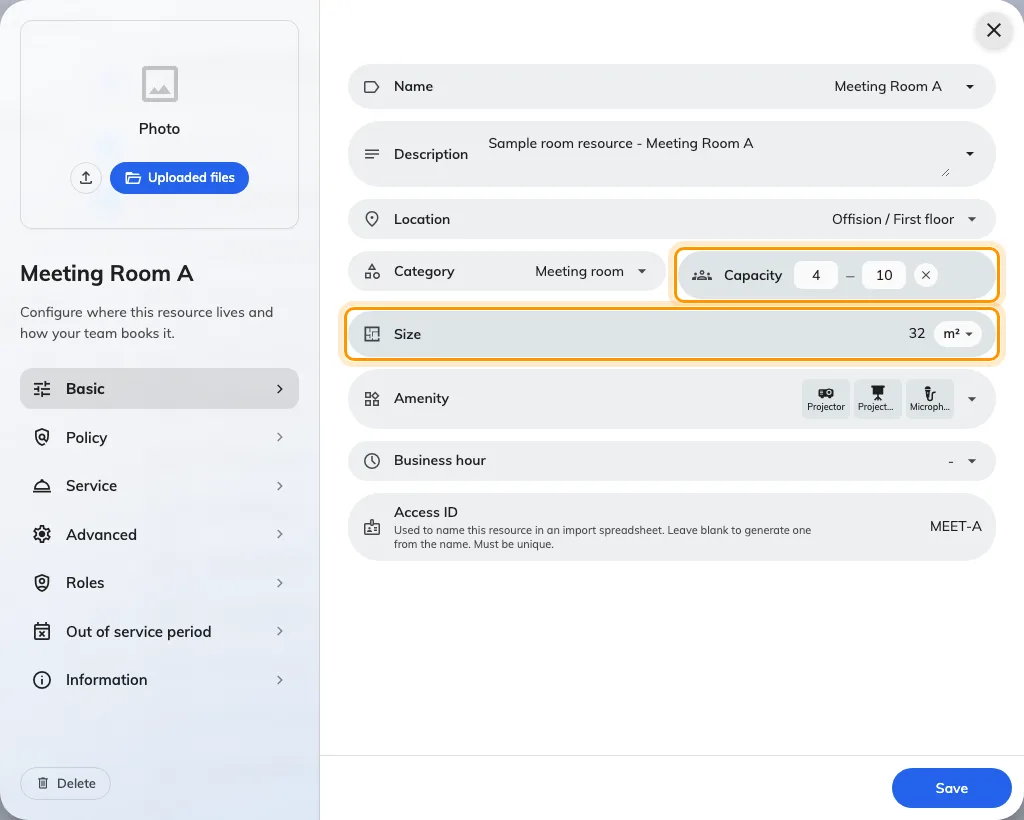
A room’s maximum headcount alone may leave people guessing whether it suits a small meeting or a larger workshop. For licensed rooms when Booking is enabled, you can now add a minimum–maximum capacity range and optional area in square metres or square feet. The room can communicate both the group size it is intended for and the space available.
For example, describe a meeting room as suitable for 4–10 people and include its area, so colleagues or guests can compare it with another room before choosing. Capacity suggestions and guest filters account for ranges, helping people narrow the selection to rooms that fit their group. These details are particularly useful when a venue offers several rooms with similar names but different sizes.
Set Capacity and Size on the room’s Basic page, then check the room details and booking surfaces your organisation uses. Suggestions guide selection; any rule that refuses a booking outside the room’s intended capacity still depends on the applicable booking policy.
Make team feedback part of the workplace
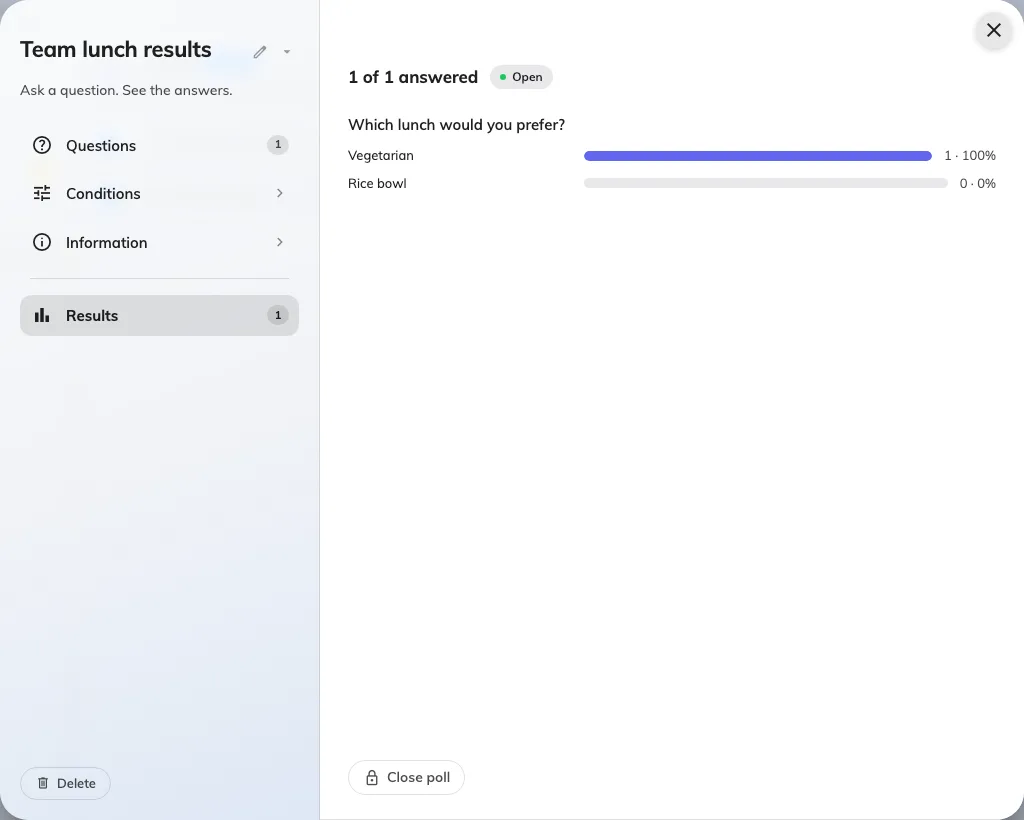
A team decision is easier to organise when the question and its answers stay together. With Announcement licensed and enabled, Broadcast › Poll lets you create a vote or questionnaire that eligible colleagues answer on Home. One response per person gives you a defined set of answers to review, with a chosen audience, anonymity and closing date.
Use a vote for a single decision such as a team activity, or a questionnaire when you need several answers, comments or ratings about a workplace service. Results present the submitted responses, and a vote can show aggregate results to respondents when that setting is enabled. This gives the person organising the decision a place to inspect the feedback without collecting separate replies.
Check the questions, choices and anonymity before the first answer, because those settings lock after a response exists. You can manage the audience and closing date, close the poll or reopen it for remaining eligible colleagues; reopening keeps the one-response rule and requires changing an expired closing date if new responses should be accepted.
Give support staff a clear sending record
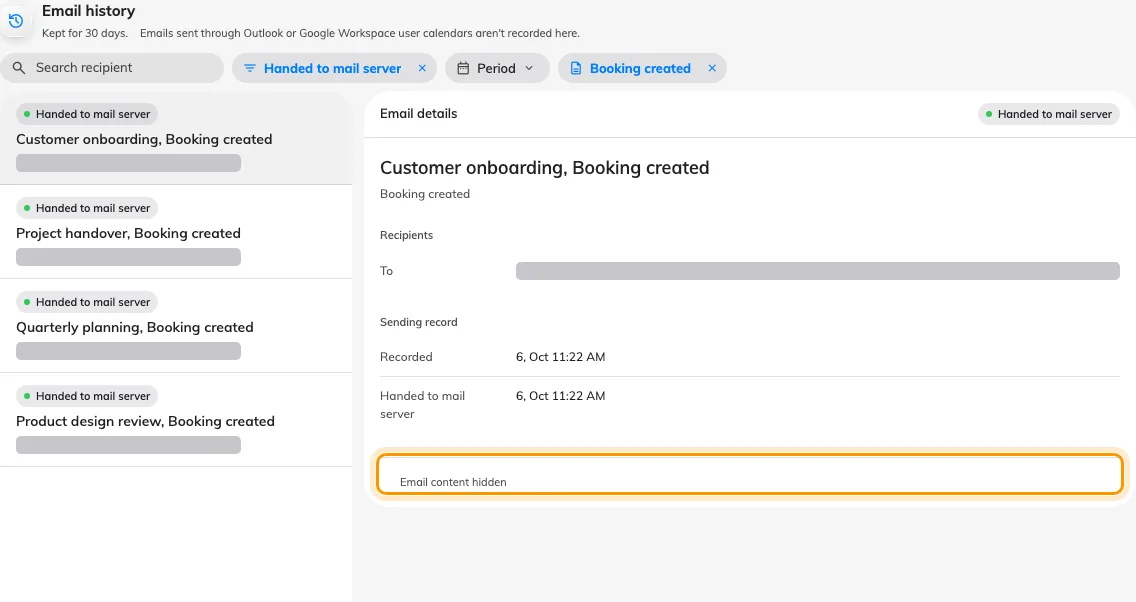
When a colleague or guest cannot find a notification, staff need a clear way to check what happened to the send. Administrators with Email history access can search by recipient and narrow the records by status, template and period. Email details shows the recipients, subject and sending times, helping you identify the particular notification being investigated.
A handed-over record directs the next check to the mail service; a refused record gives a failure reason to investigate; a held record explains why Offision stopped the send. Those distinctions help support staff decide what to examine next instead of repeatedly triggering the same action. Message bodies, invitation links and sign-in codes remain hidden in the history, keeping operational troubleshooting focused on sending information.
Open System config › Settings › Email › Email history and match the recipient, subject and Recorded time to the reported issue. Mail-server acceptance records handover, while delivery or spam handling requires the mail service’s own checks; Outlook and Google Workspace user-calendar messages are outside this history.
What changed
Map Editor
- You can now build and edit your floor directly in 3D with Map 2.0, placing walls, rooms, doors and furniture in the scene when floor maps are licensed and enabled.
- A drawing no longer has to start from an empty canvas. With Map 2.0 enabled, use a room template or industry sample; AI drawing also reads an image or PDF when your account has remaining AI-map allowance.
- With Map 2.0 enabled, select an object and use Assign to link a room, desk, equipment item or parking resource. Multi-seat desks and parking grids let you assign individual seats or bays.
- With Map 2.0 enabled, configure parking rows, bay dimensions and markings in the designer instead of drawing every bay separately.
- With Map 2.0 enabled, change floor styles and preview controls, adjust object dimensions and replace compatible furniture while checking its existing resource links.
- On a published Map 2.0 floor, edits save as a draft and Update compares Live with New before publishing. A never-published floor can show its draft when the new-map view is enabled.
- Where a Classic drawing exists, From classic creates a Map 2.0 draft with its assignments for review. Classic remains stored, and the two drawings do not synchronize after conversion.
- With Map 2.0 enabled, File exports the drawing as an .ofp2 file or imports one after a replacement confirmation. Resource assignments are excluded from exports and must be made again at the destination.
Guest Booking
- Guests can now choose a room and time, enter their details and submit from a published page without an Offision account, once Guest Booking is enabled and the offered rooms have guest-booking licences.
- With Guest Booking enabled, the page editor puts settings beside a desktop or phone preview so you can design the room, time, details, confirmation, completion and email steps together.
- With Guest Booking enabled, choose room-first, time-first or nearest-room-first on each page, and offer only the rooms selected for that page with valid guest-booking licences.
- With Guest Booking enabled, set each page to equal-length sessions, named custom blocks or whole days. Several slots and continuous ranges are separate choices you turn on in Time.
- With Guest Booking enabled, choose open weekdays, hours and holidays per page. Country-calendar holidays sync daily when configured, while manual dates remain in the page list.
- With Guest Booking enabled, choose which contact and booking-form fields are visible or required. Allow different details per booking repeats only the editable fields you select when guests make several bookings; contact details stay shared.
- On Guest Booking pages with pricing configured, guests see room rates, fixed or percentage deposits and Price on request before submission. Payment instructions and proof uploads are configured separately on Confirm.
- On Guest Booking pages with terms enabled, show text or a PDF inline or in a dialog and require agreement before submission; additional acknowledgements have their own required setting.
- With Guest Booking enabled, apply your logo, banner, theme and enabled languages, upload sharing artwork or use the automatic branded image, and share a direct link or an embed permitted by the page policy.
- Guest requests follow the room approval policy: ordinary review leaves the time available, while blocking review holds it. Result emails and guest manage links are available when their email options are enabled and the guest provides an address.
- On a submitted Guest Booking page, Make another booking retains contact details while resetting the room, time, answers and verification for a new request.
- When a Guest Booking page offers an indoor floor plan, it currently shows Classic maps, including available member-room locations for combined rooms.
Booking
- A room previously showed only one capacity number. In Booking, you can now set a minimum–maximum range and optional area in m² or ft² for licensed rooms when Booking is enabled.
- For rooms with capacity configured, suggestions and guest filters now account for capacity ranges. A suggestion helps choose a room; booking refusal still depends on the applicable policy.
Broadcast
- You can now ask colleagues a question from Broadcast › Poll and collect one response per person on Home, when Announcement is licensed and enabled. Choose a vote or a questionnaire, its audience, anonymity and closing date.
Service
- With Service licensed and enabled, add a photo to a booking or in-use service so people can recognize it when choosing what to order.
- An in-use service can now stop accepting new requests at a daily deadline when Daily last order time is enabled in its settings. The cut-off uses the room’s time zone and works alongside Service hours.
Attendance
- Where the working-schedule desk-booking rules are enabled, claiming, checking out of or ending a desk booking can record attendance according to the corresponding arrival and departure switches.
Visiting and Events
- For issued Apple Wallet and Google Wallet passes, visitor-badge changes can update validity or withdraw the pass; event or participant cancellation also withdraws its issued passes.
System
- Administrators with access to Email history can now search recipients and filter by status, template and period, then inspect recipients, recording time, mail-server handover time and failure or hold reasons.
- Email history now keeps message bodies, invitation links and sign-in codes out of its detail pane. Handed to mail server records acceptance by the mail service, rather than inbox delivery or reading.
Fixes
- Selecting objects in the flat map view could fail, and the assignment panel could behave inconsistently.
- Classic parking bays could convert to the wrong object type when imported into Map 2.0.
- Guest bookings could miss required cleaning time when other bookings were pending.
- Editing the room on a guest confirmation page could lose the selected time block.
- A room with a minimum capacity could disappear from the guest capacity filter.
- One desk check-out could write more than one attendance sign-out.
- Microsoft sign-in in the mobile app could return to a connection error or repeatedly reopen the browser after authentication.