

Play one thing or many on the main stage
The main stage shows a single widget, rotates a playlist of scenes, or runs a weekly schedule — and switching between the three throws nothing away.
The main stage is the one place that can play more than one thing. Click the stage in the preview and the first thing in the rail is Content mode.
Open Signage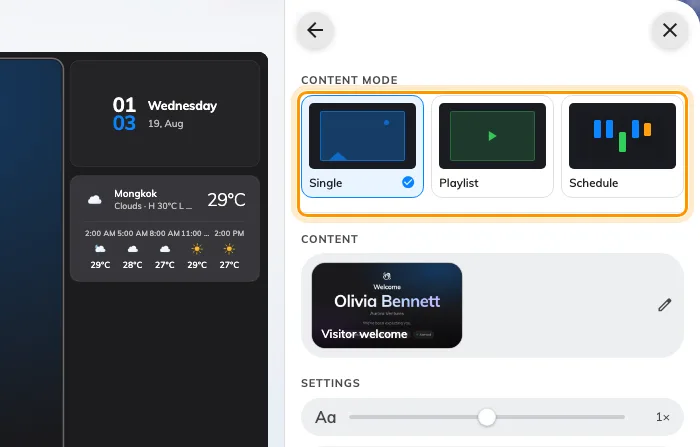
Single, Playlist and Schedule — the three ways a stage can behave.
Single
One widget, all the time. There is no scene list and no timer: the widget’s own settings are edited on this page, and the content row at the top is also how you change it for another.
Playlist
A rotation. Each entry is a scene, scenes are dragged into order, and each has a Duration in seconds — leave it blank and it uses the default of 20. The eye on a row turns a scene off without deleting it, which is how you park a seasonal notice rather than rebuilding it next year. A video or a slideshow does not get cut off mid-play: playback widgets move the playlist on when they finish.
Schedule
A week rather than a rotation. Blocks are drawn onto a grid of days and hours, and each one names what plays in that period — a canteen menu at midday, a welcome screen in the morning, something else on Saturdays. It is the mode with the most to it, and it has a page of its own: Schedule what a screen plays through the week.
Switching modes loses nothing
A playlist sleeps while the stage is in Single mode and comes back exactly as it was, and so does a schedule. Trying one mode costs nothing.
What this does not control
- Which widgets the stage can play at all — see Widgets and the places they go.
- Interruptions. A visitor arriving or a booking about to start replaces the stage temporarily whatever mode it is in — that is a takeover, not a scene.
- The other stages. Where the layout splits the content — in two, or into a grid of three or four — every stage carries its own content mode and its own scenes — Change a layout.