

Schedule what a screen plays through the week
A stage in Schedule mode plays a different widget at different hours of the week — drawn as blocks on a grid of days and half-hours, with a holiday column, a fallback for the unpainted time, and a rule for where two blocks meet.
A screen in a busy building has a week, not a loop. The lobby wall is worth giving to arriving guests at nine, to the canteen menu at noon, to room availability all afternoon, and to something quieter on Saturday. A rotation cannot do that — it shows the menu at four in the morning with the same conviction as at lunch. A schedule can, because it is written in days and hours rather than in turns. That week is what this page builds.
Open Signage1. Put the stage into Schedule
Open the content, click the main stage in the preview, and the first thing in the rail is Content mode. Choose Schedule.
The scene list is replaced by a Weekly schedule card — a summary rather than an editor: one row per scheduled widget with its colour and its hours a week, and a last line saying what happens the rest of the time.
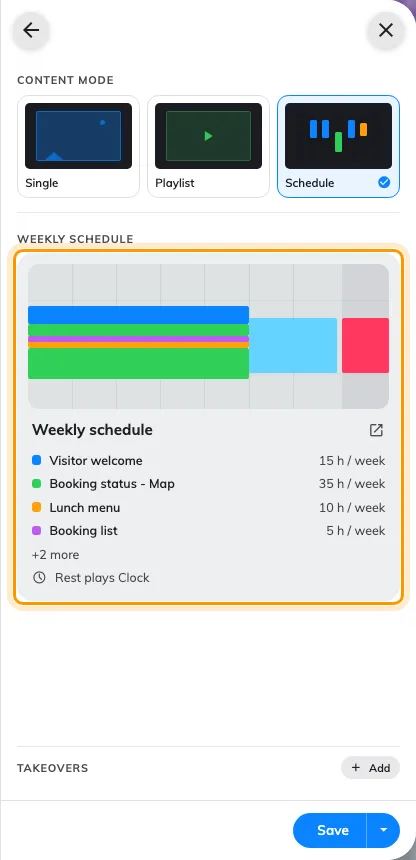
The Weekly schedule card: each widget's colour, its hours a week, and what plays the rest of the time.
Nothing was thrown away: the scenes you had sleep untouched, and come back as they were if you switch to Playlist again.
2. Draw the time first, then choose what plays
Click the card and the week opens: seven days by half-hours, with the list of Scheduled widgets down the right.
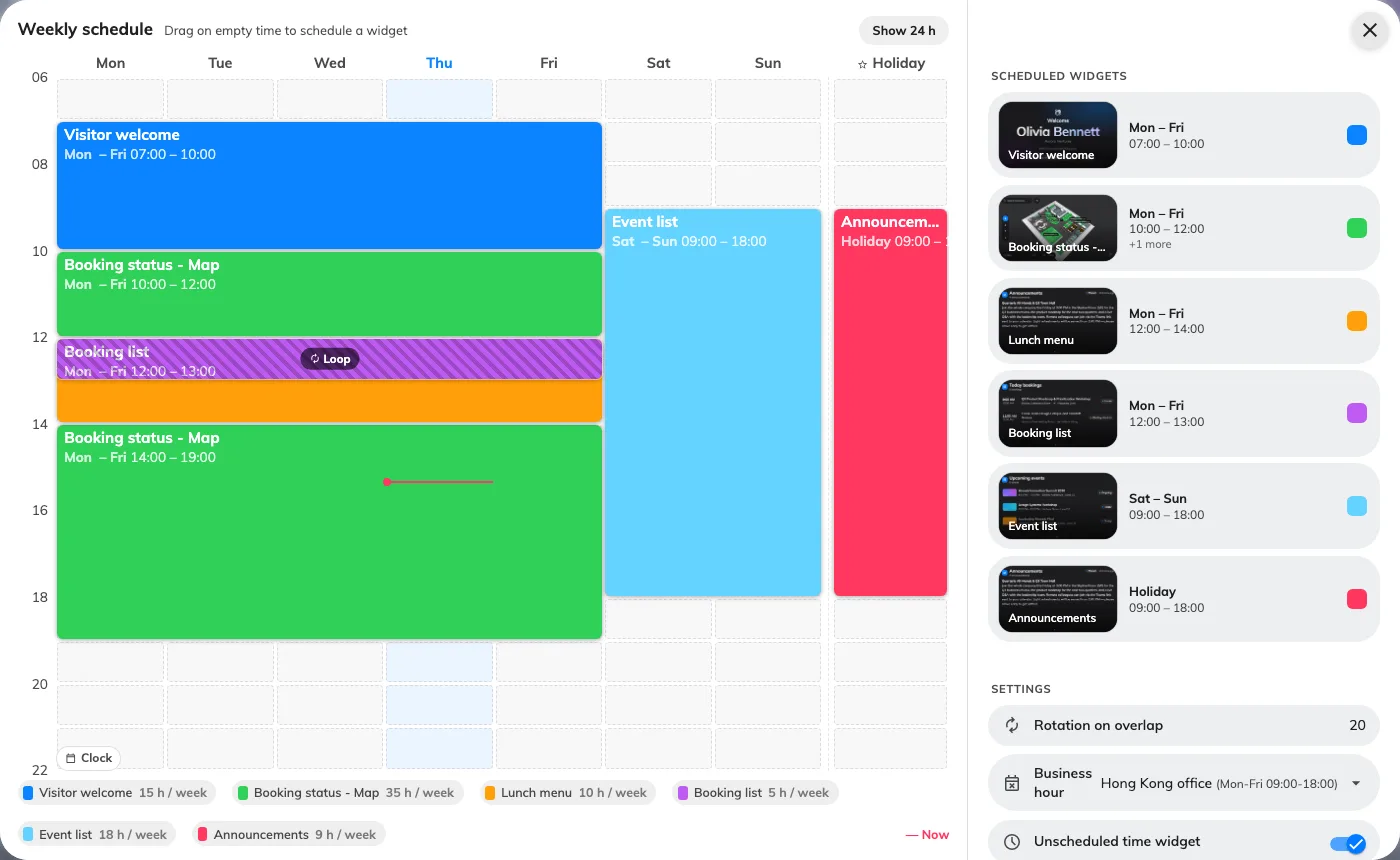
The week on the left, everything you edit on the right.
Now the part that surprises everyone: drag on empty time before you have chosen anything. There is no palette to pick from first. Press on Monday at nine, drag down to noon and across to Friday, and a dashed block appears — only then does the right-hand side ask Choose a widget.
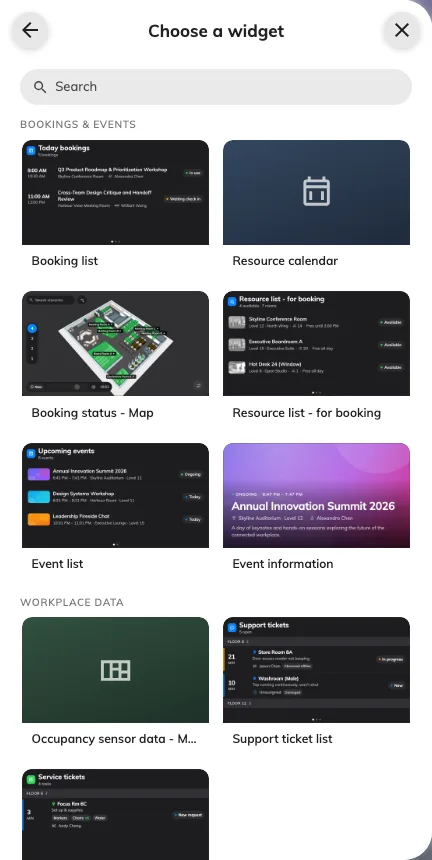
The widget list arrives after the block is drawn, not before.
The list is everything the stage can play, not only live data: Video, Playlist, YouTube and PDF Playback are under Media, at the end.
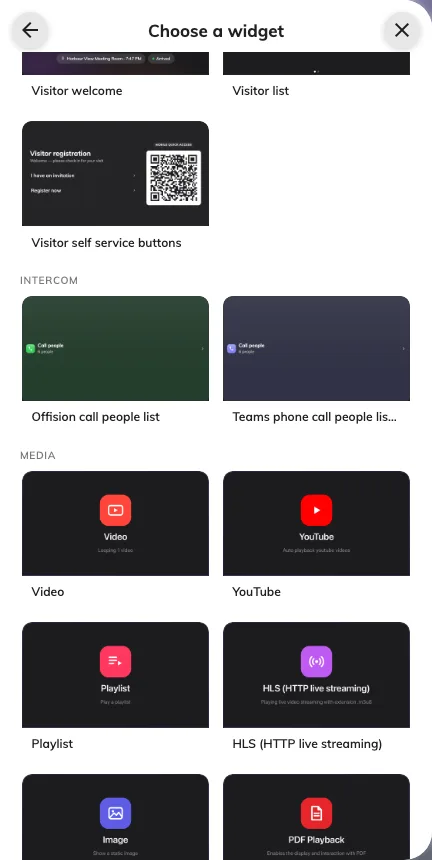
Media, at the end of the widget list: a clip, a reel or a document can hold a block of the week.
This is why the schedule has no empty slots waiting to be filled: a scheduled widget is its time. Drawing time creates one, and removing its last block is what deletes it. Two things follow at the grid. Rows are half an hour, so a block can start at 09:00 or 09:30, never 09:15. And every drag makes a new entry, even for a widget already scheduled — two blocks of the booking list are two independent lists, each with its own settings, colour and name.
Drag a block’s body to move it, its bottom-right corner to resize it in days and hours together, and the ✕ to remove it.
3. Name the block and give it a colour
Click the pencil on a row and the page opens titled by when it plays —
Mon – Fri · 12:00 – 14:00 — because the block and its settings are one thing.
The left of the dialog stops being the grid and becomes the widget itself,
playing live.
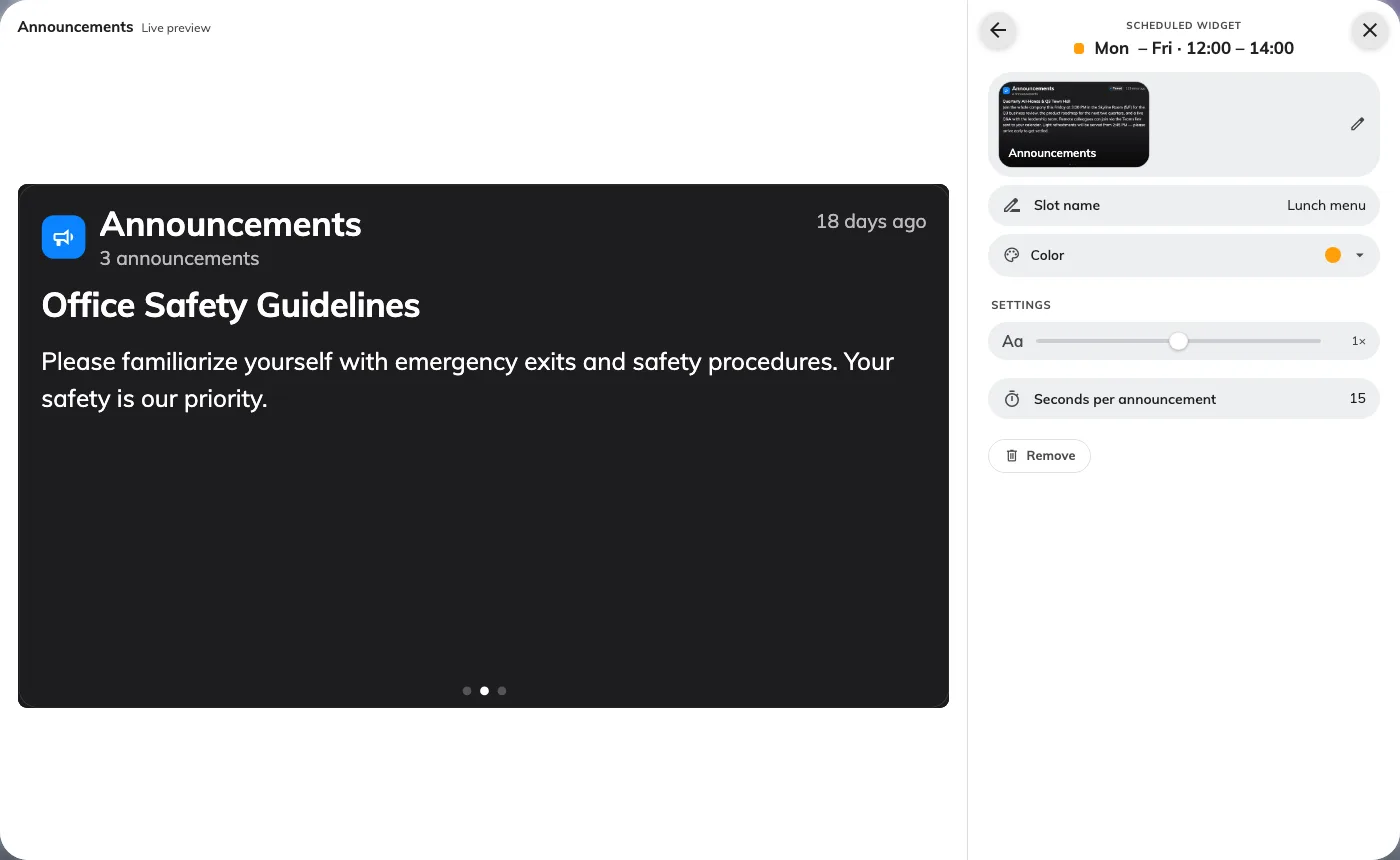
A scheduled widget, titled by the hours it holds, beside a live preview of what it will play.
Slot name is what the block is called on the grid — the reason two booking lists can be told apart at a glance — and Color picks which of the eight grid colours it wears. Everything below them is the widget’s own settings.
4. Decide what fills the rest of the week
Unpainted time is not “nothing in particular”. If no block covers the current moment and nothing catches it, the stage plays nothing at all and the board’s background shows through — a screen a passer-by reads as broken.
Unscheduled time widget, at the foot of the list, is the answer: switch it on and pick something calm, a clock or the availability map. The card then reads Rest plays… instead of rest stays blank, which is the quickest way to check you are covered.
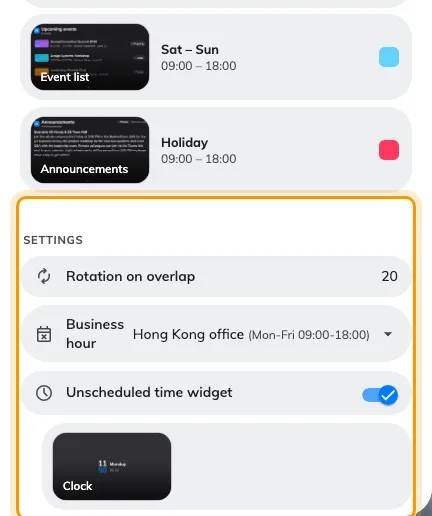
The three settings under the list: the overlap dwell, the calendar the Holiday column follows, and what plays when nothing is scheduled.
5. Save
Closing the schedule hands your week back to the editor; it does not publish it. Press Save in the editor to send it to the screens. That single commit is deliberate — a morning of dragging blocks does not re-render the boards on the wall forty times.
Where the night went
The grid opens showing 06:00 – 22:00, which makes the working day big enough to drag in accurately. A block painted overnight is then not drawn at all, and looks lost. It is not: press Show 24 h and the whole day appears.
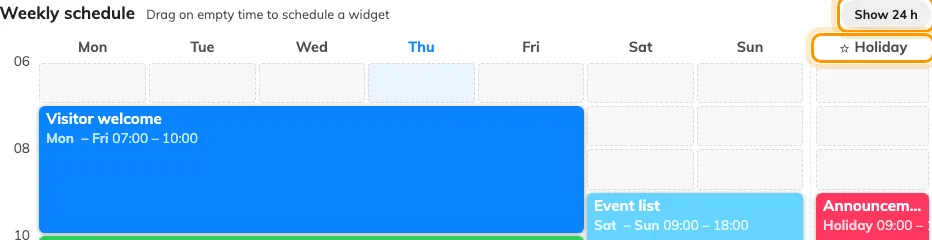
Show 24 h opens the night hours; the starred column beyond the gap is Holiday.
Two blocks at the same time loop, they do not fight
Blocks of different widgets may overlap, and the overlap is not a mistake to resolve. The grid hatches it and marks it Loop; on the screen those widgets take turns for as long as the overlap lasts. Rotation on overlap is how many seconds each one holds — twenty by default, never less than three — and the field appears only once a real overlap exists.
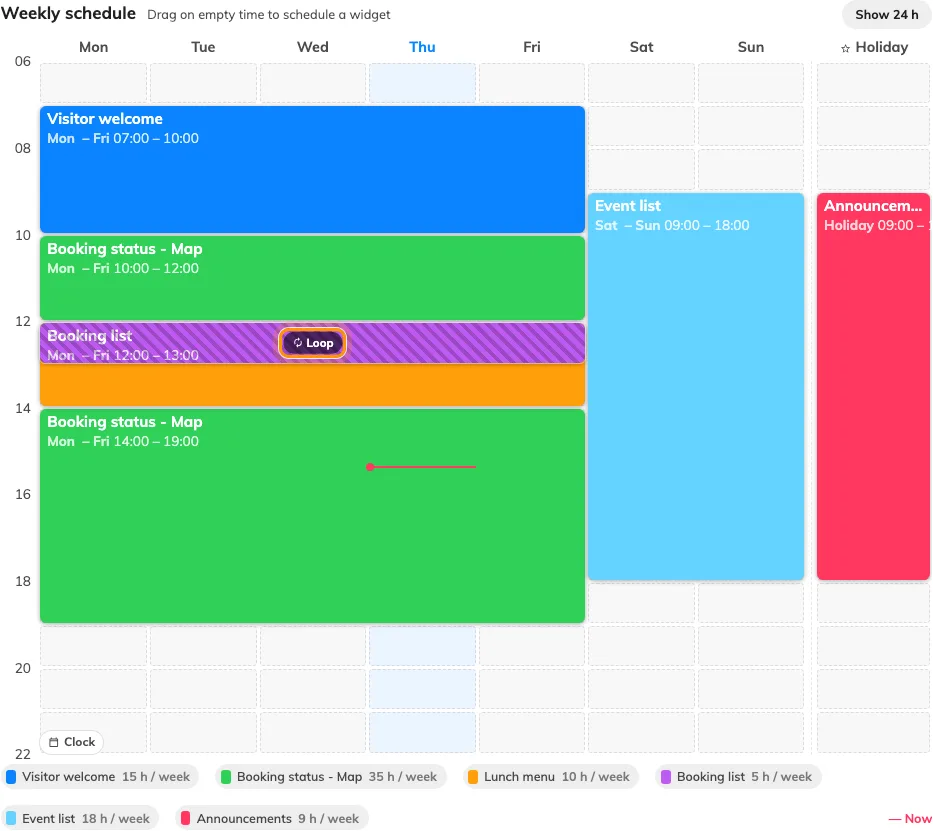
Where two widgets share time the grid hatches it and marks it Loop.
There is no priority: the turns go in the order the widgets were added, and nothing sits on top of anything. Blocks that merely touch do not overlap — one ending at 12:00 and the next starting at 12:00 hand over cleanly.
The holiday column
Past the gap to the right of the seven days is an eighth column marked with a star. Blocks drawn there play on holidays, and a holiday replaces the weekday rather than joining it: on a public holiday falling on a Wednesday, the Wednesday column is ignored entirely.
It stays inert until you say which days count. Business hour, under the list, picks the calendar whose holidays the column watches — with none chosen, the star column never plays.
Whose clock the week runs on
The screen keeps its building’s local time, not its own. A schedule written for a Hong Kong lobby switches at Hong Kong noon whichever device is on the wall, and a screen shipped to another office starts behaving like its new building without the schedule being touched.
That holds while the screen can find out where it is: it needs the player setting Sync building time and time zone, on unless somebody turned it off, and a building with a location on the map. Missing either, it falls back to its own clock — and a screen with the wrong time zone runs the right week at the wrong hours, which reads as a broken schedule rather than a misplaced device.
The editor has a smaller version of the same thing: the red Now line follows your clock, not the screen’s.
Check it worked
Do not trust the grid. Draw a short block over the next few minutes, save, watch the screen change on its own, then remove it. A schedule that switches at the wrong hour is almost always a time-zone question rather than a grid one, and this is the test that tells the two apart.
What this does not control
- Interruptions. A guest arriving or a booking about to start still replaces the stage whatever the schedule says, then hands back — that is a takeover, and it outranks everything here.
- The other stages. Where a layout splits the screen, every stage carries its own content mode and its own schedule — Change a layout.
- Everything that is not the main stage. Side widgets, info cards, buttons and text bars are fixed; they never rotate and are never scheduled.
- Media playlists. The Playlist widget is an ordered reel of files with no time rules of its own; a schedule can give it a slot in the week, but its order is edited elsewhere. The three stage modes are compared in Play one thing or many.