

Connect Microsoft 365 in delegate mode
One Microsoft account signs in and Offision works through its calendar permission. No administrator needed, and nothing tenant-wide. About five minutes.
Delegate mode connects Microsoft 365 without asking anyone for tenant-wide approval. One person signs in with their Microsoft account, and everything Offision does runs on that account’s calendar permission.
That is the whole story of this mode, and it explains both its appeal and its limits. Nothing is approved for the organisation, so nothing organisation-wide is possible: rooms are added one address at a time, people are imported rather than synced, and user groups are not available.
If you want rooms and people to keep themselves up to date, you want application mode instead. See Which Microsoft 365 connection to choose for the comparison.
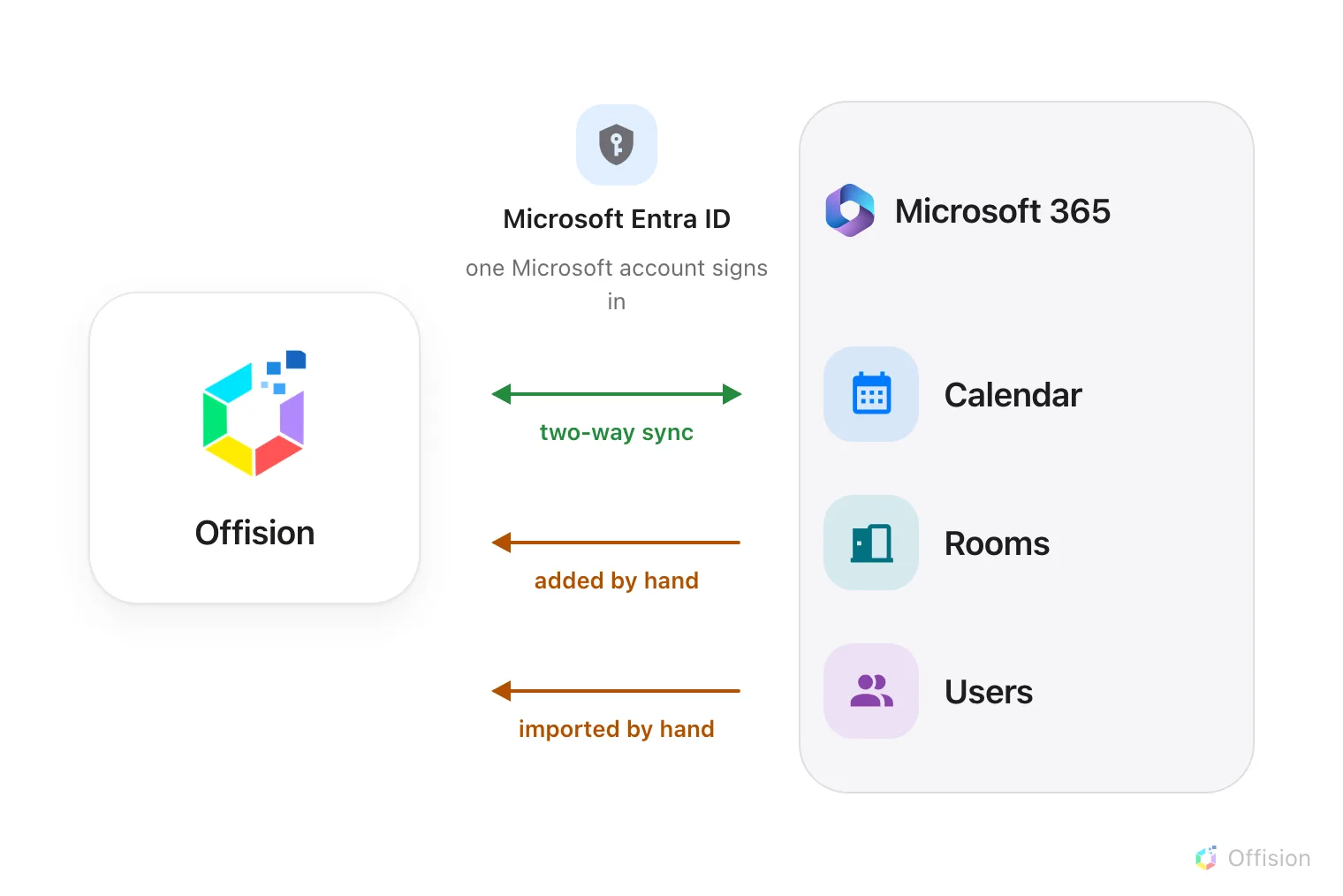
One mailbox signs in, so calendars still sync both ways — but rooms and people are hand work, and user groups are not there at all.
What to have ready
- The Microsoft 365 account that will act as the delegated account, and its password
- The email addresses of the room mailboxes you want to add
- About five minutes
1. Open the Microsoft 365 tile
Open IntegrationsOpen the tile, choose Connect to Microsoft 365 account, then switch the mode button to Delegate mode.
2. Read the four lights before you continue
Delegate mode shows one green light and three that are not:
| Light | Meaning |
|---|---|
| Calendar — green | Synced automatically |
| Rooms — amber | Add manually, no auto-sync |
| Users — amber | Import manually, no auto-sync |
| User groups — grey | Not available in delegate mode |
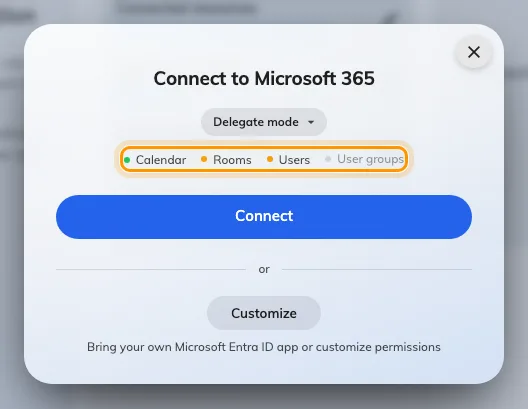
Delegate mode: calendars sync, everything else is by hand.
This is worth a moment now rather than a support ticket in a month. If any of those amber or grey lights is a problem, stop here and use application mode.
3. Sign in as the delegated account
Choose Connect. Microsoft opens in a new window and asks you to sign in and to allow Offision access to calendars.
The account you sign in with becomes the delegated account. Sign in as the account you decided on in advance, not as whoever happens to be at the keyboard.
When the window closes, the integration is listed.
4. Add your rooms
Rooms are added by mailbox address, from Connected resources on the integration card. The delegated account is shown at the top of that screen — this is also where you renew or replace it later.
Full detail is in Sync rooms from Microsoft 365, including the booking agent account you will need before anyone other than the connected accounts can book.
5. Check it worked both ways
Book a room in Offision and confirm it appears in Outlook; then book the same room from Outlook and confirm it appears in Offision.
Keeping the delegated account alive
The delegated account’s sign-in is refreshed for you as long as it is used. If it goes unused long enough, or the account’s password changes, or the account is disabled, the sign-in lapses and syncing stops.
Use Renew on the connected resources screen to sign in again. Replacing the account with a different one does not disconnect your rooms — they keep syncing on the new account’s permission.
You no longer have to notice this yourself. Offision probes each delegated account, and when one has lapsed an Action required card appears at the top of the console’s home page naming the account, why it stopped — Sign-in expired, Access revoked, Verification required, Account unavailable or Access denied — and how many rooms have stopped syncing because of it. It carries a Sign in button, and a Resync rooms step that unlocks once the sign-in is back. The card is not shown at all while every integration is healthy, so an empty home page is the good outcome.
When it goes wrong
| What you see | Usual cause |
|---|---|
| Rooms stopped syncing | The delegated account’s sign-in has lapsed. The Action required card on the home page names the account and the reason — sign in there, then run Resync rooms |
| Everything stopped after a few months | The delegated account’s stored sign-in lapsed. Renew it |
| A room will not add | The delegated account cannot open that mailbox’s calendar. Grant it access in Microsoft 365, then try again |
| That room is already connected | The mailbox is already linked, possibly on another integration |
| User groups are greyed out | Not available in delegate mode — by design |
| No Synchronize users on the card | Delegate mode imports people rather than syncing them; you get Connected users instead |