

Connect Google Workspace with your own OAuth app
Register the application in your own Google Cloud project, choose how far Offision reaches, and hand it the credentials. For security policies that will not accept a third-party app.
Most organisations should use quick connect, which uses Offision’s own Google application and needs no credentials at all.
Use this path when that is not acceptable — when your security policy requires the application to live in your own Google Cloud project, with a secret you control and can revoke — or when you want a mode narrower than the default.
What to have ready
- A Google Cloud project, or the ability to create one
- Your Google Workspace Customer ID, from the Google Admin console under Account → Account settings
- Somewhere to paste redirect URIs back into the OAuth client
- Half an hour
1. Prepare the Google Cloud project
Do this side first — Offision cannot verify any of it for you, and doing it afterwards means going back and forth.
- In the Google Cloud console, create a project. Its name is for your own reference and is never used by Offision.
- Under APIs & Services, enable the Google Calendar API.
- Create the OAuth consent screen, type External, and add the scopes
userinfo.email,userinfo.profile,openidand Calendar. - Under Credentials, create an OAuth client ID of type Web application. Copy its Client ID and Client secret — the secret is easiest to copy now.
Offision asks Google for exactly these scopes:
| Scope | What Offision uses it for |
|---|---|
https://www.googleapis.com/auth/calendar.readonly | Reading room and user calendars |
https://www.googleapis.com/auth/calendar.events | Creating and changing bookings |
openid, profile, email | Signing people in |
2. Add the redirect URIs
Back in the OAuth client, under Authorized redirect URIs, add the ones your
deployment needs. {server} is your Offision address:
| Redirect URI | Needed for |
|---|---|
{server}/api/google-api/oauth/callback | The delegated account and the booking agent account |
{server}/signin-google/{tenantId}/{scheme} | Single sign-on |
{server}/api/google-api/oauth/meet-callback | Google Meet links |
Offision shows you the exact values to copy rather than leaving you to assemble them. A missing redirect URI fails later, and the failure looks like a rejected password rather than a missing URI — which is why this is its own step.
3. Choose the mode
Open the Google Workspace tile, choose Connect to Google Workspace, then below the separator choose Custom setup.
Open IntegrationsThe first step is the mode. Functions below the buttons shows what the selected mode gives you, and Permission requirement lists the scopes it asks for — press Show details to expand it.
| Mode | Room calendars | User calendars | Single sign-on |
|---|---|---|---|
| Complete mode | yes | yes | yes |
| Standard mode | yes | yes | yes |
| Resource calendar mode | yes | no | no |
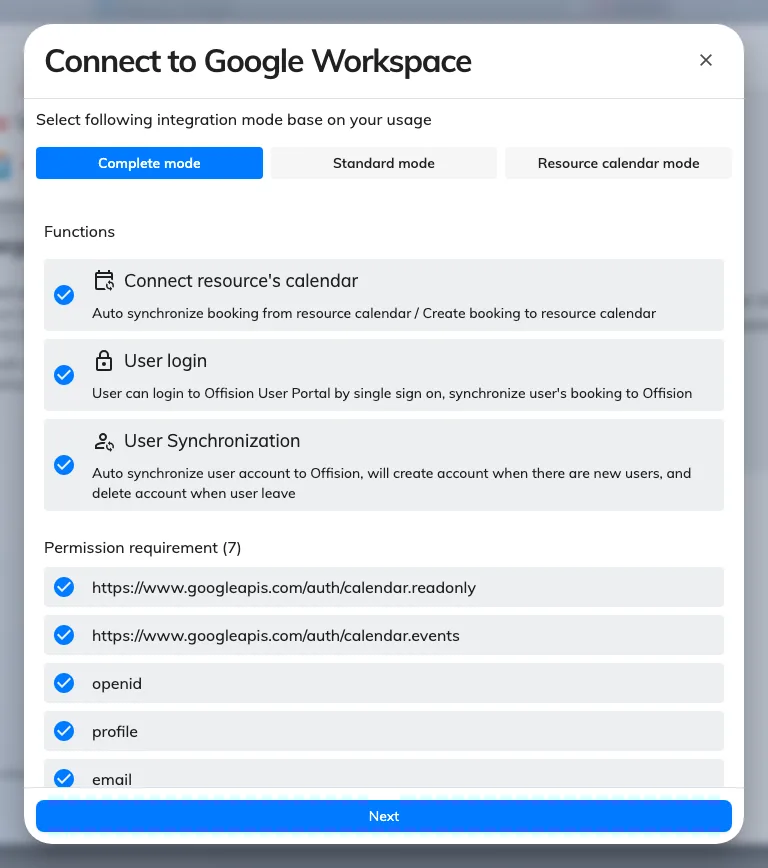
The mode step, with its function list and the permissions that mode asks for.
Resource calendar mode never touches a personal calendar, and single sign-on is unavailable in it rather than switched off. Choose it when reaching staff calendars would not survive a security review, and expect the sign-in setting to be absent afterwards.
4. Enter the credentials
Press Next and fill in the three fields:
| Field | Where it comes from |
|---|---|
| Google Customer ID | Google Admin console → Account → Account settings |
| Google Client ID | The OAuth client you created in step 1 |
| Google Client Secret | The secret of that client, not its ID |
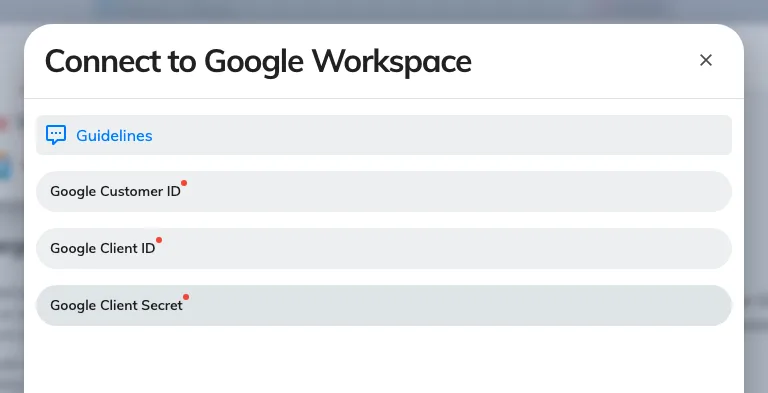
The credentials step: Customer ID, Client ID and Client secret.
5. Check it worked both ways
Connect the delegated account and one room — see Connect rooms from Google Workspace — then test both directions:
- Book the room in Offision and confirm it appears in Google Calendar
- Book the same room from Google Calendar and confirm it appears in Offision
Then set up sign-in and Google Meet links.
When it goes wrong
| What you see | Usual cause |
|---|---|
| Connect succeeded but the Google window then refuses | The Client ID or secret is wrong — Connect does not check them |
| Google says the redirect URI does not match | The URI is missing from the OAuth client, or has a trailing slash the copied one does not |
| Google says access is blocked or the app is unverified | The OAuth consent screen is unfinished, or the scopes were never added to it |
| Nothing happens when the Google window should open | The browser blocked the pop-up |
| Sign-in bounces back to the login page | The sign-in redirect URI is missing from the OAuth client |
| No sign-in setting on the card afterwards | Resource calendar mode was selected, which carries no sign-in permission |
| It worked, then stopped months later | The OAuth client’s secret was rotated or the consent screen was reset |
| People never sync | Expected — Google people sync is not available. Add people the ordinary ways |