

Connect Google Workspace with quick connect
Your Customer ID, one Google sign-in, and calendars are talking. About five minutes, and it needs nobody with administrator rights.
Quick connect uses Offision’s own Google application, so there is nothing to register and no client secret to store or rotate. You supply your Customer ID, sign in once with a Google account, and the connection is made.
If you have not decided between this and registering your own application, read Which Google Workspace connection to choose first.
What to have ready
- Your Google Workspace Customer ID
- A Google Workspace account to sign in with, in the organisation you are connecting
- A browser that will let the Google sign-in window open
- About five minutes
1. Open the Google Workspace tile
Google Workspace is in the marketplace, in the suggested row at the top.
Open Integrations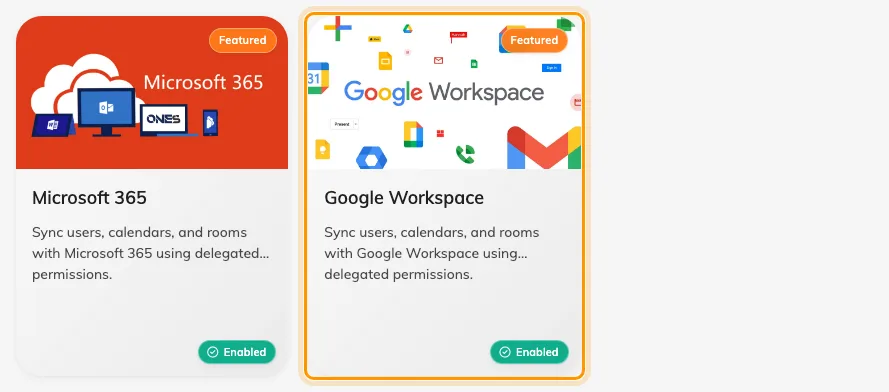
The marketplace, with Google Workspace among the suggested apps.
Open the tile, then choose Connect to Google Workspace.
2. Find your Customer ID
The dialog’s own Where can I find my customer Id link goes to Google’s instructions. The short version: in the Google Admin console, open Account, then Account settings, and copy the customer ID shown there.
It is not your domain name and not an email address. Offision checks that the same Customer ID is not already connected, so if you are told it exists, this organisation is connected on another card already.
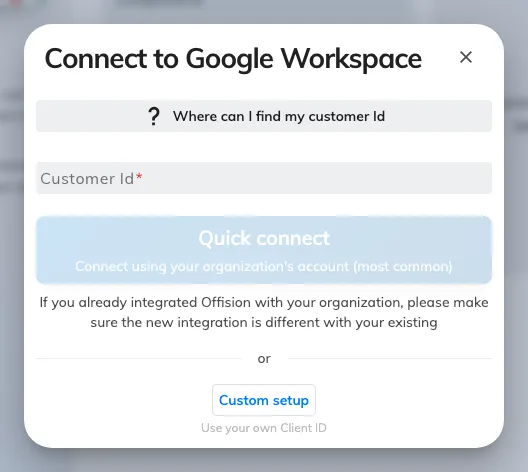
The connect dialog: Customer ID, then quick connect or the custom setup.
3. Quick connect and sign in
Choose Quick connect. Google opens in a new window and asks the account you sign in with to allow Offision to see and edit calendars.
This is the step that fails most often, and almost always for the dullest reason — the browser blocked the window. If nothing appears to happen, look for a blocked-pop-up mark in the address bar before assuming the connection is broken.
Approve it, and the integration is listed on the Google Workspace card.
4. Check it worked both ways
Connect one room — see Connect rooms from Google Workspace — then test in both directions:
- Book the room in Offision and confirm it appears in Google Calendar
- Book the same room from Google Calendar and confirm it appears in Offision
Testing only one direction is how a half-working sync ships.
Then set up rooms properly, sign-in and Google Meet links.
When it goes wrong
| What you see | Usual cause |
|---|---|
| Nothing happens on Quick connect | The browser blocked the Google window |
| That Customer ID already exists | This Google Workspace organisation is connected on another card |
| Signed in, but no rooms anywhere | Expected — Google rooms are added one address at a time, and none has been added yet |
| A room cannot be added | The delegated account has not subscribed to that resource calendar in Google Calendar |
| Only some people can book a connected room | No booking agent account is set |
| Bookings stopped syncing after a while | The delegated account’s password changed, or its access was revoked in Google. The Action required card on the console’s home page names the account and the reason, and carries the way back in |
| No Google Workspace tile in the marketplace | The licence does not include it — check the licence before hunting through settings |