

Turn on the staff name card
Switch the plugin on in the Marketplace, set the company address and website every card carries, choose which fields staff may change, and pick the share channels their QR offers.
Open the Name card tile
Go to Integrations › Marketplace and find Name card, filed under Staff engagement. Opening the tile opens the plugin’s settings.
Open IntegrationsWhile the plugin is off, the dialog shows only what the feature does and a single button, Turn on name card. Press it and the settings below appear in the same dialog.
The same switch is also on System config › System settings, as Enable staff name card. It is one setting in two places, not two.
Fill in Company info
Company address and Company website are the company’s own line, printed on every card. Both start empty, and an empty field simply does not appear on the cards.
Write the address as you would want it read off a phone — one line, the way it would go on a letterhead. This is the plugin’s own field and it feeds nothing else in Offision; the address a visiting email prints comes from the building.
Choose the fields staff can edit
Fields staff can edit is a grid of switches in two columns. On means a person may replace that field with their own value on their own card; off means the company’s value is used and the field is locked on their form.
The shipped defaults are not uniform, and it is worth knowing which way each one starts:
- Off — Company name, Address, Website, Display name, Email. These are the company’s identity and the person’s record, so they hold still by default.
- On — Title, Phone, Department, LinkedIn, Bio. These are the person’s own, and the phone matters most: without it they cannot offer a WhatsApp QR at all.
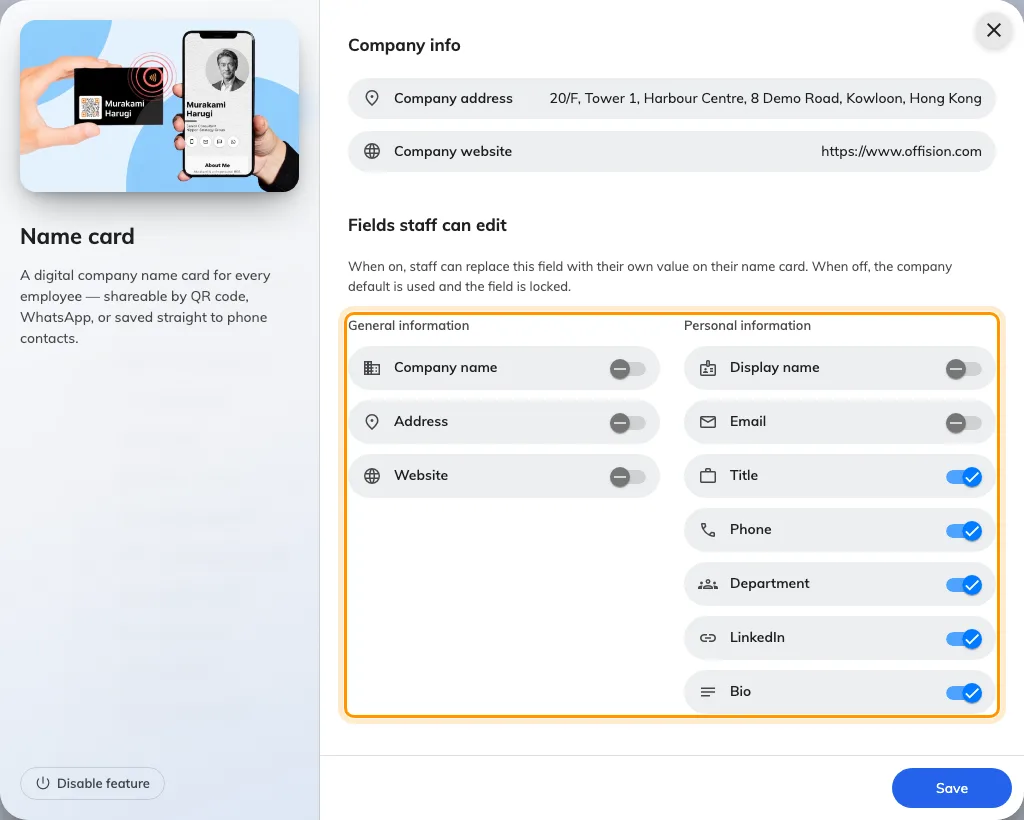
Fields staff can edit, with General information and Personal information side by side.
Pick the share channels
Share channels decides which targets appear on the QR toggle of a staff card. WhatsApp starts on, LINE starts off.
A channel being on is only half of it: the person also needs the detail it addresses. WhatsApp needs their phone number, LINE needs their LINE id, and the tab is hidden for anyone who has not entered one. Turning LINE on therefore also means leaving Phone — or the LINE id — editable in the step above.
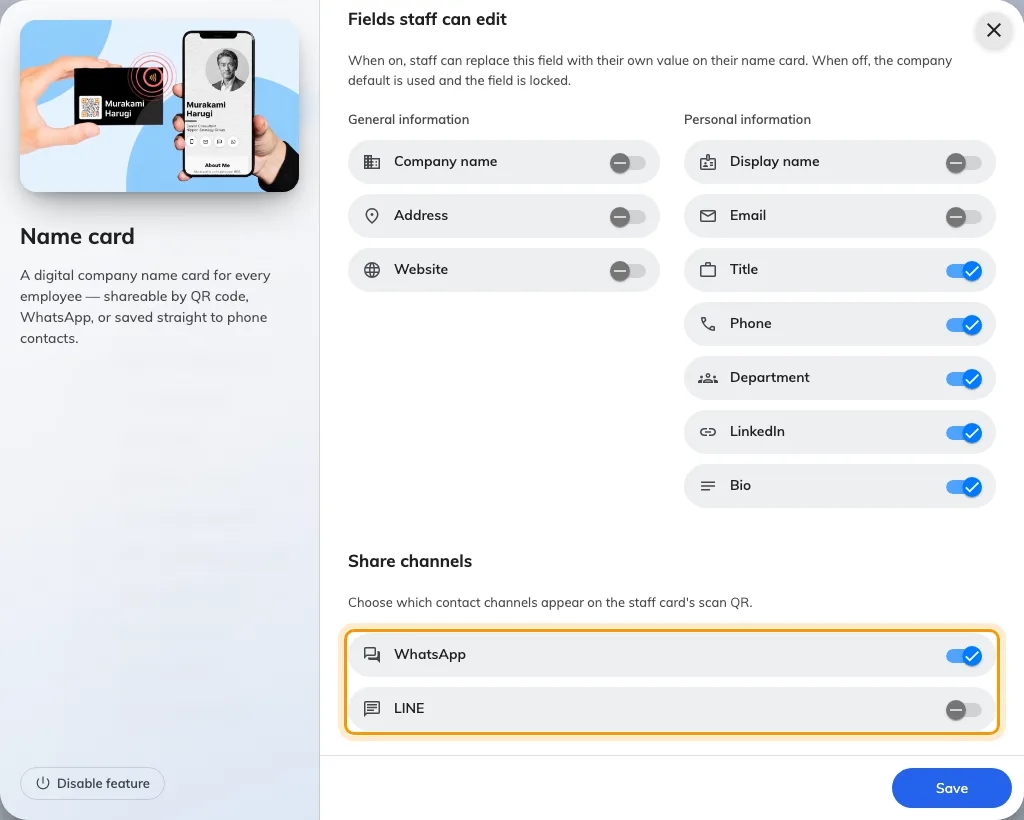
The share channels, with WhatsApp on and LINE off.
Check it worked
Ask somebody to open the Offision app, tap My name card, press Edit and turn on Publish my name card, then save. Their card should show a QR with the channels you enabled.
Scan it from a second phone. A Contact QR should offer to save them to your contacts; a WhatsApp QR should open a chat with them. If the link instead opens a page saying the card isn’t available, work through A name card link says it isn’t available.