

Let people sign in with Microsoft 365
Put a Microsoft button on the sign-in page so people use their work account instead of an Offision password. Two minutes, once the integration is connected.
When single sign-on is on, the Offision sign-in page carries a Microsoft button, and people use the work account they are already signed into. No second password, and nothing to reset when they change the first one.
What to have ready
- The Microsoft 365 integration connected, in a mode that signs people in
- A decision on what the button should say
- For your own Entra ID app: the redirect URIs already added to the app registration
1. Find the setting
It is not called single sign-on on the integration card. Open the Microsoft 365 tile, and on the integration card choose the Login button name row — that is the sign-in settings.
Open IntegrationsWhen sign-in is off, that row shows a red User login is disabled instead of a button name. That is the fastest way to check whether this is on, and the first thing to look at when someone reports the Microsoft button missing.
2. Turn on user login
Switch User login on.
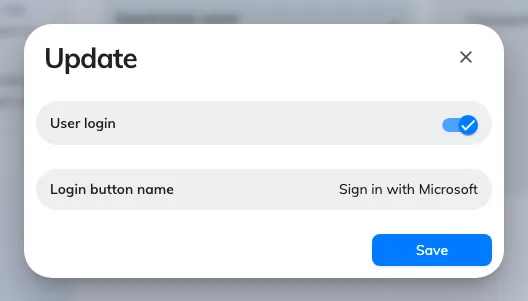
Sign-in settings: the user login switch and the button name people read.
3. Name the button
Login button name is the text on the sign-in page. It is the one string in this whole integration that ordinary staff will read, so write it for them rather than for the IT team — Sign in with Microsoft or the name of your organisation, not M365 SSO Provider.
If you connect more than one Microsoft 365 organisation, this is also the only thing that tells people which button is theirs. Name them distinctly.
4. Decide where new arrivals land
The default user groups set here apply to people who arrive through this integration. Someone who signs in successfully but lands in no group can sign in and book nothing, which reads to them as a broken account rather than a permissions setting.
Where people come from your directory rather than from first sign-in, set this alongside Sync people from Microsoft 365 and keep the two consistent.
5. Check it worked
Sign out, or open a private window, and load the Offision sign-in page. The button should be there with the name you gave it. Sign in with a Microsoft 365 account and confirm you land in Offision with the right permissions.
Test with an ordinary account, not an administrator — an administrator has permissions of their own, and will not reveal a missing default user group.
Where the sign-in credentials come from
Worth knowing when sign-in behaves differently from the calendar side.
- On Offision’s own application and delegate modes, sign-in runs through a shared Offision registration. There is nothing to configure and nothing to expire.
- On your own Entra ID app, sign-in uses your registration. You can reuse the integration’s credentials or give sign-in a separate client of its own, and ADFS is available as an alternative to OAuth. This is also why the redirect URIs matter: without them Microsoft has nowhere to send people back to.
When it goes wrong
| What you see | Usual cause |
|---|---|
| No Microsoft button on the sign-in page | User login is off, or this connection’s mode has no sign-in |
| The Login button name row shows user login disabled | Exactly that — turn user login on |
| Sign-in returns to the login page with no error | Redirect URIs missing from your own app registration |
| Sign-in works but the account cannot do anything | No default user group, so the account arrived with no permissions |
| Sign-in works for some people, not others | They are not in Offision yet — see Sync people from Microsoft 365 |
| Two Microsoft buttons and nobody knows which | Two connected organisations with the same button name |