

Connect Milesight sensors
Add the gateway in Offision, then copy four addresses and one token into the gateway's own web console — about fifteen minutes, plus a wait for the first sensor to report.
Offision never goes looking for the gateway — the gateway is told where to send its readings. So the work splits in two: add the gateway in Offision to get an address and a token, then enter both in the gateway’s own console.
What to have ready
- The gateway’s address on your network, and its own console sign-in
- Gateway firmware 60.0.0.50 or newer — and why it has to be
- Each sensor already joined to the gateway and decoding its model — both done in Milesight’s tools, before Offision is involved
- About fifteen minutes, then a wait for the first sensor to report
1. Add the gateway in Offision
Open the marketplace and choose the Milesight tile.
Open Integrations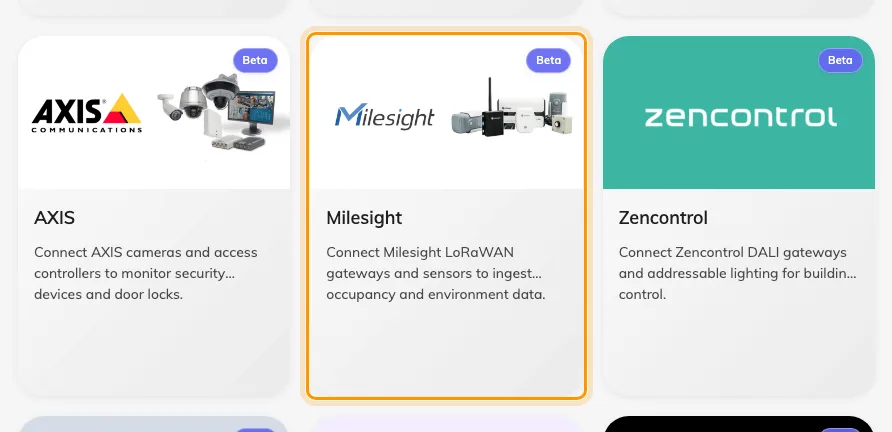
The marketplace, with the Milesight tile.
Choose Add Milesight gateway. The first step, Details, asks for three things:
| Field | What to enter |
|---|---|
| Name | What this gateway should be called in Offision — where it is, usually. Level 3 East tells you more than Gateway 1 |
| Branch management | Which part of the company owns the sensors on it |
| API token | The token the gateway will authenticate with. If there is none yet, Create Milesight token makes one |
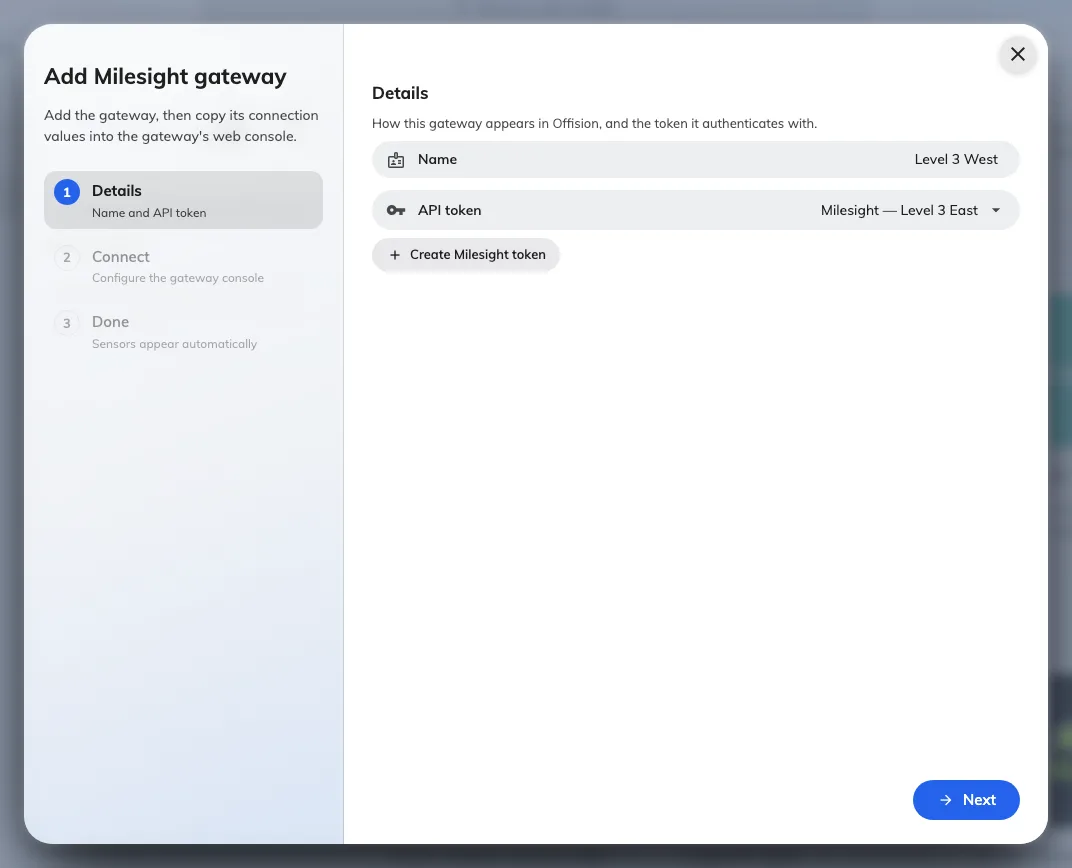
Step one: what to call the gateway, and the token it will authenticate with.
Move on to Connect. It is a copy of the page you are about to fill in on the gateway, with the four addresses and the token ready to copy. Leave it open — the rest of this article is that page.
2. Open the gateway’s own console
Everything from here to the end of step 4 happens in Milesight’s interface, not Offision’s.
Offision does not install, update or configure the gateway, and your Offision sign-in does not work there. If the console asks for a password nobody has, ask whoever commissioned the hardware — not Offision support.
Open a browser on the same network as the gateway and go to http://
followed by the gateway’s address. Three ways to find it:
- Offision shows it on the Connect step once the gateway has reported one
- It is on the label on the device itself
- Otherwise, whoever runs your network can read it from the router’s device list
Sign in with the gateway’s own credentials, then find Network Server in the menu and open Applications.
3. Turn Metadata Details on
Open the application your sensors report to and find Metadata. Switch it on, and under Metadata Details tick:
- devEUI
- deviceName
- applicationID
Leave gatewayTime and cellularIP clear — Offision ignores them.
devEUI is the one that cannot be skipped. It is the sensor’s permanent serial number, and the only thing in the message saying which sensor a reading came from. Without it every sensor looks alike and Offision drops them all.

Network Server › Applications, with Metadata on and the three details ticked.
If there is no Metadata Details row on this page at all, the firmware is too old. Upgrade the gateway; there is no way around it.
4. Point Data Transmission at Offision
Still in the same application, find Data Transmission.
| Field | What to enter |
|---|---|
| Type | HTTPS |
| HTTP Header → Header Name | Authorization |
| HTTP Header → Header Value | The token from step 1 |
Then the URL rows. There are four, and each takes a different address — copy them from Offision’s Connect step:
| Data Type | What it carries |
|---|---|
| Uplink data | Every reading. This is the one that matters |
| Join notification | A sensor coming onto the network. Set it and a sensor appears in Offision as soon as it joins, instead of waiting for its first reading |
| ACK notification | Acknowledgements |
| Error notification | Problems the gateway reports |
Each address ends in a different word, and that word is the only thing telling Offision which kind of message arrived — the messages themselves do not say. So copy each row separately rather than editing the last part by hand.
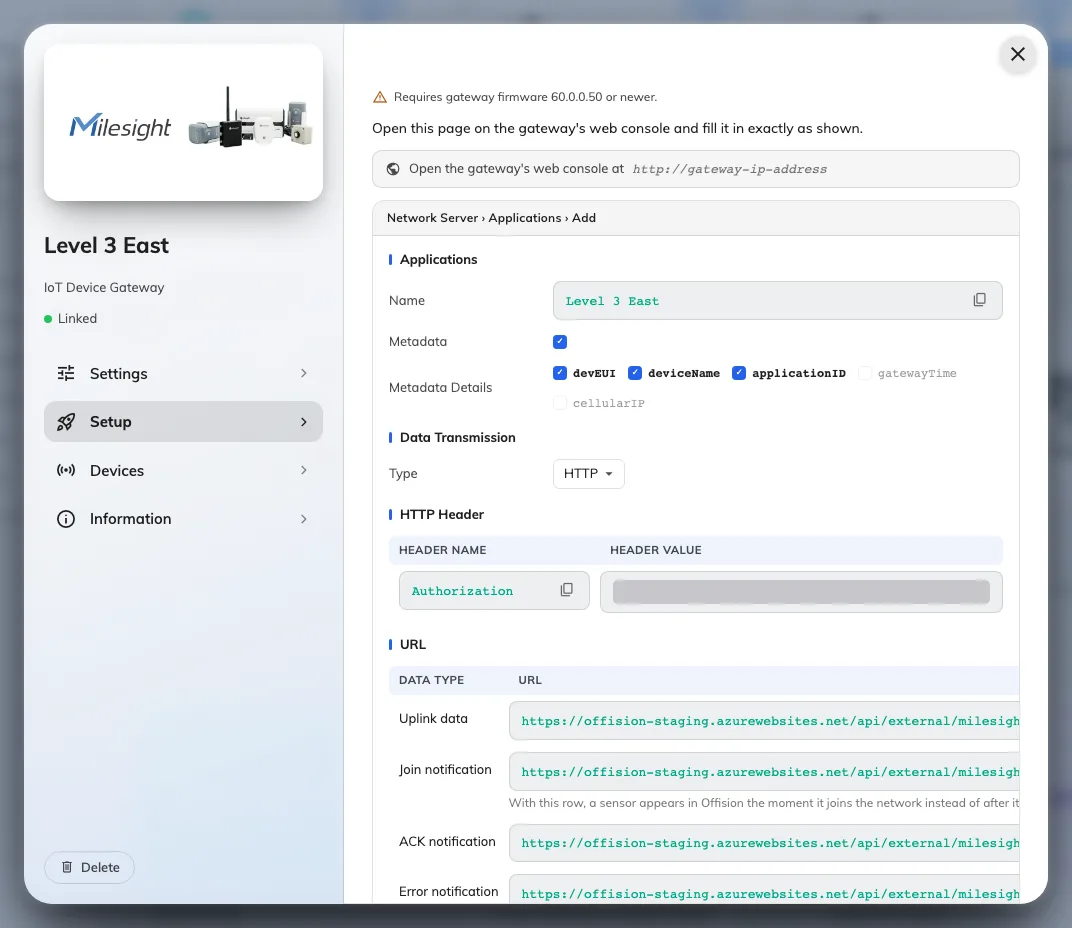
Offision's copy of the page you are filling in, with every value ready to copy.
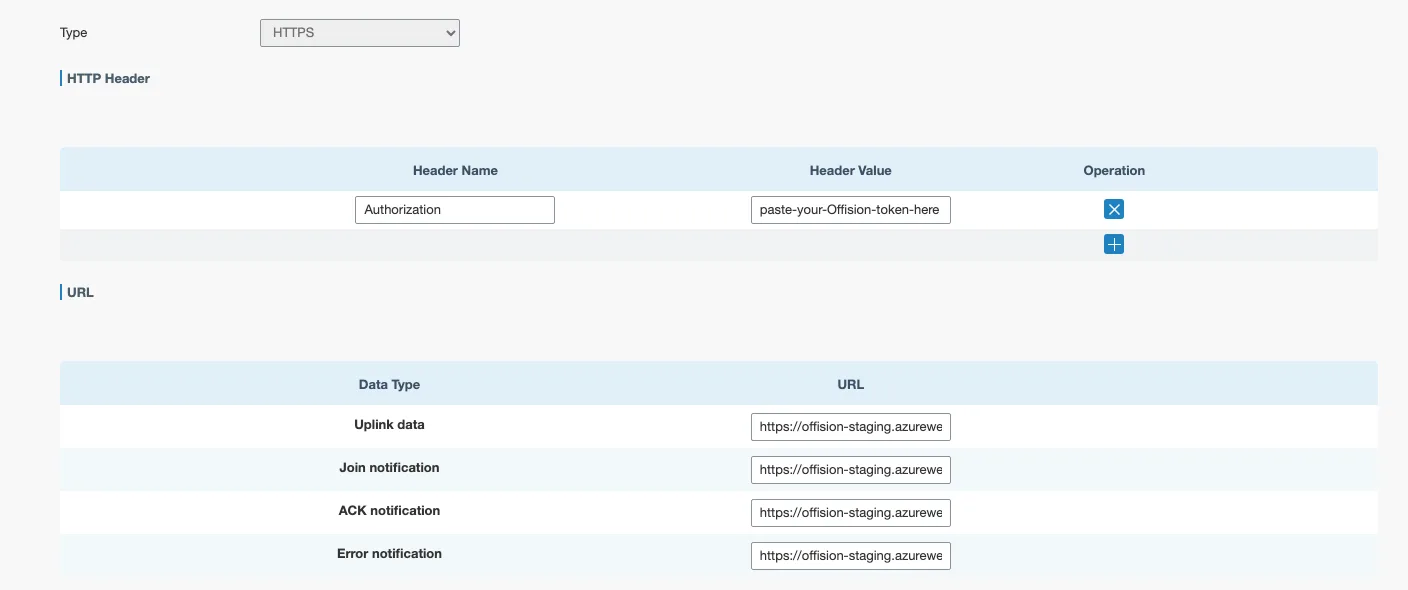
One destination carries the header and all four addresses.
Finally, press Save. The page does not save on its own, and a filled-in form that was never saved looks exactly like a saved one.
5. Check it worked
Check both ends, because either can be right while the other is wrong.
On the gateway, the destination rows show a Forwarding Status. It turns Active after the first message Offision accepts. Until then it reads Inactive, which is not yet a fault — nothing has been sent.

Forwarding Status: Active — Offision accepted the last delivery.
In Offision, sensors appear on the gateway’s own page as they report, each named as the gateway names it and carrying its Serial number (devEUI). Nothing needs to be added by hand.
Then wait — and expect them a few at a time, not all at once. An air sensor reports within minutes; a desk sensor at an empty desk can stay quiet for hours. To skip the wait, power-cycle a sensor: it rejoins immediately, which exercises the Join notification row and proves the wiring in seconds.
Once sensors are listed, give them a desk or a room — that is what turns a reading into something the rest of Offision can use.
When it goes wrong
| What you see | Usual cause |
|---|---|
| Forwarding Status stays Inactive | Nothing has been delivered. Check the address for a typo, and that the gateway can reach the internet at all |
| Only some sensors appeared | The rest have not reported yet. On the gateway’s Device list, Last Seen tells you how long each has been quiet |
| It was Active and went Inactive | The gateway can no longer deliver — most often the address changed underneath it |
| Nothing appears in Offision, but the gateway says Active | The token. Confirm the header name is exactly Authorization, and that the value is the whole token with nothing trimmed off either end |
| No Metadata Details row on the gateway | Firmware older than 60.0.0.50. Upgrade it |
| Sensors appear but never show a reading | The gateway is not decoding that model, so it is forwarding a reading nobody can read. Set the payload codec on that sensor — it is set per sensor, not per model |
| A sensor is named by a long string of letters and numbers | It has joined but not yet reported. The name arrives with its first reading |
| One sensor appears twice | Two gateways are forwarding the same sensor, or it was re-created under a second name. Keep the one reporting and remove the other |
| A sensor stopped reporting after being moved | Sensors are identified by their own serial, not by where they are. A replaced unit is a new sensor and needs linking to the desk again |