

Connect Microsoft 365 in application mode
One approval from a Microsoft 365 Global Administrator, and rooms, people and calendars keep themselves in step. About ten minutes, most of it waiting.
Application mode is the connection most organisations want: approved once, for the whole organisation, after which rooms, people, user groups and calendars all stay in step without anyone maintaining them.
If you have not decided between this and the other two ways to connect, read Which Microsoft 365 connection to choose first.
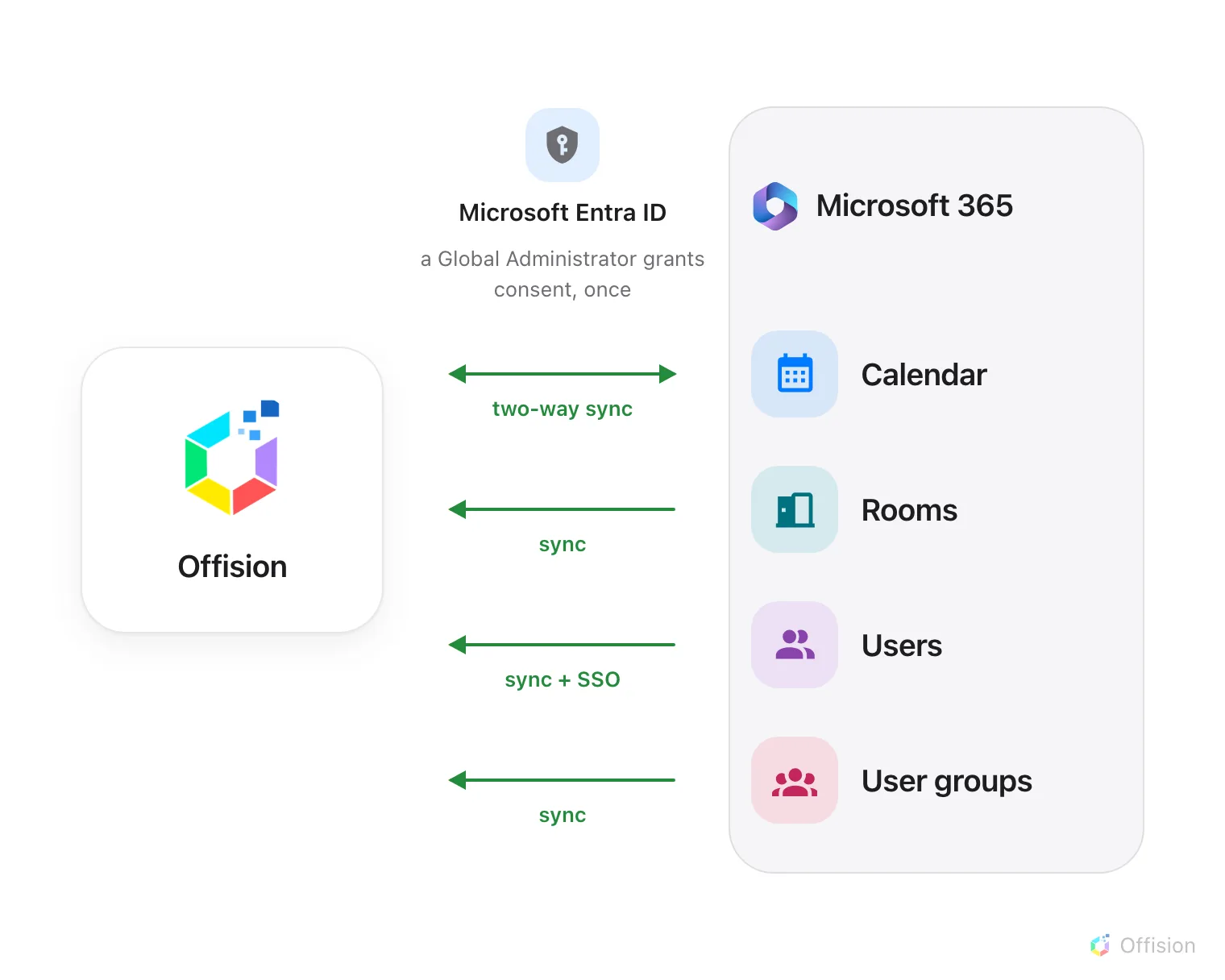
One admin consent, and everything on the Microsoft 365 side is reachable — calendars both ways, the rest arriving on their own.
What to have ready
- A Microsoft 365 Global Administrator, either at the keyboard or reachable now
- Your room mailboxes already created in Microsoft 365
- About ten minutes, plus a wait for the first sync to fill in
1. Open the Microsoft 365 tile
Microsoft 365 is in the marketplace, in the suggested row at the top.
Open Integrations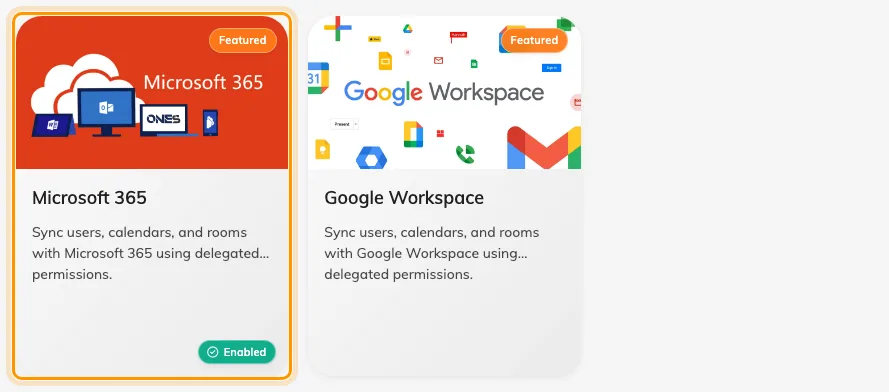
The marketplace, with Microsoft 365 among the suggested apps.
Open the tile, then choose Connect to Microsoft 365 account.
2. Check the mode says Application mode
The connect dialog opens on Application mode, with four green lights — Calendar, Rooms, Users, User groups. Green means it keeps itself up to date.
If you see amber and grey lights instead, the dialog is on delegate mode. Change it from the mode button at the top.
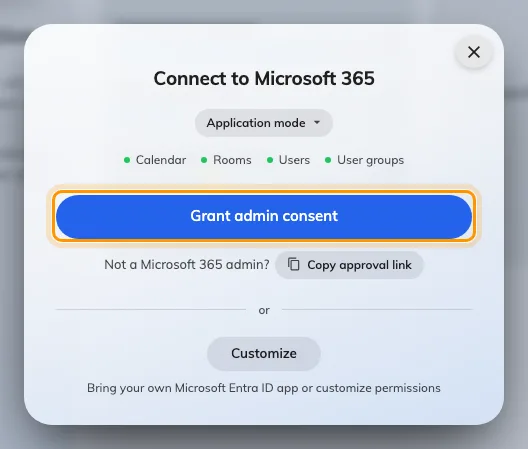
Application mode, with all four sync lights green.
3. Grant admin consent
Choose Grant admin consent. Microsoft opens in a new window and asks the signed-in administrator to review what Offision is requesting for the organisation:
| Microsoft shows | What Offision uses it for |
|---|---|
| Sign in and read user profile | Signing people in |
| Read and write calendars in all mailboxes | Reading and writing room and user calendars |
| Read all groups | Syncing user groups |
| Read all company places | Finding your rooms |
| Read all users’ full profiles | Syncing people |
Approve it as an administrator. This is the step that fails most often, because it is easy to sign in as yourself, see a Microsoft screen, and never notice that consent was for you rather than for the organisation.
Back in Offision the dialog changes to Approved on its own and the integration is listed.
4. If you are not the administrator
You do not have to be. Choose Copy approval link and send the link to whoever is — it works in any browser, on any machine.
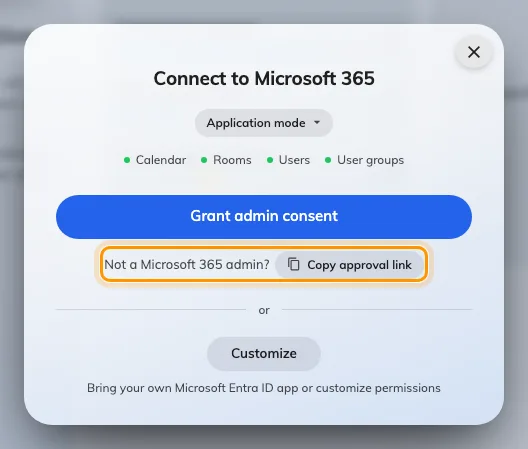
Copy approval link, for handing the approval to an administrator.
You can close the dialog straight away. The connection lives on in the integration list as a card marked Waiting for admin consent, and it completes itself the moment your administrator approves. There is no waiting state to sit and watch, and closing the dialog does not cancel anything.
5. Check it worked both ways
Add a room, then test in both directions:
- Book the room in Offision and confirm it appears in Outlook
- Book the same room from Outlook and confirm it appears in Offision
Testing only one direction is how a half-working sync ships.
Then set up rooms, people and sign-in.
When it goes wrong
| What you see | Usual cause |
|---|---|
| Approval failed, straight away | The browser blocked the pop-up, so the approval window never opened |
| Approval failed, after the Microsoft screen | The administrator chose Cancel, or an approval link was left more than a day before it was used |
| Could not get an application token | Approved without the application permissions, or approved on a different Microsoft 365 directory |
| No mode button in the dialog | This server has no Offision calendar application configured |
| Connected, but no rooms appeared | Sync all rooms is off by default in this mode — until you turn it on, rooms come from the room picker |
| Permission errors just after connecting | Microsoft takes five minutes to two hours to apply a permission change; wait, then retry |
| The card still says waiting for admin consent | Nobody has approved it yet — the approval link is still valid for a day |