

Connect Microsoft 365 with your own Entra ID app
Register the application yourself, choose exactly which permissions Offision gets, and hand it the credentials. For security policies that will not accept a third-party app registration.
Most organisations should connect with application mode or delegate mode, which use Offision’s own app registration and need no credentials at all.
Use this path when that is not acceptable — when your security policy requires the application to be registered in your own Microsoft Entra ID, with permissions you choose and a secret you control and can revoke.
What to have ready
- An app registration in Microsoft Entra ID, or the ability to create one
- Its Directory (tenant) ID and Application (client) ID
- A client secret value — copy it when it is created, because Microsoft will not show it again
- Somewhere to paste two redirect URIs back into that registration
- Half an hour, and patience with Microsoft’s permission propagation
1. Open the customize path
Open IntegrationsOpen the Microsoft 365 tile, choose Connect to Microsoft 365 account, then below the separator choose Customize — Bring your own Microsoft Entra ID app or customize permissions.
The wizard has two steps, listed down the left: Mode, then Credentials.
2. Choose the mode
Modes are laid out in two columns, Application and Delegated. The column decides how Offision acts against Microsoft: an application-family mode acts as the application itself, so one admin consent covers the organisation and there is no mailbox to keep alive. A delegated mode acts as a signed-in account, and reaches only what that account can reach.
| Family | Mode | Room calendars | User sign-in | People sync | Use case |
|---|---|---|---|---|---|
| Application | Complete mode | yes | yes | yes | all staff |
| Application | Resource only mode | yes | no | no | higher security |
| Delegated | Complete mode | yes | yes | yes | all staff |
| Delegated | Standard mode | yes | yes | no | one department |
| Delegated | Resource calendar mode | yes | no | no | higher security |
Functions under the matrix shows the same three capabilities for whichever mode is selected, so you can check your choice before moving on.
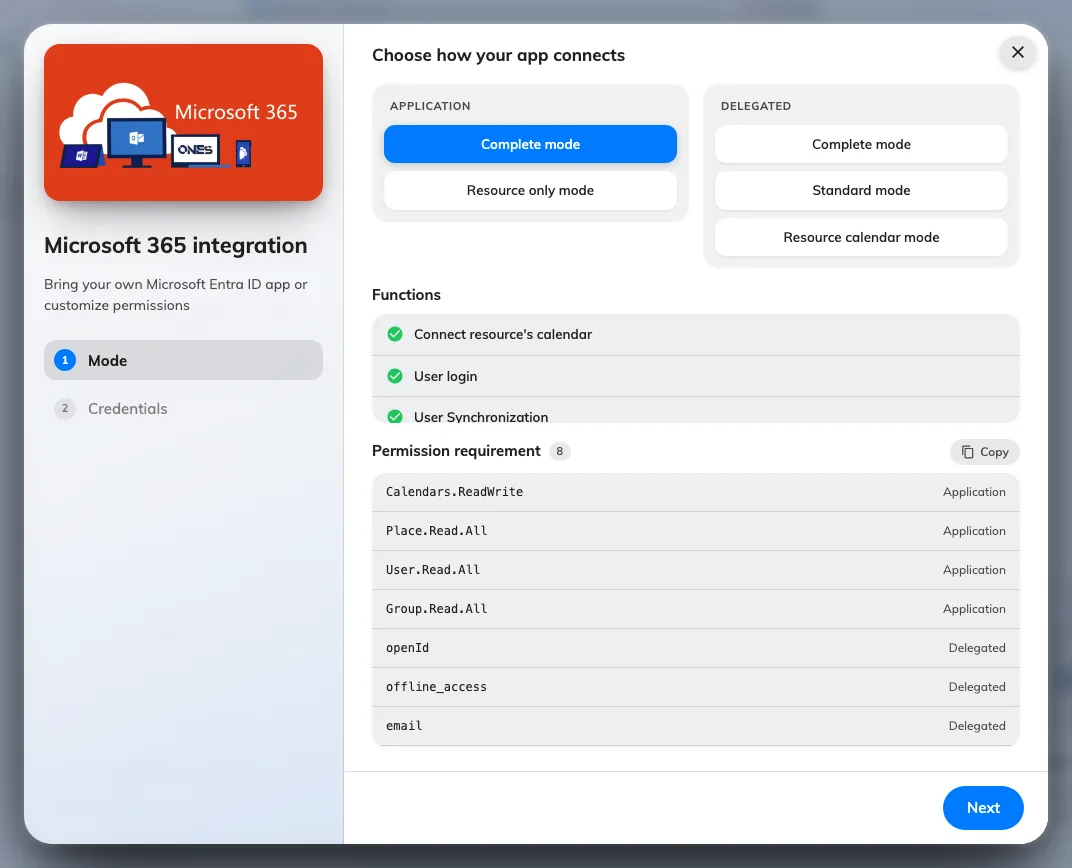
The mode step, with its function list and required permissions.
3. Grant the permissions the wizard lists
Below the mode matrix, Permission requirement lists exactly what that mode needs, each marked Application or Delegated — which is the kind of permission to add in Entra ID, not a detail you can ignore. Use the Copy button and send the list to whoever owns the app registration.
For the application family:
| Mode | Permission | Type |
|---|---|---|
| Complete mode | Calendars.ReadWrite | Application |
Place.Read.All | Application | |
User.Read.All | Application | |
Group.Read.All | Application | |
openId, offline_access, email, User.Read | Delegated | |
| Resource only mode | Calendars.ReadWrite | Application |
Place.Read.All | Application | |
User.Read.All (optional) | Application |
For the delegated family:
| Mode | Permission | Type |
|---|---|---|
| All delegated modes | Calendar.ReadWrite.Shared | Delegated |
openId, offline_access | Delegated | |
| Complete mode also | User.Read.All, Group.Read.All | Application |
Grant admin consent for the permissions in Entra ID. Adding them is not the same as consenting to them, and a registration with permissions listed but not consented behaves exactly like one with no permissions at all.
4. Enter the credentials
Move to Credentials and fill in:
| Field | Where it comes from |
|---|---|
| Microsoft 365 service operator | Microsoft, or 21Vianet if that is who operates your Microsoft 365 |
| Directory (tenant) ID | The registration’s overview page. It must be a GUID |
| Application (client) ID | The registration’s overview page |
| Client secret (Value) | The value of the secret, not its ID |
Then copy the two redirect URIs Offision shows and add them to the app registration. Sign-in will fail later if they are missing, and the failure looks like a bad password rather than a missing URI.
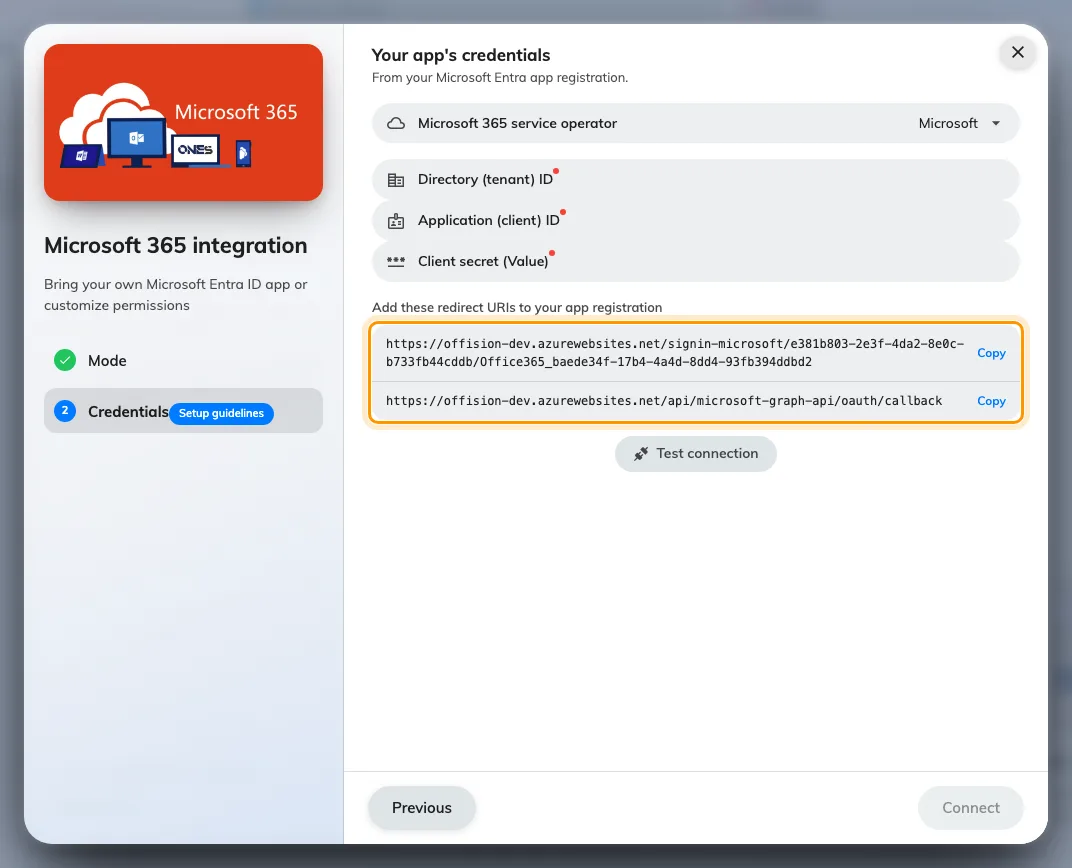
The credentials step, with the redirect URIs to add in Entra ID.
5. Test the connection
On an application-family mode, use Test connection before saving. A green result means Offision could actually get a token with your credentials — which is a much better place to find a typo than three screens later.
On a delegated mode there is no Test connection button, because nothing has signed in yet and there is no token to test. Its absence is expected.
Save, then set up rooms, people and sign-in.
When it goes wrong
| What you see | Usual cause |
|---|---|
| Connection failed, please check the information provided | Wrong tenant or client ID, a secret that has expired, or the secret’s ID pasted instead of its value |
| Connection failed although the credentials are right | The permissions were added in Entra ID but admin consent was never granted |
| No Test connection button | A delegated mode is selected — there is nothing to test until an account signs in |
| Sign-in bounces back to the login page | The redirect URIs are not in the app registration |
| People never sync on delegated Complete mode | User.Read.All and Group.Read.All were granted as delegated rather than application permissions |
| It worked, then stopped months later | The client secret expired. Create a new one and update the credentials |
| Permissions look right but calls still fail | Microsoft takes five minutes to two hours to apply a permission change |
| Only the credentials step appears | Offision Hub, where the mode is fixed |