

The rejection email says it was sent by Microsoft 365
How to tell a Microsoft 365 decline from an Offision rejection when both arrive from the room: Microsoft checks its own rules first and declines directly, and only a meeting it accepts reaches Offision's booking rules.
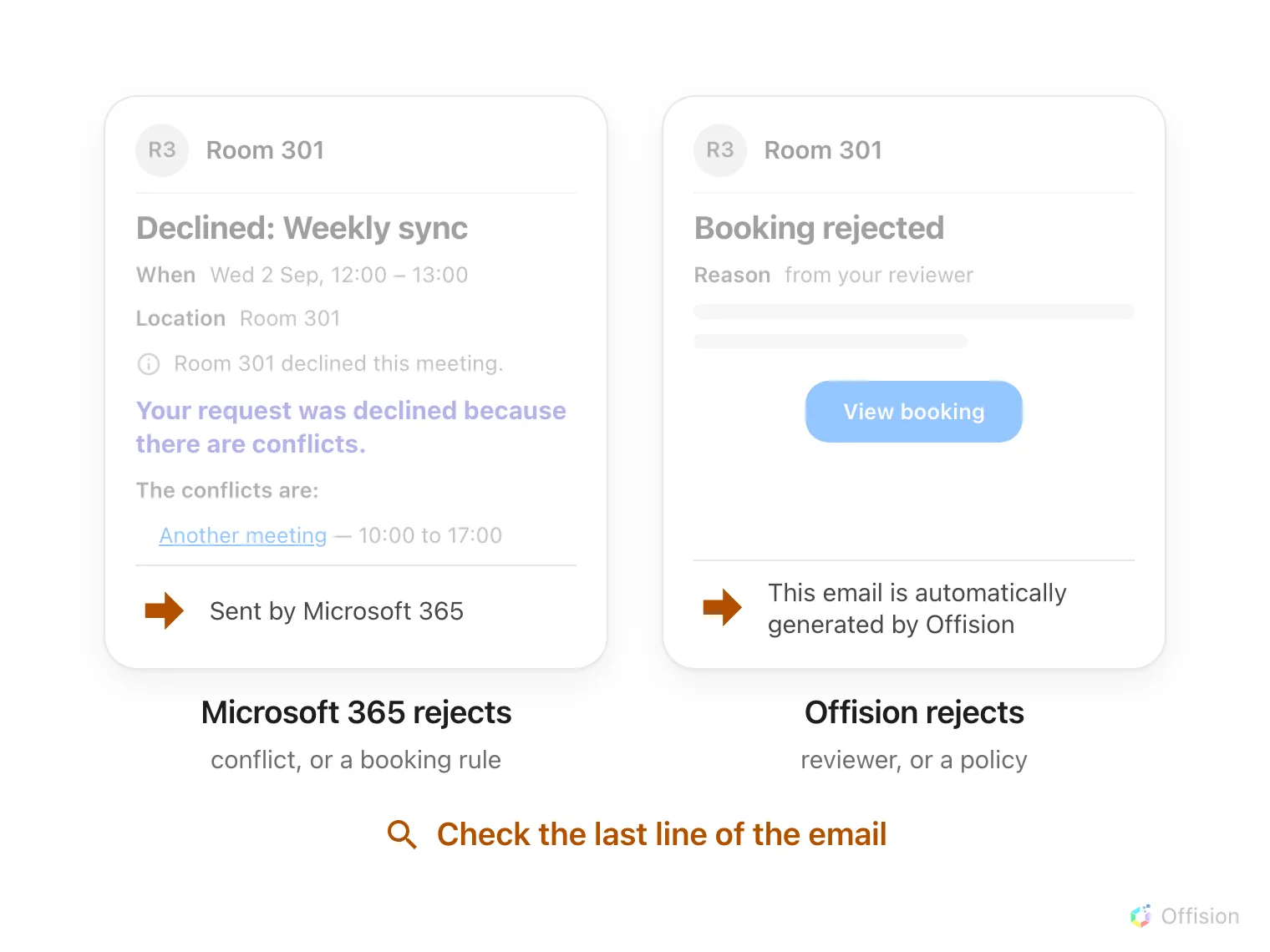
Both rejections arrive from the room, so the header cannot tell them apart — the last line of the message names the system that declined.
When a room is connected to Microsoft 365, two different systems can refuse a booking, and each sends its own email — both arriving from the room’s name. Microsoft always verifies its own rules first; only a meeting it accepts is handed on to Offision’s booking rules. The last line of the email tells you which of the two said no.
Microsoft declined it directly
Most commonThe room’s own Microsoft rules refused the meeting — almost always because the slot was already taken. The room mailbox declines straight away, in Microsoft’s wording, listing the conflicting meeting. Offision is never told: the meeting never syncs, so there is no booking record at all — see A meeting booked in Outlook never appears in Offision.
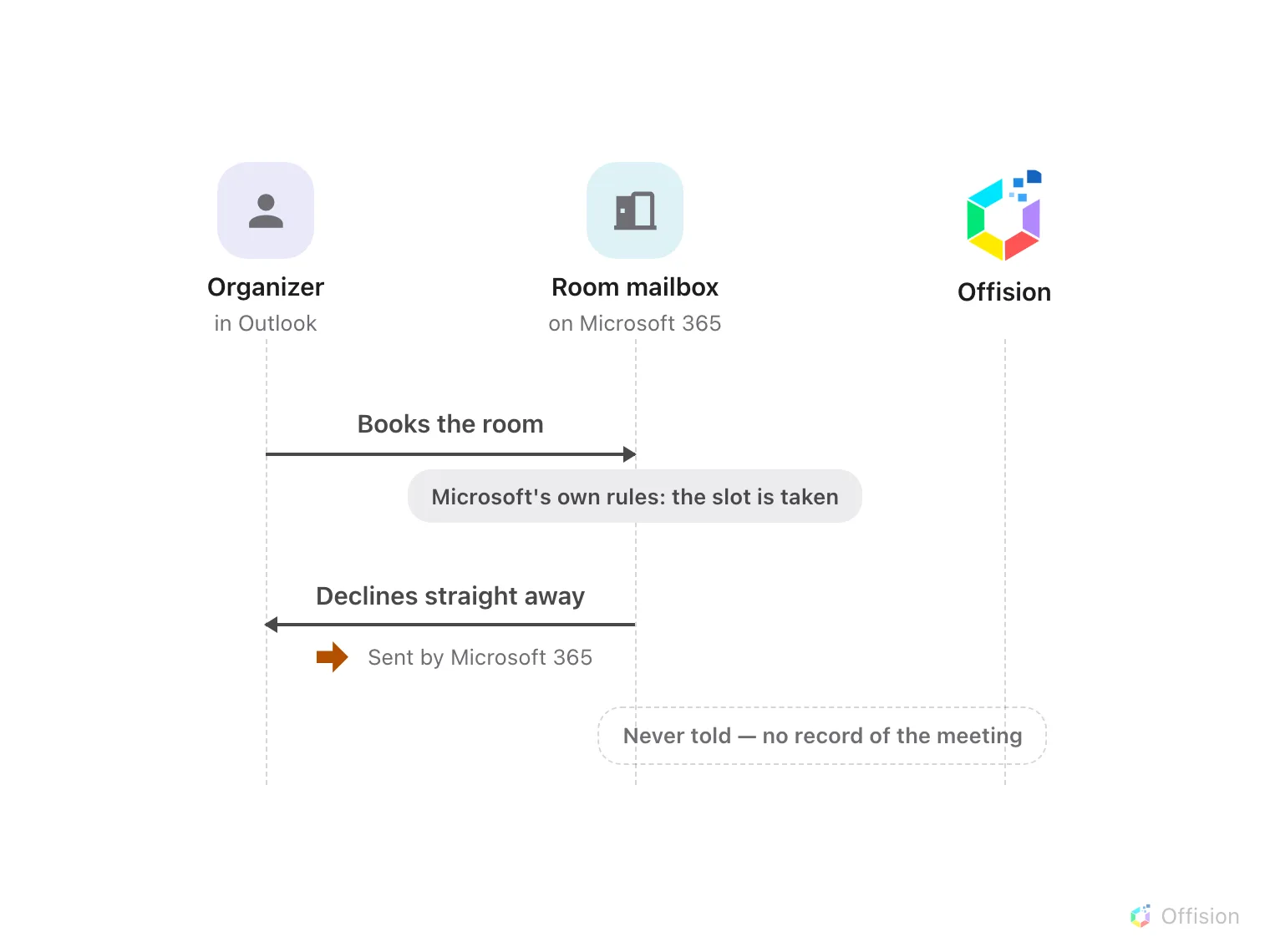
A conflict is refused by the room itself, before anything reaches Offision — the decline is Microsoft's, and Offision has no record.
Book again at a free time, or in Offision, where the conflict is shown before you confirm.
Offision rejected it after checking
CommonThe meeting passed Microsoft’s rules and synced over — then one of Offision’s booking rules failed, or a reviewer turned it down. The rejection you receive carries Offision’s reason, and its last line says Offision generated it. In Offision the booking shows as Booking failed or Booking rejected.
If the room accepted the meeting first and this rejection arrived afterwards, the mailbox is answering before Offision is asked — see How a booking on an Outlook or Google room is validated.
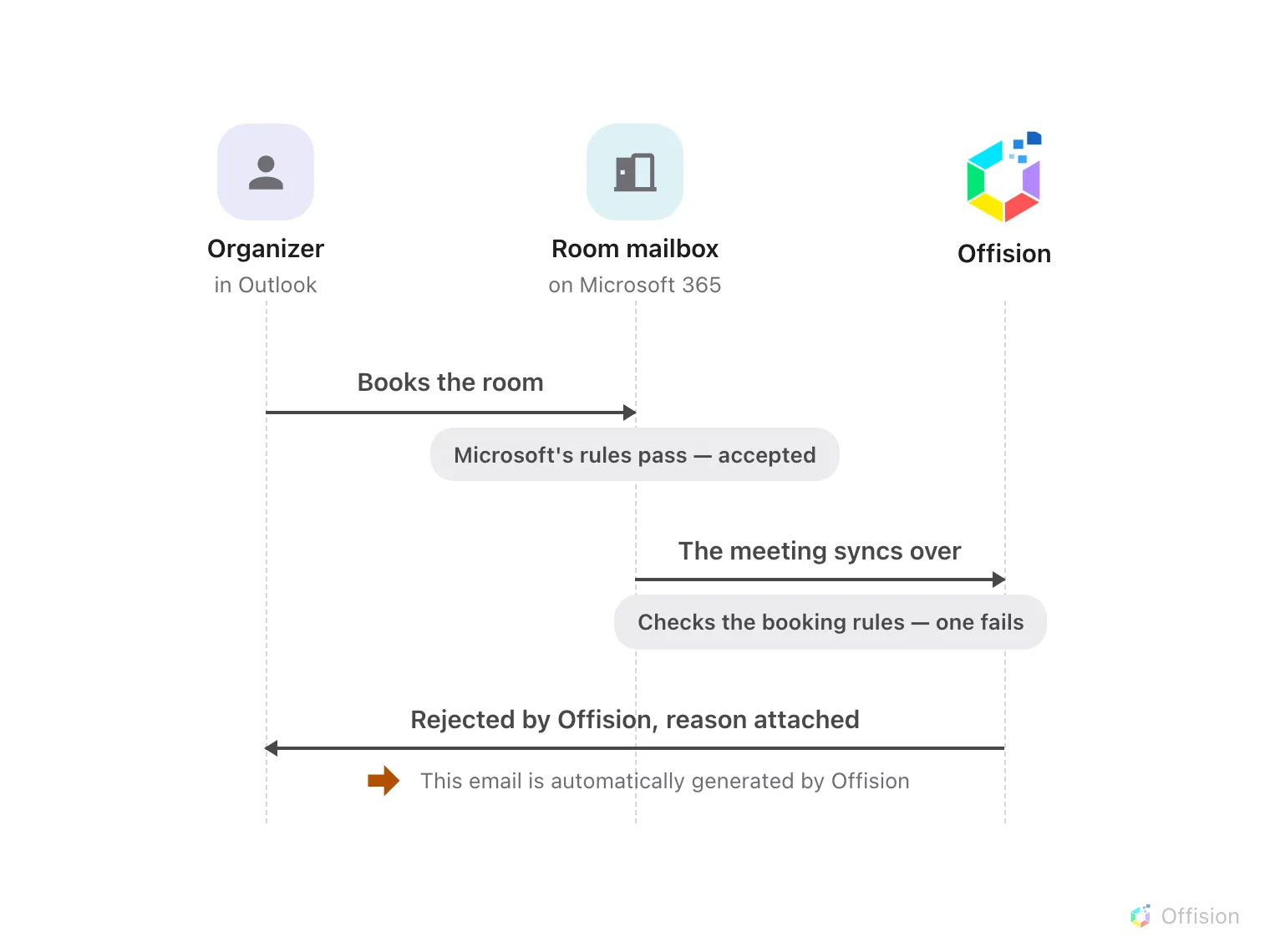
Microsoft's rules pass first — the meeting syncs over, and when a booking rule fails there, the rejection comes from Offision, with its reason.
Fix what the reason names — another time, another room, or ask the reviewer — and book again.