

Turn a Milesight sensor into desk and room status
Link each sensor to the desk or room it watches, then read what it reports — on the sensor, on the resource, in history, and as automatic check-in and check-out.
A sensor that has just appeared in Offision reports faithfully and means nothing — it is a serial number saying occupied, with no view about where. Linking it to a desk or a room is the step that turns it into status people can see.
Find the sensors
Every sensor that has reported is listed on its gateway’s own page, under the Milesight tile in the marketplace — that is the shortest route to the ones you just connected. Each is a Milesight sensor carrying its Serial number (devEUI).
They also appear in Device monitoring alongside every other kind of device, which is the better list once there are more of them than fit on one screen.
Open Device monitoring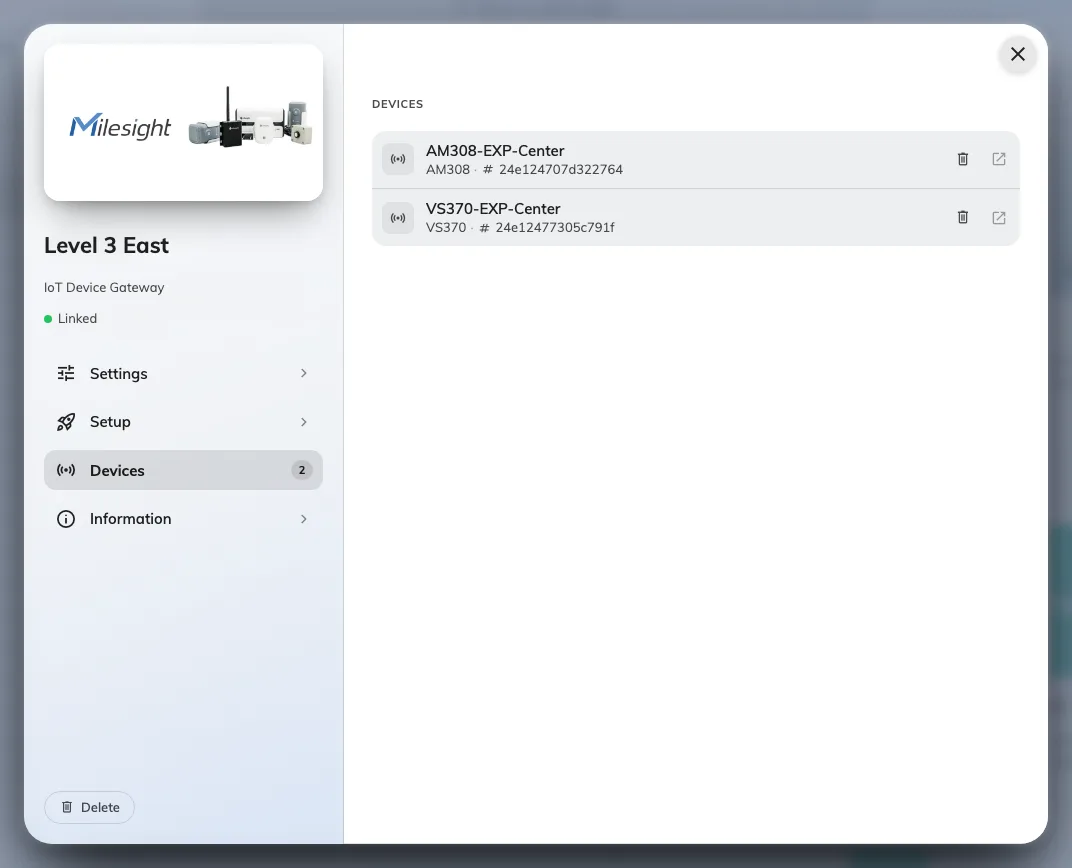
Sensors listed on their gateway, each named as the gateway names it.
Give the sensor its place
Open the sensor and use Bind type:
| Bind type | What it means | Use it for |
|---|---|---|
| Resource | The sensor watches one bookable thing — this desk, this room | Desk and room status, and everything downstream of it |
| Location | The sensor sits at a point on a floor plan, without owning a resource | Air sensors, and anything measuring a space rather than a booking |
For a desk sensor or a room sensor, choose Resource and pick the desk or room it is pointed at. That is the whole link — one sensor, one resource.
An air sensor is usually Location: it describes the room’s air, which is not the same claim as this room is booked and in use. You can also put a sensor in an IoT space to group everything measuring the same area.
The sensor identifies hardware, not the desk
A sensor is known by the serial number burned into it at the factory. It keeps that number through a battery change, a factory reset and a move to another building — which has one consequence worth knowing before it bites:
Swap a broken sensor for a new one and the desk goes quiet. The new unit has a different serial, so Offision treats it as a new sensor, and it arrives unlinked. Link the replacement to the desk and it picks up where the old one left off; the desk keeps its history either way.
What the readings look like
On the sensor’s own page: whether it is reporting, when it last did, and a tile for each reading it sends. Use this page for is this sensor healthy — the pages below are about the desk or the room.
Every sensor section carries View history, which charts one reading over a range you pick. A room that always feels stuffy after lunch stops being an opinion and becomes a CO₂ curve.
Device monitoring answers the other question — is anything not reporting — across every sensor at once, rather than telling one room’s story.
Occupancy as check-in and check-out
This is what linking to a Resource buys, and it is the main reason to put an occupancy sensor on a desk at all.
The settings are on the resource policy’s Others page, under Sensor — not on its check-in page, which is where most people look first. Each row, and the guards that stop it firing at the wrong moment, is walked through in Let an occupancy sensor check in, check out and extend a booking.
| Setting | What it does |
|---|---|
| Enable auto check-in by the occupancy sensor | Someone sits down, the sensor reports occupied, and the booking checks itself in |
| Continuous presence duration (in minutes) | How long someone has to actually be there first — this is what stops a passer-by checking in a room |
| Enable auto checkout by the occupancy sensor | The room empties and stays empty, and the booking releases itself |
| Continuous no presence duration (in minutes) | How long the quiet has to last. Set it long enough to survive a coffee run |
| Enable auto extend by the occupancy sensor | A meeting still going as its slot ends keeps the room, rather than being thrown out mid-sentence |
Two of these are worth thinking about rather than accepting:
- Continuous presence too short and someone walking past a desk sensor checks in a booking that is not theirs. Too long and people think check-in is broken.
- Continuous no presence too short and a room is released while everyone is at lunch. There is a companion setting to ignore auto check-out entirely for all-day bookings, which is what all-day desk bookings usually want.
Both of these read the same occupied / not occupied the sensor sends. Nothing here needs a headcount, which is why occupancy sensors are enough — and why these models cannot do more than that.
On a panel, a board and a floor plan
Once a desk or room is linked, its status travels the way any other status does: the desk shows as taken on the floor plan, the room panel outside the door shows the room in use, and a booking that auto-checked-in reads as checked in everywhere at once.
Nothing extra is configured for this. The sensor’s job ended when it reported; from there it is the resource’s status, and the resource was already on those screens.
When the status looks wrong
| What you see | Usual cause |
|---|---|
| The desk never shows as taken | The sensor is not linked to that resource, or it is bound as Location rather than Resource |
| The room checks in when nobody is in it | Continuous presence duration is too short, or the sensor covers a doorway or corridor rather than the room |
| Bookings release while people are still there | Continuous no presence duration is too short for how still people sit. Raise it before blaming the sensor |
| All-day desk bookings keep releasing | Turn on the setting that ignores sensor check-out for all-day bookings |
| Status froze at its last value | The sensor stopped reporting. Its page shows when it last did — see the connection troubleshooting |
| A replaced sensor changed nothing | The new unit is a different sensor and arrived unlinked. Link it to the desk |