

Connect Cisco Webex Control Hub
Authorize your Webex organization so Offision can mirror its workspaces and devices and read their sensors. What to create in Webex first, which consent step needs an org admin, and the three things that usually go wrong.
Connecting Control Hub is an authorization, not an API key: you send an admin to Webex to approve the access, and Webex hands Offision a token back.
What to have ready
- A Webex integration created in the Webex developer portal, which is where the client ID and secret come from.
- The client ID and client secret it issued.
- The Webex org administrator available to sign in when the approval window opens.
- About twenty minutes, plus a first sync.
1. Create the integration in Webex
In the Webex developer portal, create an Integration and register Offision’s callback address on it. Webex matches that address exactly and rejects wildcards, so it has to be the one concrete address your Offision is served on — a guess with a different host or a trailing slash fails at the last step, after the admin has already signed in.
Copy the client ID and secret it gives you.
2. Open Cisco Webex Control Hub in Offision
Go to the marketplace and open the Cisco Webex Control Hub tile.
Open Integrations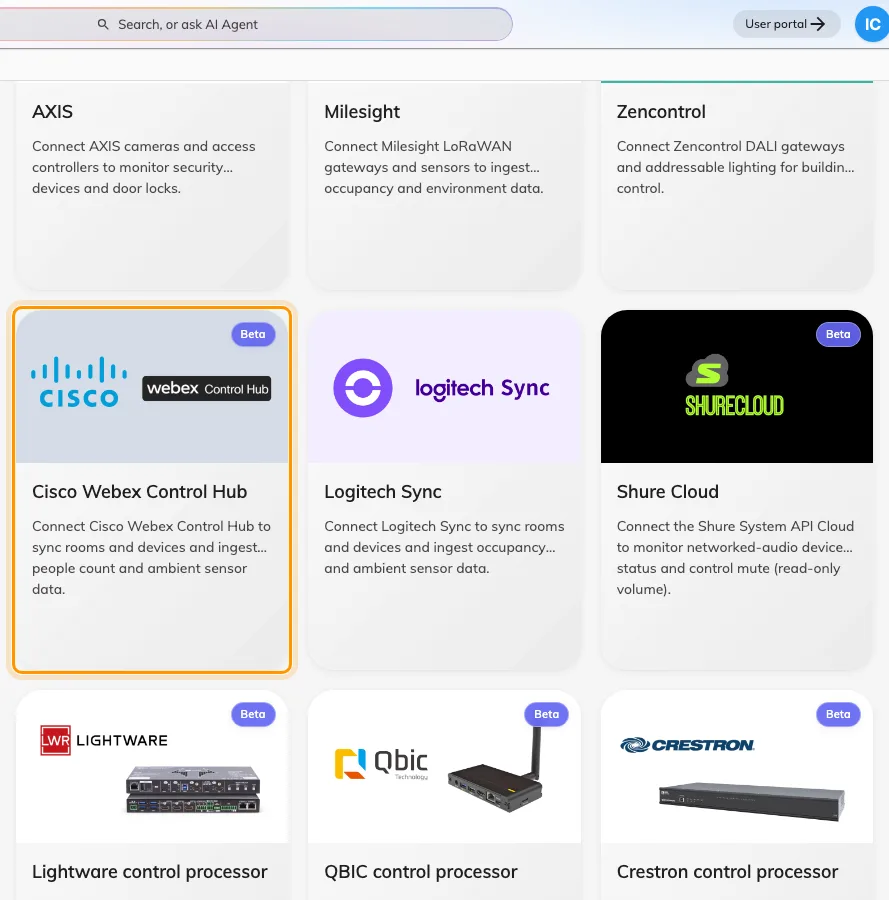
Cisco Webex Control Hub in the Integrations gallery.
3. Add the connection
Choose Add connection and fill in the form:
| Field | What to enter |
|---|---|
| Name | What this connection should be called in Offision — the organization or the site it covers |
| Organization unit | Which part of your organization the synced spaces and devices belong to |
| Webex client ID | From the integration you created in step 1 |
| Webex client secret | From the same place |
Then choose Connect with Webex. A window opens on Webex’s own sign-in, where the org administrator approves the access. It closes itself on success.
4. Sync workspaces and devices
Open the connection and choose Sync. The dialog lists your Workspaces and your Devices, with everything pre-ticked the first time so one press takes the lot.
For each workspace you tick, choose what it links to under Space — Create new IoT space for readings alone, or an existing bookable resource to tie the readings to a room people book.
The result says how many spaces and devices were synced, how many were removed, and how many were skipped. Later opens tick only what is already connected, so a second sync never quietly re-adds what you removed.
5. Check it worked
Open one of the new devices under Devices and confirm it reports Online and names its Webex product.
Then check the readings, but check them on a device that carries the xAPI chip — those are the only ones that report. Give it a poll interval or two before deciding the sensors are silent.
When it goes wrong
| What you see | Usual cause |
|---|---|
| Nothing happens on Connect with Webex | The browser blocked the pop-up. Allow pop-ups and retry |
| The window says Connection failed and stays open | The client secret is wrong, or the callback address registered in Webex does not match exactly. Both fail only at this point |
| Failed to load preview in the Sync dialog | Usually the approval was given by somebody who is not an org administrator, so the permission to read workspaces was never granted. Re-authorize with an admin account |
| No workspaces found and No devices found, with no error | The same cause as above — an account without admin rights sees empty lists rather than an error |
| A device is ticked but never appears | Either its workspace was not synced, or the device is not assigned to any workspace in Control Hub. Assign it there first |
| The result says n skipped | Normal on a re-sync — an already-mapped workspace counts as skipped. Worth reading only when it is unexpected |
| The connection goes Suspended | Either the permissions were narrowed in Webex, which suspends it immediately, or the authorization expired and repeated attempts failed. Use Renew access on the connection |
| Authorization is taking longer than expected | The approval window was left open too long. Start Renew access again |
A large organization simply takes longer to sync — Webex asks Offision to slow down and Offision waits, so a slow first sync is not a fault.