

Embed Offision in your company portal
Put the user app inside a page on your own intranet or portal: where to copy the address, the iframe to drop into your page, the embedding choice that lets your site hold it, and how to confirm it worked.
1. Copy the user portal address
Open System URLs, under Marketplace. The first row, User portal URL, is the address to embed. Copy it.
Open System URLs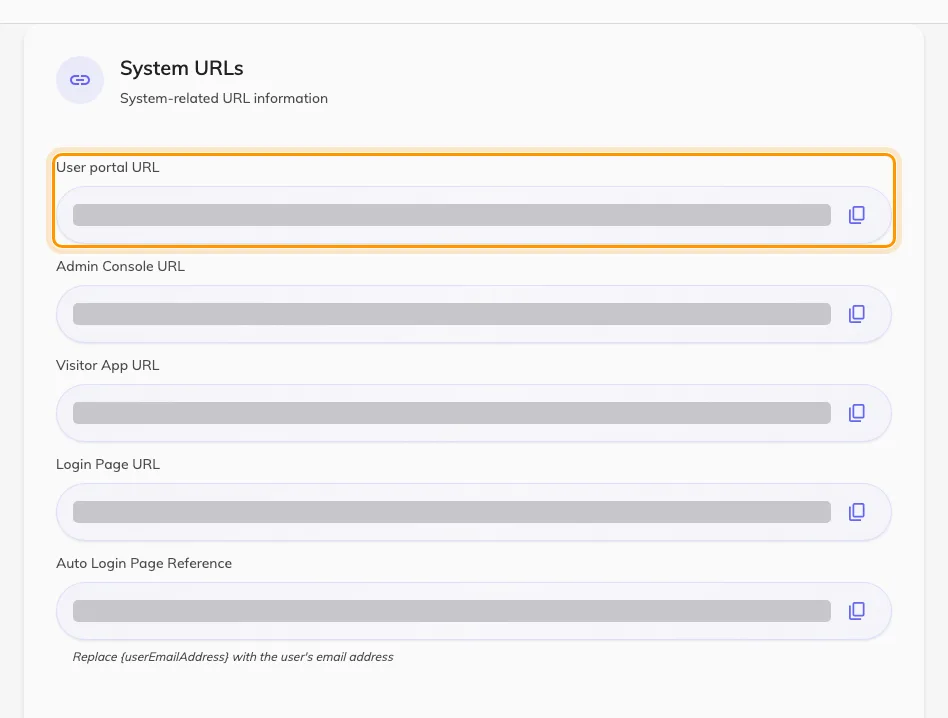
System URLs. The first row is the address to embed.
2. Put it in your page
Add an iframe to the portal page, with that address as its source. Give it real height — the app fills whatever box it is given, and a short frame makes it look broken:
<iframe
  src="USER-PORTAL-URL-FROM-STEP-1"
  title="Offision"
  style="width: 100%; height: 900px; border: 0;"
  allow="clipboard-write; camera"
></iframe>
camera is only needed where people scan a QR code to check in from the
embedded app; drop it otherwise.
3. Let your site hold it
Until this step the frame comes up empty on most tenants. Open Security setting, under System config, set User app embedding to Listed websites, and add your portal’s address to Allowed websites.
Open Security settingType the origin of the portal page — scheme and host, no path. What the list accepts, and how to cover several portal addresses with one entry, is in choose which websites may embed Offision.
Save. The change applies to the next page load.
4. Check it worked
Open the portal page in a private window, as somebody who is not you:
- The app appears in the frame rather than an empty box.
- Signing in works, and a reload still shows them signed in.
- They can open a room and make a booking.
An empty frame means the address in Allowed websites does not match the page holding it — work through the embedded page refuses to display. A frame that keeps asking for a sign-in is a different problem, in people are asked to sign in again.