

Sync people from Microsoft 365
Let your Microsoft 365 directory create and remove Offision accounts by itself, for everyone or just for the groups you choose. About five minutes to set up.
With user synchronization on, your Microsoft 365 directory is the source of truth for who exists in Offision. New starters appear without anyone adding them, and leavers disappear without anyone remembering to.
What to have ready
- The Microsoft 365 integration already connected
- A decision about scope: everyone, or only certain Microsoft 365 groups
- The Offision user groups new people should land in
1. Open user synchronization
Open IntegrationsOpen the Microsoft 365 tile, then on the integration card choose the Synchronize users row. If synchronization has never been on, the screen is an empty state with a single Turn on user synchronization button.
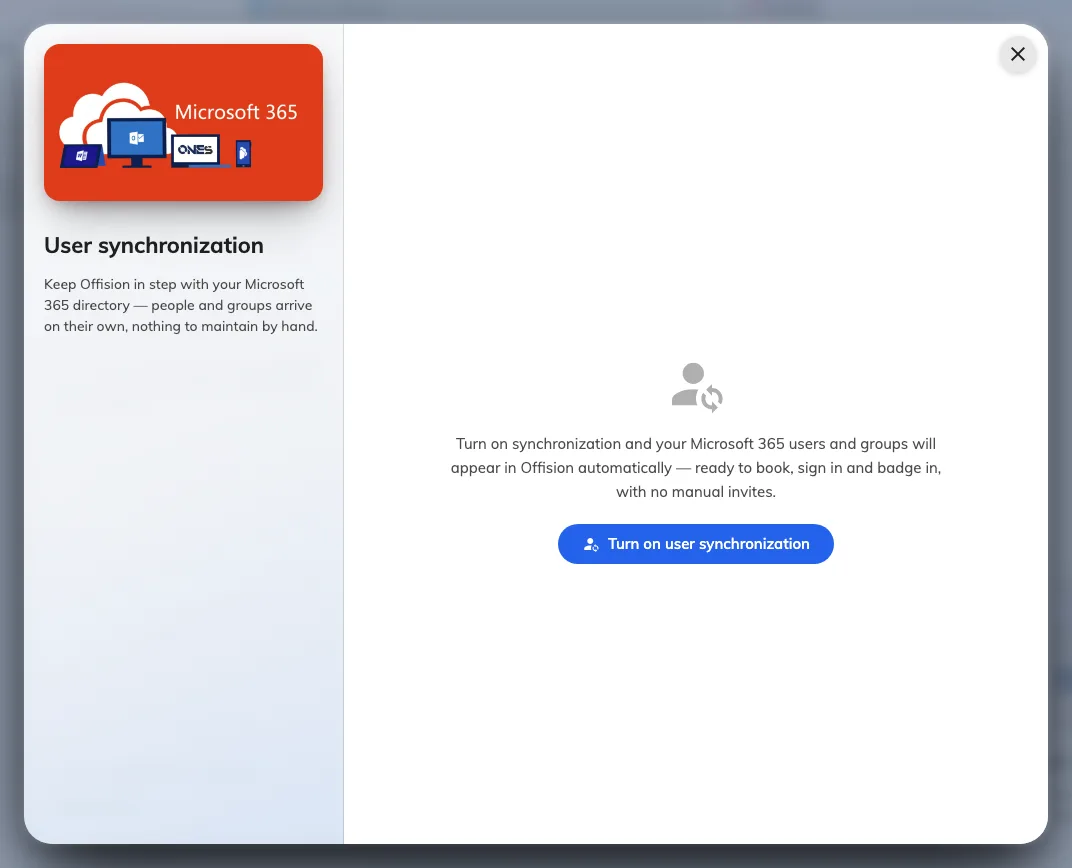
Turning user synchronization on for the first time.
2. Choose what to sync
| Choice | What arrives |
|---|---|
| Sync all users | Every person in the directory, no groups |
| Sync all user and user groups | Every person, and the group structure with them |
| Sync specified user group’s users | Only the members of the Microsoft 365 groups you pick |
Pick Sync specified user group’s users when Offision is for part of the organisation rather than all of it. It is much easier to widen the scope later than to remove several thousand accounts that should never have arrived.
3. Check the preview before saving
As you change the settings, Offision counts what they would actually bring in and shows it as Will sync N users and M groups, with a row of faces. This is a real dry run against your directory, calculated from the unsaved settings in front of you.
Read it. A count far larger or far smaller than you expected means the scope is wrong, and this is the last moment it costs nothing to fix.
4. Set where new people land
Default native user group decides which Offision user groups a newly synced person joins. Everything that keys off user groups — which rooms someone may book, what they can see — follows from this, so a new starter with no group may be able to sign in and book nothing.
Synchronize card number options sits here too, and is the one field on this page worth ignoring: leave it on No synchronize. Card numbers do not arrive with a Microsoft 365 sync, so issue them in Offision instead — see Issue an access card to someone.
Save, and the first sync runs.
5. Check it worked
Open the Synchronized users page in the same screen and confirm the people you expected are there, in the groups you expected. Re-sync runs it again on demand rather than waiting for the schedule.
Then check the other direction: someone who is not in scope should not be listed.
Sync is a mirror, not an import
This is the part worth understanding before you turn it on.
Removed means removed from the directory, not blocked in it. Blocking somebody’s sign-in in Microsoft 365 leaves their account in place, so the sync still sees them and they stay a live Offision user. Only deleting the account there takes them out of Offision — which matters when the block is how your organisation handles a leaver. See Can access be revoked automatically when somebody leaves? for what the sync never touches at all.
Turning synchronization off does not delete anyone. The people already synced stay in Offision; they simply stop updating from Microsoft 365. Offision says so when you turn it off, and the warning is worth reading rather than clicking past.
People added directly in Offision are unaffected either way — see Add people to Offision.
When it goes wrong
| What you see | Usual cause |
|---|---|
| No Synchronize users row on the card | The integration is in a mode that cannot read the directory |
| The preview will not load | The directory permissions were granted but consent was not, or Microsoft has not applied them yet |
| Far fewer people than expected | The scope is set to specific groups, and they are smaller than assumed — or nested groups are not what you thought |
| People arrive but can book nothing | No default user group is set, so they land with no permissions |
| Someone came back after being deleted | They are still in a synced group in Microsoft 365; remove them there, not here |
| A leaver is still an active user | Their Microsoft 365 account was blocked rather than deleted. A blocked account still syncs |
| Everyone disappeared at once | The scope changed to a group that is empty or unreachable. Fix the scope, then re-sync |