

Map 2.0
Review and update a Map 2.0 map
Saved means the Map 2.0 draft is saved. Use Update to compare Live and New and publish the draft; a never-published floor may already show its draft.
Save the draft
The designer saves your edits automatically. Wait for Saved. If saving fails or another editor changed the map, resolve the failure before continuing; do not treat unsaved changes as published.
If the draft cannot save, follow draft failure and conflict recovery before reloading.
Review before updating
- Choose Update in the designer header.
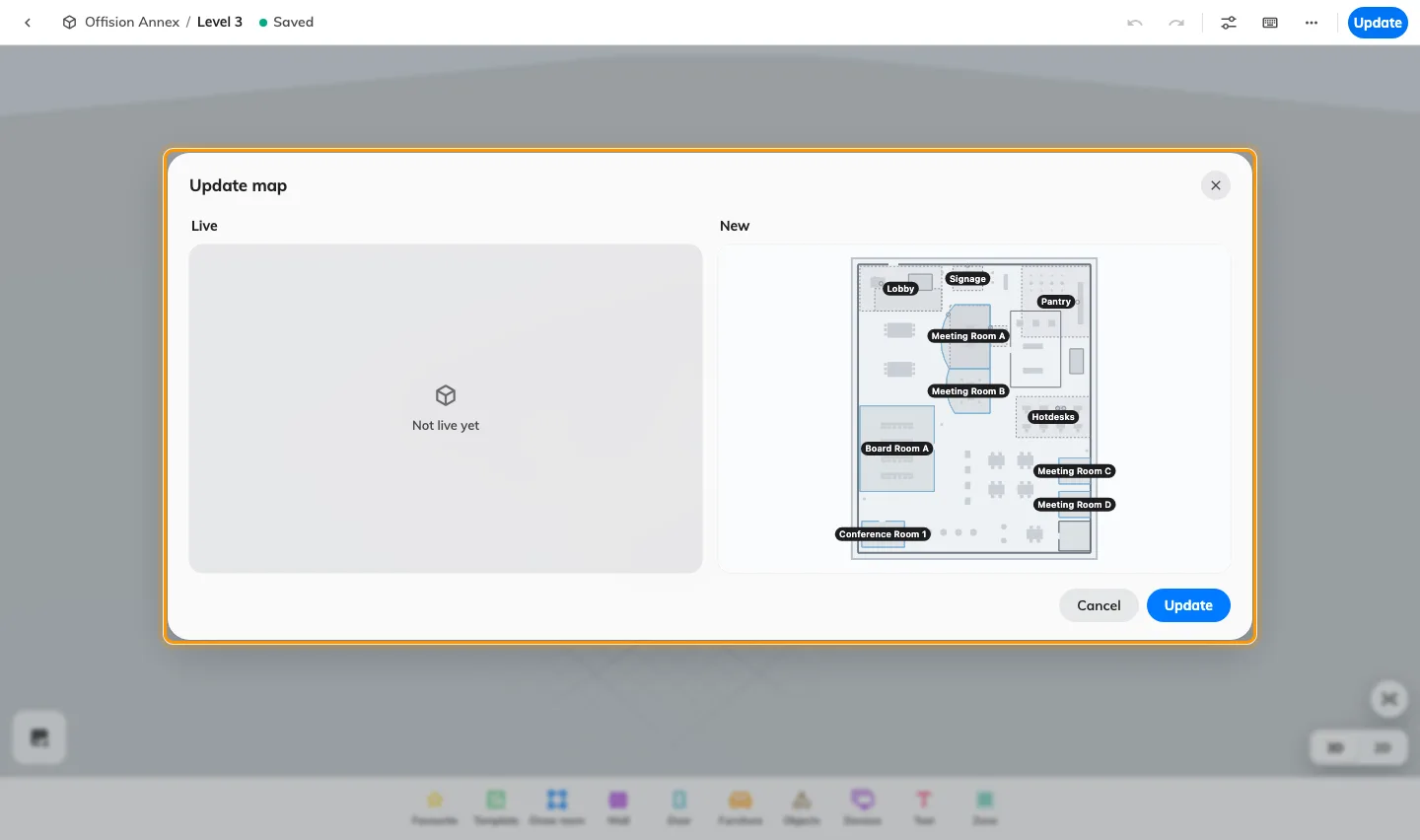
- Compare Live with New. On a first update, Live has no published map yet.
- Check the floor, room assignments, doors and display.
- Choose Update in the review to publish. Opening the review alone does not publish. Closing it leaves the draft available for further editing.
On a floor with a published Map 2.0 map, users keep seeing the published map until the update succeeds. A never-published floor can show its draft when the new map is enabled. A first import from Classic is held back until its first update, so people keep seeing Classic during that review.
The account’s map view also decides which family is displayed. Updating Map 2.0 does not erase the Classic drawing or replace the Classic editor’s Save procedure.
Saved means the Map 2.0 draft is saved. Use Update to compare Live and New and publish the draft; a never-published floor may already show its draft.