

Map 2.0
Edit a Map 2.0 map
Edit a Map 2.0 scene: search catalogues, drag and repeat placement, select groups, adjust wall and mounting heights, finishes and seating, then review the saved draft before updating the published map.
Identify the editor
Open the floor’s Map 2.0 editor. Its header has Saved and Update. If you see Design, Route and Assign modes, use Classic instructions instead.
Change the scene
Choose an insertion tool for a wall, room, door or furniture. Follow the placement hint on the canvas, then select the placed object to change its size, position or appearance. The selected object’s controls stay beside it. Moving the camera changes your view, not the object’s position.
A room shape does not create a bookable room. Use the object’s Assign action to link it to an existing resource; Map 2.0 has no separate Assign mode.
Change the display
Open Display in the header to adjust the map’s presentation. These are Map 2.0 settings; the Classic 3D preview instructions apply to the Classic editor only.
Wait for Saved after editing. To change a published map, review and update.
Templates, replacement and exact size
Choose Template in the bottom toolbar to browse ready-made room arrangements. Check the tile’s dimensions and seat count before placing it. A template places drawing objects; it does not create room or desk resources. Select its objects afterward to adjust them and assign the resources.
For furniture or equipment, use the selected object’s change action to choose a compatible replacement. An unavailable replacement can have incompatible links or seats: do not remove a valid resource assignment just to force it. Check the result’s geometry and assignment after replacement; changing an appearance is different from moving a booking to another resource.
Open the selected object’s advanced controls for exact dimensions and other properties. When using a reference plan, use Measure a known length, select the ends of a known span and enter its length. This calibrates the plan reference; it does not prove every generated wall or door is correct. Inspect them and keep the draft separate from Update.
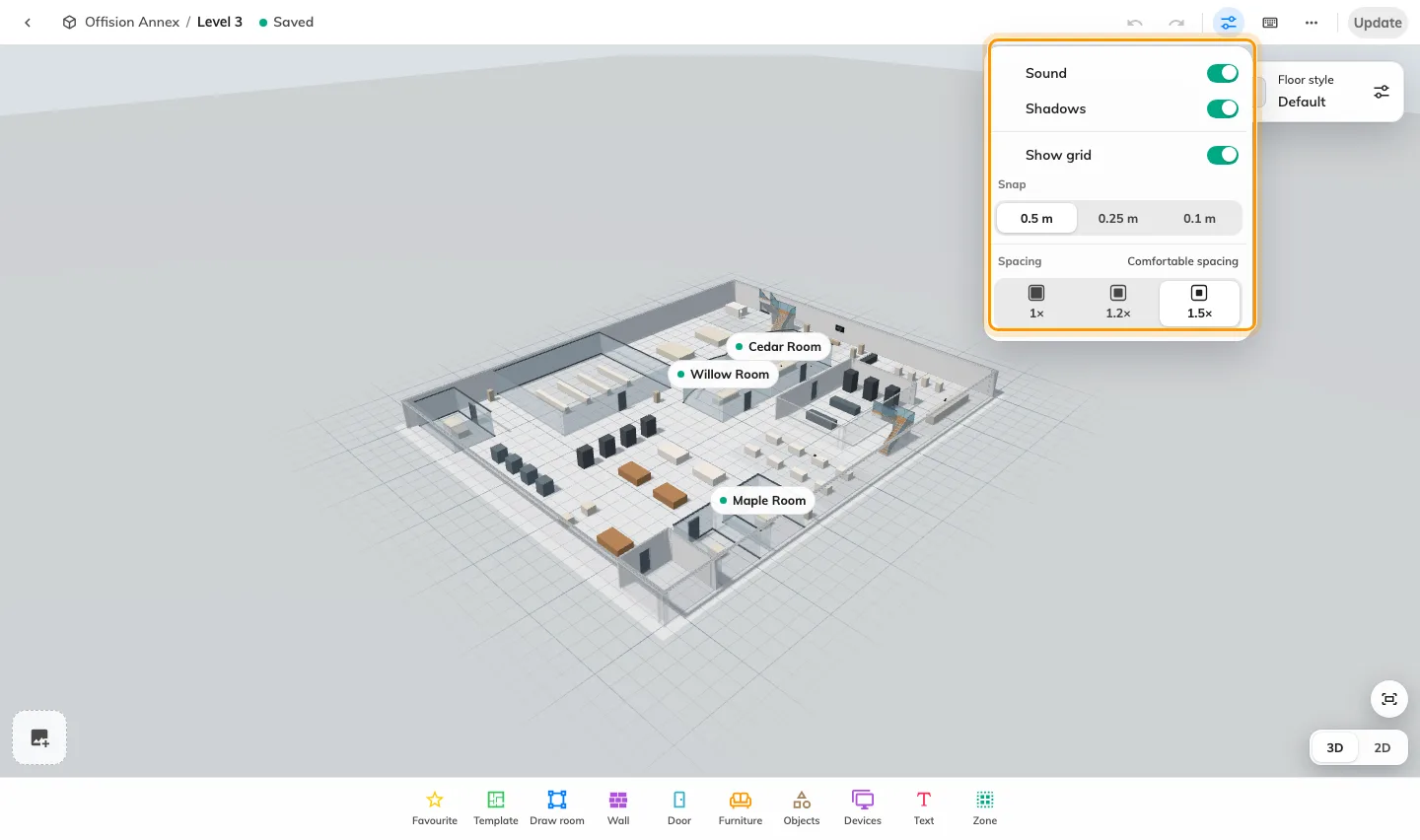
Edit objects directly in the Map 2.0 designer and change Display settings. Draft changes and updating a published map are separate actions.
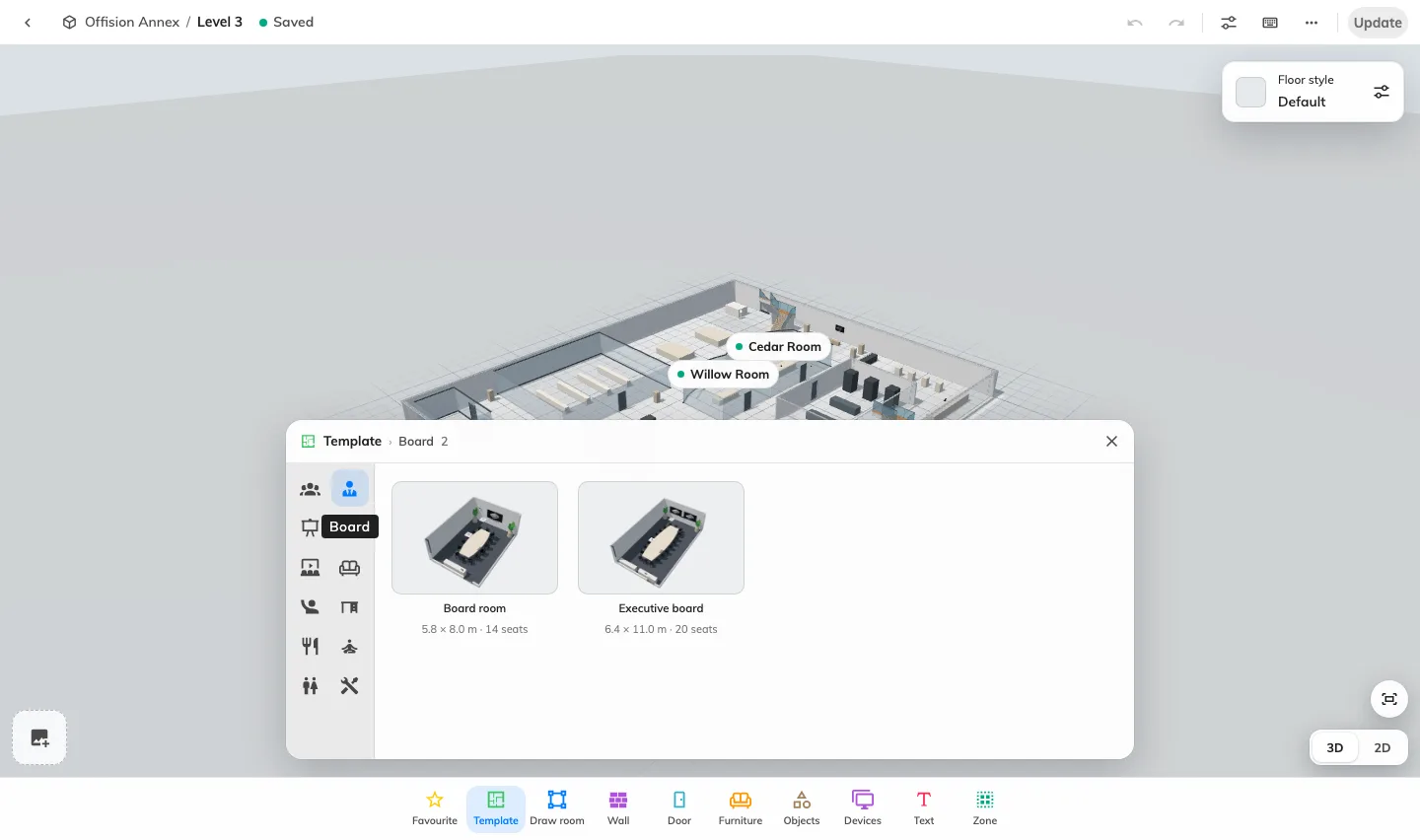
Two Board templates show room dimensions and seat counts before placement. These are drawing objects, not new booking resources.
Select, move and protect a room
Click an object to select it before dragging or using its controls. Shift-click adds to a selection; rotation controls turn the object, while camera controls change the view. Select a room and choose Lock room to protect its geometry while arranging furniture. The orange lock marks the protected room. Unlock room restores its move, rotation and resize controls. Furniture inside remains editable; the lock also protects walls that define that room. This drawing lock does not take the bookable room out of service.
Shape a wall
Select a wall or a room, then open the controls on the wall segment you want to change. Curve adds a curve grip; drag it to shape the bend and read the measurements on the floor. Curve shaping stays free even when grid snapping is on. Use Add point to add a corner, or the wall design control to change that segment’s appearance. Ordinary wall and corner moves follow the snapping setting. Unlock a protected room before changing its boundary.
Choose doors and display supports
The door picker offers designs grouped under Hong Kong, Taiwan and Japan. Choose a design when inserting a door, or select an existing door to change it. Door opening previews the door closed, slightly open or fully open; it changes the drawing, not a physical access-control device.
Select a display to choose Stand design and Stand finish where available. Compatible objects can be placed on the Floor, Wall or Table; choose the intended support and check the preview and height. These are map objects, not device enrollment or remote display controls.
Search, place and repeat
Catalogue pickers have a search box. Search across the catalogue or choose a category, then select a furniture, equipment, door or template tile. Furniture includes meeting pods, booths and additional seating and storage designs; search by the object you need rather than expecting every item in the first category.
For draggable furniture tiles, drag a tile onto the floor to place it. Placement remains active after a drop so you can add more copies. Duplication also stays active after each placed copy. Press Esc to stop; copies already placed remain. Door previews indicate an invalid placement so you can choose a compatible wall position before dropping.
Select a group
Use the Select tool to drag a selection box. Furniture, devices and text inside it can be selected together; an unlocked room joins only when its whole footprint is enclosed. A selected room carries its contents when moved. Shift-click still adds individual objects. Check the selection before moving or duplicating it, and keep room geometry locked when arranging its contents.
Adjust height, finishes and fittings
The wall Height control offers presets, a live slider and an exact centimetre value. Preview the change while dragging; Esc cancels the unfinished adjustment. Wall-mounted objects also have a vertical height handle: drag it and inspect the object against the wall before finishing.
For walls that support separate sections, select the upper or lower finish target before choosing its material and colour. A room’s floor is a separate target. Default restores the material’s natural colour. Floor style changes the whole floor’s material and colour; check it alongside the room’s own floor finish.
Seating controls change chair count and arrangement where supported. Some fitting tiles cycle through alternatives rather than acting as a simple on/off switch. Assigned seat positions can restrict these changes; inspect resource assignments after changing furniture.
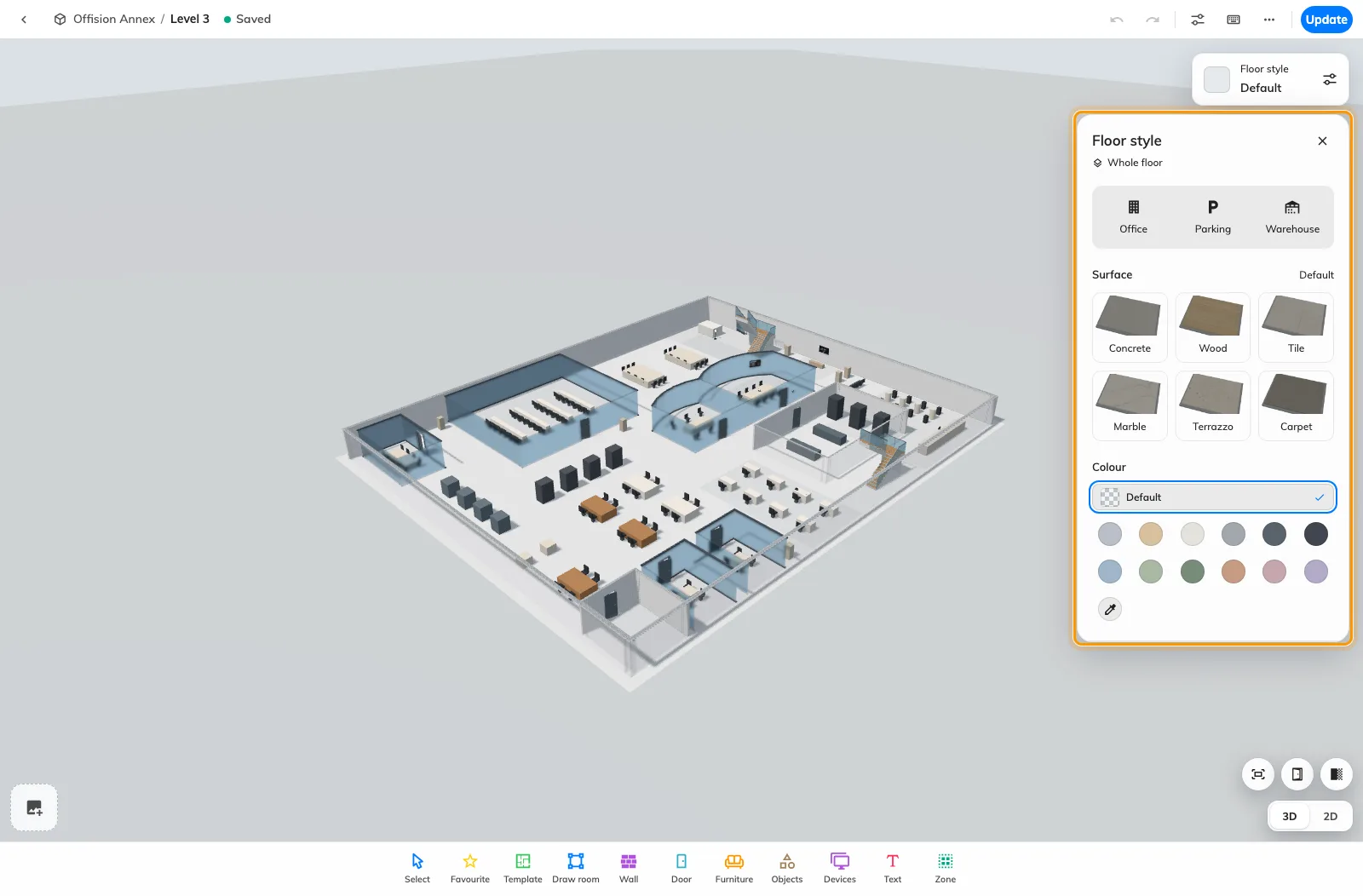
Floor style changes the whole floor's surface and colour while keeping the scene visible for review.
Check the result
Inspect the room boundary, door placement and furniture from above and in 3D. Reopen a locked room to confirm its lock was saved. Wait for Saved and use Update when the draft is ready for people to see.