

Map 2.0
Import or export a Map 2.0 map
Export the current Map 2.0 drawing and pictures as .ofp2, check missing pictures, and review a file before replacing a floor’s draft; resource assignments must be made again.
1. Export the drawing on screen
In the Map 2.0 designer header, open File (the three-dot button), then Export map. Keep the downloaded .ofp2 file. It contains the drawing currently on screen, including unsaved drawing edits, and the pictures that can be downloaded. It does not carry the resource assignments: bind resources again at the destination.
If Exported without some pictures appears, the file was created but is incomplete. Check the original pictures and their uploads before exporting again. Could not export means the export failed; do not treat an absent download as a backup.
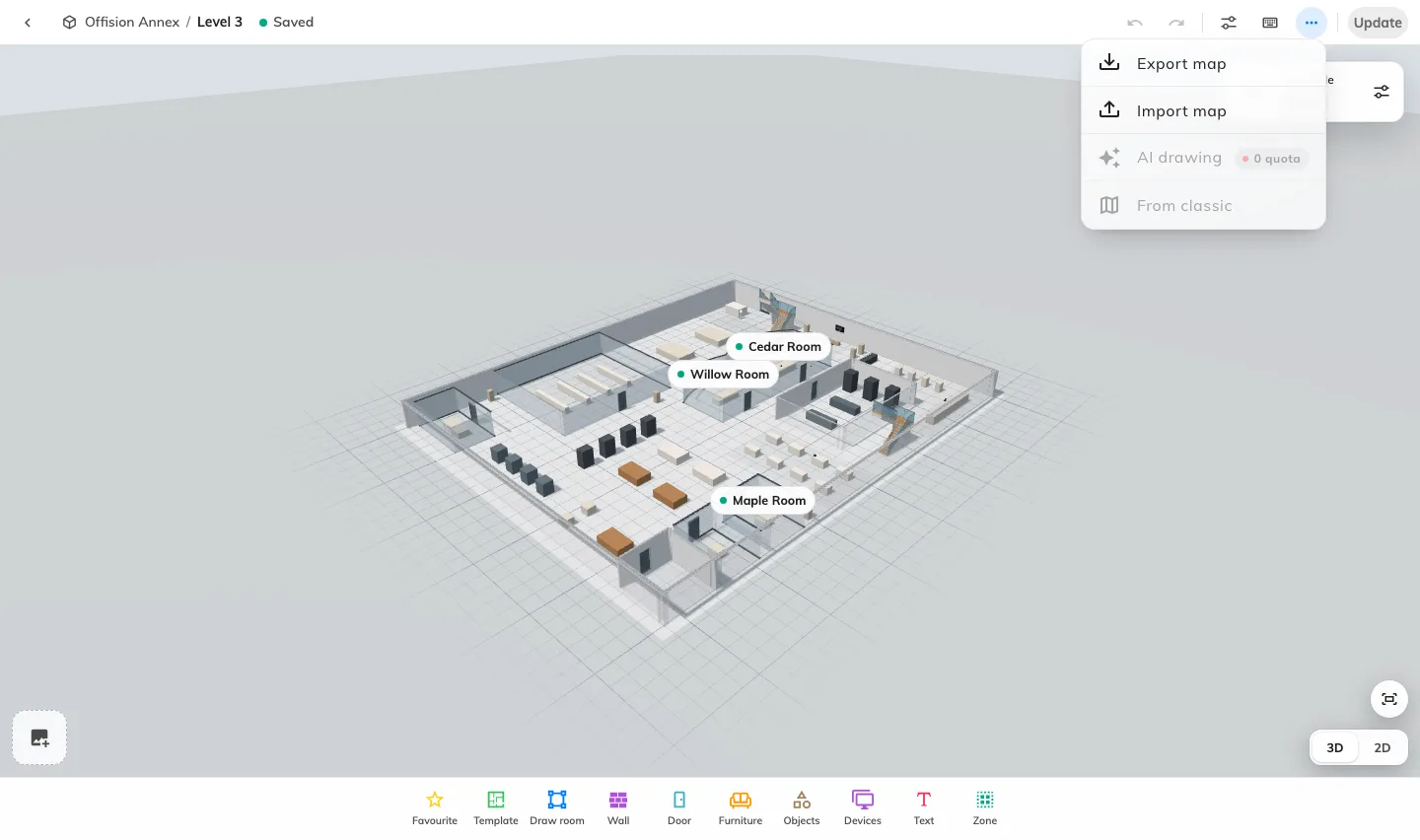
File opens the Map 2.0 import and export actions. Export keeps the drawing on screen; import needs a separate replacement confirmation.
2. Review an import
Open the intended building and floor. Use File → Import map, choose a .ofp2 file, then check the map preview. Choosing the file alone does not replace the draft. Cancel if it is the wrong map or floor.
An image or PDF belongs to AI drawing, not Import map. Not a map file, Made by a newer version or This map is damaged means the file cannot be used as selected; obtain a valid export rather than renaming another file to .ofp2.
3. Replace and verify
Choose Replace only after checking the destination. This replaces the draft; it is not an edit merge and does not itself update a published map. The previous saved draft is retained as a revision, but this designer does not expose a general revision restore screen. Keep your own export before replacement.
Inspect the imported objects and pictures, assign the resources and review and update. Confirm the correct room and desk details on the map people use.