

Show prices and deposits to guests
Assign room pricing plans, deposits and optional weekday or holiday rates. Check date matching, mixed-day quotations, unknown prices and renewed acceptance when a price changes before submission.
Why use this feature
Show a usable cost before submission so the guest can decide whether the reservation fits their budget. Room-specific plans support different services; a deposit communicates the amount needed in advance; on-request pricing makes an unresolved amount explicit. Staff and guests can then discuss the same breakdown rather than interpreting a plan name or treating an unknown cost as free.
1. Open the page
On Room, open Pricing, choose the currency and add a plan. Assign the rooms covered by that plan. A room on no plan is free; the zero-price wording can show free or a numeric zero. A plan name helps staff recognise the pricing rule but does not replace the price shown to the guest.
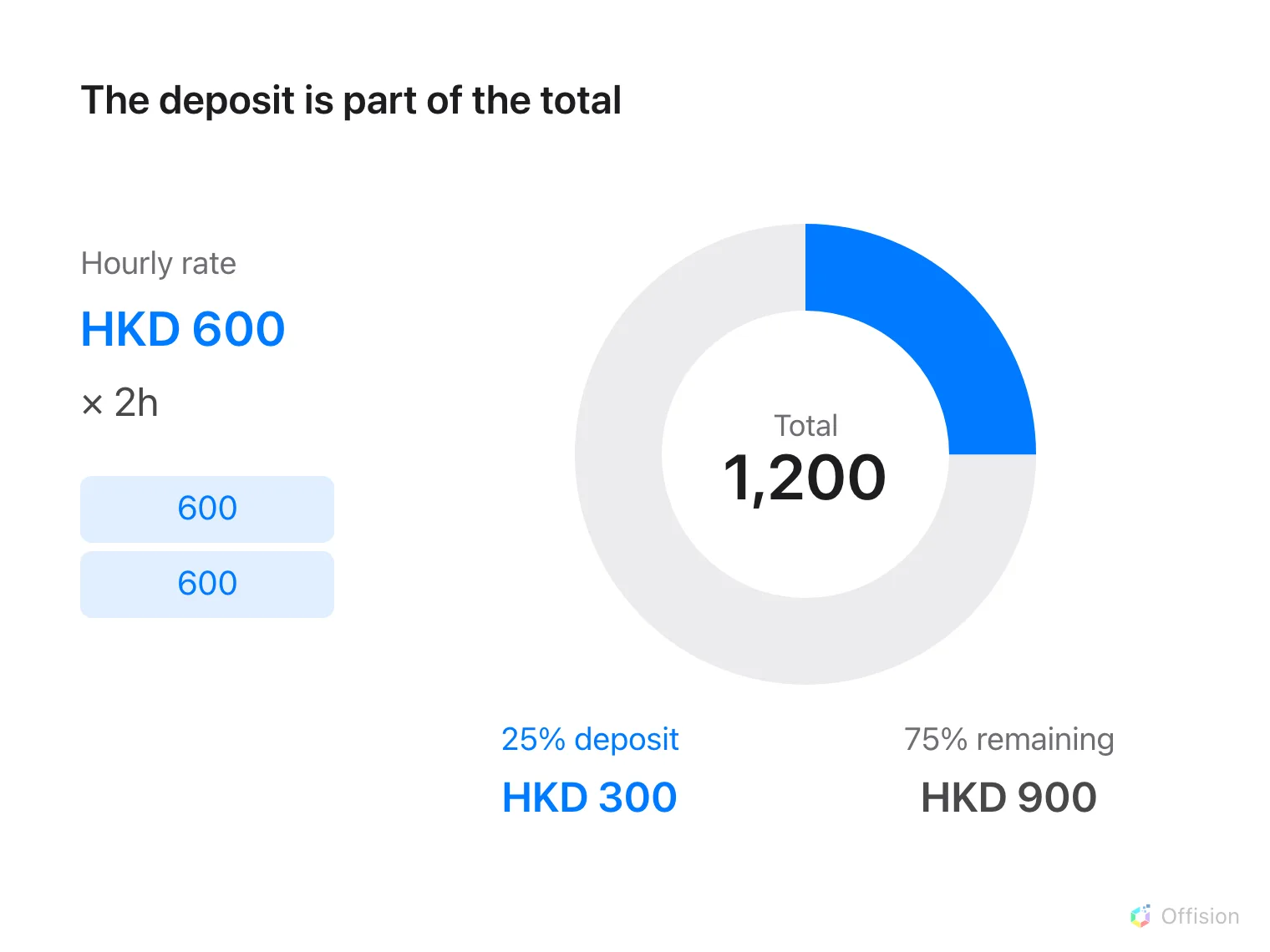
Two hours at HKD 600 per hour total HKD 1,200; a 25% deposit is HKD 300.
2. Set the guest experience
Choose the plan’s supported charging basis and amount, block-specific values when offered, and any day rate. For a price decided later, use Price on request rather than entering zero. Add a fixed or percentage deposit where needed, including its rounding rule. For example, a total of HKD 600 with a 25% deposit gives HKD 150 before rounding.
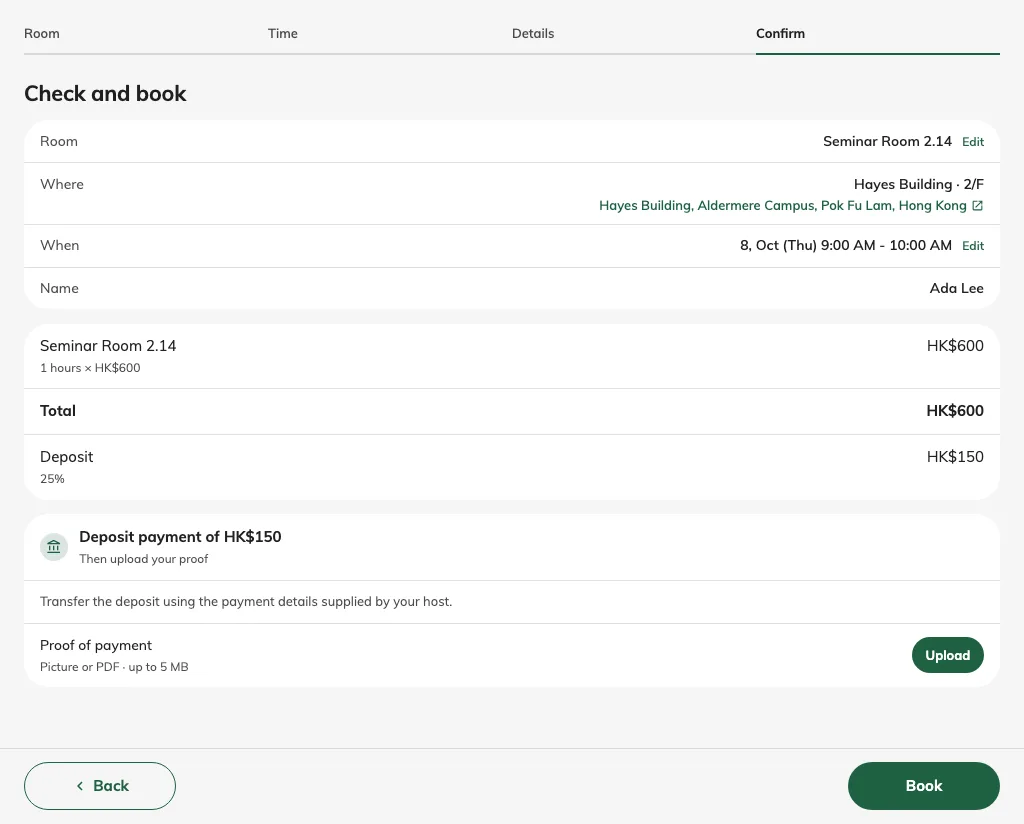
A one-hour session totals HKD 600, including a HKD 150 deposit.
3. Check the result
Save and test one room, several choices and an on-request item where configured. Inspect the guest price breakdown and recap, including deposit and any closed-day exclusions. A numeric subtotal plus on-request items is not a fully known total. Showing a deposit calculates an amount; it does not collect money. Configure payment instructions separately on Confirm.
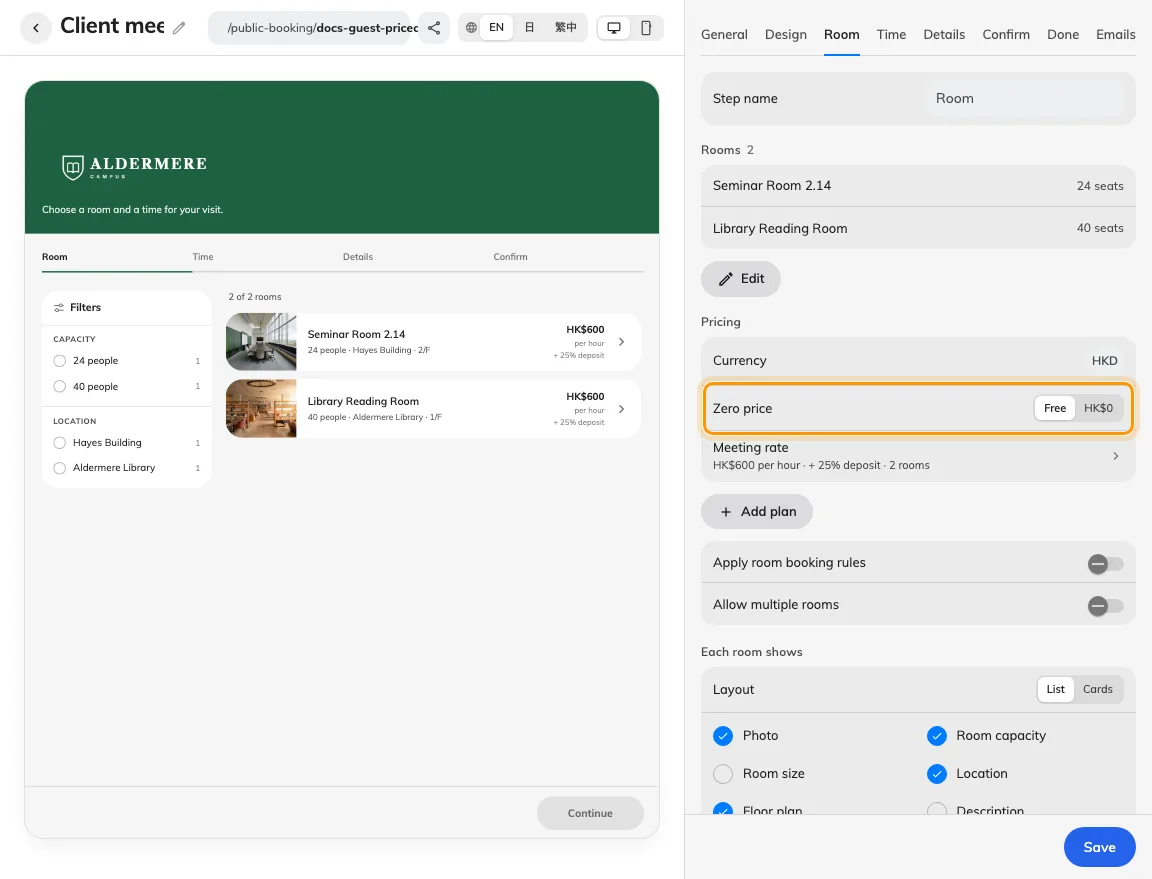
Zero price can be worded as Free or an amount.
Different prices for weekdays and holidays
In the pricing plan, use Add beside the price-table tabs to create day rates. The first extra table copies the default amounts and covers Saturday, Sunday and holidays. Select the weekdays it applies to, then enter its prices. Copied amounts are independent: editing the default later does not update the extra table.
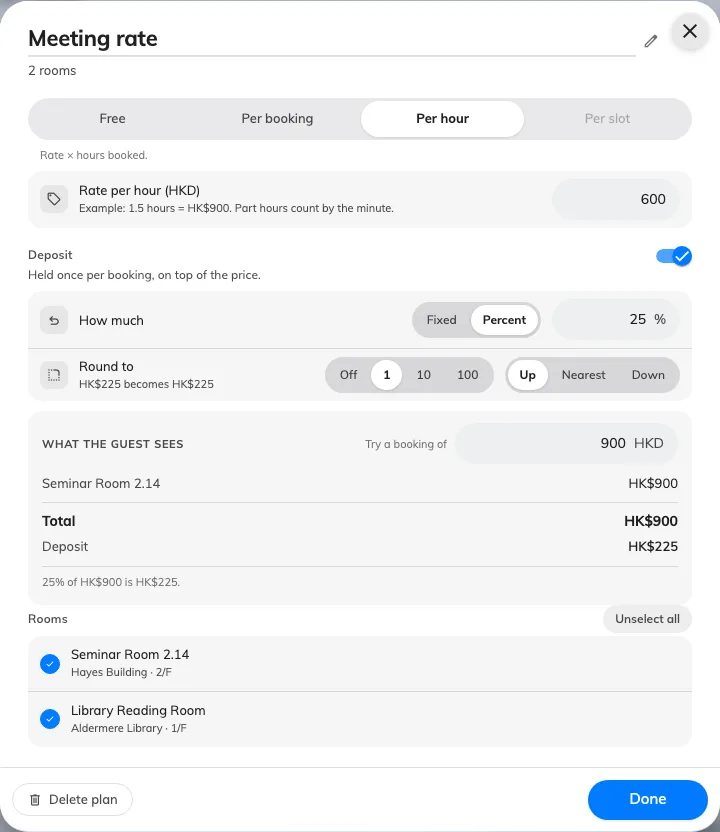
The plan links a rate and deposit to rooms.
A weekday can belong to only one extra table, and holidays can belong to only one table. For each booked date, holiday prices take precedence, then the matching weekday table, then the default. The page’s own holiday calendar supplies the dates. A holiday rate does not open a closed date; configure availability under days and hours.
The charging method, currency and deposit settings are shared across the plan. Fill every applicable slot price; zero means intentionally free, while Price on request means the amount is unknown. Use Check prices for a date to verify a weekday, weekend and holiday. Confirm the plan, save the page, then reopen it to check the saved prices.
For a booking spanning different day rates, review the dated price breakdown. A per-booking fee uses the earliest booked session’s local date once per distinct room, and deposits are not repeated for every day. Existing bookings keep their recorded amounts. If prices change before submission, the guest must review and accept the refreshed quotation before submitting again.