

Set the days and hours guests can book
Set weekly hours, holidays and a rolling or fixed booking period using Specified date for Starts and Ends. Check room-local date boundaries, copied weekend blocks, disabled calendar dates and the effect of Apply room booking rules.
Why use this feature
Opening hours define when the service can be delivered. Minimum notice gives staff time to prepare, and the advance limit keeps guests within the period you can plan reliably. Holidays cover exceptions to the weekly pattern. These controls help a guest choose a usable appointment before filling in the form, rather than receiving a refusal after arranging their visit.
1. Set the weekly service hours
Edit the page and open Time. For Session, select open weekdays and set the shared start/end hours and Slot length. Custom blocks and whole-day windows are edited through their timetable. A day with no offered slots gives the guest nothing to pick.
The example below assumes room rules are on and the room policy forbids booking outside business hours.
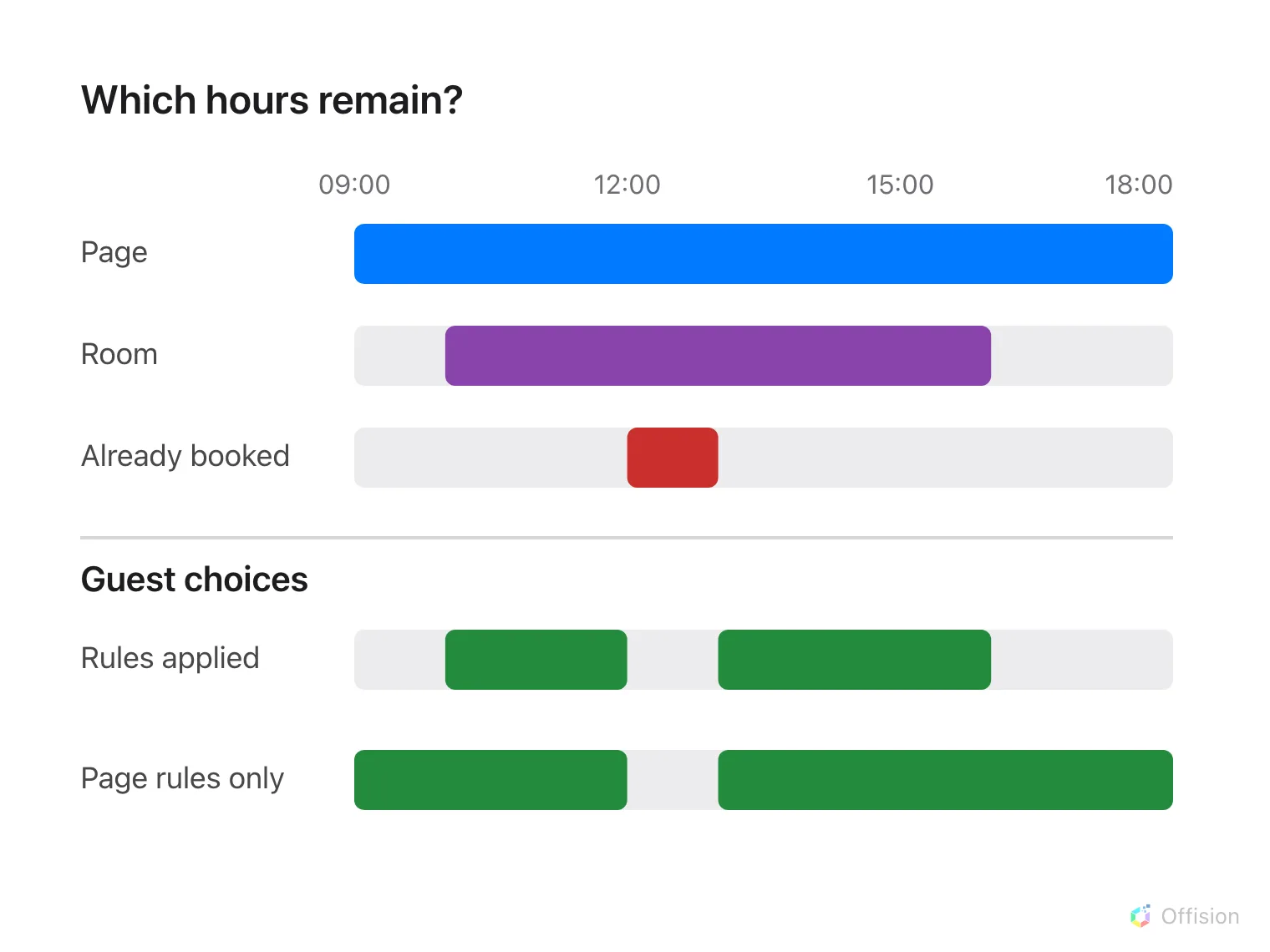
When room rules require business hours, guests use the overlap with page hours. Existing bookings are always removed.
In Custom, copying named blocks into Saturday or Sunday opens those days when saved, even if they were previously closed. Reopen the saved timetable to check the copied blocks. Removing every block closes the day.
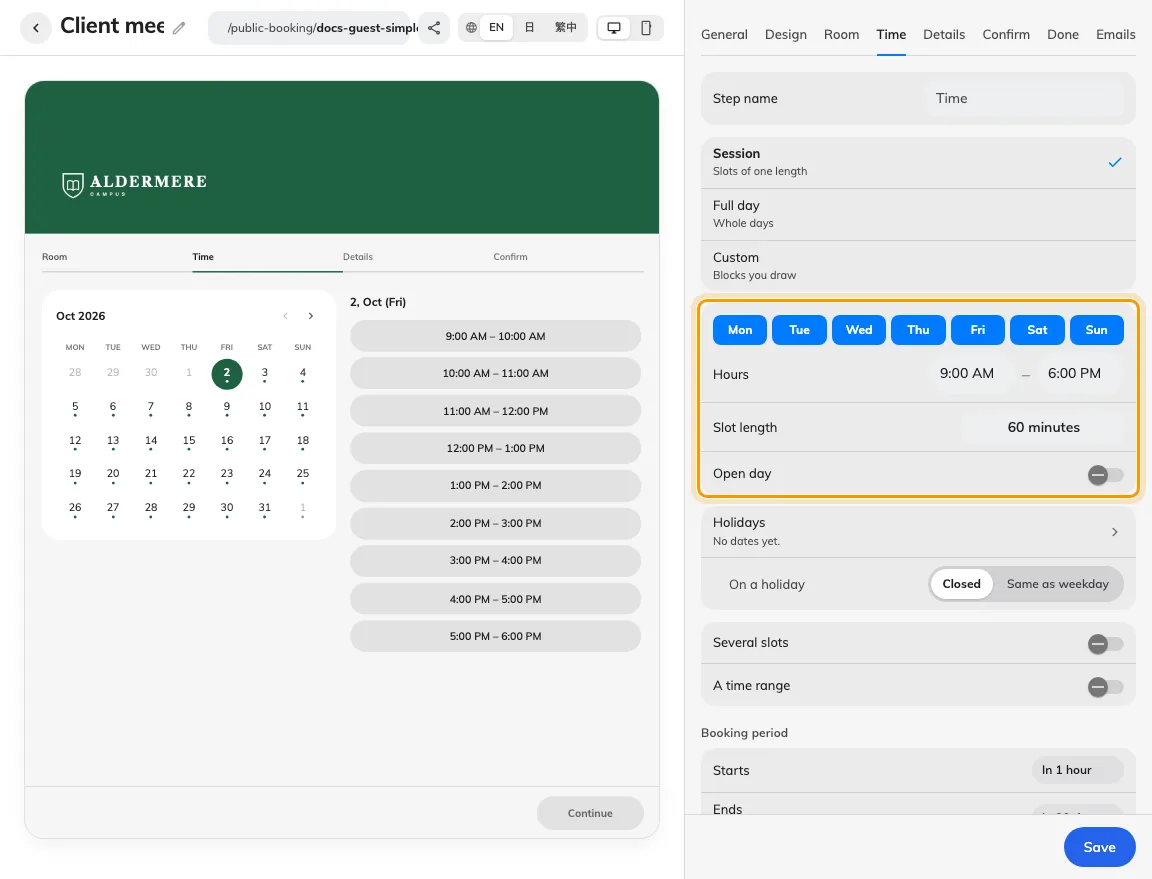
Open days and hours shape the offered sessions.
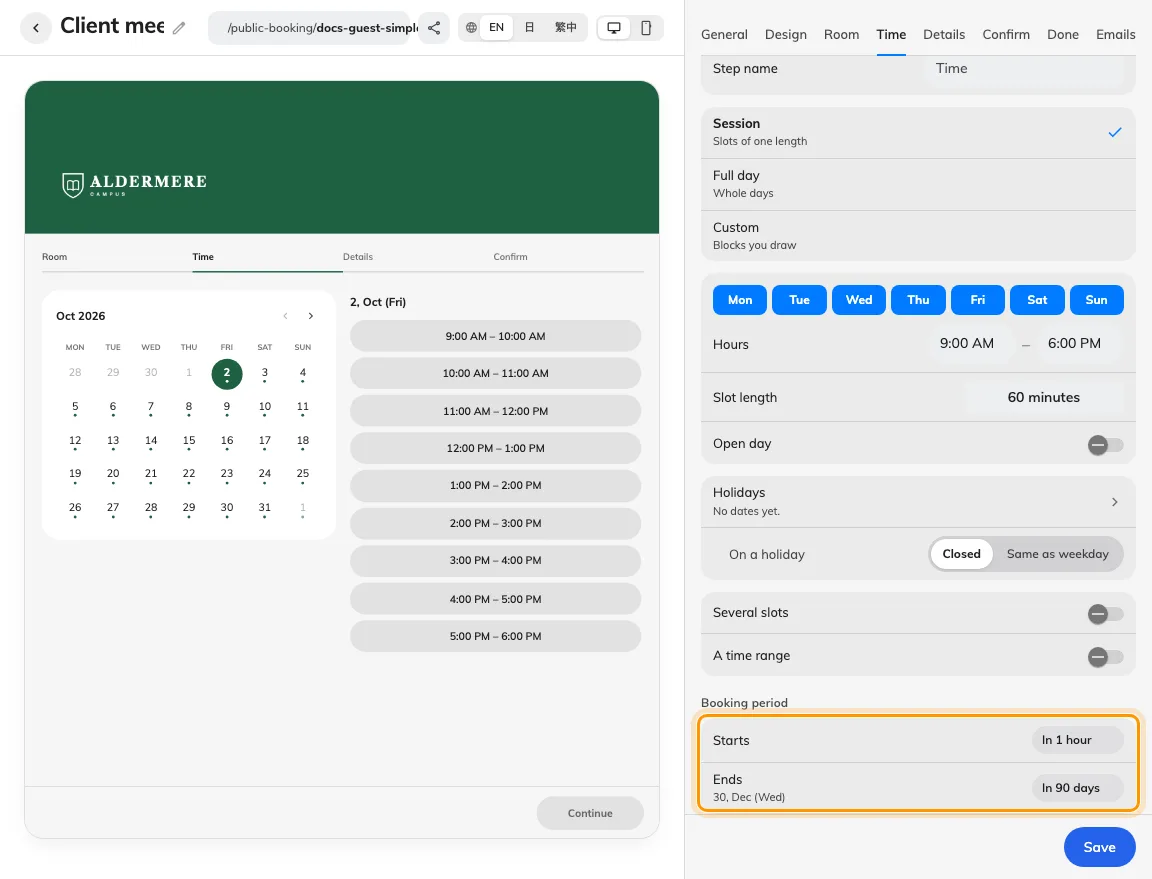
Starts and Ends can each use a specified date, with the end date included.
2. Set notice, advance limits and holidays
Set Starts and Ends independently. Choose a relative interval for rolling notice and advance limits, or Specified date for a fixed calendar boundary. Each fixed boundary requires its own date; you can combine a fixed start with a relative end, or the reverse.
A specified start permits slots from midnight on that date in the room’s time zone. A specified end includes that date: a slot must finish by the following midnight. The same start and end date is valid. A fixed date replaces the relative restriction for that boundary; it does not allow past bookings or bypass other restrictions. Returning to a relative choice clears that boundary’s fixed date.
Add the page’s Holidays and choose closed, weekday hours or custom blocks. The preview follows unsaved boundaries; save before testing the public page.
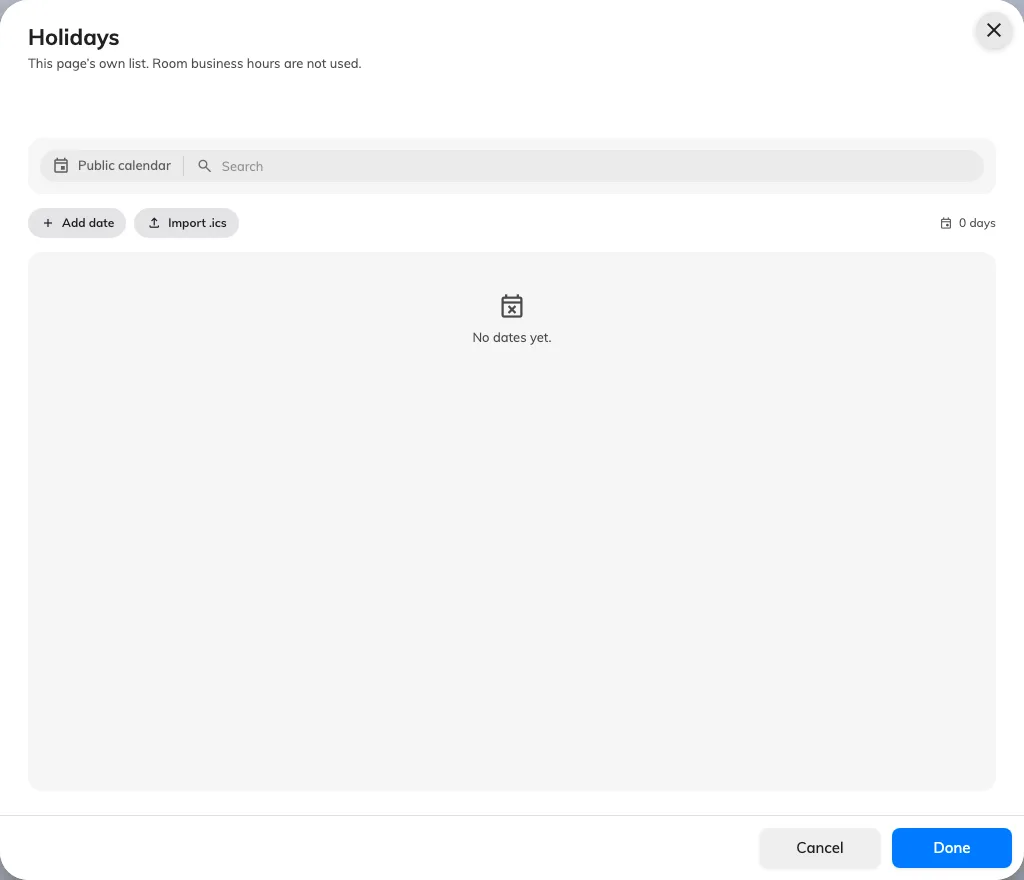
The page has its own holiday calendar.
3. Test the permitted and excluded times
Save and test an open day, a closed day, a holiday and the first/last permitted dates as a guest. Existing reservations and maintenance can remove otherwise valid slots. When Apply room booking rules is enabled, check the effective room policy; business hours further restrict slots only where that policy requires them. Done means only the intended days and periods can be selected and successfully submitted.
Dates outside the booking period and other unavailable dates appear grey and cannot be selected. A timed calendar opens on the first available date it finds, which may be in the following month. This does not select a time slot. If no free date is returned, use month navigation to look further ahead.
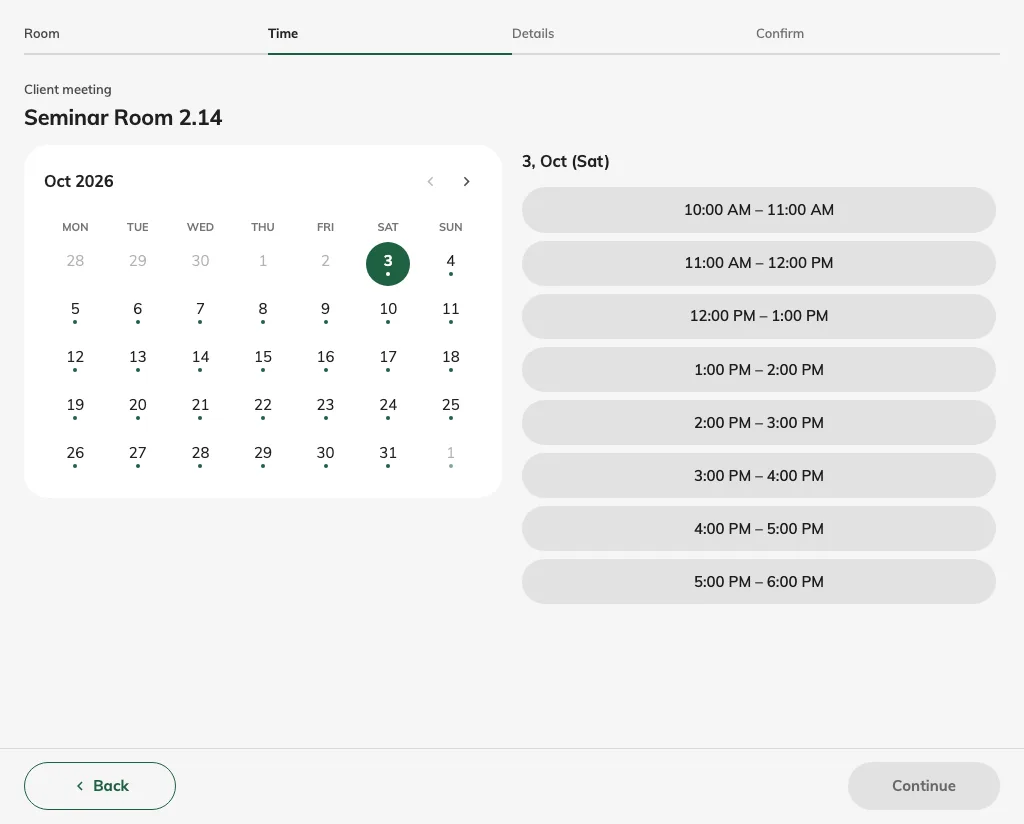
The guest calendar opens on the first available date in the specified period, with excluded dates greyed out.
Keep public holidays current
The page has its own holiday list; it does not automatically inherit a room’s holiday calendar. In Holidays, select the countries whose public calendars you want to synchronize, save, and check the last-sync state. Selected public calendars synchronize daily, while manually added dates are retained. Synchronization updates dates, not the On a holiday rule: choose whether those dates are closed, use weekday hours or use their own blocks. If a newly announced holiday is absent, check the sync state and add the needed date manually rather than assuming the calendar has already updated.
How room rules affect the page
The page’s own schedule, holidays, minimum notice and advance limit always apply. Apply room booking rules decides whether the room’s policy adds restrictions:
| Page setting and room policy | Which hours the guest can use |
|---|---|
| Apply room booking rules is off | The page’s hours; the room’s business-hour calendar does not further restrict them |
| On, and the room policy forbids booking outside business hours | Only page slots also covered by the room’s business hours, including its holiday rules |
| On, and the room policy allows booking outside business hours, or no room policy is assigned | The page’s hours; room opening hours do not add a restriction |
A room without assigned business hours adds no business-hour restriction. Existing bookings and restrictive maintenance still remove slots in every case. These rules apply to both the availability shown and the booking submitted. Changing the page switch does not change the time zone used to interpret its times.
The page has its own holiday list. Room holidays can additionally close a slot when room rules are on and the policy requires business hours; they are not copied into the page’s holiday list.