

Guests cannot see a room on a published page
Check whether the whole link is paused or unavailable before investigating one room. A disabled module or unpublished page affects the page itself. Open the overview, confirm the module is on and the page is published, and copy its current guest link. Existing bookings are not deleted merely because the page is paused.
Why use this feature
An empty room list can represent a deliberate access boundary or an incomplete setup. This check separates page access, room membership and licensing before changing availability rules. Finding the actual cause lets staff restore the intended service without accidentally offering extra rooms or removing useful restrictions.
Check page access
Most commonCheck whether the whole link is paused or unavailable before investigating one room. A disabled module or unpublished page affects the page itself. Open the overview, confirm the module is on and the page is published, and copy its current guest link. Existing bookings are not deleted merely because the page is paused.
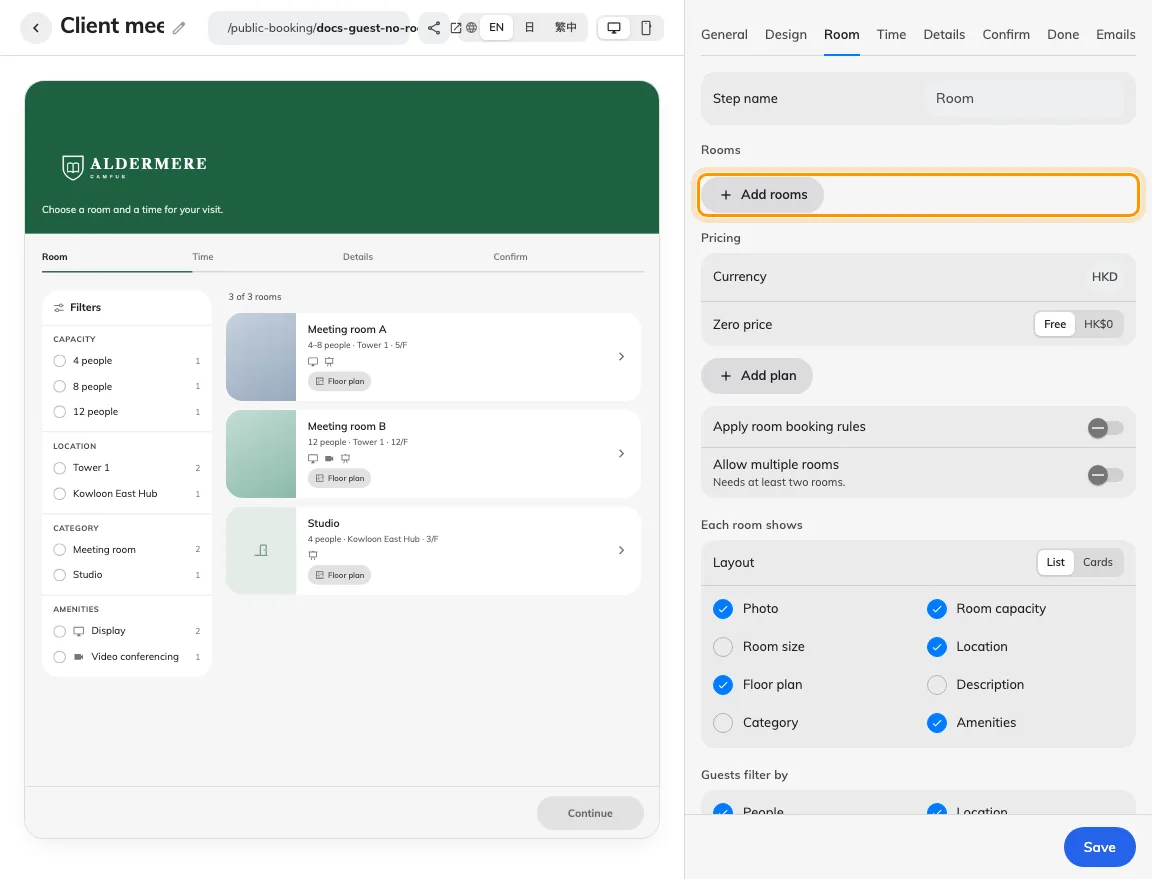
A saved page may have no rooms assigned.
Check the room
CommonEdit the page’s Room tab and confirm the missing room is selected and saved. Then inspect its guest-booking licence: an unlicensed room is deliberately omitted from the guest list, even on a published page. A licence manager must resolve its assignment. Do not treat turning on room-rule checks as a substitute for licensing.

Publishing without offered rooms leaves no room for guests to select.
Check the guest result
Less commonClear guest filters and compare room-first versus time-first. In time-first flow the selected period changes availability; a busy card is different from a room never included on the page. Reopen the link anonymously after the correction and choose a valid time. Collect the page name, missing room, flow, selected period, publish state and licence verdict if it still fails.