

Review a guest booking request
Use Booking approval in the admin console and open the pending guest request. Check the page source, guest details, requested rooms and periods, and any required payment proof. Review type belongs to the room policy, not the page’s display text; applying or bypassing other room rules does not remove approval.
Why use this feature
Approval puts a staff decision between a guest’s request and a confirmed room. Use it when suitability or arrangements need checking before committing the space. Blocking review protects capacity during that decision; ordinary review leaves it available to others. Choose that policy deliberately because it changes both what staff must verify and what a waiting guest can reasonably expect.
1. Find the guest request
Use Booking approval in the admin console and open the pending guest request. Check the page source, guest details, requested rooms and periods, and any required payment proof. Review type belongs to the room policy, not the page’s display text; applying or bypassing other room rules does not remove approval.
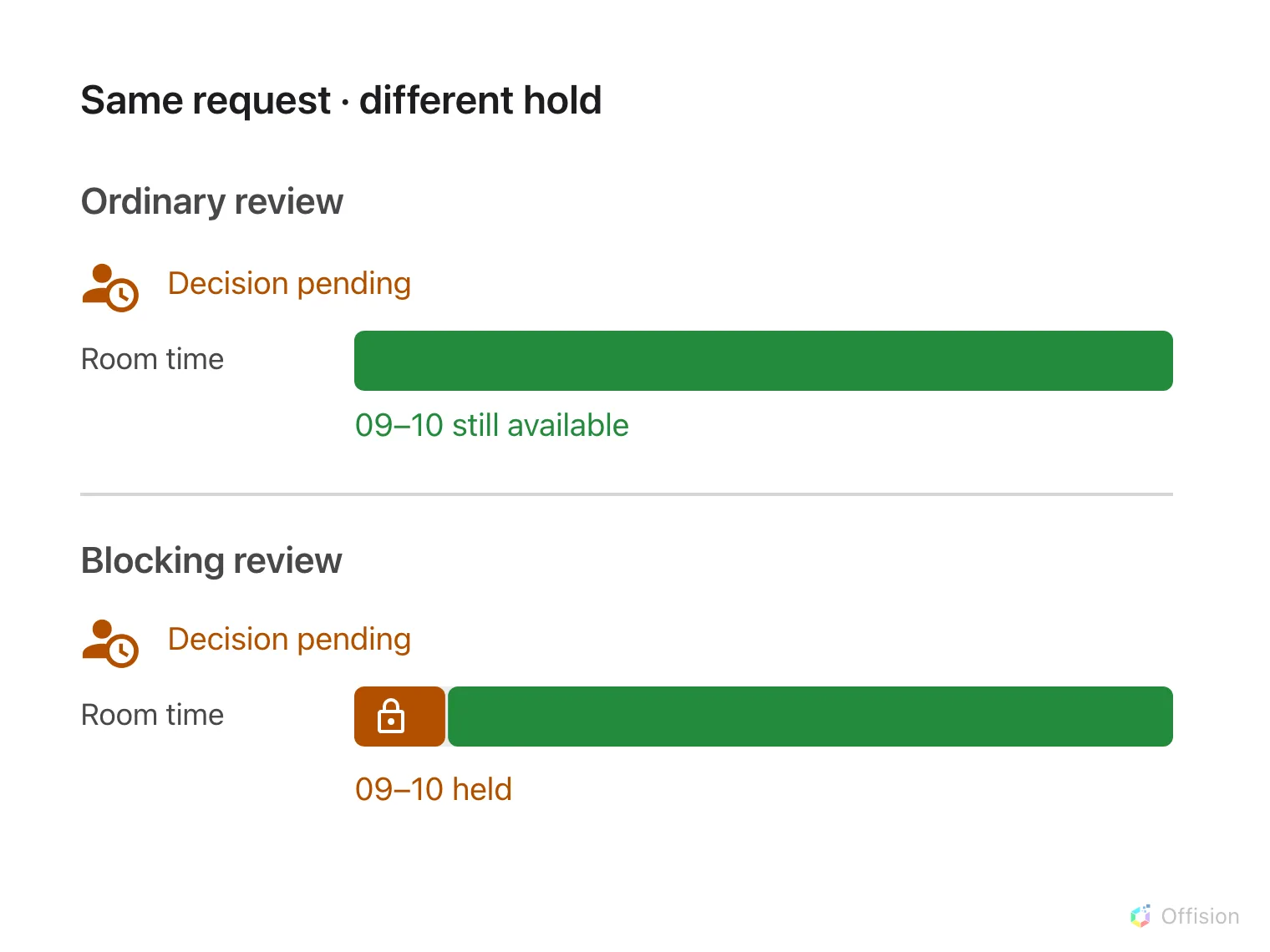
Ordinary review leaves the requested time available; blocking review holds the same time.
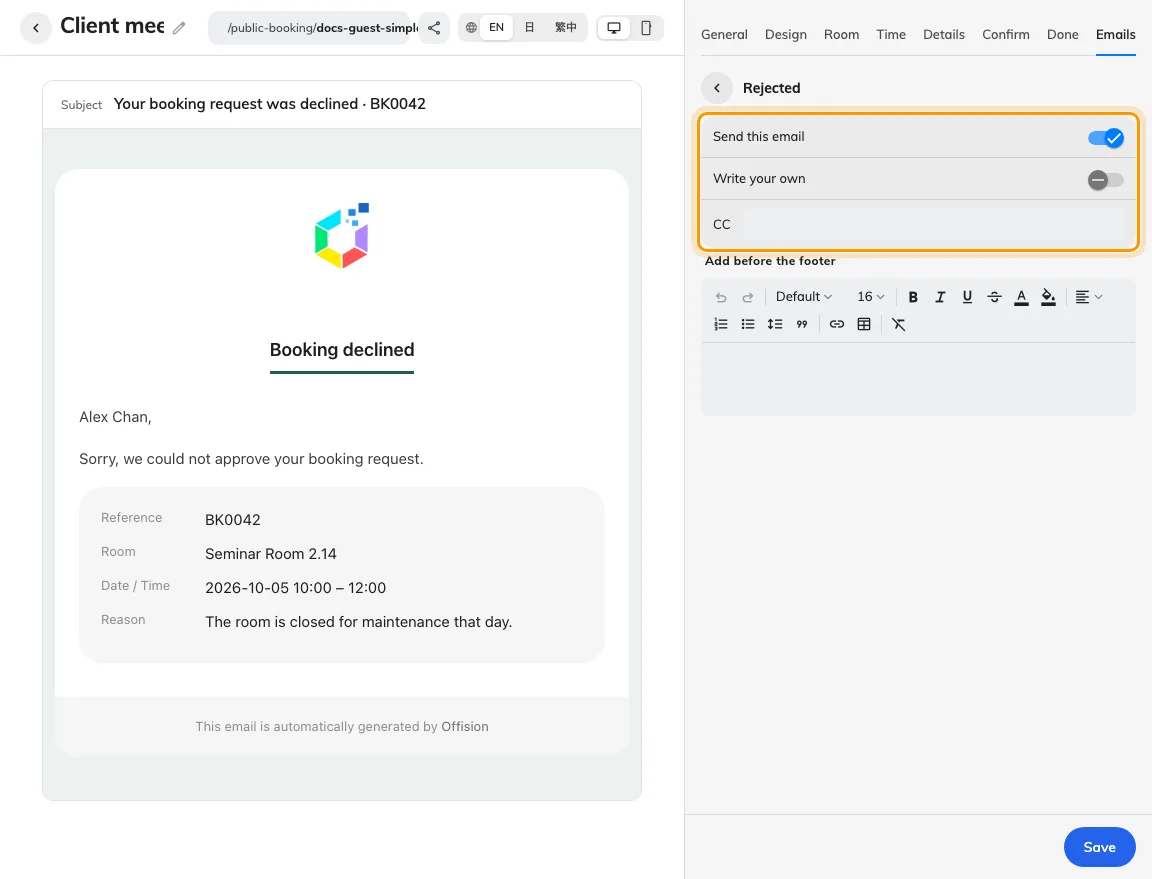
Review-result email send controls are configured per result.
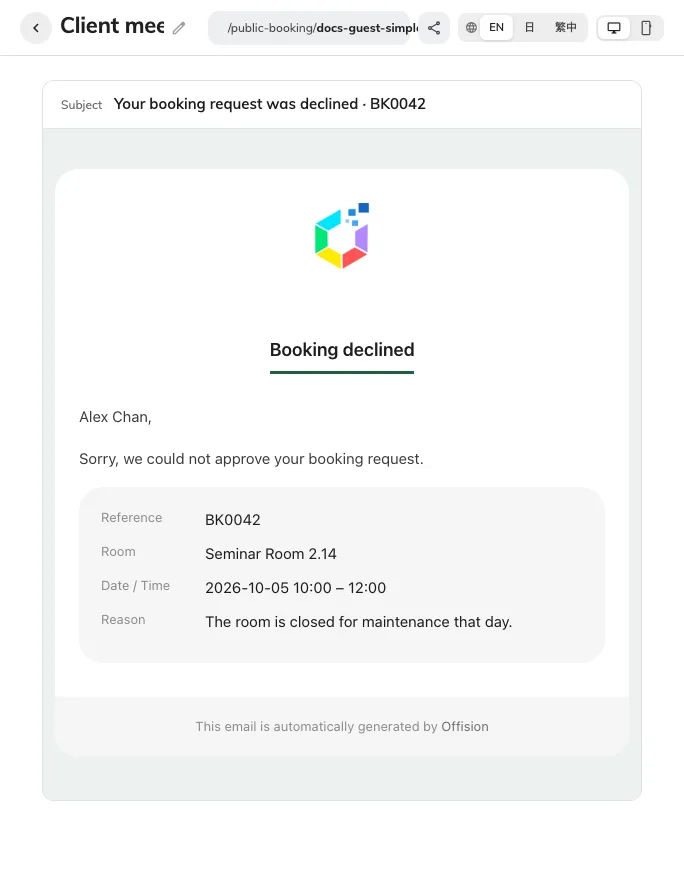
Preview rejected wording before using it in guest messages.
2. Review and decide
Distinguish ordinary review from review with blocking time before deciding. Ordinary pending requests do not reserve the room, so check availability again when approving. Blocking review keeps the period occupied while staff decide. Approve a valid request or reject it with a clear reason; do not promise a replacement period until its availability is verified.
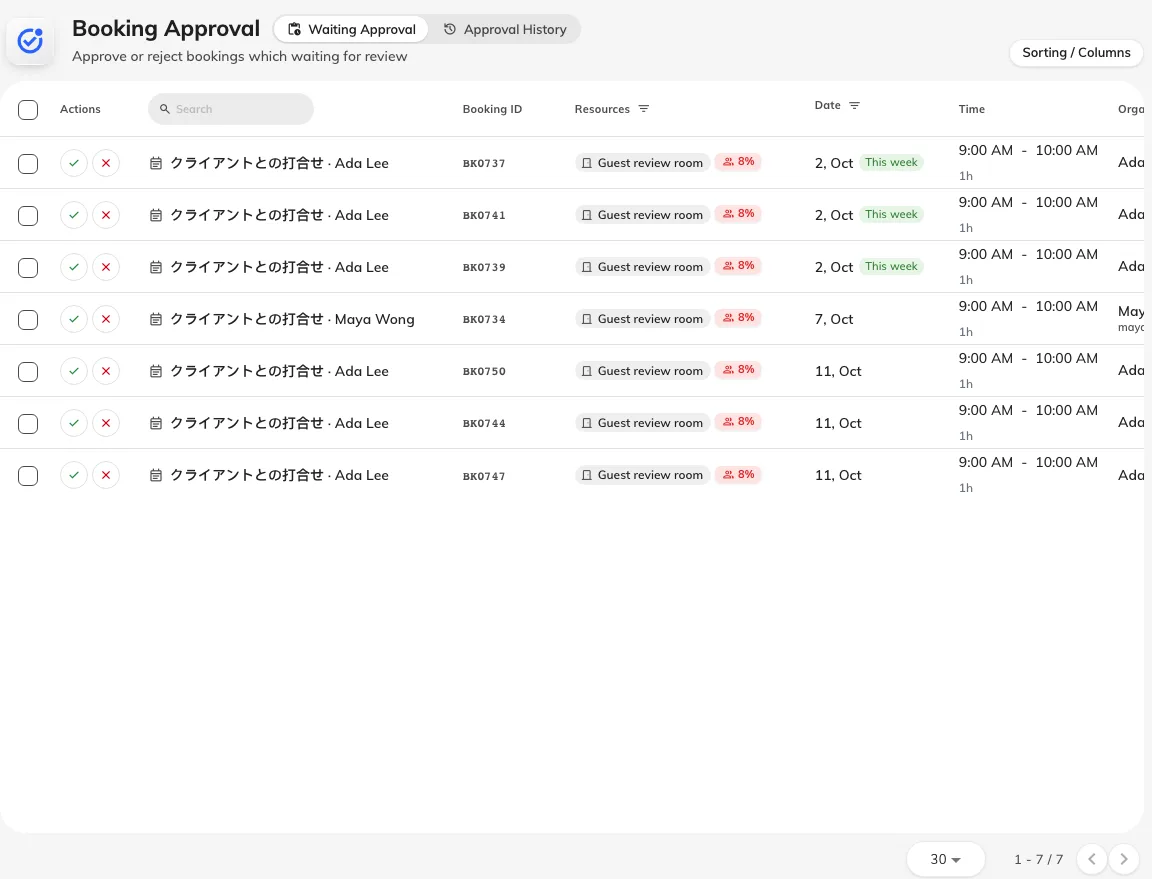
The staff approval queue contains the guest request.
3. Check the guest outcome
After the action, compare the calendar and the guest’s manage-page status. Check the approved or rejected email only if that type is enabled and the guest supplied an email. Done means the guest-facing result agrees with the staff decision and, for an approval, the intended room and period remain reserved.
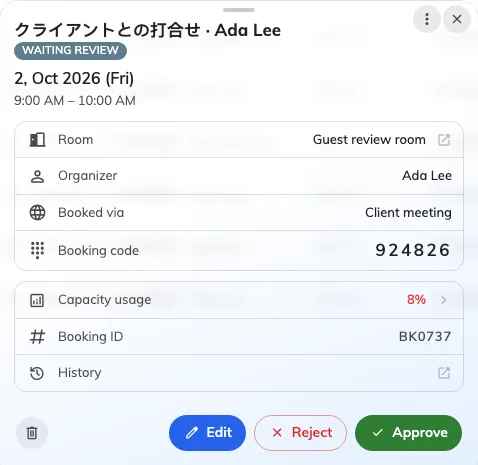
Review the guest, room and requested period before deciding.