

Book a room from a guest booking link
Open the link shared by your host; no Offision account is needed. Choose the page language if offered. In room-first flow, select a room then a free time. In time-first flow, select a time then a room available then. Closest-room flow begins with the location view; if location access is declined, use the available list instead. Make another booking retains contact details and resets booking choices, answers and verification.
Why use this feature
The shared page lets you make a request yourself using the host’s current room and time choices. You can review the whole reservation before sending it, without asking staff to transcribe your details. Keeping the final reference helps the host locate the right request if you need assistance; reading the final status tells you whether the room is already yours or still awaiting a decision.
1. Choose a room and time
Open the link shared by your host; no Offision account is needed. Choose the page language if offered. In room-first flow, select a room then a free time. In time-first flow, select a time then a room available then. Closest-room flow begins with the location view; if location access is declined, use the available list instead.
If a Type step appears, choose the service you need. In Type › Room › Time, select the type before its room and time. In Time › Type › Room, select a time first, then a type with available rooms. Supply any required Remarks before continuing. Changing the type can clear an incompatible room choice. Review the selected type as well as the room and time before submitting.
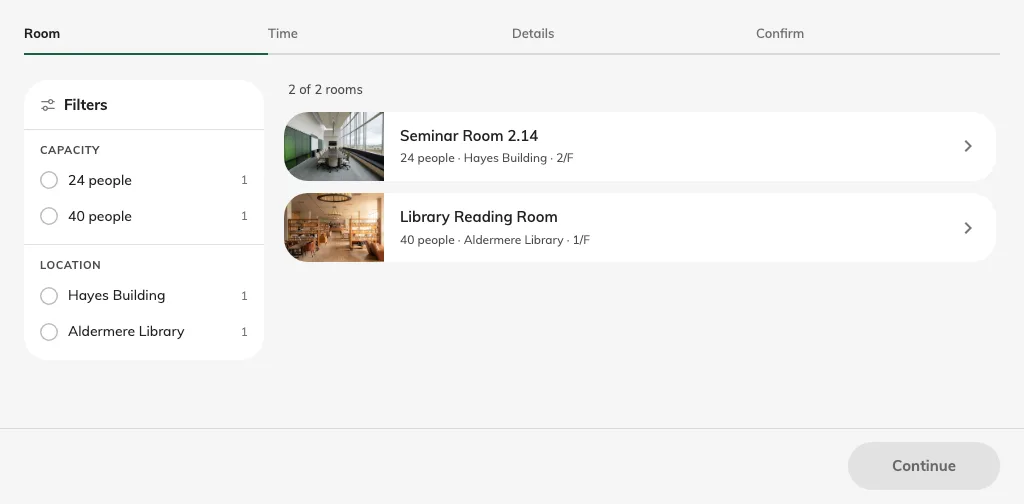
Choose a room by its name; its photo opens the gallery.
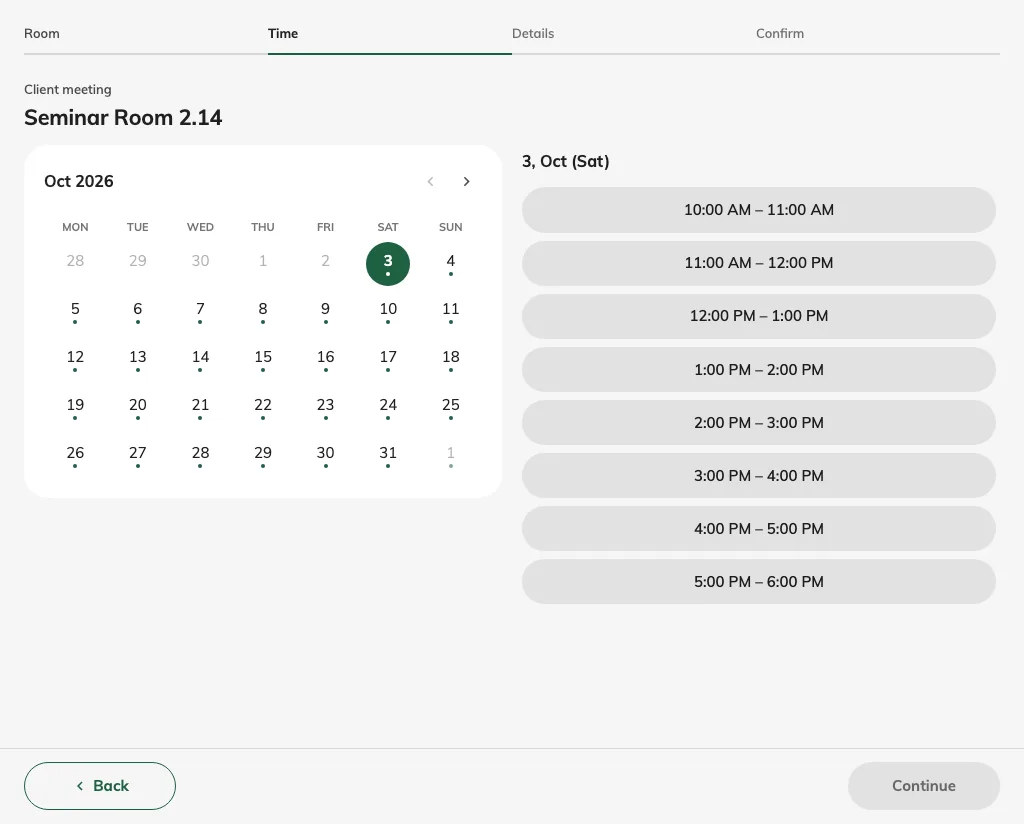
Pick an available date and session.
2. Enter your details
Select the day and slot, range or whole day the page offers. Continue to Details and complete the required rows; read-only values come from the link and may need your host to correct them. If email verification is required, request the code and enter the current code. Check the recap’s room, start/end time, contact data and any price or deposit.
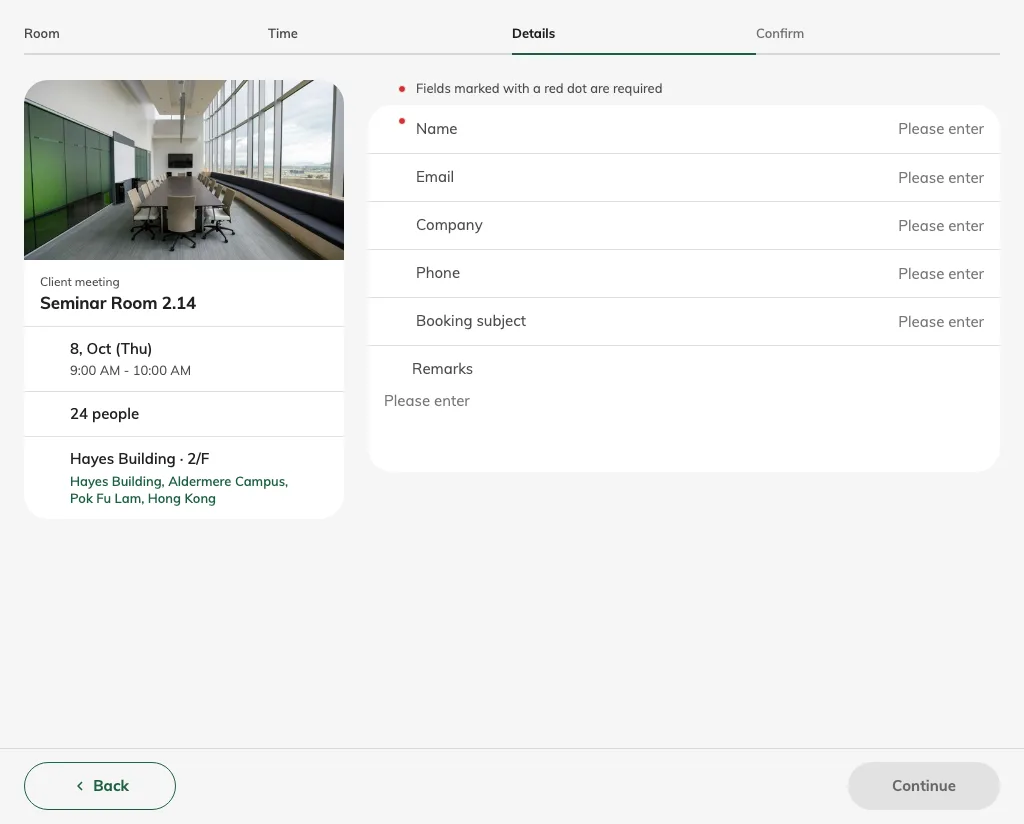
Fill the required contact rows.
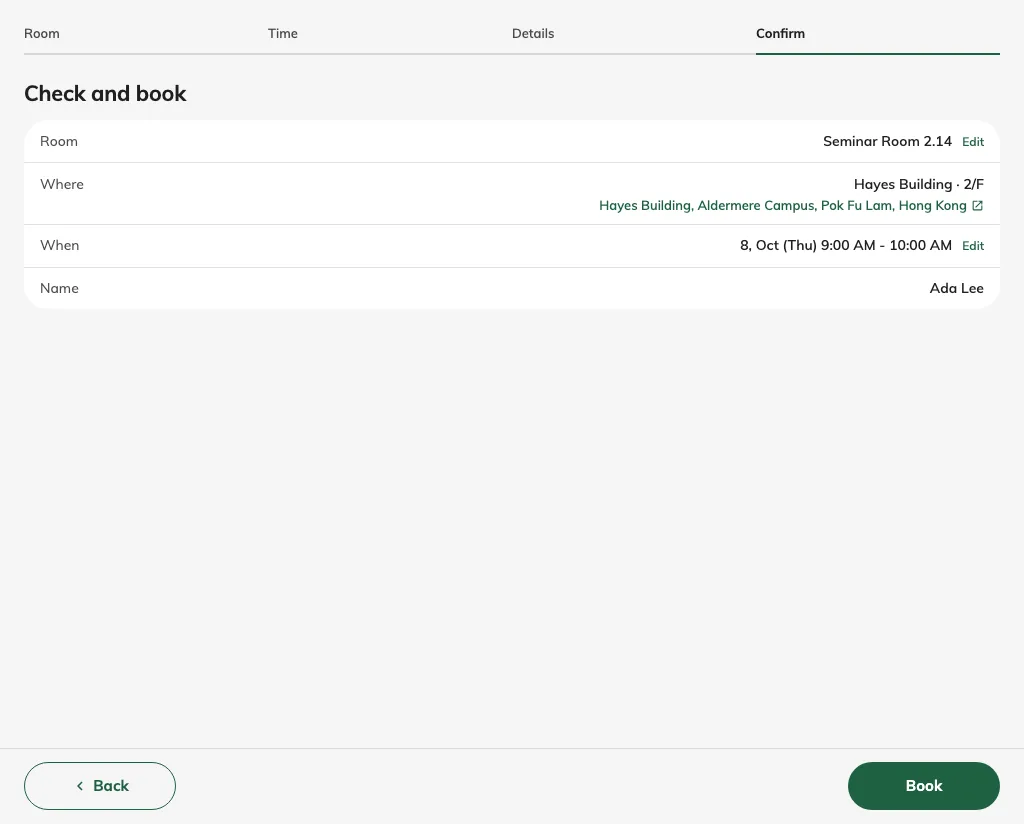
Review the room, location, time and name before booking.
3. Submit and check the status
Read required terms and acknowledgements, provide required payment proof if asked, and use the final booking action once. Wait for the completion result and keep its reference. Confirmed means the room is booked; awaiting approval means staff still need to decide. If availability changed during entry, choose another time rather than assuming the earlier selection was held. Keep the follow-up email and its manage link where supplied.
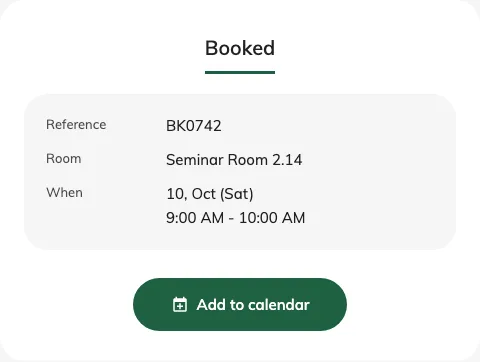
Read the actual completion status after submission.
Make another booking
When Make another booking is offered on the completion page, it starts a fresh selection on the same guest page. Your name, email, phone and company are retained; room/time choices, booking answers and the used verification code are reset. Check the new booking’s answers and complete verification again where required. This action does not cancel or change the booking you just submitted.