

Make rooms available to guests
From the overview, edit the page and open Room. Under the room list, choose Edit and select the rooms to offer. Adding a room to this page does not remove it from other pages or from staff booking. Save the page after changing its membership.
Why use this feature
Choose rooms that staff can actually support for this audience. Page membership defines the offered selection; a guest-booking licence permits that room to be offered publicly. Together they prevent an internal-only room from appearing simply because it exists in the organisation. For example, offer a staffed client room while keeping a staff project room outside the guest page.
1. Open the page
From the overview, edit the page and open Room. Under the room list, choose Edit and select the rooms to offer. Adding a room to this page does not remove it from other pages or from staff booking. Save the page after changing its membership.
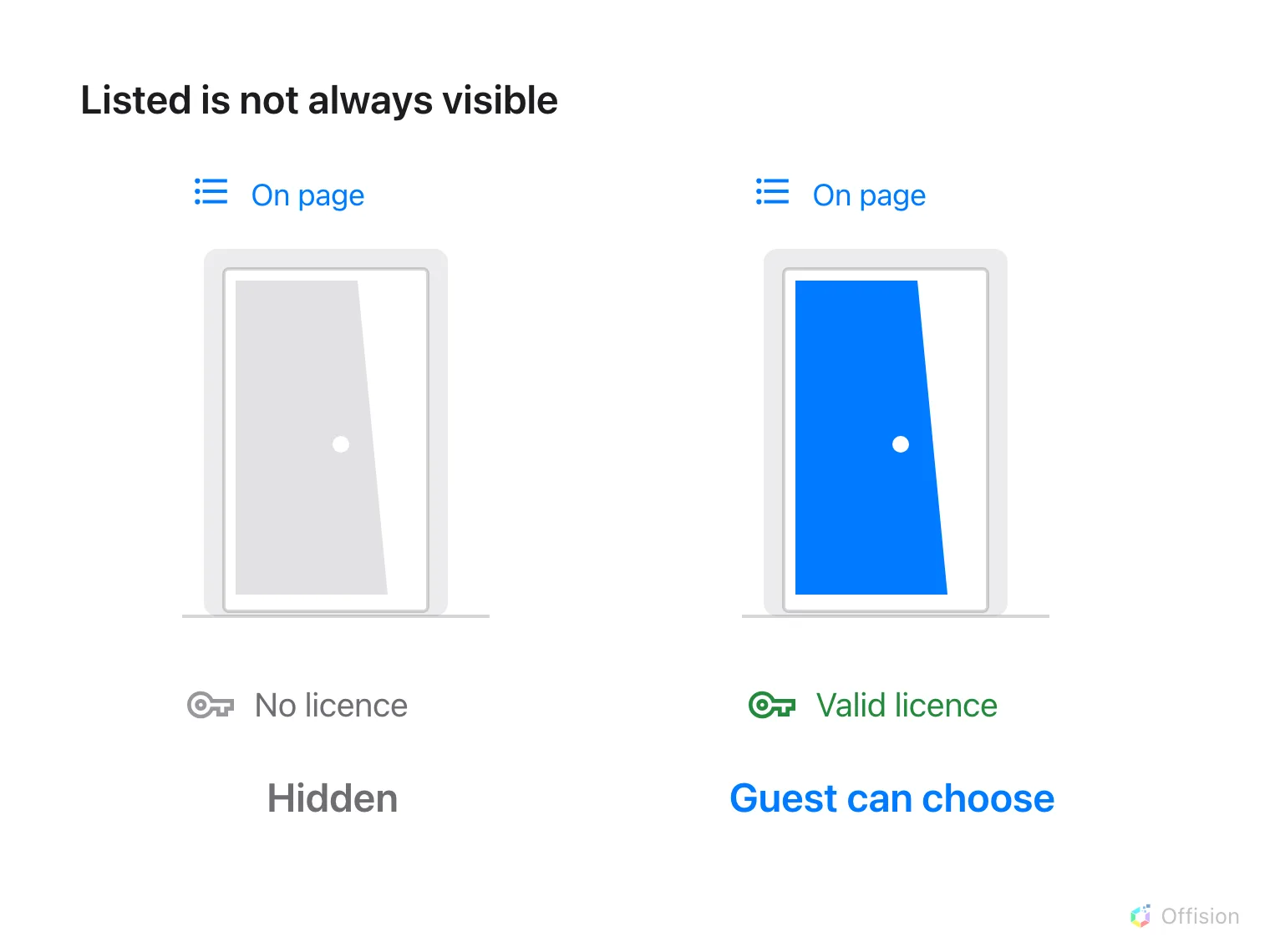
A room needs both page membership and a valid guest-booking licence to appear.
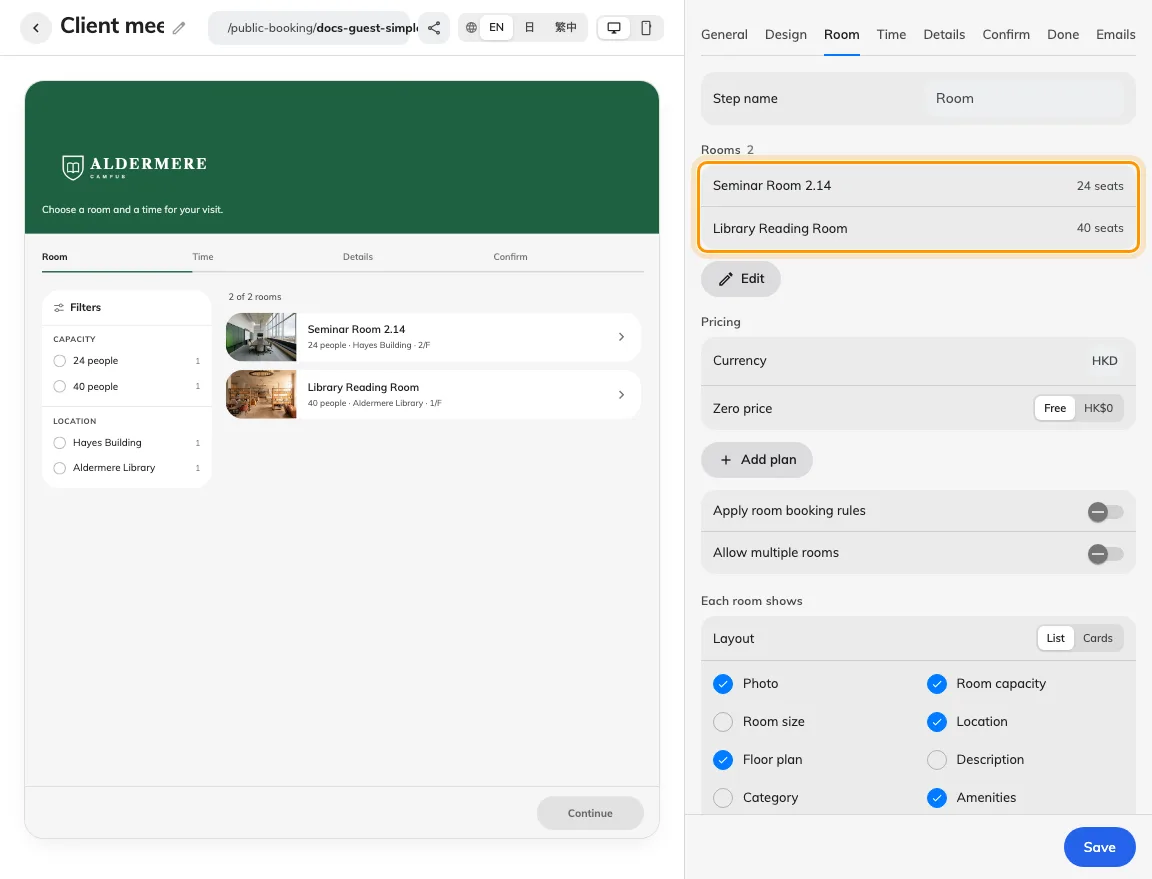
The Room tab owns page membership.
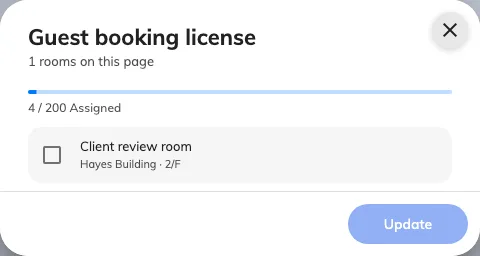
The licence dialog lists room allocation.
2. Set the guest experience
An unlicensed room is absent from the guest page even when selected. Ask a licence manager to use the licence assignment action, review the rooms and available allocation, and confirm the assignment. Treat licensing and Apply room booking rules as separate decisions: the latter adds room policy checks but does not replace the licence. Saving the page automatically assigns spare guest-booking licences to its rooms where available. If the pool is exhausted, the page can still publish, but an unlicensed room stays hidden until a licence is assigned. Removing a room from a page does not release its licence.
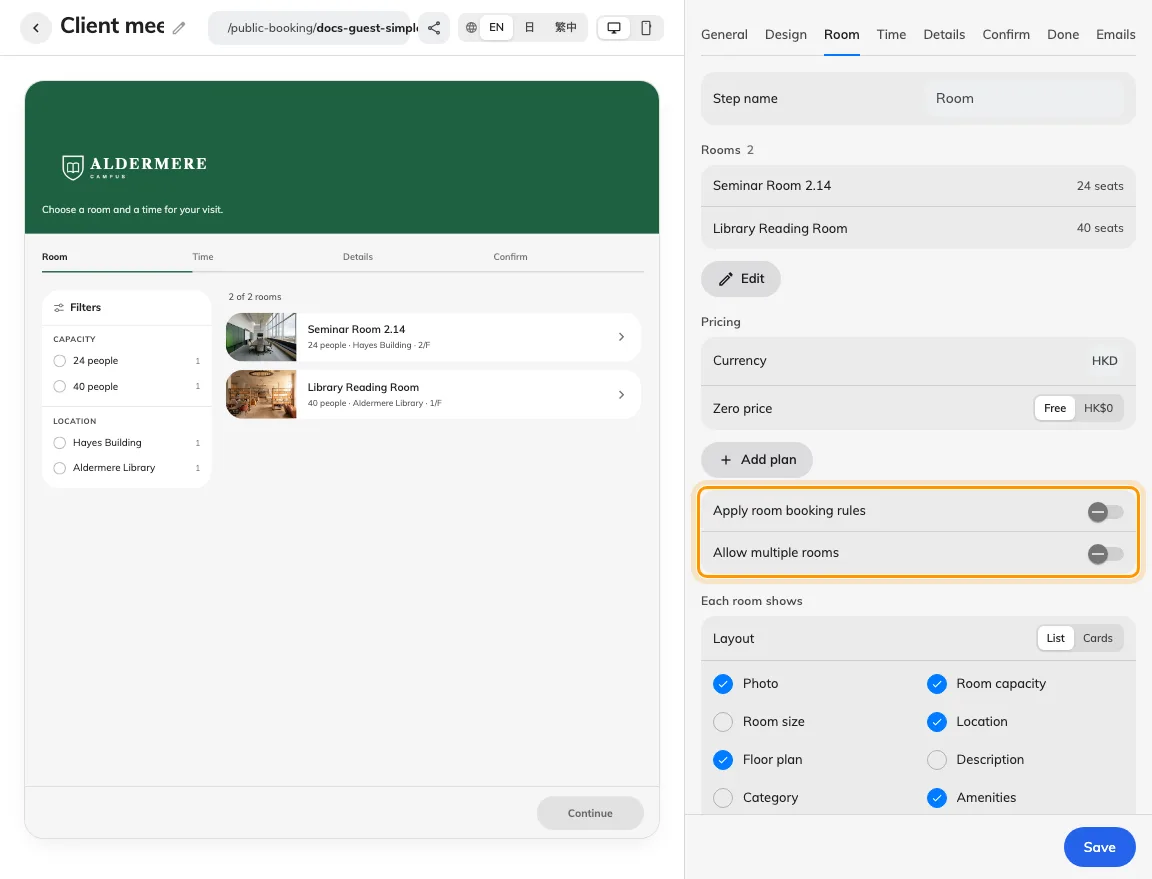
Applying room rules adds restrictions without replacing licensing.
3. Check the result
Open the published link signed out. In room-first flow the room should appear; in time-first flow choose a free time before checking the room list. Make one valid test request and compare its reference in the calendar. If the room appears but the time is refused, investigate schedules and room rules rather than adding it repeatedly.
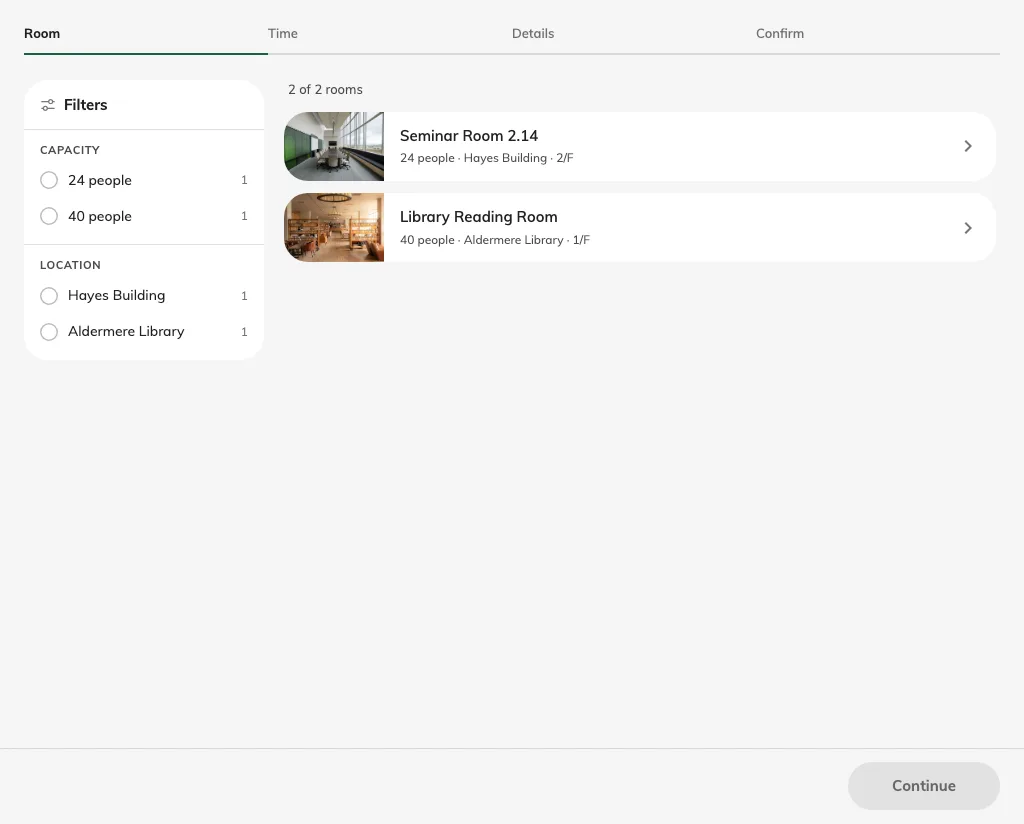
A licensed room appears on the saved guest page.
Arrange the room list
In Room, drag the room handles to set the guest order. The room picker also lets you reorder the selected rooms. Save the page and check the published list. This changes display order; filtering and availability can still remove a room. The Layout control offers List and Cards; show the room photo before choosing Cards.
For a type-based flow, the type’s Room options further narrow this list. A room must still belong to the page and have a guest-booking licence. See Booking flows.