

Share or embed a guest booking page
Share a direct booking link, embed a page, prefill guest details or choose link-preview artwork. Share the general public page listing published pages; configure its appearance, list corners and public link in Guest booking Settings.
Why use this feature
A direct link takes an invited guest to the relevant service; an embed keeps booking within your own website. Prefill removes repeated typing when the host already knows a value, and read-only fields keep that supplied value consistent. Choose the method around the guest’s starting point, then check the complete booking journey on the intended website rather than only checking whether the page opens.
1. Open the page
Publish and save the page first. Copy its address from the overview card or open Share & embed in the editor. Share the page’s guest link, rather than the admin editor address. The booking site index lists the pages guests can choose; a direct link starts the chosen page.
To share the list of all published pages, use General public page → Public link in Guest booking Settings. See general public page below for its appearance controls.
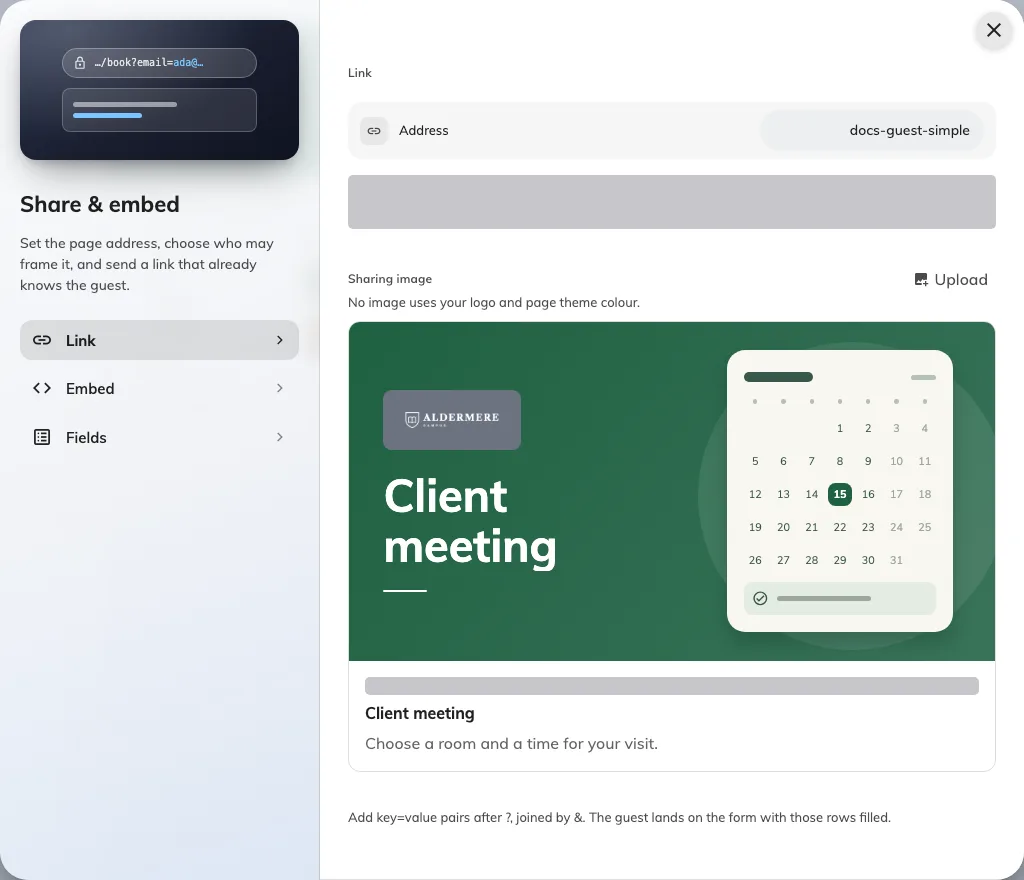
The link page shows its address and automatic sharing artwork.
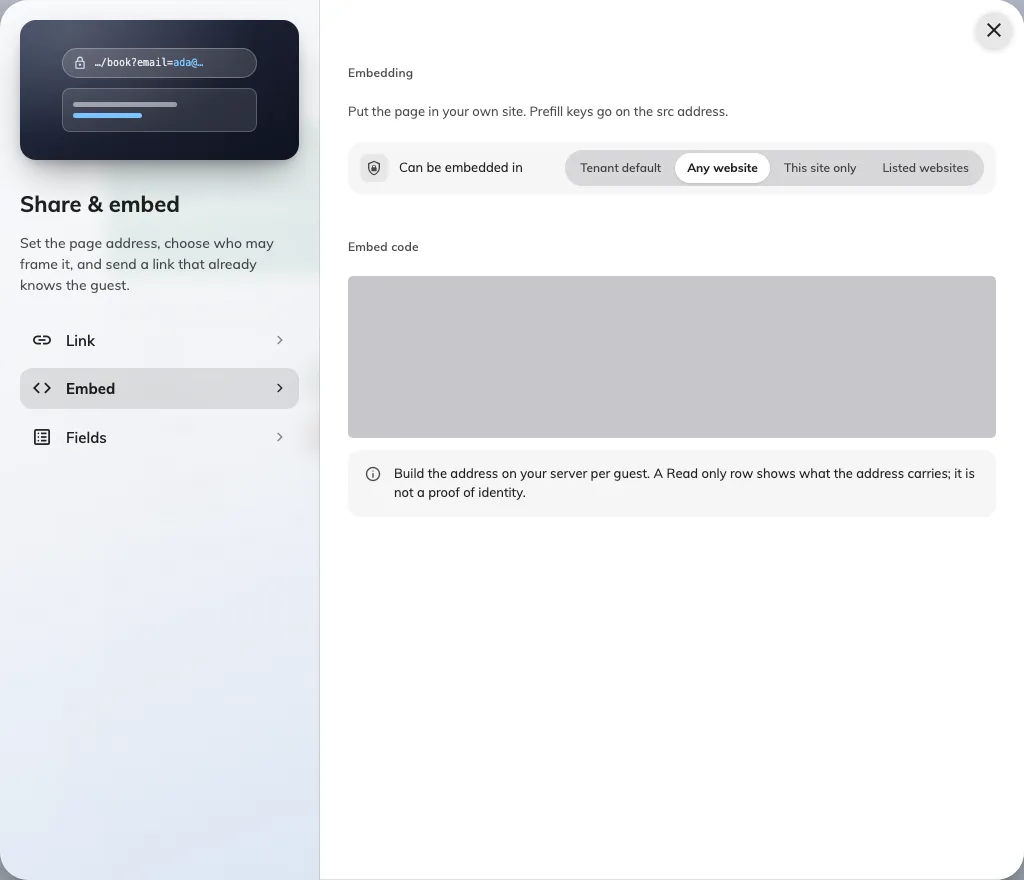
The embedding policy and generated code belong together.
2. Set the guest experience
The sharing dialog lists the prefill keys supported by this page. Contact keys use the row names; custom fields use their configured URL keys. Encode values and leave absent values out. Read only means the supplied value cannot be edited in the form; a link carrying an email address is not proof that its holder owns that address.
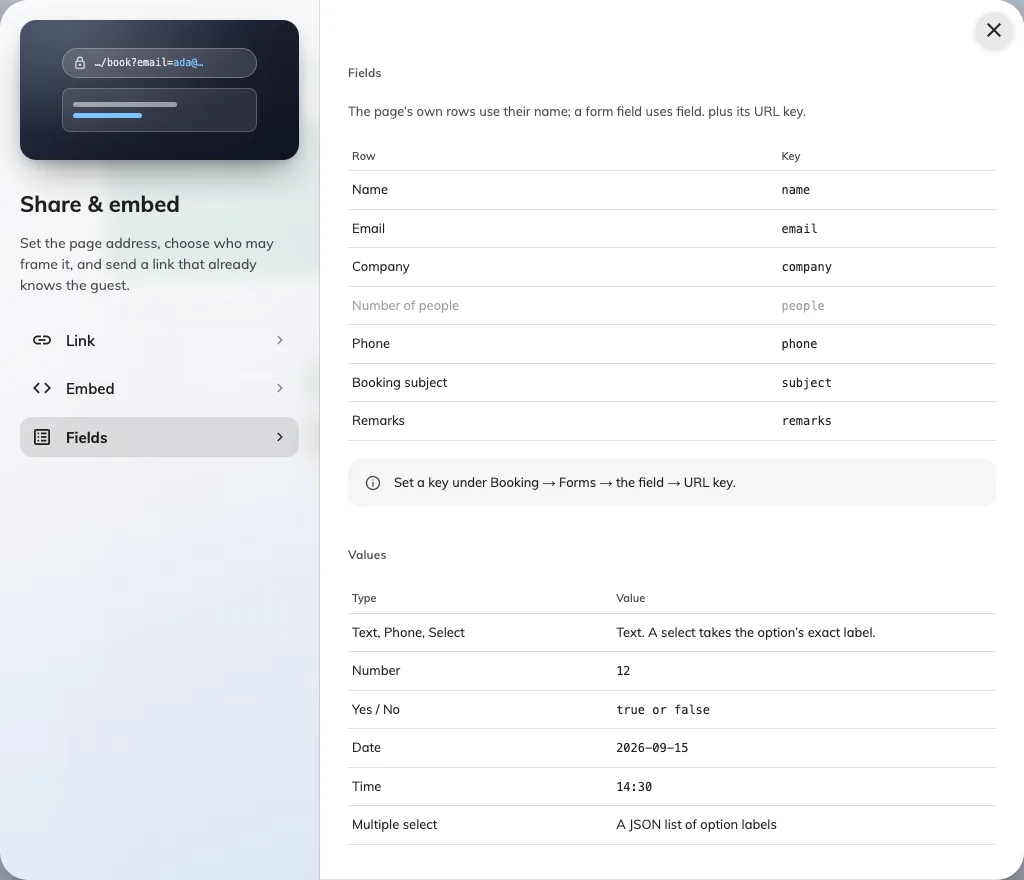
The page lists the keys that can prefill its visible fields.
3. Check the result
For embedding, choose the embedding policy, configure the allowed website list when required, and copy the generated embed code. Test it on the intended host and on a phone; a direct link working does not prove framing is permitted. Finish by opening the shared link signed out and checking that prefilled fields, language and a full test booking work as intended.
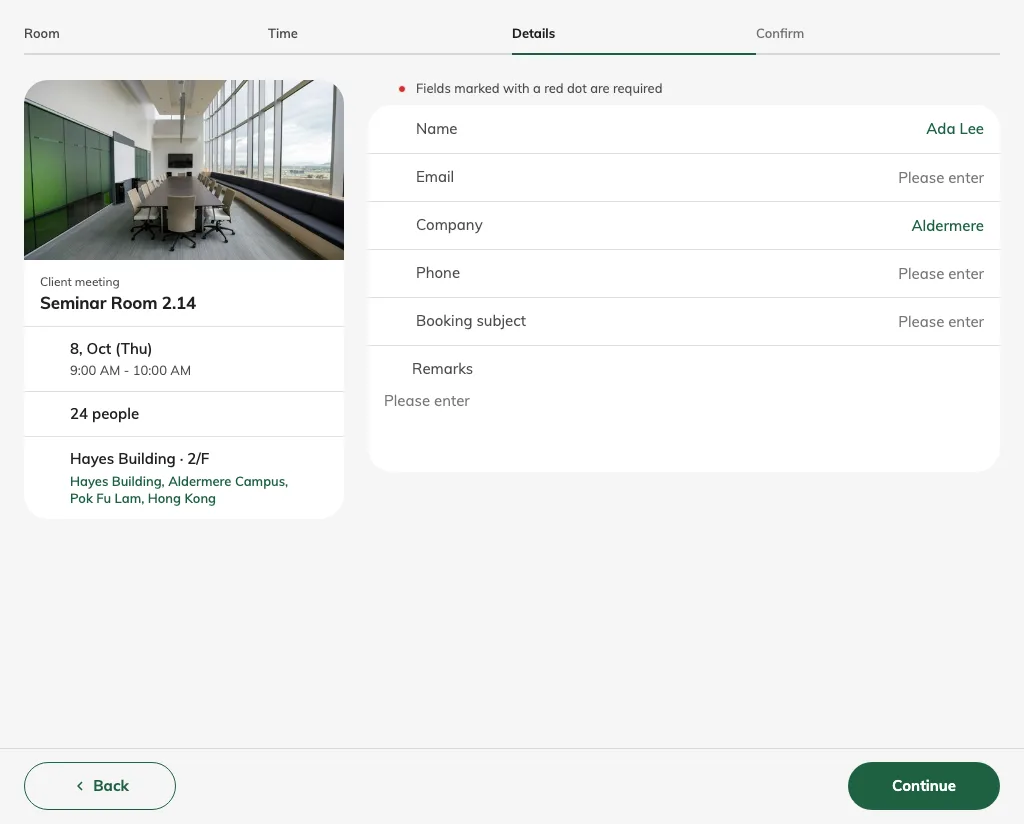
Supported query keys prefill the visible guest details.
Choose the sharing image
In Share & embed, open the link page and use Sharing image to upload or replace the preview artwork. Remove the uploaded image to restore the automatic artwork: your page logo (or company fallback), page name, theme colour and calendar illustration. The calendar illustration is decorative; it does not show live availability. Save the page after changing the image, then check the public link in the service where you intend to share it. That service may cache an earlier preview; an unchanged cached card does not prove the page failed to save.
Share the general public page
Use the general public page when guests should choose from your published booking pages. Open Guest booking → Settings and find General public page. Public link has Open and Copy actions; these are absent when the organization’s visitor address has not been configured.
Open SettingsSet Appearance to Light, Dark or Both (the default), and List item corners to Square, Soft or Rounded (the default). Save once for this Settings page. These organization-wide options affect the public list, independently of each booking page’s Design tab. The former separate general-page settings address now leads here.
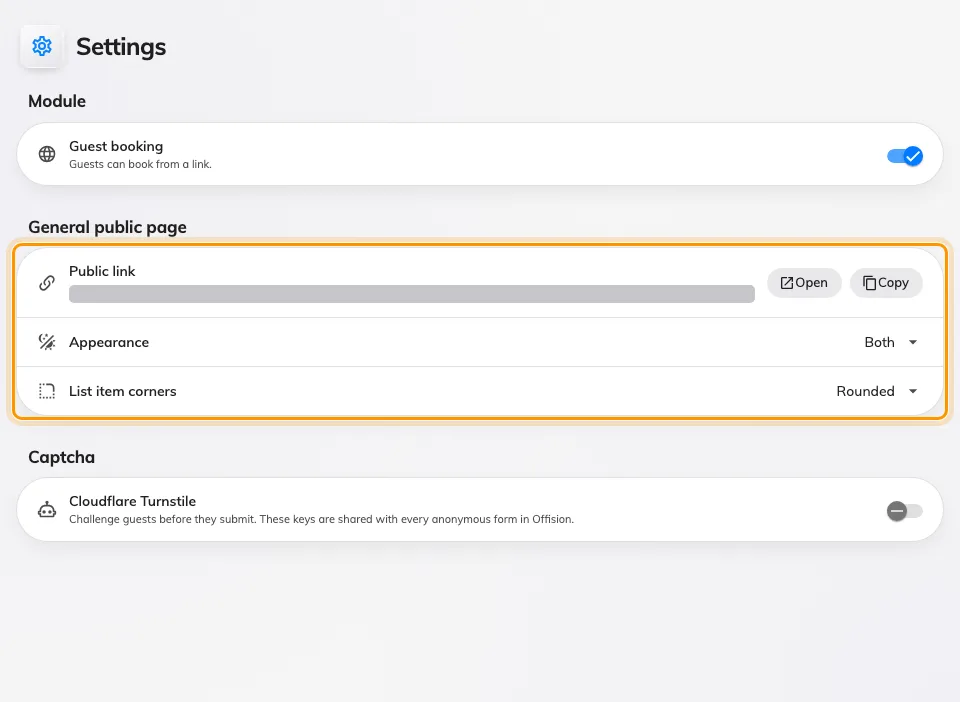
General public page shares the Settings screen with Module and Captcha; its appearance is separate from individual page designs.
The public list uses the company logo and published page names. Its larger logo, taller neutral list rows and hidden company-name heading are fixed presentation choices. Open the copied link signed out and check the list, then open a page to verify its own design. The module switch and shared Captcha configuration remain on this same Settings screen; only a global administrator can switch the module on or off.
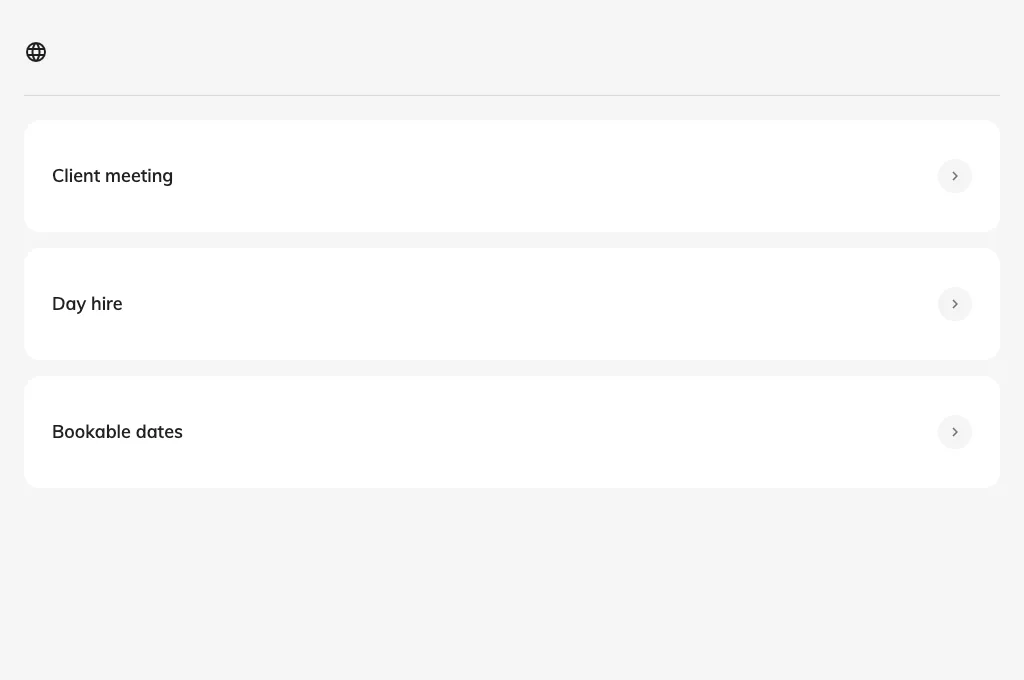
The general public page lists the published booking pages guests can choose.