

Let guests book several slots or rooms
Choose continuous ranges, separate slots and multiple rooms. Include or exclude weekends and page holidays, let guests choose with inclusion on by default, and hold the complete interval.
Why use this feature
Use combined selections when one visit genuinely needs more than one reservation: two rooms for parallel sessions, separated appointments, or a room change between sessions. Limits keep a single request from taking more capacity than intended. The recap becomes especially important because the guest and staff must agree on every room and period, not just the first selection.
1. Open the page
Decide whether guests need a continuous range, separate slots, several rooms at the same time, or a different room for each slot. These are separate capabilities. A range connects start and end; Several slots lets guests add individual slots, including non-adjacent ones. The slot checklist is not offered in whole-day mode.
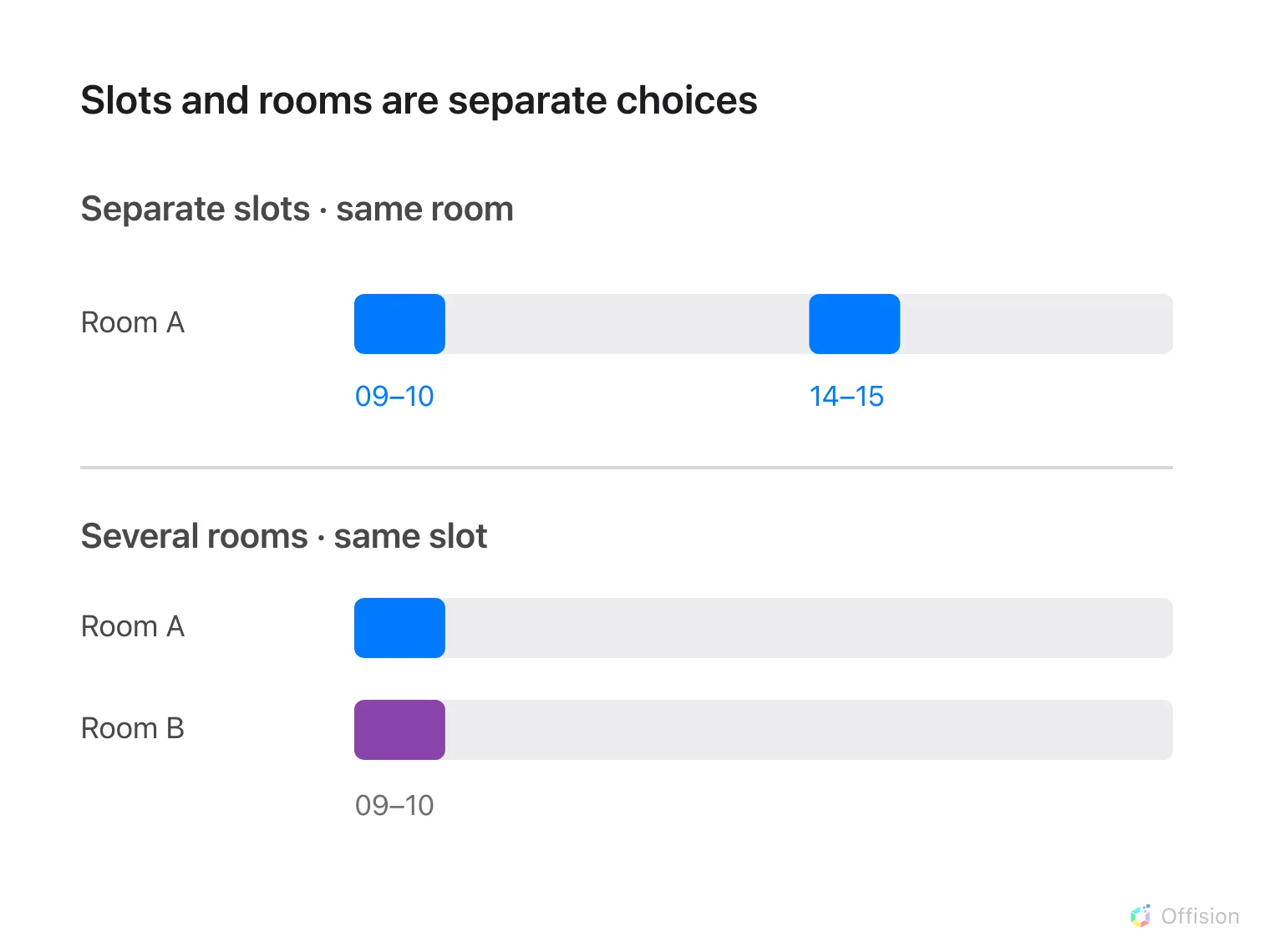
Separate slots repeat one room at different times; multiple rooms share one selected period.
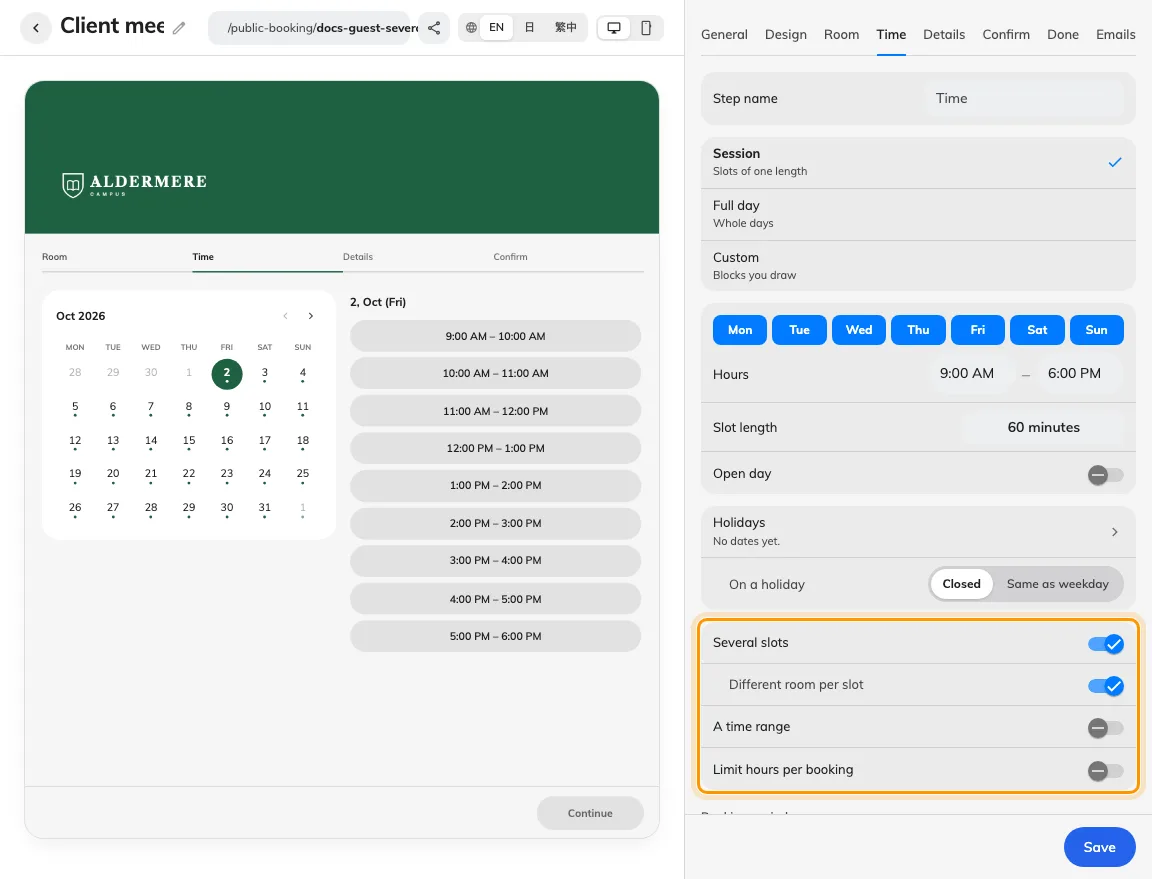
Separate slot and room allowances support different booking shapes.
2. Set the guest experience
On Time, enable the relevant slot allowance and, if needed, Different room per slot. At least two rooms must be on the page for room-per-slot selection. On Room, enable multiple-room selection and set Most rooms per booking. Set the duration limit when the guest may combine time.
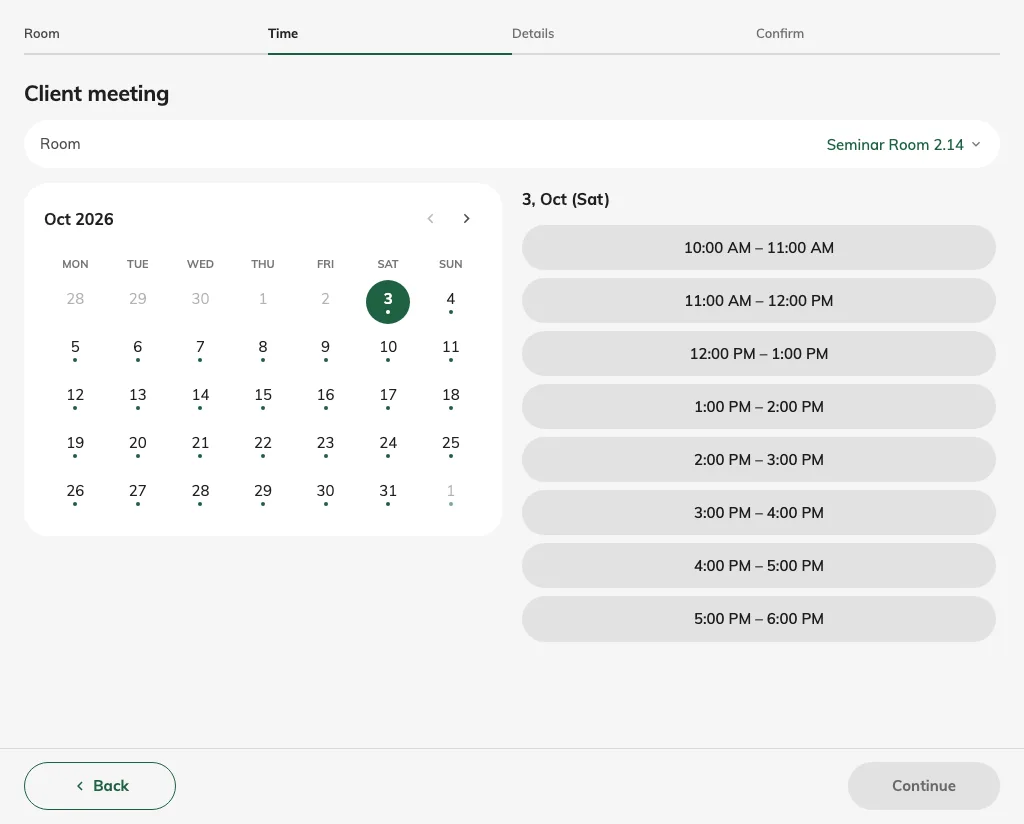
Guests may select individual slots rather than only a continuous range.
3. Check the result
Save, select two choices as a guest and inspect the recap. Match every room to its intended period and check the combined price. Test the configured cap by attempting one additional selection. After submission, verify every resulting reservation, rather than checking only the first room or first slot.
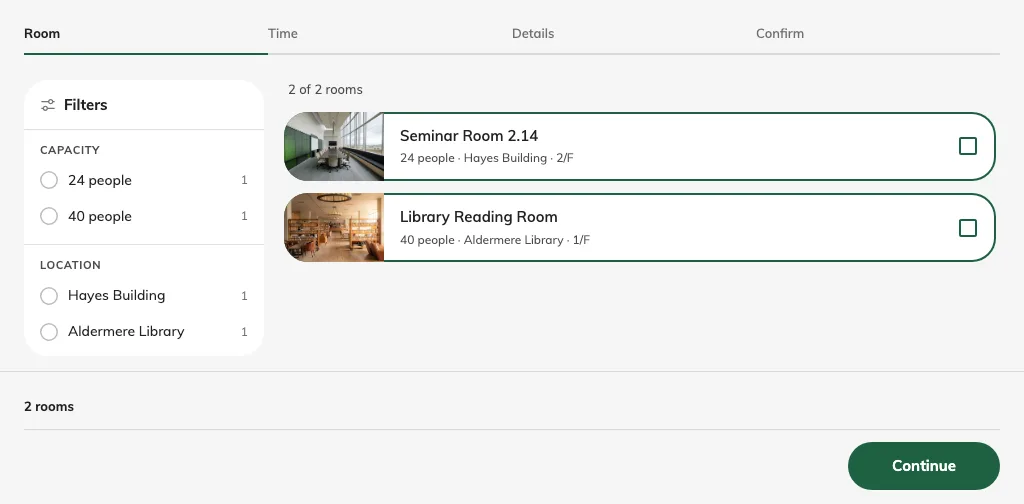
Multi-room selection starts with room checkboxes.
Different details for separate bookings
For visits with different subjects or attendance, configure the selected per-booking fields on Details. Guests see the separate-entry choice only when the selection produces more than one booking and the page allows it. Contact information stays shared. See guest details for field selection and validation.
Include weekends and public holidays in an across-day range
On Time, enable A time range and, outside whole-day mode, Across days. Include weekends & public holidays offers:
| Choice | Effect |
|---|---|
| Always | Include offered Saturday, Sunday and page-holiday slots and their normal prices. |
| Never | Exclude those dates from the range’s charge, even when their schedule is open. They cannot be the range’s start or end. |
| Let guest choose | Show one combined guest switch, initially on. Turning it off excludes weekends and page holidays; a new booking starts with inclusion on again. |
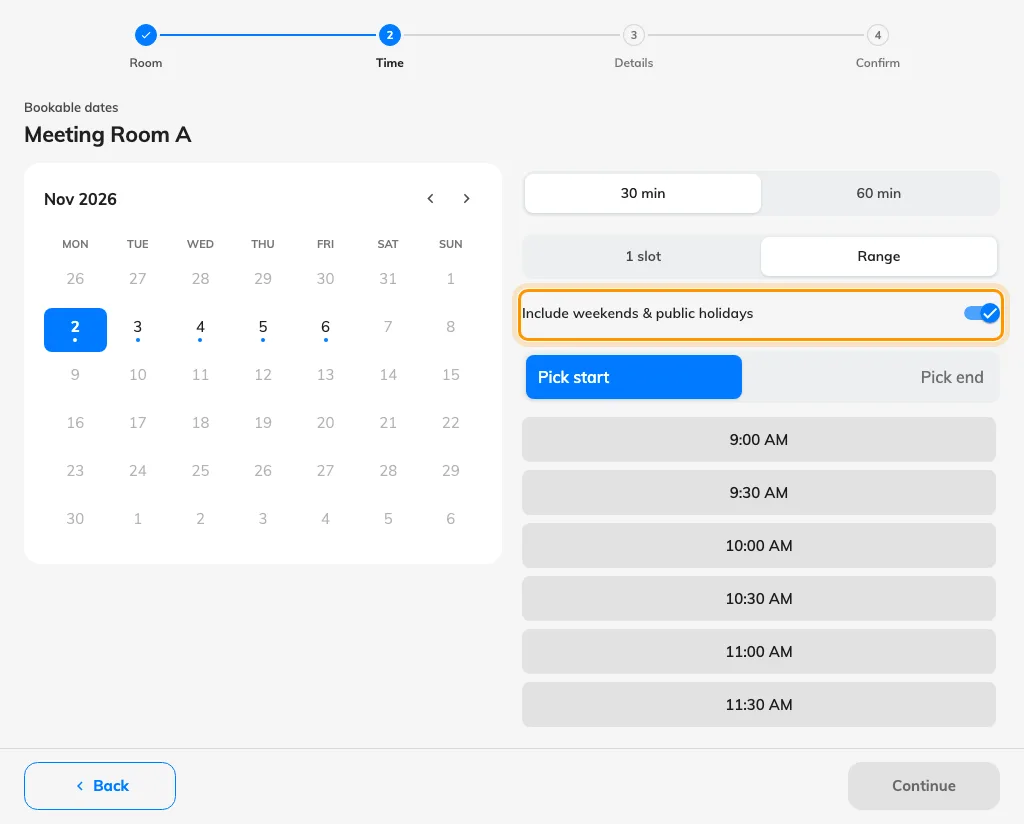
The guest range picker starts with Include weekends & public holidays on.
Including dates does not open closed days. A range may bridge closed weekends or page holidays without charging for them, but cannot start or end on them. The room remains held and checked for conflicts across the complete interval. Closed ordinary weekdays still follow the page’s spanning allowance, and room restrictions still apply. Single slots and separately selected slots keep their normal availability and prices.
The former Skip weekends & public holidays label described the reverse choice: skipping Always corresponds to inclusion Never. Older pages using Cross closed days keep their saved behavior until this setting is explicitly changed; an unrelated edit does not change it. Check the range, included dates and refreshed price after changing the setting. See available hours for the page holiday calendar.