

Help guests find the right room
Configure room facts, filters and the Classic floor-plan sheet. Add page-specific room documents and photos, translate their button names, order them and publish them with page Save.
Why use this feature
Guests need to choose a room that suits their visit, not merely an available room. Capacity helps them judge fit; photos and amenities explain the space; location and a floor plan help them find it. Useful filters shorten a long list. Show facts that change the choice, and keep the room’s underlying information accurate so staff do not need to correct expectations afterwards.
1. Open the page
Open the page’s Room tab, or Map for the closest-room flow. Select list or cards and decide which room facts to show: photo, capacity, size, location, floor plan, description, category, amenities and deposit. These switches show existing room information; they do not create photos, amenities or a floor plan.
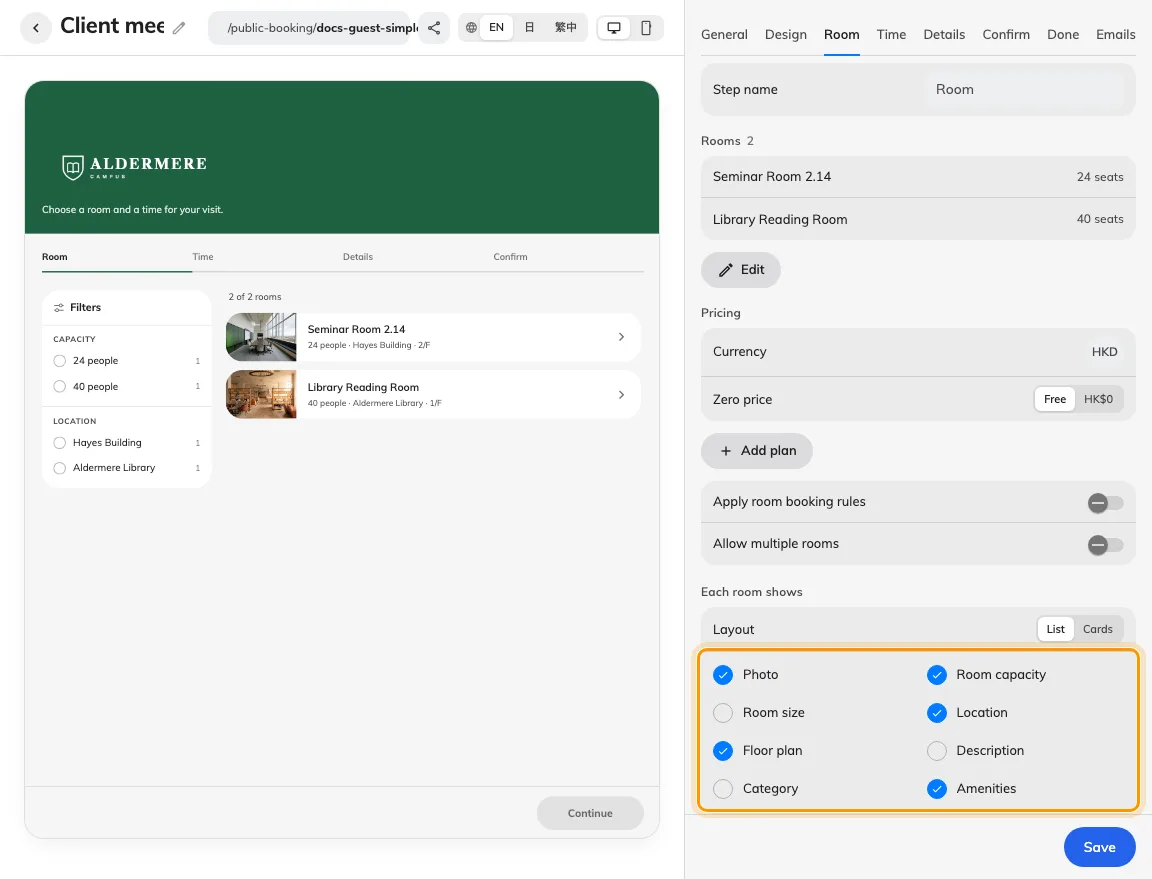
Room facts and filters are configured below membership.
In List layout, an enabled room description shows its full text and preserves authored line breaks. Use it for longer room information; card descriptions can be shortened.
2. Set the guest experience
Enable the useful guest filters under the filter group. A filter with only one possible answer is hidden, even when enabled: one building, one category or one identical price offers nothing to narrow. The floor-plan control needs room shapes on an available floor plan. Closest-room entry needs usable location information and the guest’s location when they grant access.
Capacity is shown as a minimum–maximum range when both values are configured; room size is a separate area value. The guest capacity filter groups rooms by their maximum capacity, not by the minimum or the guest’s entered head count. For example, a 30–40 room belongs to the group containing 40. Keep room capacity and size current in the room’s own settings; the guest page only chooses whether to display them.
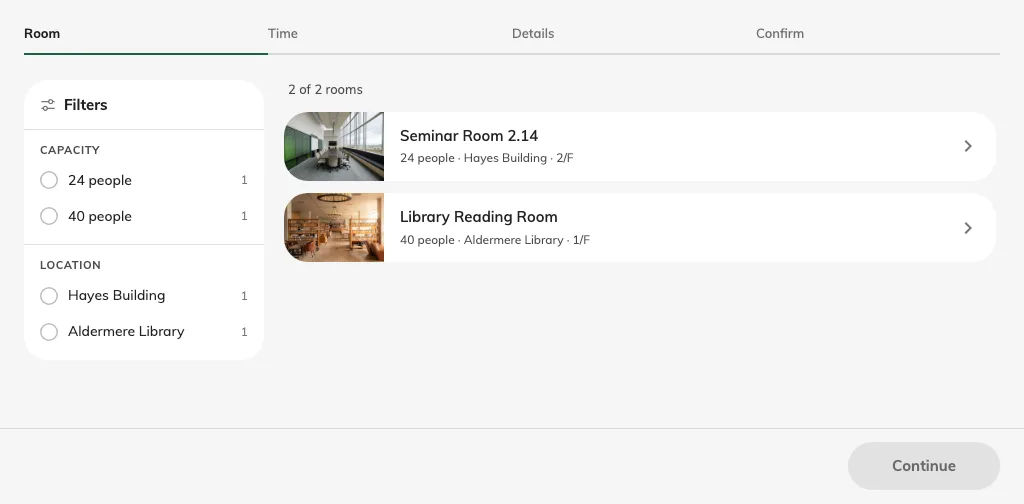
The guest filter panel shows meaningful choices.
3. Check the result
Save and check the real guest room list. Open filters and a room’s floor plan, then choose a room and proceed to time. In time-first flow, a busy room can appear with its unavailable state; in room-first flow, taken time slots are absent. Confirm that room facts explain the choice without revealing who holds another booking.
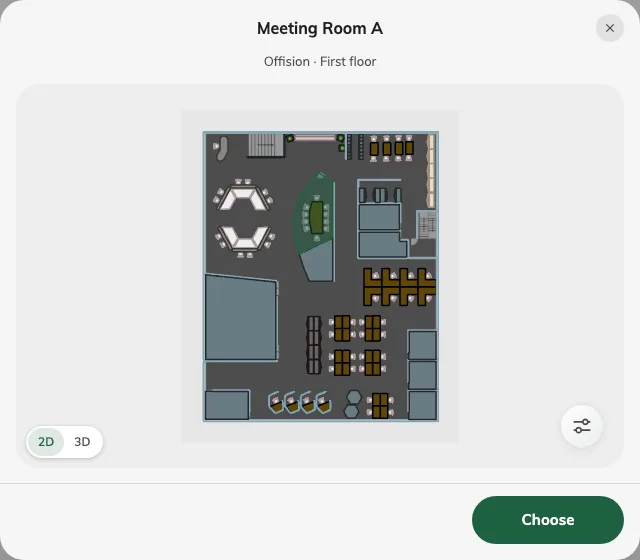
The floor plan locates the room being considered.
Floor-plan support
The guest booking floor-plan sheet currently displays Classic map. Creating or updating Map 2.0 alone does not supply this guest sheet. Keep the relevant Classic room shapes assigned and test the published guest link; see Classic resource assignment. A combined room without its own shape highlights the mapped member rooms. The sheet shows the selected room’s location in 2D or 3D; it is not the wayfinding directions screen. The nearby Map booking flow locates buildings geographically and is a separate feature.
Give guests room documents and photos
On Room, select the paperclip beside a selected room to open Public booking attachments. Upload a PDF, JPEG or PNG, enter a translated Button name for each page language, and drag files into reading order. An empty button name falls back to the original filename. File size and count caps are listed in system limits.
These attachments belong to this room on this booking page. Another page offering the same room has its own files. Preview the draft, then save the page to publish the changes; canceling the page edit leaves the published attachments unchanged.
Guests open the named buttons from the room list to read the document or photo in the booking form, or open it in a new tab without losing their selections. Viewing is optional. These reference files are separate from required terms and acknowledgements and from the payment proof guests upload. Check each file from the published guest link after saving.
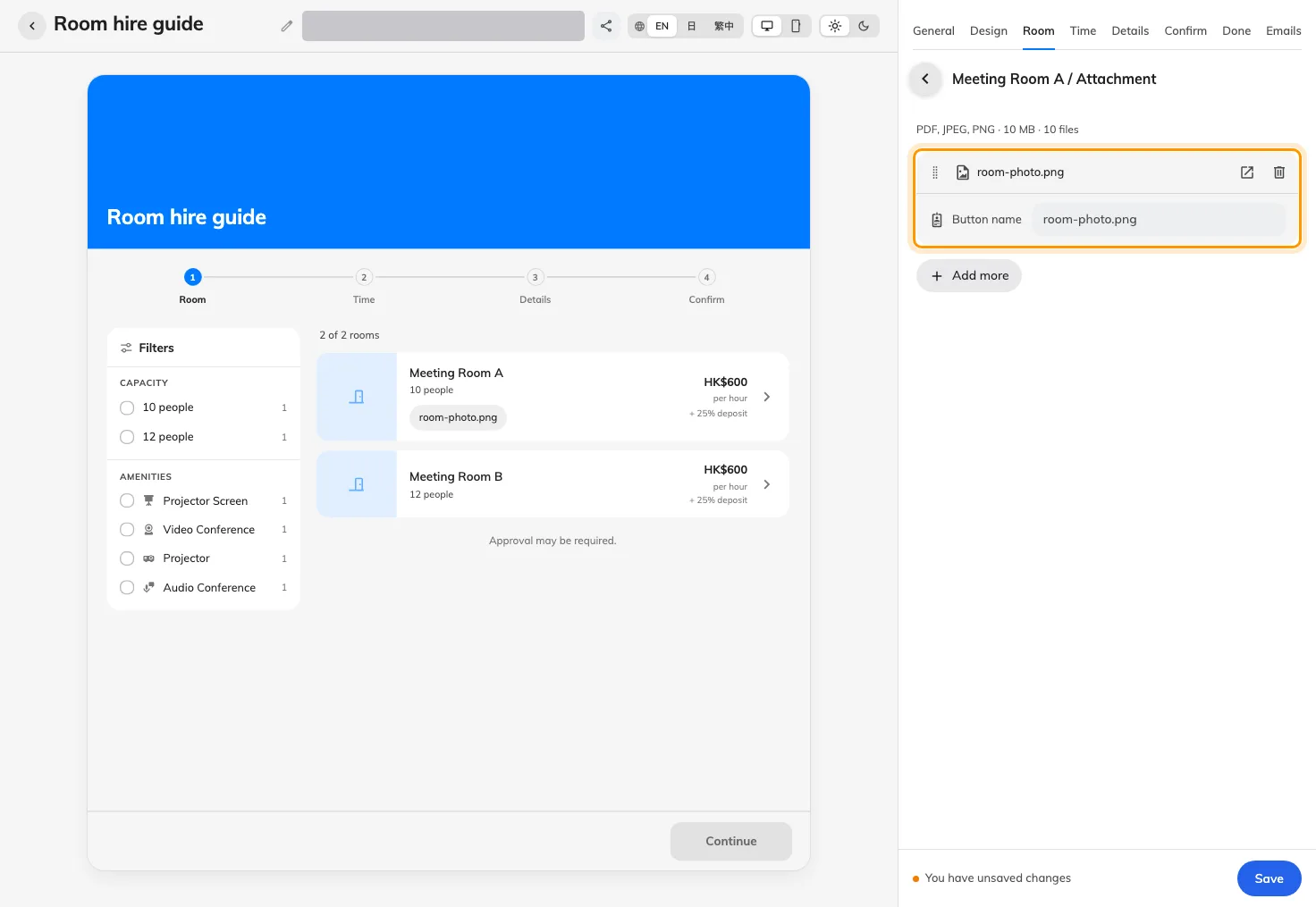
A room photo and its button name in the page draft; save the page to publish it.