

Style a page for your brand and languages
Open Design in the page editor. Choose Standard, Noir, Private, Venue or Campus for a coordinated style, or Customize for individual controls. The page logo is separate from the banner: when no page logo is uploaded, the company logo can be used. Removing an uploaded logo restores that fallback. Browser tabs use page branding; sharing images are configured separately.
Why use this feature
A recognisable page helps guests know whose service they are using. Readable colours and type, clear descriptions and the guest’s language reduce hesitation during booking. Use branding to support recognition and understanding; it should leave the room, time, price and final status easy to find. Translate the instructions as well as the page name so the journey stays consistent.
1. Open the page
Open Design in the page editor. Choose Standard, Noir, Private, Venue or Campus for a coordinated style, or Customize for individual controls. The page logo is separate from the banner: when no page logo is uploaded, the company logo can be used. Removing an uploaded logo restores that fallback.
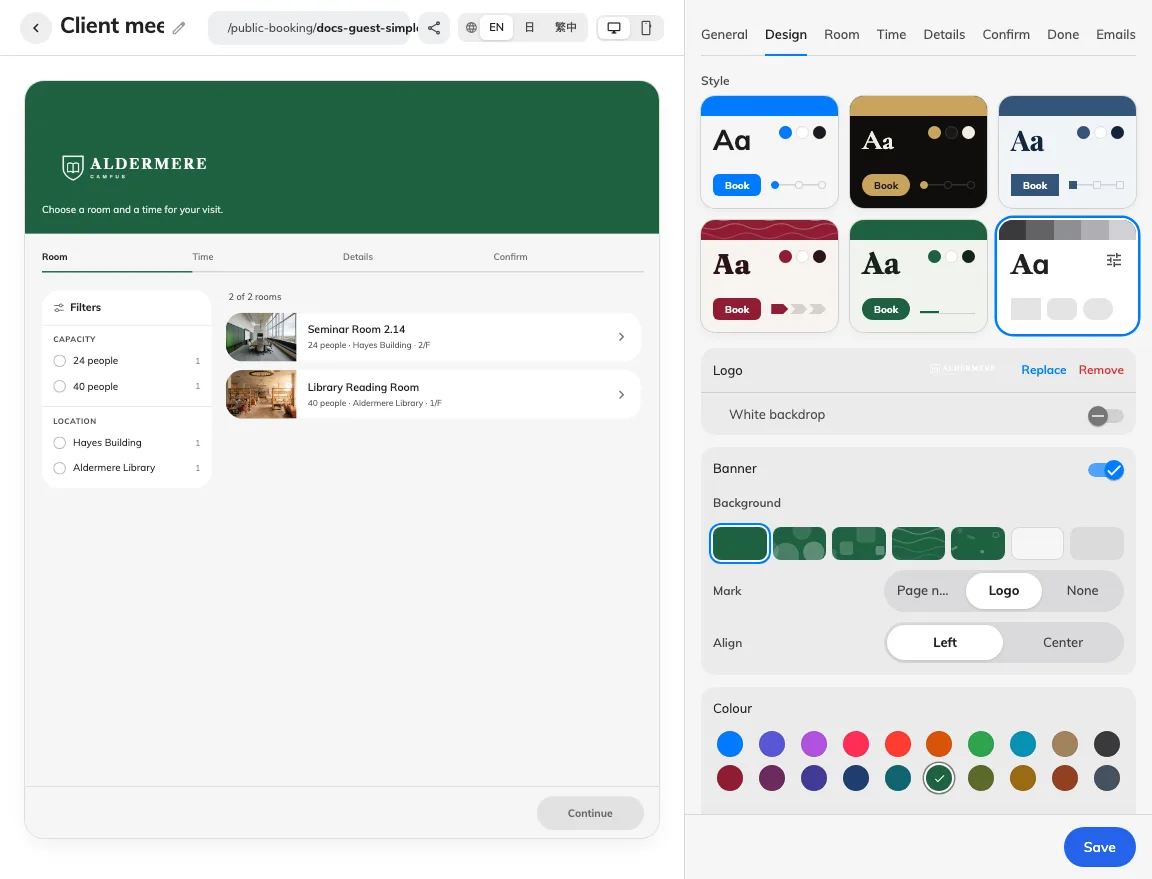
Styles coordinate the page’s appearance.
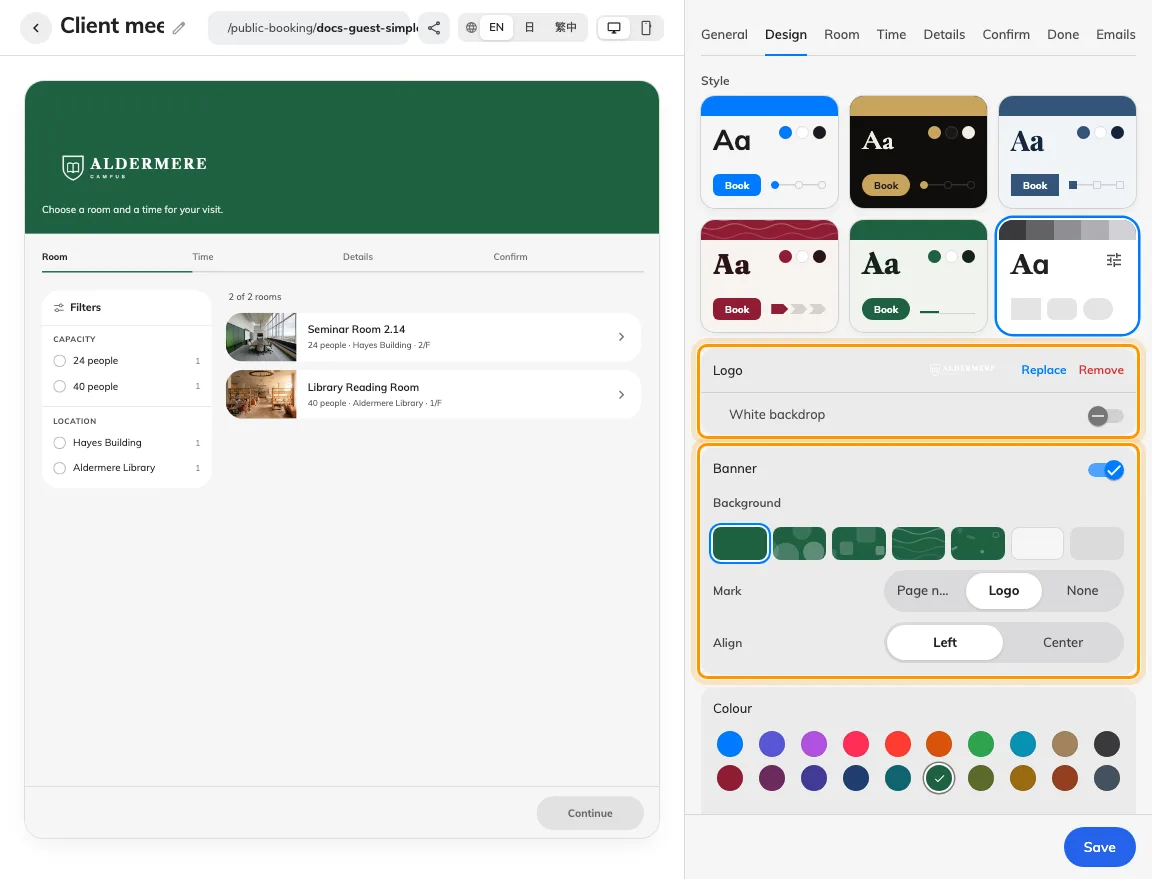
Logo and banner controls dress the guest page.
2. Set the guest experience
With custom styling, select the banner background, its mark and alignment, colours, light/dark schemes, font and its scope, corners and step-bar shape. A cover photo and a pattern are alternate backgrounds. On General, select enabled languages and the default; supply page names, descriptions and overridden wording in each selected language.
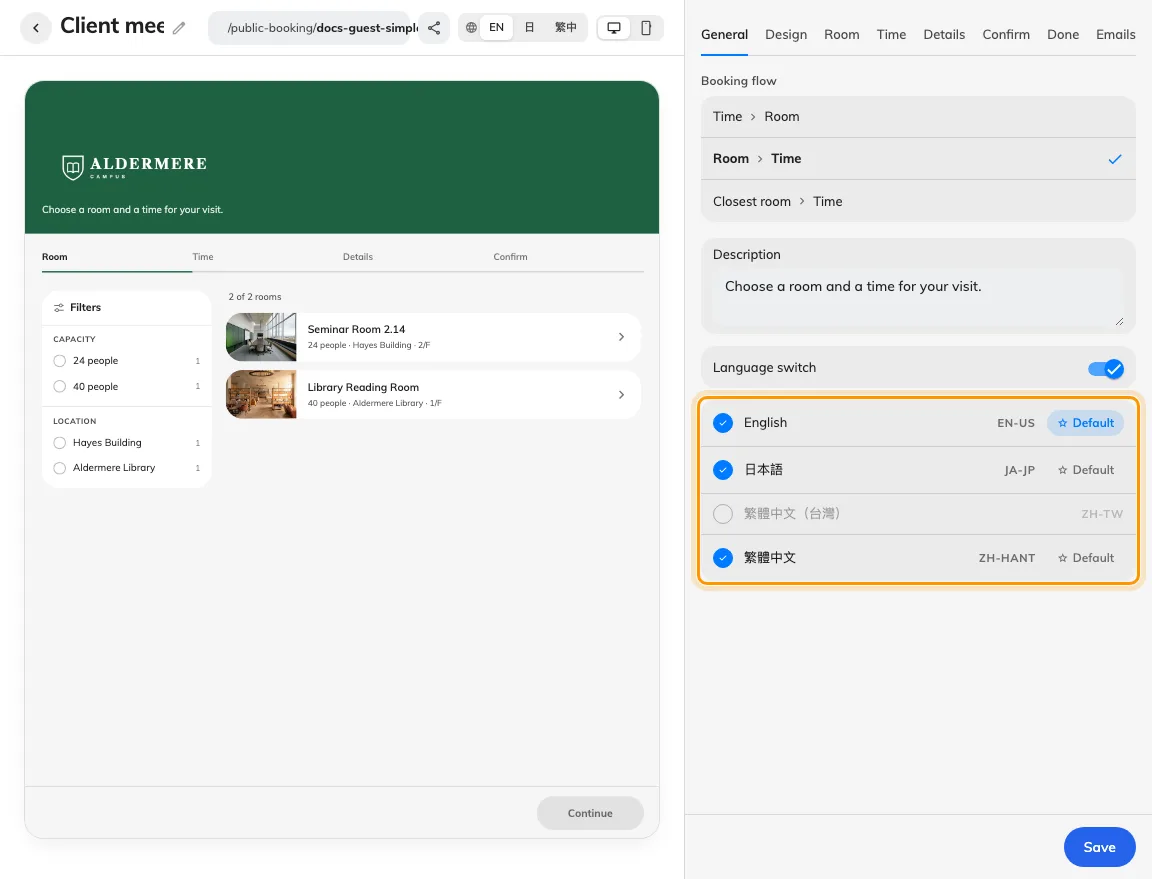
Choose enabled page languages and their default.
3. Check the result
Inspect a narrow phone preview and both colour schemes offered by the page. Save and open the anonymous guest link in every enabled language. Check for untranslated names, clipped wording, readable contrast and a recognisable logo. The Emails tab has its own email header and logo controls; changing the page cover does not by itself redesign every message.
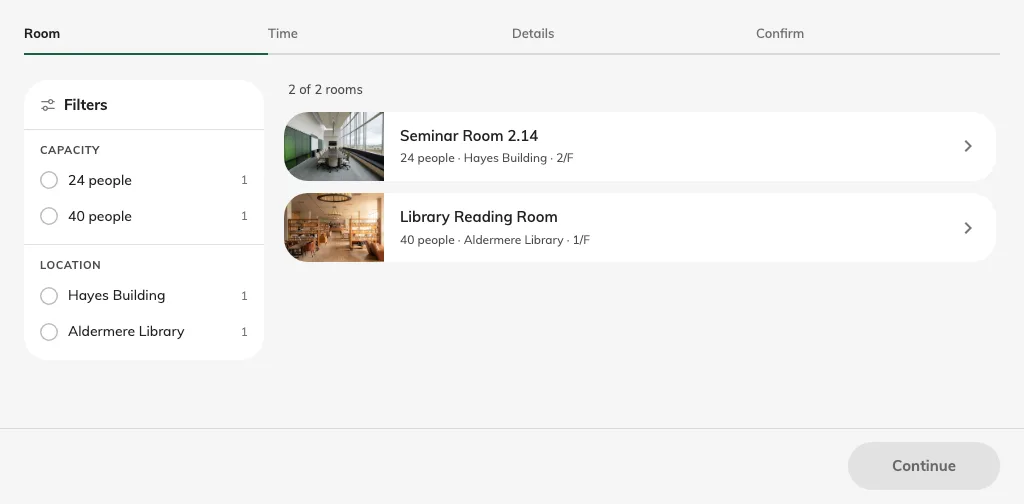
Check the saved page in the guest’s language.
Browser and link branding
The browser tab follows the page name in the selected language. Its icon uses the page logo, with the company logo as fallback, and the page theme colour. This is separate from the banner. In Share & embed, Sharing image controls the artwork on a shared link; it does not replace the page logo or cover. See sharing a page before distributing the link.