

Choose the details guests must provide
Open Details. The form combines contact rows and fields supplied by the page’s rooms’ booking forms. Choose Hidden, Optional, Required or Read only where offered. Drag rows into the order guests should complete them. A field required by its booking form cannot simply be hidden to bypass that requirement. Select which editable booking fields may vary per booking; contacts and read-only fields remain shared.
Why use this feature
The form turns a room-and-time choice into information staff can act on. Contact rows identify whom to reach; booking-form fields capture the preparation needed for that reservation. For example, a training host might need the purpose and attendance estimate, while a simple client appointment needs only a name and a reliable contact. Require an answer only when missing it prevents staff from arranging the visit.
1. Choose the information staff need
Open Details. The form combines contact rows and fields supplied by the page’s rooms’ booking forms. Choose Hidden, Optional, Required or Read only where offered. Drag rows into the order guests should complete them. A field required by its booking form cannot simply be hidden to bypass that requirement.
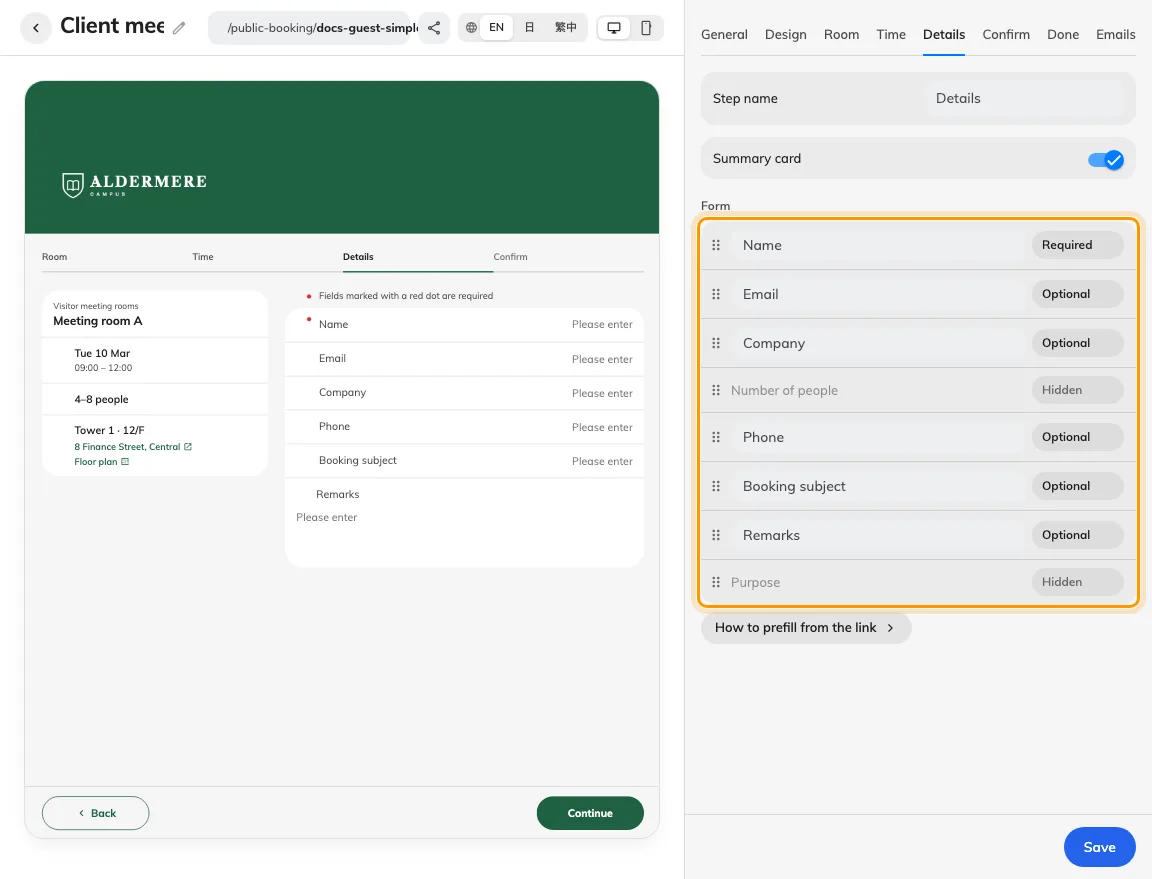
Each form row has its own visibility and requirement.
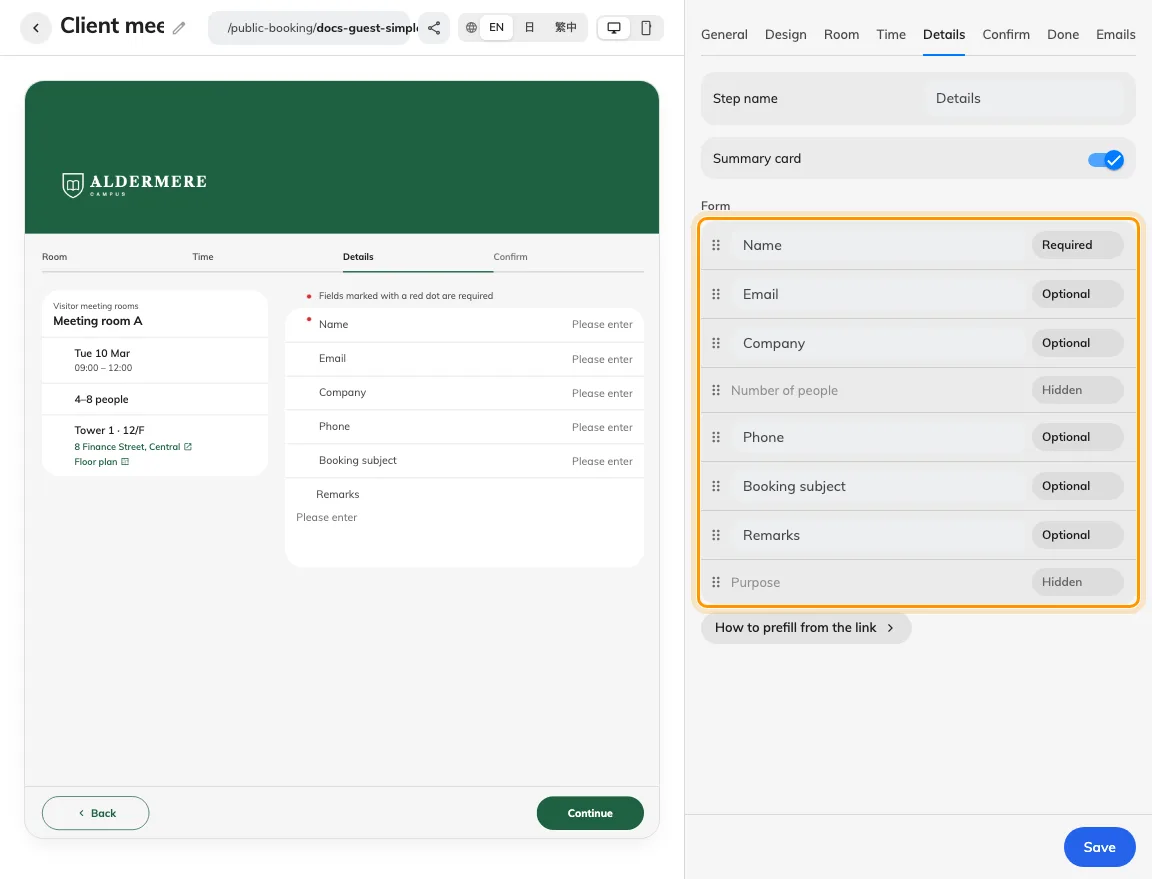
Contact and form rows share the ordered field list.
2. Set requirements and verification
Keep email visible if the guest needs confirmation or a cancel link. For Read only, supply a value through the page’s documented prefill key and test a link without it too. On Confirm, enable Verify email when address ownership must be checked. Captcha additionally needs configured keys in the module’s Settings.
Use hidden for information this service does not need, optional when the answer helps but should not block booking, and required when staff cannot proceed without it. Read-only is useful for host-supplied values, but test the missing-prefill case before relying on it. Arrange identification and contact rows before questions about the visit. Ask for one clear fact per field, explain unfamiliar requests in the form, and avoid collecting a detail merely because a field exists.
Email verification checks access to the entered mailbox before submission. It supports reliable email follow-up; it does not establish the guest’s identity beyond that mailbox. Captcha addresses automated submissions and has separate setup. Terms and acknowledgements ask for agreement on Confirm; they serve a different purpose from answers entered in Details.
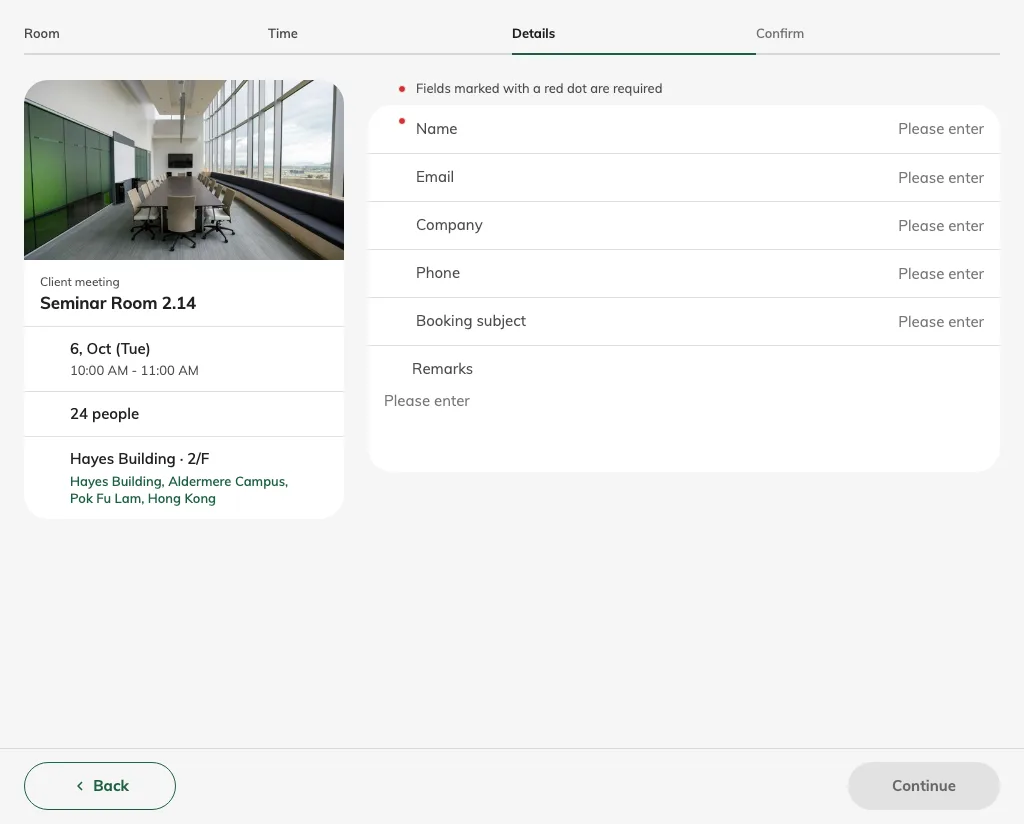
The guest supplies the required fields after picking time.
3. Test validation and the staff handover
Save and reach Details as a guest after choosing a room and time. Leave each required row blank and confirm validation; enter valid values and check the recap keeps them. Test sending and entering a code if enabled. No email means no confirmation message or cancellation link; a read-only email by itself is not verified identity.
Test the shortest valid form and one incomplete form. Change the selected room and check that applicable booking-form fields still match the service. Reopen a prefilled link and confirm which values can be edited. Staff should then open the resulting reservation and check that the answers they need for preparation are present and understandable; a completed guest screen alone does not establish that handover.
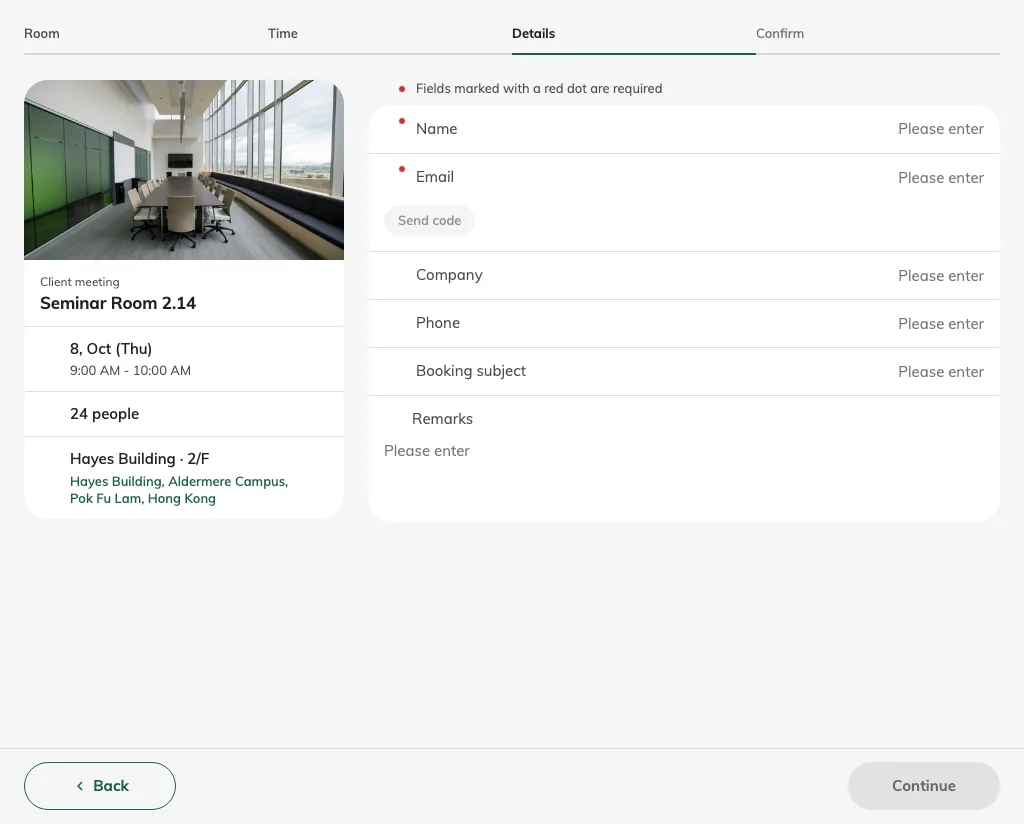
Verification checks the email before final submission.
Choose which answers vary per booking
On Details, enable Allow different details per booking, then select the fields guests may enter separately. Eligible visible, editable rows include booking subject, number of people, remarks, purpose and supported booking-form fields. Name, email, phone and company remain shared; hidden or read-only rows cannot be selected. With more than one booking, guests choose Same for all or Enter for each booking. Only selected fields repeat; unselected fields are entered once. Each booking still needs its required answers. Test two slots with different subjects and verify both resulting reservations.
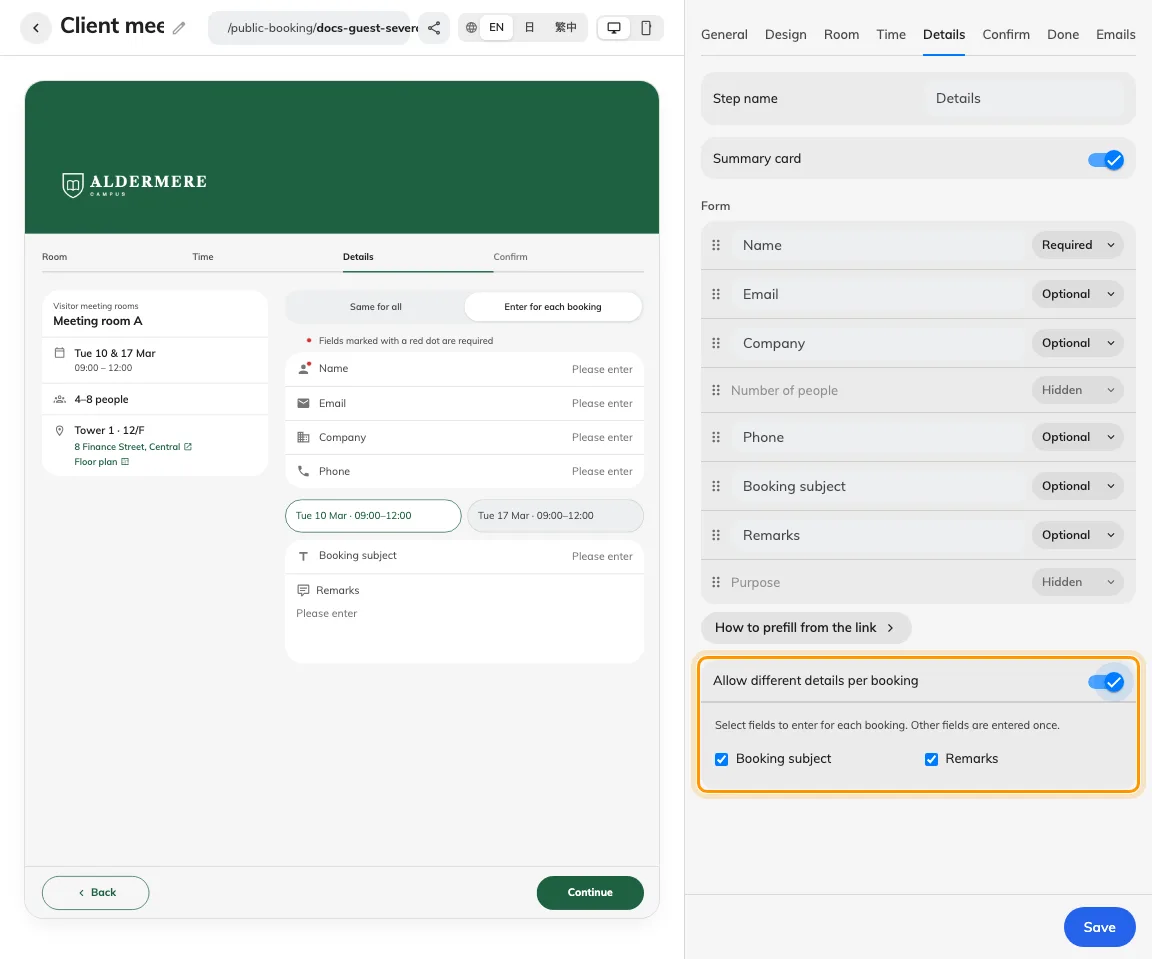
Choose whether booking details may vary; contact details remain shared.