

Turn the public event pages on or off
Two company-wide switches decide whether anybody outside your company can see an event at all — and they are peers, so a single event page can exist with no public list in front of it.
Everything an external participant ever sees lives behind two switches, and they belong to the whole company rather than to any one event. Until they are on, an event marked visible to external participants still has nowhere to be seen.
Each switch sits on the design page for the page it publishes: Public event list on Event list, Individual event page on Event page, both under Public page design.
The two switches are peers, not a pair
Public event list publishes one page listing every public event. Individual event page gives each of those events a page of its own.
Neither one contains the other, and that is the useful part: you can run individual event pages with no public list at all. That is the normal shape for an invite-only external event — the page exists, you hand its link and QR code to the people you want, and there is no directory of everything else you are running.
The reverse also works: a list with individual pages off gives you a browsable line-up whose rows all lead to This event page is not available, which is rarely what anyone wants.
What each one looks like when it is off
| Switch | Where it is | What a visitor gets when it is off |
|---|---|---|
| Individual event page | Event page | This event page is not available |
| Public event list | Event list | A blank page. No message, no explanation |
The blank page is worth knowing about before somebody reports it as a fault. It is not an error and it is not a broken link; the page simply renders nothing when the list is off, so anyone who kept an old link sees an empty window.
With both off, either design page says so over its preview: Nothing is published publicly. Turning the list off on its own says instead that individual event pages stay reachable by link.
1. Open Event list
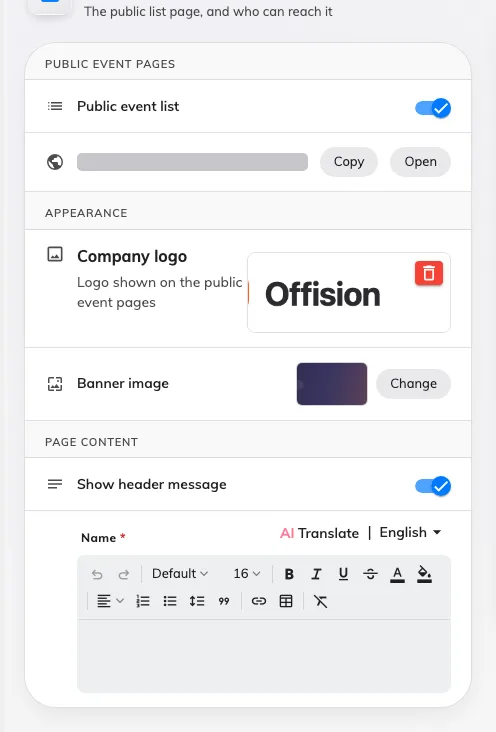
Public event list, with the public address beside it and the live preview alongside.
Public event list is the first row, under Public event pages, with the list’s own address beside it — copy it from there rather than assembling it by hand.
2. Open Event page for the other switch
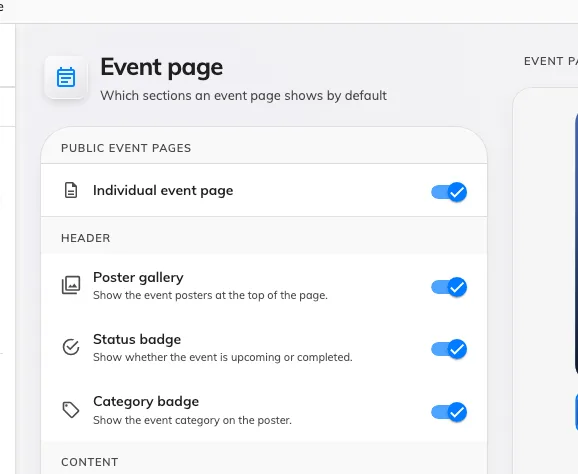
Individual event page, on the design page for the page it publishes.
3. Decide which shape you want
- A public programme — both on. Anybody can browse what is coming up and open any of it.
- Invite-only, by link — individual pages on, list off. Nothing is browsable; each event is reachable only by the link or QR code you hand out.
- Nothing public — both off. External participants can still be invited and still register, but there is no page for anyone to arrive at cold.
What this does not decide
- Whether a particular event appears there. Each event is shown to external participants or not, on the event itself. Both must be true.
- What the page shows. The sections it renders are set on the same four design pages, and can be overridden per event.
- Anything internal. Colleagues find events in the app, and neither switch touches that.
Check it worked
Open the public list address in a private browser window, signed in to nothing. What you can see there is exactly what the outside world can see.