

Design the pages guests see
Four console pages, one per public page, each drawing the real page beside the settings — how to work through them, and what the preview will and will not tell you.
A guest meets four pages, and each one has a console page of its own that draws it while you work: Event list, Event page, Registration, Confirmation, under Public page design. They are in the order a guest meets them, which is also the order worth setting them up in.
1. Open Public page design
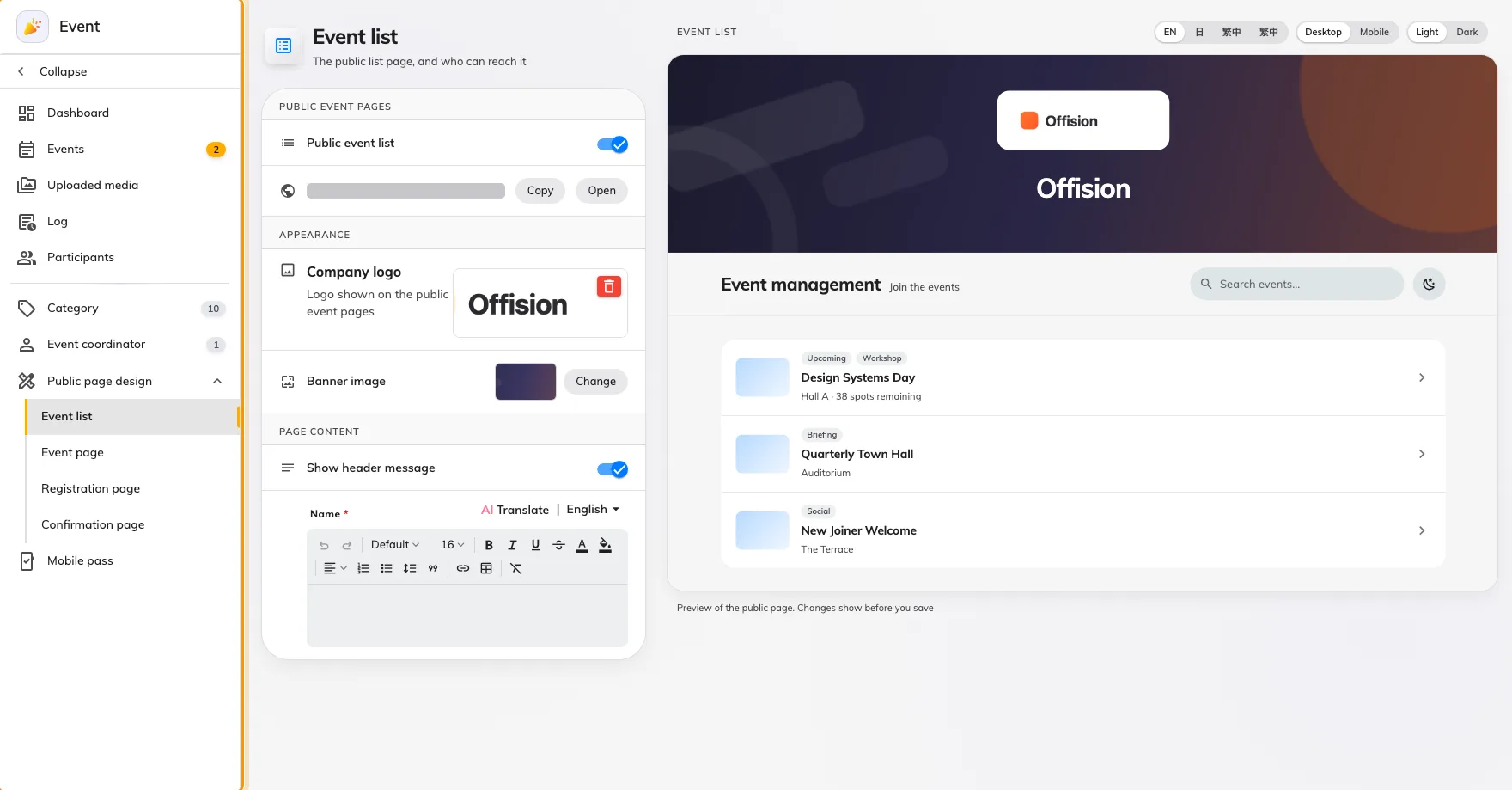
The four pages in the rail, in the order a guest meets them.
If you have an old link or bookmark to Event settings, it still works: it lands on Event list, the first of the four.
2. Work down the rail, not around it
Each page owns the settings for the page it draws, so there is nothing to hunt for and nothing to set twice:
| Page | What it holds |
|---|---|
| Event list | Whether the public list exists, its address, the logo and banner, and the line over the banner |
| Event page | Whether each event gets a page, and the fourteen sections that page can show |
| Registration | The card beside the sign-up form, and the terms an event falls back to |
| Confirmation | The wording somebody reads after registering, and the next steps under it |
Every field on all four is listed in the settings reference.
3. Read the preview, not the form
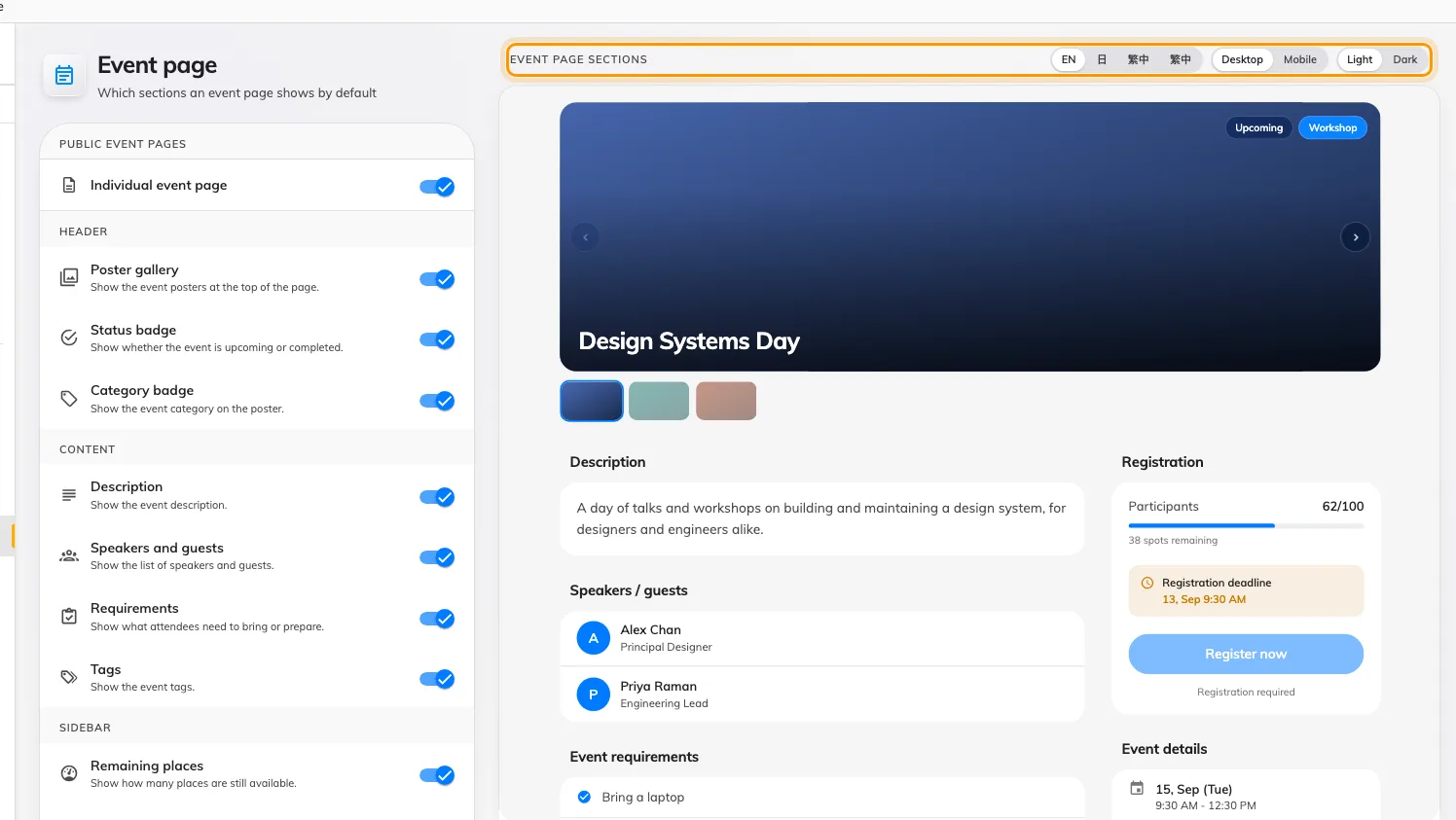
The real page, redrawn from the form. The toolbar switches what you are looking at.
The preview is the page itself — the same components the public site ships, not a mock-up — and it follows the form before anything is saved: Preview of the public page. Changes show before you save.
Its toolbar decides what you are checking, and each of those is a real reader:
- Desktop / Mobile — the phone rendering is not the desktop one made narrow. The mobile action bar, in particular, only exists there.
- Light / Dark — a guest’s phone decides this, not you. Check both.
- The language buttons, where your company has more than one enabled. The preview switches language on its own; it does not change the console’s.
4. Save
Each page saves the whole design, so there is no partial save and no order you have to save in. Save on any of the four and the other three are saved with it.
5. Check it worked
Open the public list address in a private browser window, signed in to nothing, and open one event from it. What you set here is what an event that has not overridden anything will look like — an event whose organiser has overridden a section will differ, deliberately.