

Set what the confirmation page says
The last thing an external guest reads is the page they land on after signing up — its wording and its next steps are yours, with a blank meaning "keep the built-in text".
Somebody who has just registered lands on the Registration completed page. It carries their registration code and QR, the buttons that add the pass to a phone, and whatever you tell them to do next.
It is the last thing many external guests will read before the day itself, which makes it worth more attention than it usually gets.
It is set on Confirmation, the last of the four pages under Public page design, with the finished page previewed beside the wording.
Open Confirmation pageConfirmation wording
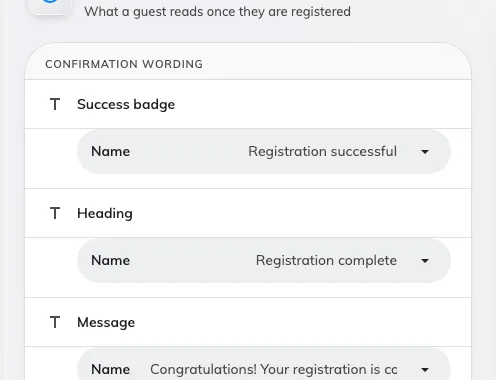
Three optional lines. Blank keeps the built-in wording.
Three lines are yours: the small badge at the top, the heading, and the sentence under it. The hint on the page states the rule — A field left blank uses the built-in wording — so you can change one and leave the others alone.
Write them for somebody who has never dealt with your company before. “Your registration is confirmed” is doing more work than “Thank you!”, because the question in the reader’s mind is whether it worked.
Next steps
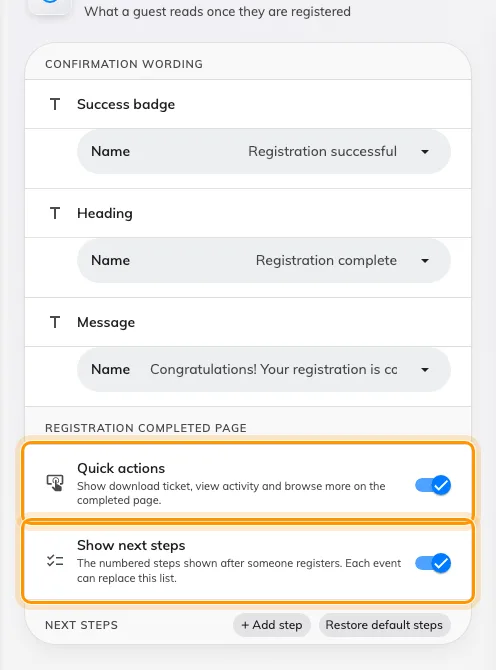
The completed page's own two switches, under Registration completed page.
Quick actions and Show next steps, under Registration completed page, decide whether the page carries the download-and-share links and the numbered list at all. Under them sits that list of what to do now. Offision ships three sensible ones, and the page says so when you have added none of your own: No steps added — the standard three steps will be shown.
Add your own where your events genuinely need something: where to park, which entrance to use, what to bring. Each step is a Step title and a Step description, and Restore default steps puts the shipped set back when an edit has gone wrong.
Where an event overrides this
An organiser can replace the wording and the steps for their own event. There is also a meaningful difference between an event that has not customised the steps and one that has deliberately removed them: the first inherits yours, the second shows none.
If a guest reports missing instructions on one event and not another, that is where to look — not here.
What this does not control
- The registration code or the pass buttons. Those are always there.
- The confirmation email. It is a separate message with separate wording.
- Anything internal. Colleagues signing up in the app never see this page.