

Export a participant list
Getting the list out for catering, reception or a badge printer — and which columns are empty for which half of your guests.
Export participants takes the list you are looking at and gives you a file of it. The filters apply first, so setting them before you export is how you get the file you actually wanted rather than the whole company’s.
It sits on the event’s own participant list, in the app. The console’s Participants page looks like the place for it and is not — that page browses every registration in the company and cannot export.
Open Event list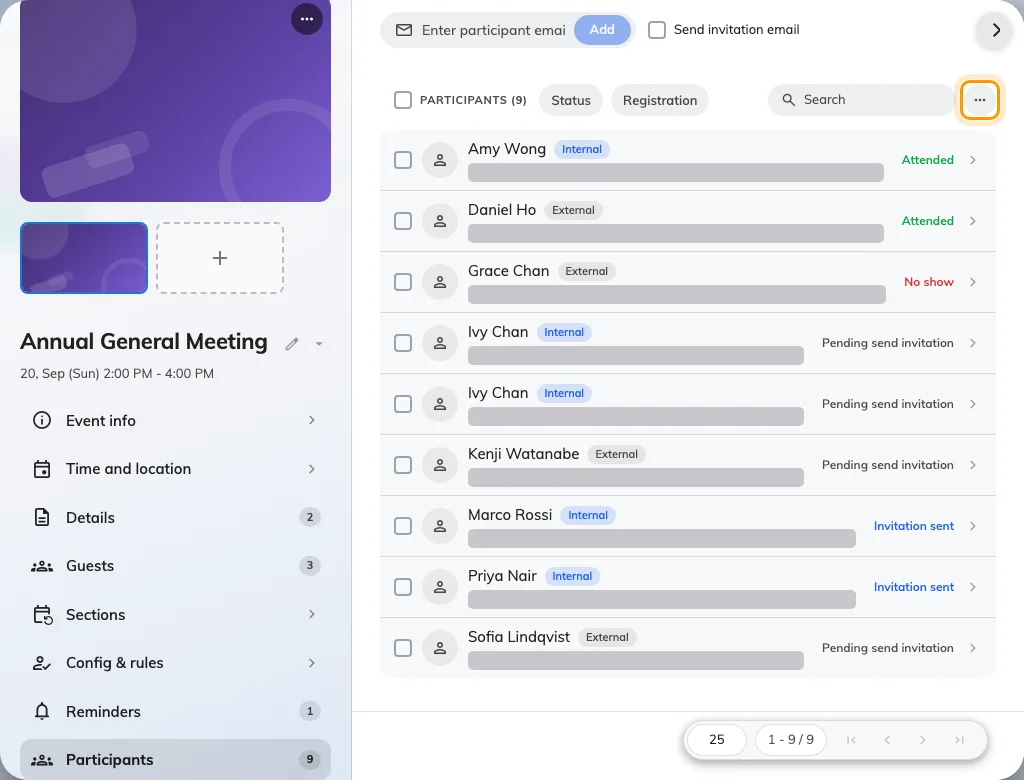
Export sits behind the ellipsis above the event's own participant list.
The menu behind it holds two things, and the second is the one you want.
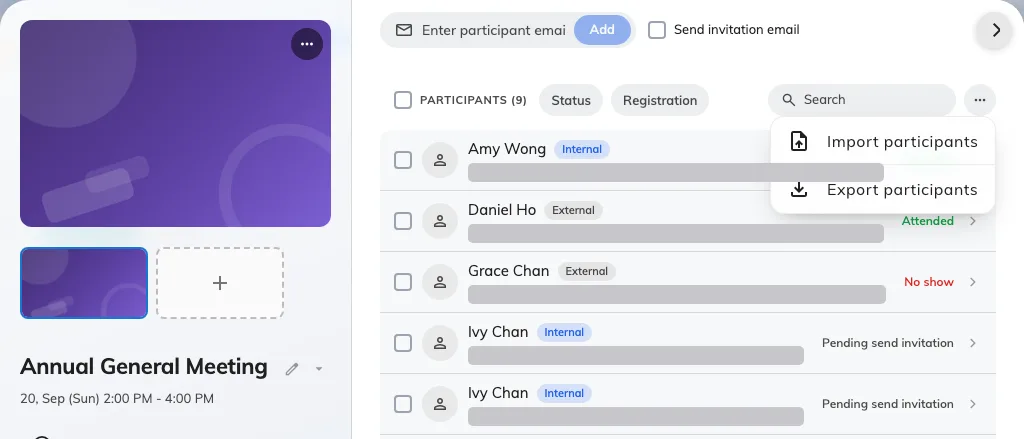
Import participants, and Export participants.
Filter first, then export
Two chips sit over the list. Status is the attendance one — pending, invitation sent, attended, no show, cancelled — and Registration splits the people who signed themselves up from the ones a coordinator invited. Narrow with either, and the file follows.
An attendance list is Status → Attended: the file then holds the people who actually turned up, with the time each of them was scanned in.
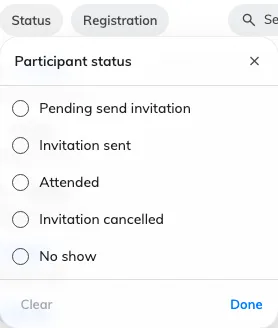
The five states the file can be narrowed to.
The one split this list does not offer is internal against external. Every row carries the pill, but there is no filter for it, so a guests-only file means exporting the event and cutting the colleagues out afterwards.
What is in the file
Names, addresses and status, plus Check-in time for anybody who was scanned in, and the fields an external registration collects: title, department, phone, dietary requirements, accessibility needs and emergency contact.
Check-in time without exporting
The console’s Participants page carries the same value under another name: Attend date, a column hidden by default. Turn it on from Sorting / Columns and the list answers registered-against-attended on screen, across every event at once — which is often all anybody wanted the file for.
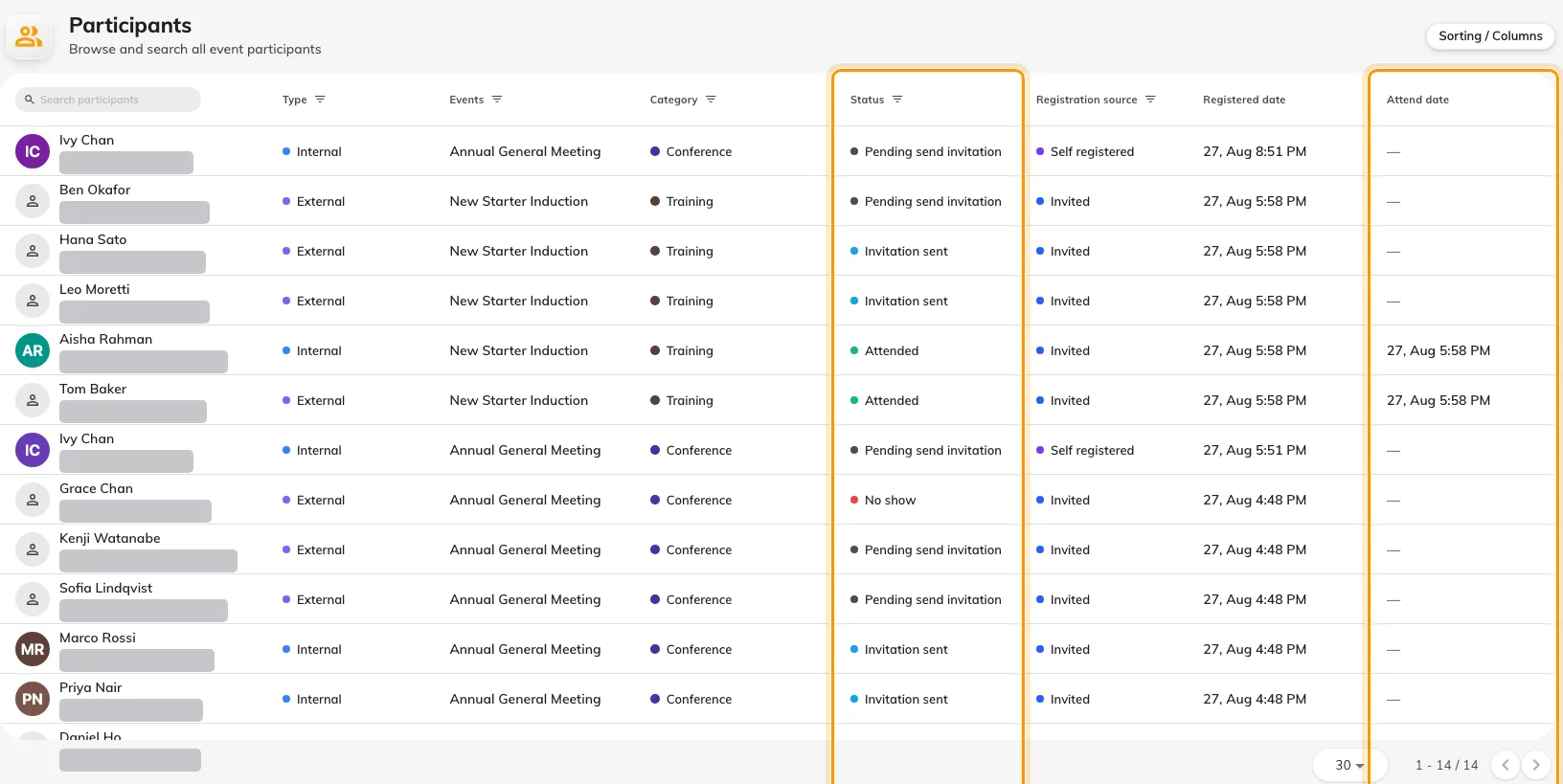
Attend date is the file's Check-in time under the console's name.
What the export does not include
- Anything about the event itself beyond naming it. It is a list of people.
- Whether their email arrived. Delivery is not recorded.
- Their wallet pass. The QR code is not exportable, and does not need to be — check-in reads the pass on their phone.
Check it worked
Open the file and read the Status column. If a name is missing, a chip was still set that you had forgotten about — which is usually the intent, but worth confirming before the list goes to a caterer.