

Public page design settings reference
Every field on the four Public page design pages — Event list, Event page, Registration and Confirmation — and what each one changes for somebody outside your company.
Everything on these four pages is about what people outside your company see. There is no internal-audience setting among them at all — every decision about colleagues is made on the event itself.
They sit under Public page design, one per public page, in the order a guest meets them. Each carries a live preview of the page it designs, and the preview follows the form before anything is saved: Preview of the public page. Changes show before you save. Every page saves the whole design, so there is no partial save to worry about and no order to do them in.
Open Event listEvent list
The public catalogue, and who can reach it.
Public event pages
| Field | What it does | When to change it |
|---|---|---|
| Public event list | Publishes one page listing every public event | Off when you run events for invited guests only and do not want a public directory |
| Public event page URL | The list’s address, ready to copy | Never edited. Copy it from here rather than assembling it by hand |
With the list off, the preview says individual event pages stay reachable by link. With that switch and Individual event page both off, it says Nothing is published publicly.
Appearance
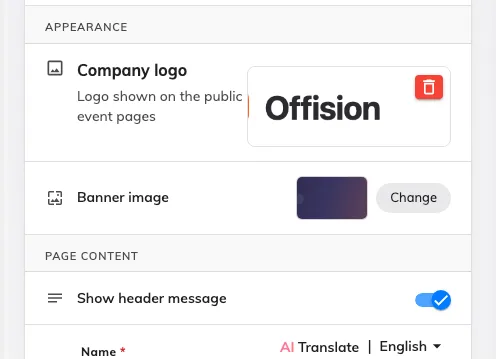
The list page's own branding — logo and banner.
| Field | What it does | When to change it |
|---|---|---|
| Company logo | The logo on the public event pages | Once, at setup, and again whenever branding changes |
| Banner image | The image across the top of the list page. 1920 × 400, PNG / JPG / WEBP, up to 10 MB | To give the list a header. Individual events usually cover it with their own poster |
Page content
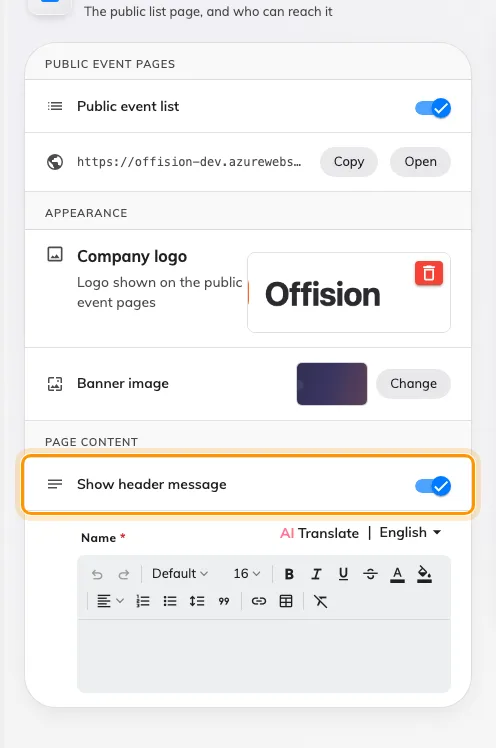
One switch: the line drawn over the banner.
Show header message — Message on the top of the banner. Turn it on and you can write the line that sits over the banner at the top of the list page; this is the only place the company gets words of its own on that page. Off unless you have something to say there — an empty banner reads better than a placeholder.
Event page
Which sections an event page shows by default.
| Field | What it does | When to change it |
|---|---|---|
| Individual event page | Gives each public event a page of its own | Off only when you want no public pages at all — with it off, every event link says the page is unavailable |
| Event page sections | Fourteen switches, grouped Header, Content and Sidebar | Each is a default rather than a rule, and an organiser can put any of them back |
The sections themselves are covered one by one in choose what the public event page shows.
Registration
The sign-up form’s sidebar and the terms behind it. The form’s own fields are not here: they are set per event, and the preview says so — Form fields are placeholders. The live form follows each event’s registration settings.
Registration information
| Field | What it does | When to change it |
|---|---|---|
| Registration information | Shows the card beside the form summarising what somebody is signing up to | Off where the form is short enough to speak for itself |
Default terms and conditions
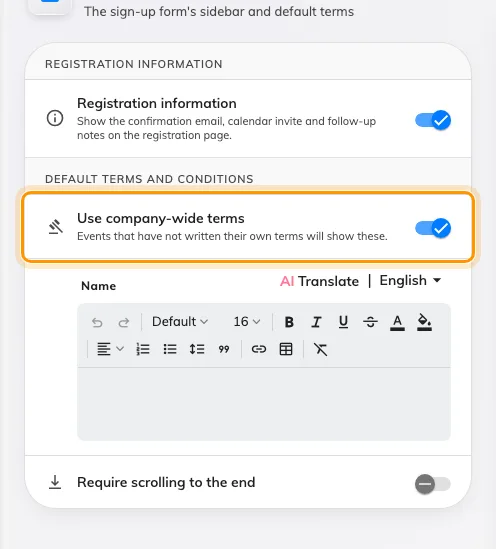
The company-wide terms an event falls back to.
| Field | What it does | When to change it |
|---|---|---|
| Use company-wide terms | Turns on the terms an event falls back to when it has written none of its own | Set once, so no event has to write its own legal text |
| Require scrolling to the end | Keeps the agree checkbox disabled until the terms have been scrolled through | Where somebody has to be able to say the terms were actually put in front of people |
Confirmation
What a guest reads once they are registered.
| Field | What it does | When to change it |
|---|---|---|
| Success badge, Heading, Message | The three lines on the completed page | A field left blank uses the built-in wording, so change one and leave the others |
| Quick actions | The download-ticket and share links under the code | Off where you would rather people used the email they were sent |
| Show next steps | Whether the numbered list appears at all | |
| Next steps | The list itself — Add step takes a Step title and a Step description; steps reorder and delete, and Restore default steps puts the shipped set back | With none added, the standard three are shown |
The wording and the steps are covered in set what the confirmation page says.
What these pages do not control
- Whether a given event is public. Each event is shown to external participants or not, on the event.
- The registration form. Which questions are asked is set per event.
- The wallet pass design. That is its own page.
- Anything internal. No setting here affects what a colleague sees.