

What someone outside your company sees
The four pages an external participant passes through, the console page that designs each one, and where the wording on any given line comes from.
Somebody outside your company never signs in and never sees Offision. What they see is a short chain of pages carrying your name and your branding, and this is the section that decides how those pages look.
The four pages
- The list — everything on offer, with a search box and category filters. Optional: an event can be reached directly without one existing.
- The event’s own page — the poster, the description, when and where, who is speaking, how many places are left.
- The registration form — what you ask them for.
- The confirmation — their registration code and QR, and the buttons that add the pass to a phone.
Every one of them has a design page of its own in the console, in the same order, under Public page design: Event list, Event page, Registration, Confirmation. Each shows the page it designs beside the settings, and redraws it as you change them — nothing has to be saved to be seen.
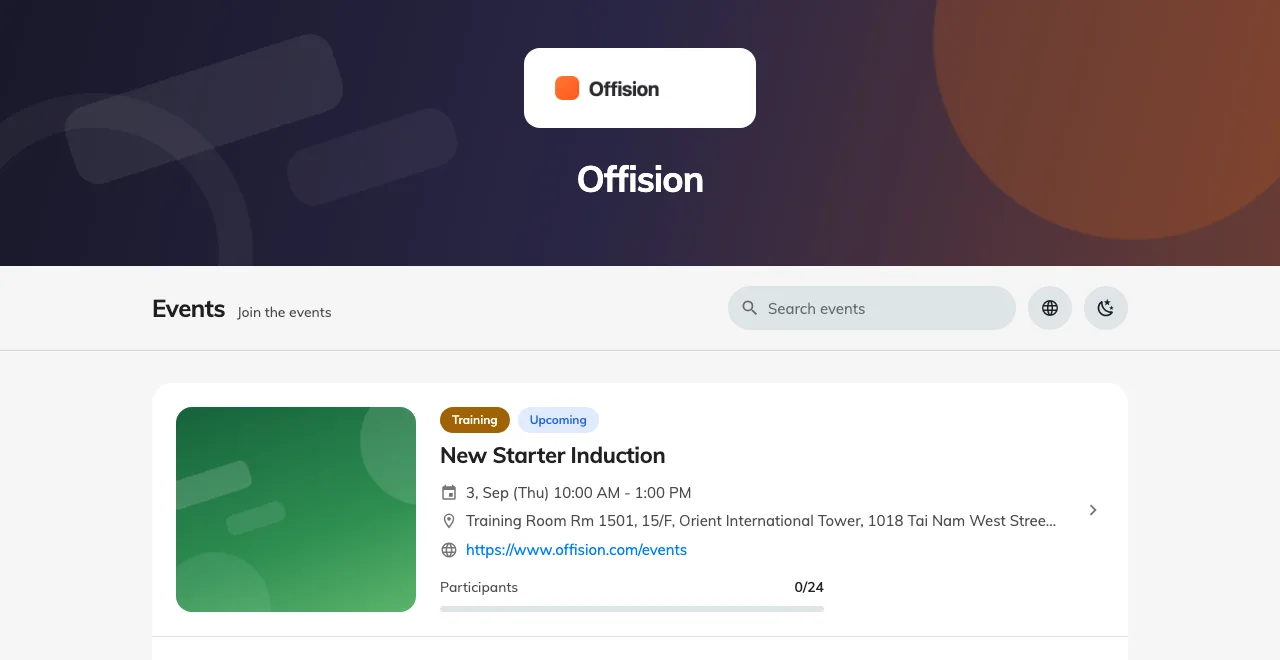
Page one: the catalogue, under your logo and banner.
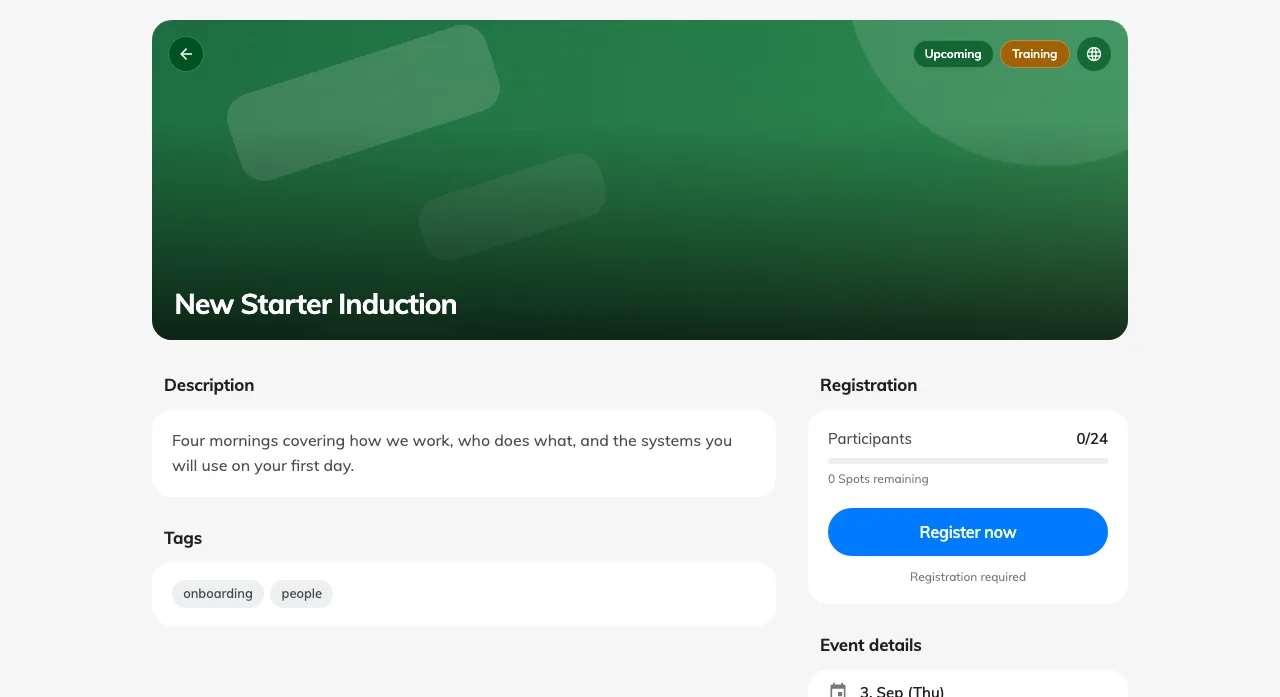
Page two: one event, with the button that starts a registration.
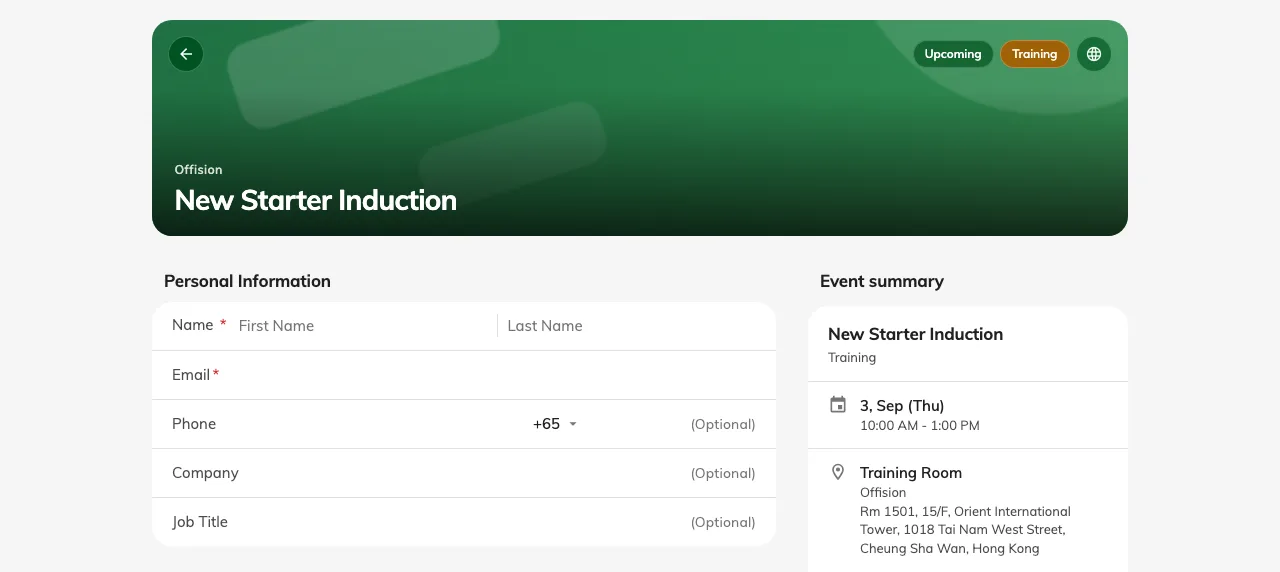
Page three: the form, beside a summary of what they are signing up to.
Where the wording comes from
Three layers decide any given line, and they resolve in one direction:
- The company default — set here, applying to every event.
- The event’s own override — set by whoever runs it, for that event only.
- Offision’s built-in text, where neither of the above says anything.
That is why two events can look quite different without anybody having touched this page: the organiser overrode it. And it is why changing something here can appear to do nothing on one event and everything on another.
What you can turn off
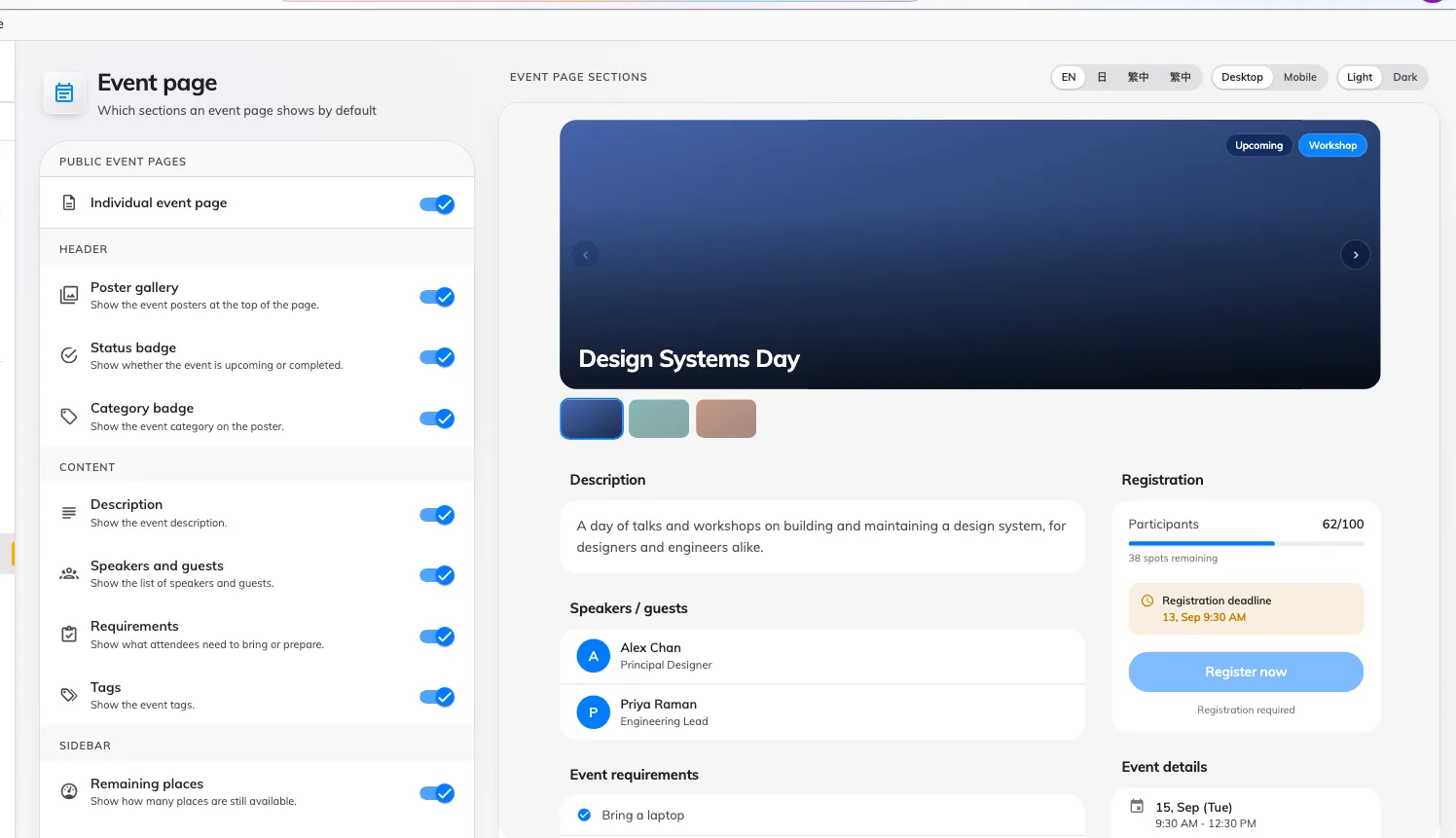
Event page: the sections on the left, the page they build on the right.
Most of what a guest reads on an event’s own page is a section you can hide. Event page sections groups them the way the page is laid out — Header, Content, Sidebar — and each section is a single switch: the poster gallery, the status and category badges, the description, speakers and guests, requirements, tags, remaining places, the registration deadline, the event details card, map links, contact information and the mobile action bar.
The other two pages carry one each: Registration information, the sidebar of the sign-up form, and Quick actions, the download-and-share links on the confirmation. They sit on their own design pages, with the page they belong to.
Turning one off hides it on every event that has not overridden it.
After they register
The confirmation page ends with Next steps — the short list telling somebody what to do now. Offision ships a sensible default set, you can rewrite them for the company, and an organiser can replace them again for one event. There is a Restore default steps button for when an edit goes wrong.
What this does not decide
- Whether these pages exist at all. Two switches control that, one on Event list and one on Event page — see turning the public event pages on or off.
- Whether a given event appears. Each event is shown to external participants or not, on the event.
- What they are asked for. The registration form’s fields are set per event.