

Tune your event's public page
Override what your company shows by default — in a dialog that draws your own page beside the switches — and design the wallet pass for this one event.
Your company sets what every public event page shows. Public pages, the first row on the event’s Public design page, lets you differ from that for this one event — How this event looks to the public.
It opens a dialog rather than another pane: the switches on the left, your own event drawn on the right. A dot on the row is lit whenever this event departs from the company design.
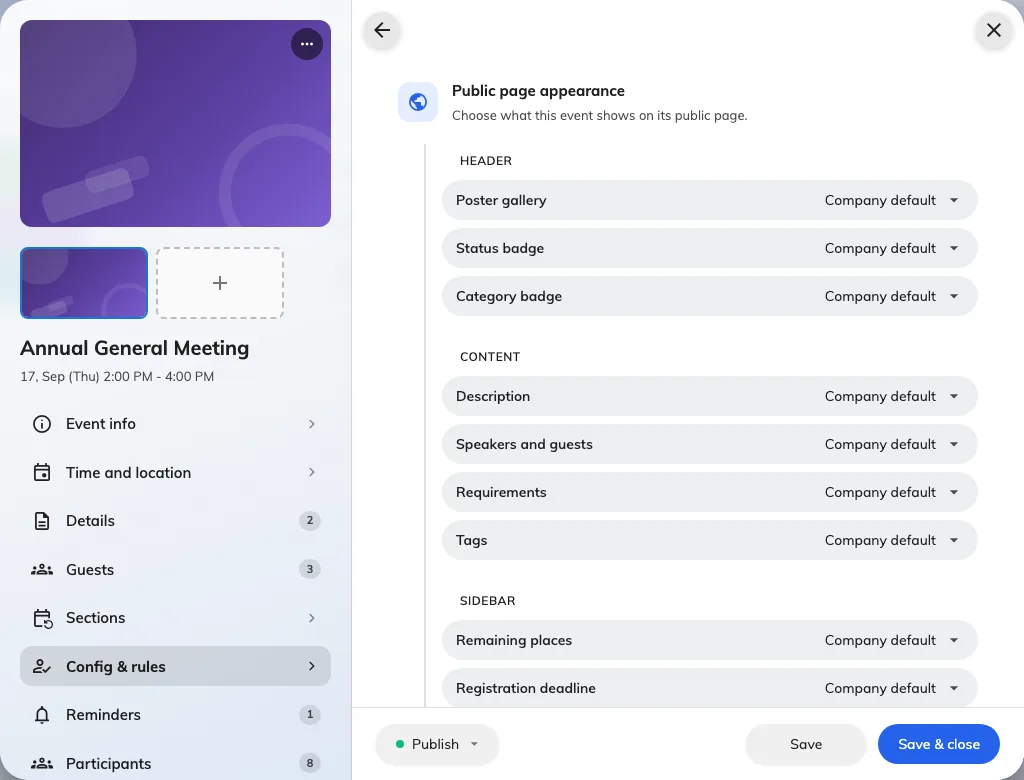
Public pages: the sections on the left, this event's own page on the right.
Three tabs, one per page
Event page, Registration and Confirmation are the pages a guest meets after the list, and each tab holds what that page shows. A tab carries a count of what this event has changed on it, so you can see at a glance whether you have overridden anything and where.
Show, hide, or follow the company
Each section is one of three: Always show, Hide, or Global default. The dialog says what the third one means — Anything left on Global default follows the design for all events — and each row on that setting spells out the outcome underneath it: Global default shows this, or Global default hides this. You never have to go and look up what you are inheriting.
Leaving a row on Global default is the right answer most of the time. An override is a promise to maintain a difference.
The one most worth overriding is Remaining places. A company that publishes it by default is doing the right thing for popular events and the wrong thing for yours if it is quiet; hide it on the quiet one rather than arguing for a policy change.
Terms, wording and next steps
The Registration tab carries this event’s terms and conditions — Leave blank to use the company terms. The Confirmation tab carries the wording somebody reads after registering, on the same rule: Leave a field blank to use the company wording for this event.
Next steps is the short list under that wording. There is a real difference between not customising it — you inherit the company’s — and deliberately emptying it, which the dialog states plainly: No steps added — this event will show none at all. If your guests report missing instructions on one event and not another, that is where to look.
Nothing is saved until the event is
The dialog edits the event you already have open, so Done closes it and leaves your changes on the form. They go out with the event’s next Save, along with everything else you have changed — and they are discarded with it if you close the editor without saving.
Wallet pass
Wallet pass, the other row on Public design, overrides the pass design for this event only: background, text and label colour. Blank follows the company design, so an override is per colour rather than all-or-nothing.
Two of the three are Apple-only, so check both previews before deciding something is broken. And Issue pass can be turned off entirely for an event — but doing so also stops its confirmation emails, because the email is sent with the pass.
Check it worked
Open your event’s public link in a private window. Nothing else tells you what a guest actually sees.